Issue
- Reasons Agent deployment can fail
- Determine what caused the ESET Management Agent deployment to fail
- Push installations hang at "In Progress"
- Cannot deploy the ESET Management Agent to a Mac computer
- Enable Secure Shell connection on macOS client computer using the System Settings
- Enable Secure Shell connection on macOS client computer using the Terminal application
Solution
Reasons ESET Management Agent deployment can fail
For more information on Agent deployment failure, refer to:
- Requirements for remote deployment of ESET Management Agent to Windows targets
- ESET Management Agent deployment troubleshooting
Determine what caused the ESET Management Agent Deployment to fail
To determine why Agent deployment failed:
-
Open the ESET PROTECT Web Console and log in.
-
Click Reports.
-
Click Automation.
-
Click the gear icon over Agent Deployment tasks information in the last 30 days, and select Generate now from the Actions menu.
-
Deployment information is displayed in a table. The Progress column displays error messages about why the agent deployment failed.
For more information, change the verbosity of the trace log:
-
Open the ESET PROTECT Web Console and log in.
-
Click More.
-
Click Settings.
-
Expand the Advanced Settings section and scroll down to Logging.
-
In the Trace log verbosity drop-down menu, select Error and click Save.
-
Run Agent deployment task.
-
When the Agent deployment task fails, check the bottom of the ESET PROTECT Server trace log file for the latest log entries.
View log files in the following file locations:
Windows logs
- Server:
C:\ProgramData\ESET\RemoteAdministrator\Server\EraServerApplicationData\Logs\trace.log - Agent:
C:\ProgramData\ESET\RemoteAdministrator\Agent\EraAgentApplicationData\Logs - Agent:
C:\Documents and Settings\All Users\Application Data\ESET\RemoteAdministrator\Agent\EraAgentApplicationData\Logs
Linux logs
- Agent:
/var/log/eset/RemoteAdministrator/EraAgentInstaller.log - Agent:
/var/log/eset/RemoteAdministrator/Agent/trace.log - Server:
/var/log/eset/RemoteAdministrator/Server/trace.log
To enable full logging, create a dummy file named traceAll without file extension in the same folder as a trace.log and restart the ESET PROTECT Server service.
DNS issues troubleshooting
If a computer disappears from the Web Console or hangs at "In Progress" during Agent deployment, one of the following DNS troubleshooting processes could resolve the issue:
- Use the nslookup command to resolve the IP address and hostname of the server and/or the clients experiencing push install issues. The results should match the information from the machine. For instance, an nslookup of a hostname should resolve to the IP address that an ipconfig command shows on the host in question. The nslookup command will need to be run on the clients and the server.
- Manually examine DNS records for duplicates.
Cannot deploy the ESET Management Agent on macOS
Enable Secure Shell connection on macOS client computer using the System Settings
-
In the system tray, click the Apple menu → System Settings.
-
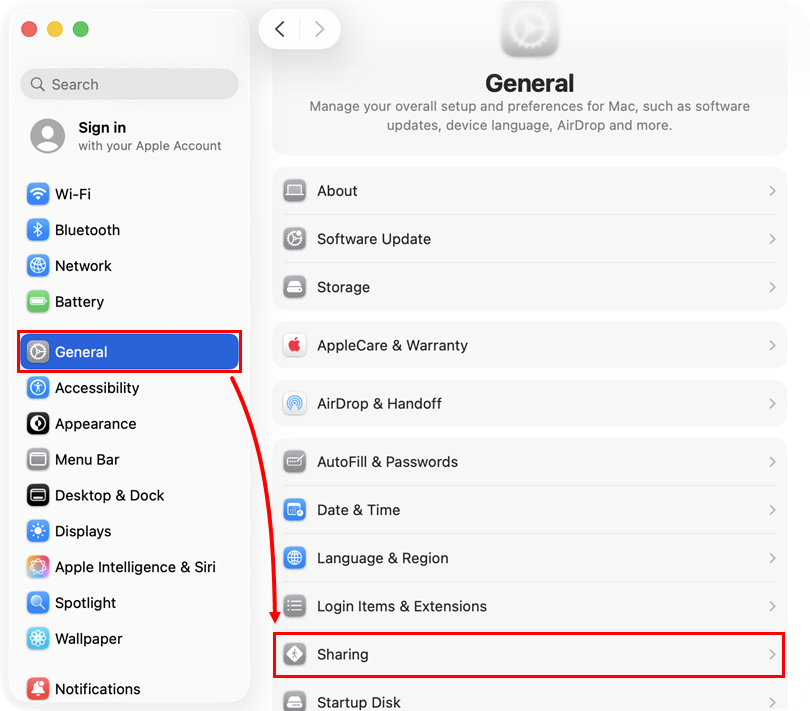
In the System Settings window sidebar, click General and click Sharing.
-
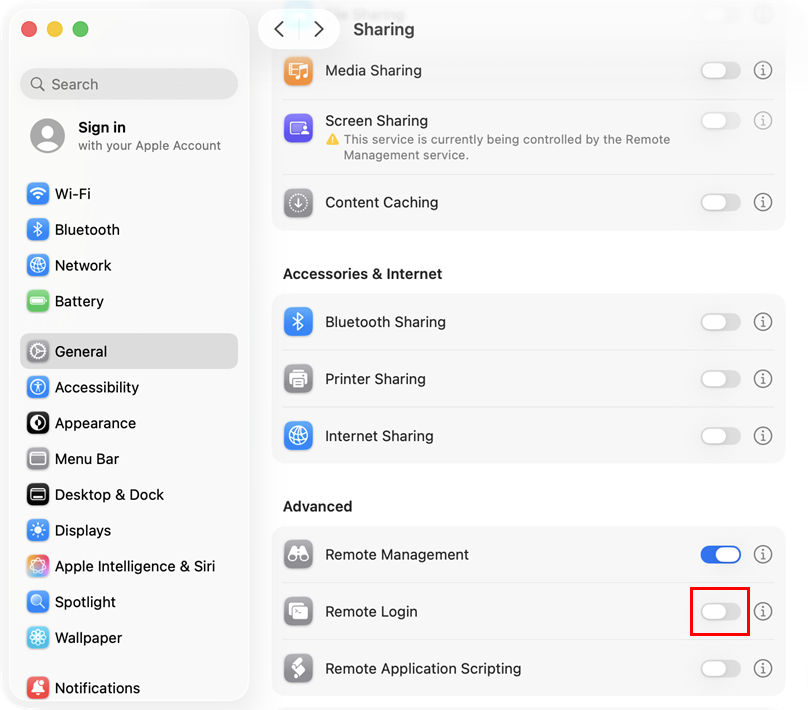
Scroll down to the Advanced section, click to enable the toggle next to Remote Login and to enable Secure Shell.
-
Close the System Settings window and attempt to Deploy the ESET Management Agent again.
Enable Secure Shell connection on macOS client computer using the Terminal application
-
In Finder, navigate to Applications → Utilities, and open Terminal.app.
- Type the following command as the root user into the Terminal application:
sudo systemsetup -setremotelogin on - Press Return to run the command.


