Issue
- Resolve the "Operating system is not up to date" notification
- Disable Windows Update notifications
- Disable Windows Security Center alerts
- Disable Windows Firewall notifications
- Manually update Windows drivers
Solution
Related solutions: macOS users | Endpoint users
Disable Windows Update notifications
-
Open the policy assigned to the devices for which you want to disable Windows Update notifications.
-
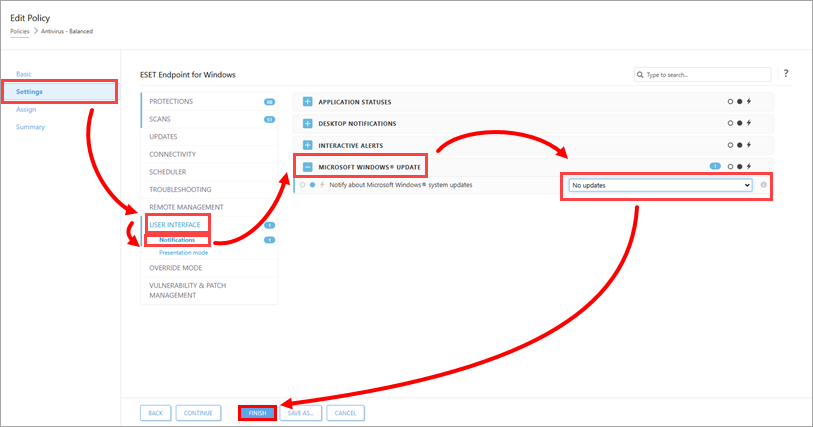
Click Settings → User Interface → Notifications, expand Microsoft Windows Update and select No updates from the Notify about Microsoft Windows system updates drop-down menu. Click Finish.
Disable Windows Security Center Alerts
-
Open the policy assigned to the devices for which you want to disable Windows Security Center Alerts.
-
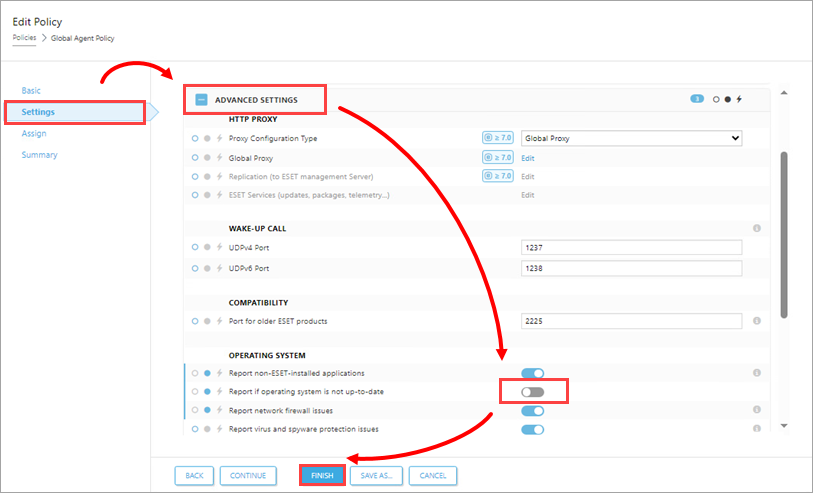
Click Settings, expand Advanced Settings, and in the Operating System section, disable the toggle next to Report if operating system is not up-to-date. Click Finish.
Disable Windows Firewall notifications
-
Open the policy assigned to the devices for which you want to disable Windows Firewall notifications.
-
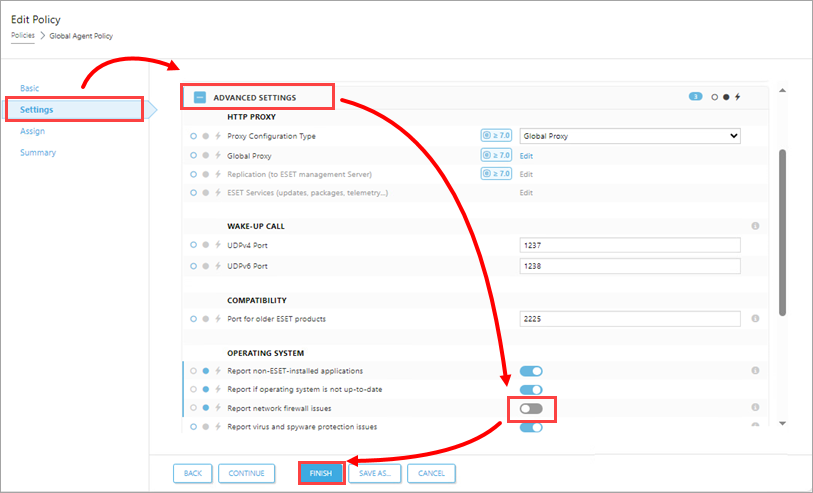
Click Settings, expand Advanced Settings, and in the Operating System section, disable the toggle next to Report network firewall issues. Click Finish.
Manually update Windows drivers
Windows Update may occasionally fail to install certain device or driver updates during a standard operating system update. As a result, your ESET application may continue to display notifications about the available updates. To stop the notifications, manually update these devices and drivers.
-
Press the Windows key + Q, type Device manager into the Search field and click Device manager.
-
Click View → Show hidden devices.
-
Right-click the driver or device that requires a manual update and select Update driver from the context menu.
-
Click Search automatically for updated driver software. If an update is available, it will be installed automatically. In some cases, a system restart may be required to allow the newer driver to load.


