Issue
- Create a policy in ESET PROTECT or ESET PROTECT On-Prem
- Edit a policy in ESET PROTECT or ESET PROTECT On-Prem
- Assign a policy to target devices in ESET PROTECT or ESET PROTECT On-Prem
- View policies assigned to a group of devices in ESET PROTECT or ESET PROTECT On-Prem
Details
Click to expand
Policies serve to push configuration settings to ESET application modules on managed devices, eliminating manual per-device configuration. For more information, see Policies.
Solution
Create a policy in ESET PROTECT or ESET PROTECT On-Prem
-
Open the policy creation page.
ESET PROTECT
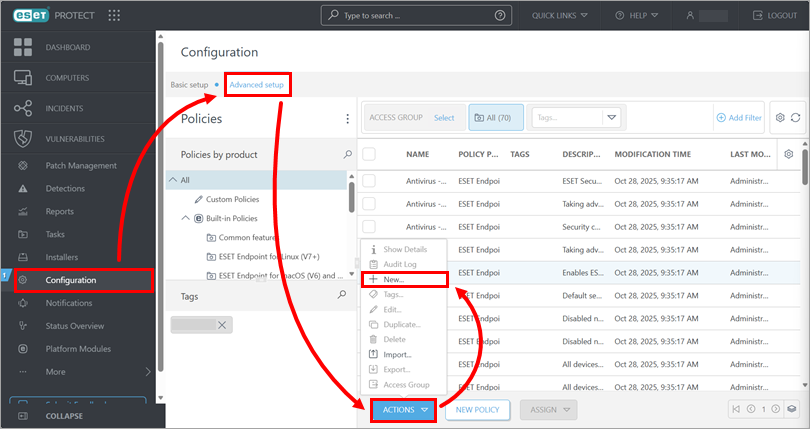
Click Configuration → Advanced setup → Actions → New.
ESET PROTECT On-Prem
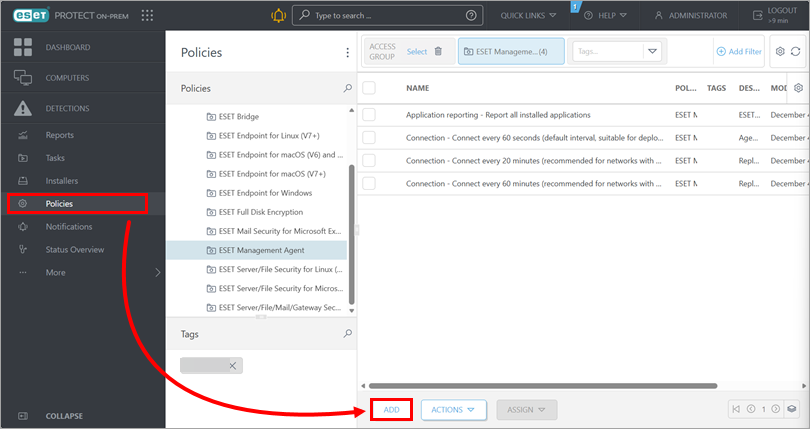
Click Policies → Add.
-
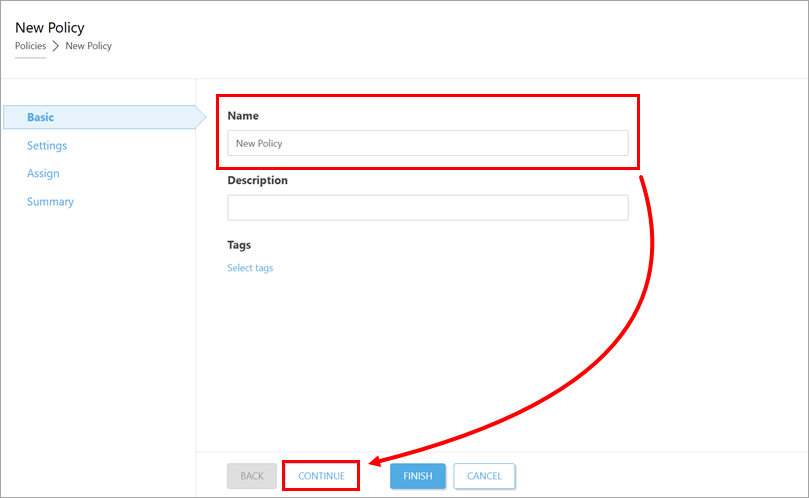
In the Name field, type a name for the policy and click Continue.
-
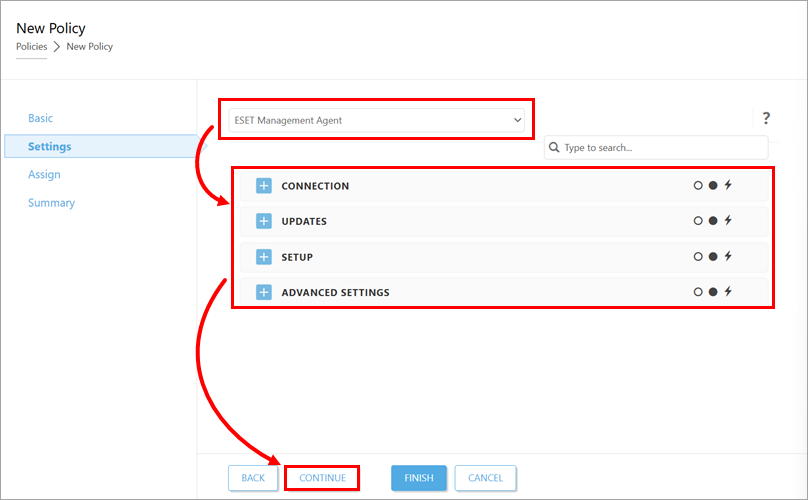
Under Settings, in the drop-down menu at the top of the page, select the ESET application to which the policy should apply and configure the policy settings as needed. The settings may differ based on the selected ESET application. When configured, click Continue.
-
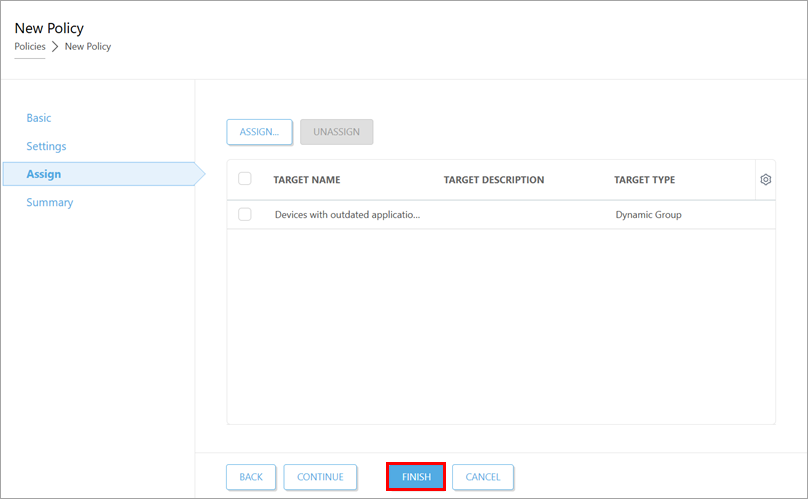
Under Assign, assign the policy to target devices.
-
Click Finish. The policy will be applied to the target devices the next time they connect to ESET PROTECT or ESET PROTECT On-Prem.
Edit a policy in ESET PROTECT or ESET PROTECT On-Prem
-
Open the policy for editing.
ESET PROTECT
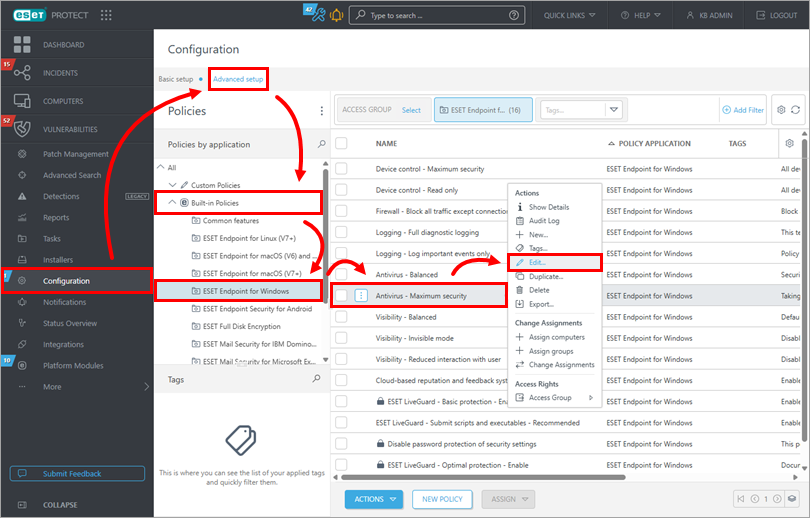
Click Configuration → Advanced setup. Select the policy group (in this example, ESET Endpoint for Windows in Built-in Policies is selected), click the policy you want to modify and click Edit.
ESET PROTECT On-Prem
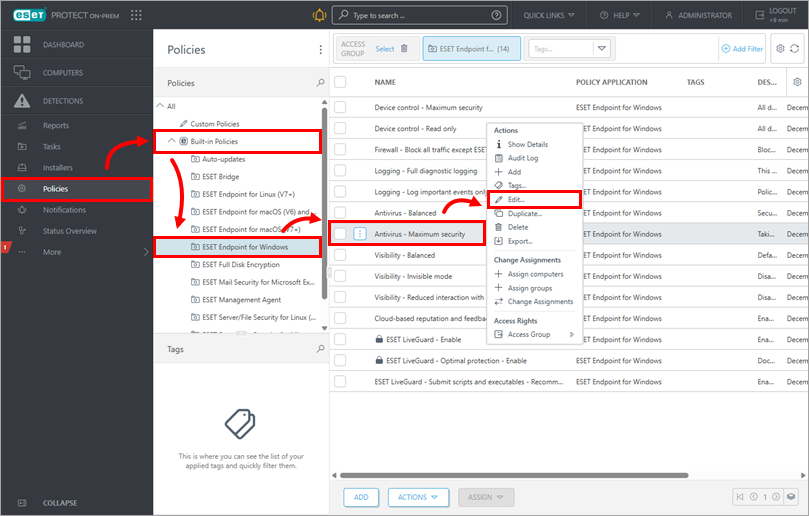
Click Policies and select the policy group (in this example, ESET Endpoint for Windows in Built-in Policies is selected). Click the policy you want to modify and click Edit.
-
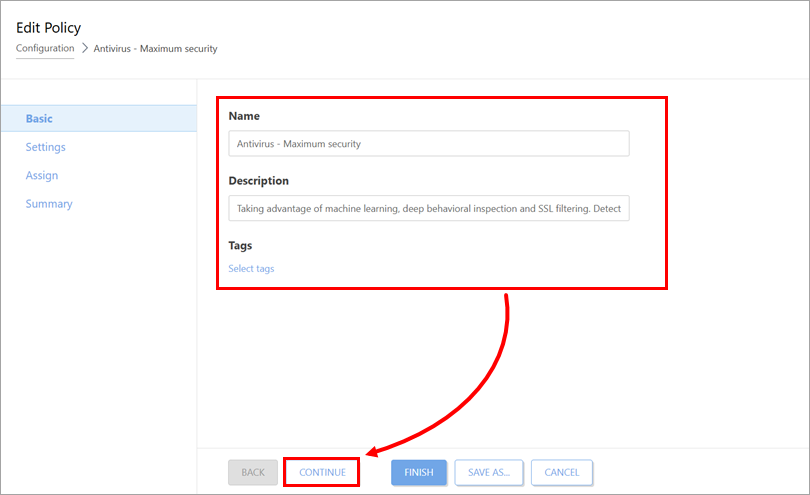
Under Basic, edit the general details of the policy. Click Continue.
-
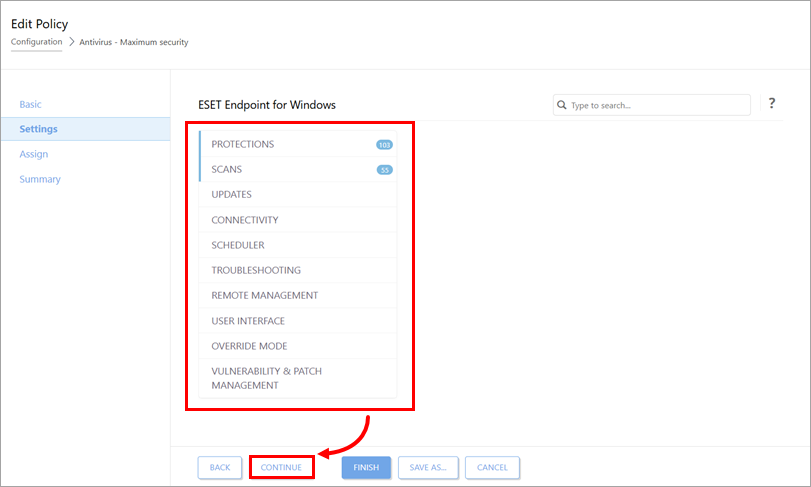
Under Settings, configure the policy settings as needed. The settings may differ based on the target ESET application. Click Continue.
-
Under Assign, assign the policy to target devices.
-
Click Finish to save your changes. The target devices will receive the changes the next time they connect to ESET PROTECT or ESET PROTECT On-Prem.
Assign a policy to target devices in ESET PROTECT or ESET PROTECT On-Prem
-
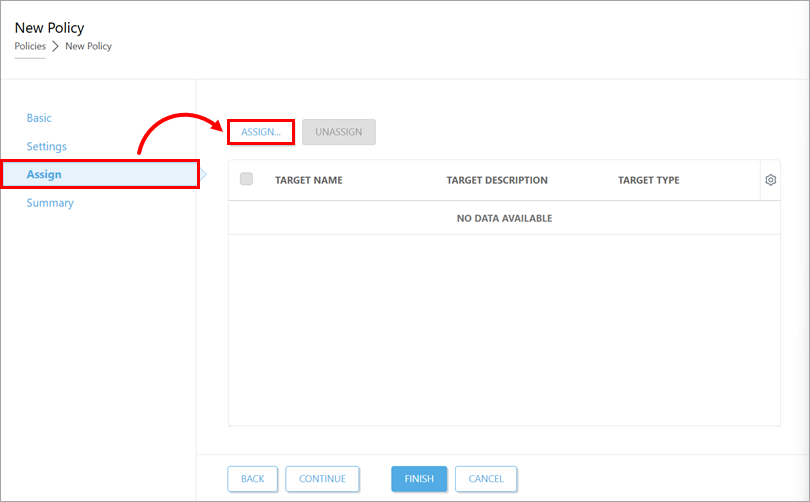
Click Assign → Assign.
-
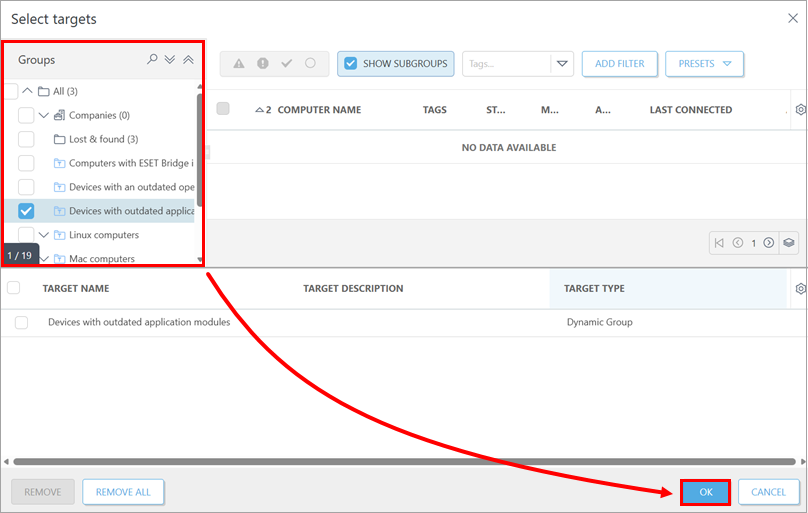
Assign the policy to a group of devices or to individual devices.
Assign a policy to individual devices
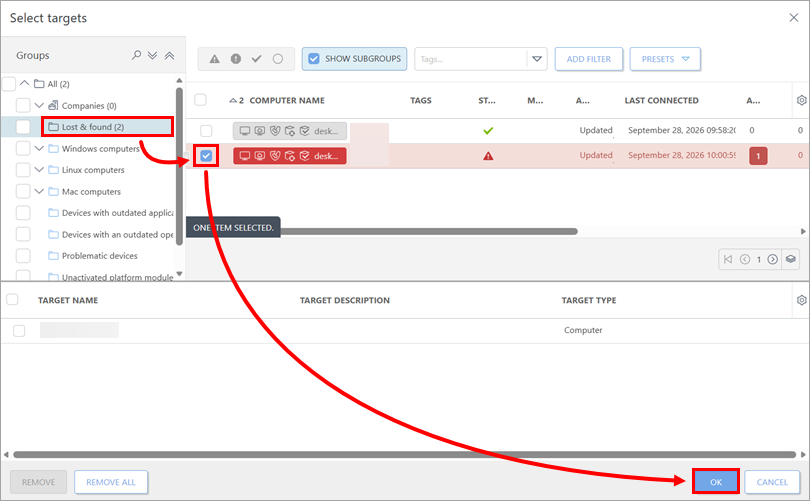
In the Groups list, click the group that contains the device to which you want to apply the policy. Select the check box next to the device and click OK. If you want to assign the policy to multiple devices, select all of the devices' check boxes. If the devices belong to different groups, repeat the procedure for each of the groups.
-
Click Finish. The policy will be applied to the selected target devices the next time they connect to ESET PROTECT or ESET PROTECT On-Prem.
View policies assigned to a group of devices in ESET PROTECT or ESET PROTECT On-Prem
-
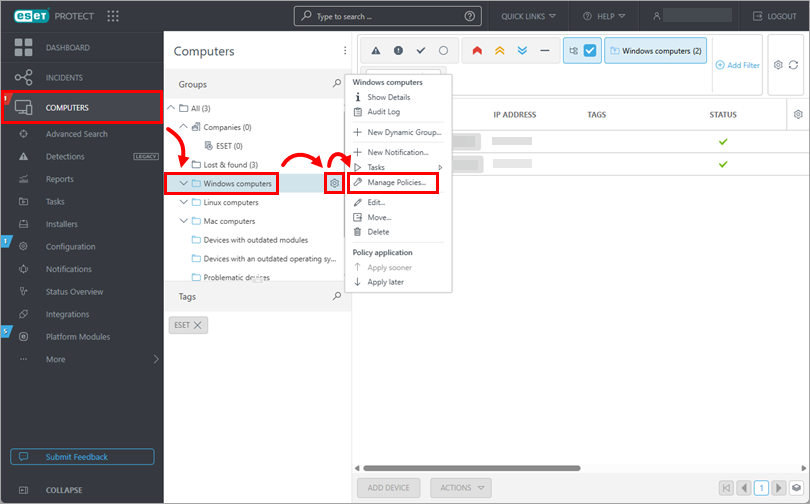
Click Computers. In the the Groups list, click the group whose policies you want to view, then click the gear icon next to it and click Manage policies.