Issue
- Upgrade ESET Endpoint Security, ESET Endpoint Antivirus, or ESET Server/Mail Security applications to the latest version
- Deploy ESET business applications to clients remotely using a Software Install task
- Install ESET business applications remotely
Solution
ESET PROTECT
-
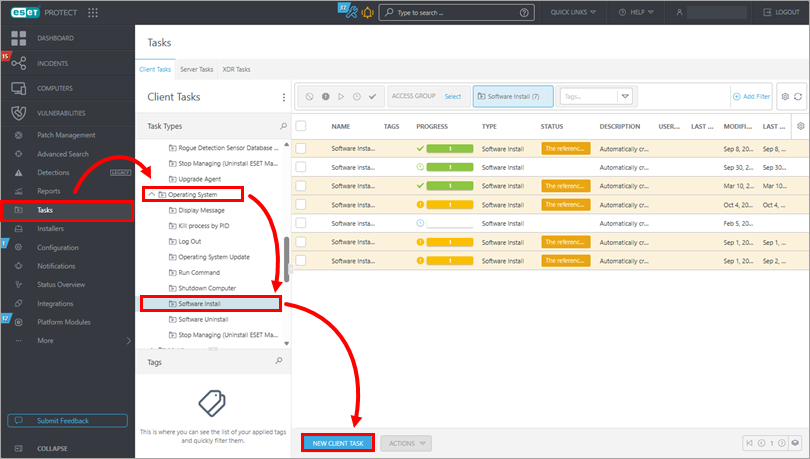
Click Tasks → Operating System → Software Install → New client task.
-
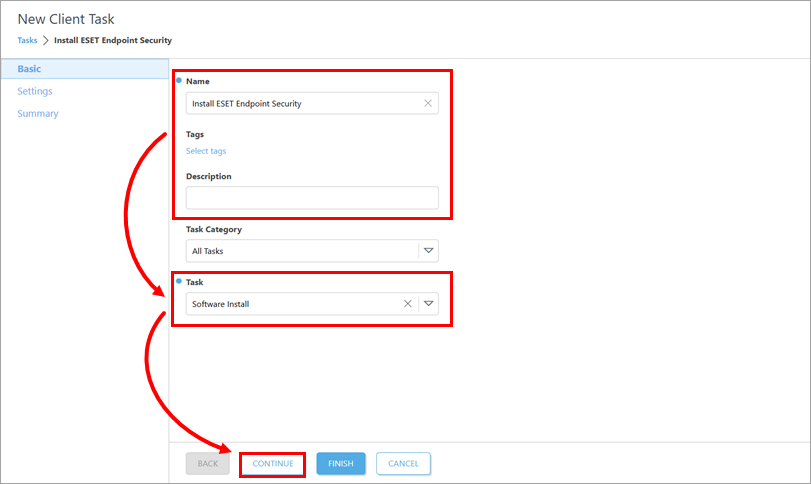
Under Basic, update the task name and type the description if needed. Verify that Software Install is selected in the Task drop-down menu. Click Continue.
-
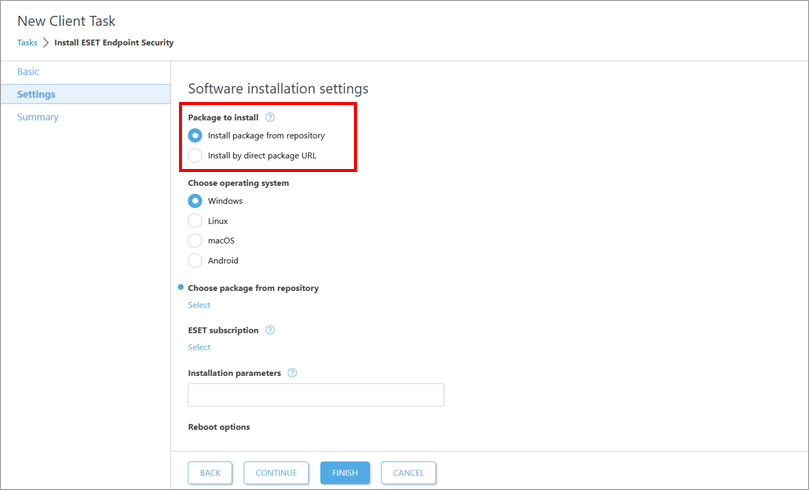
Under Settings, choose how you want to obtain the installation package. Below Package to install, select either Install package from repository or Install by direct package URL.
-
Proceed according to the selected option:
Install a package from the repository
-
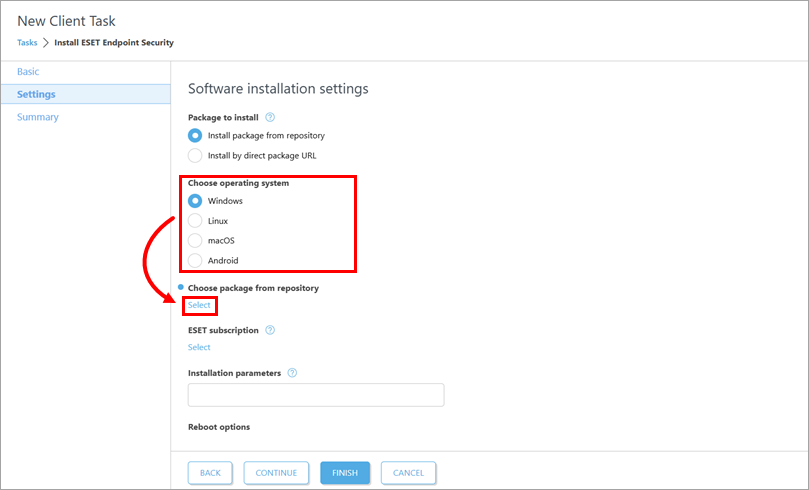
Below Choose operating system, select the operating system according to the device where you want to deploy or upgrade the business application. Below Choose package from repository, click Select.
-
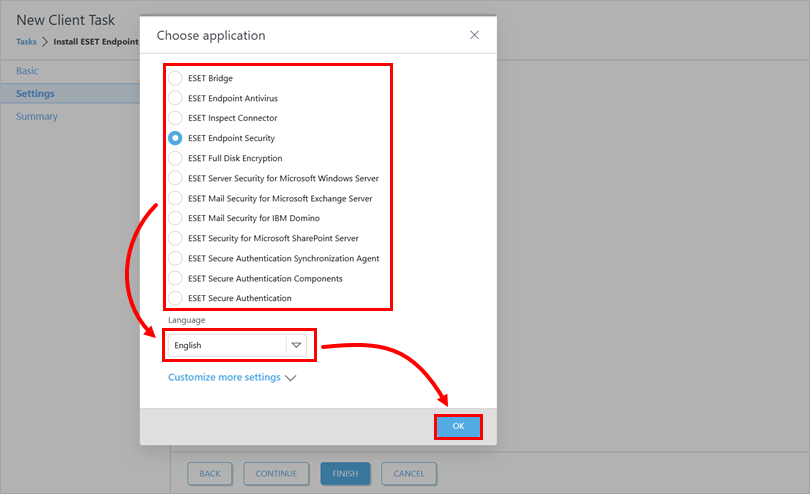
In the Choose application dialog box, select the application and the installation language. Click OK. If needed, you can click Customize more settings to select a specific application version. Check for the latest version of your ESET business applications.
-
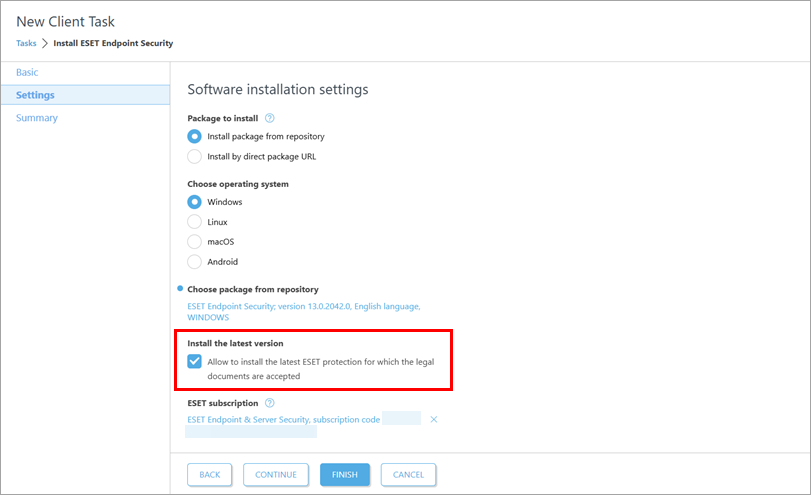
Note the check box below Install the latest version and deselect the check box if you do not want to install the latest version of the application.
-
Below ESET subscription, check the preselected subscription. If needed, add or change the subscription to use, or remove it: click the remove icon (x) next to the selected subscription.
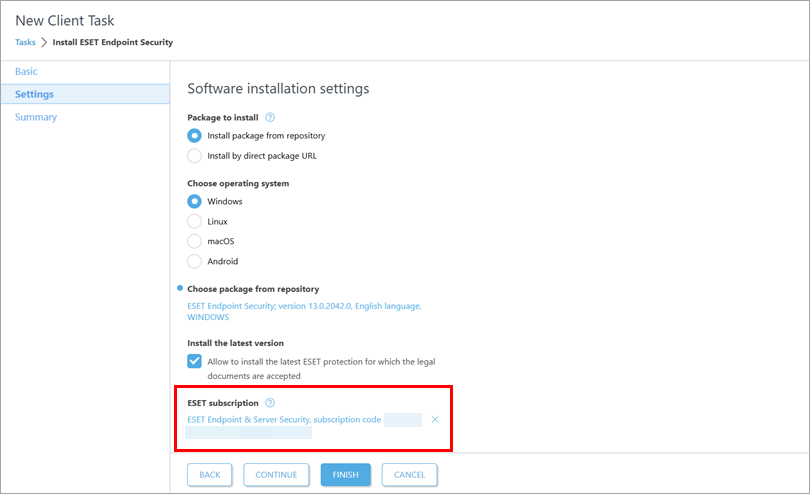
Add or change the subscription
-
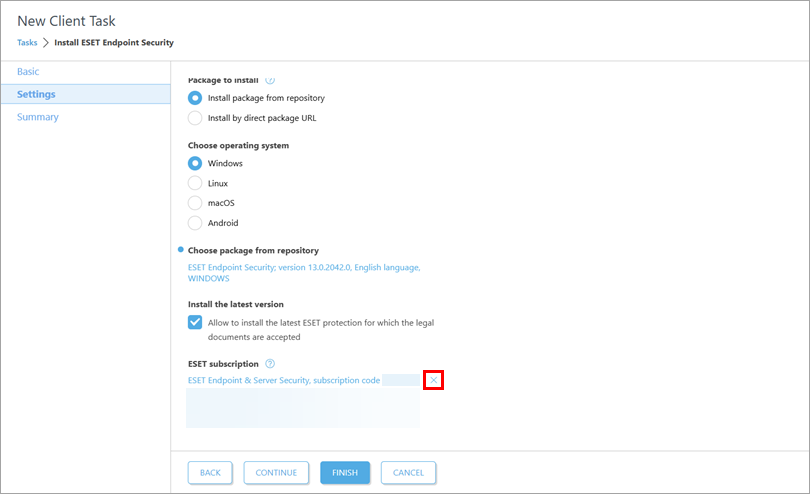
If needed, click the remove icon (x) next to the selected subscription.
-
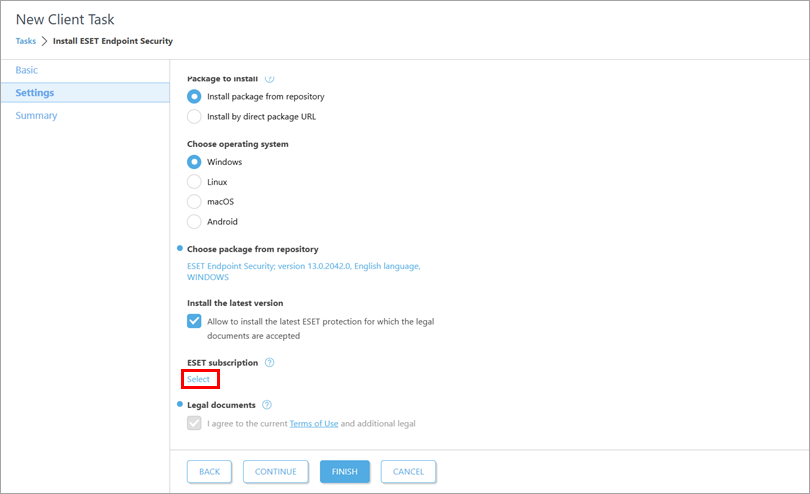
Click Select below ESET subscription.
-
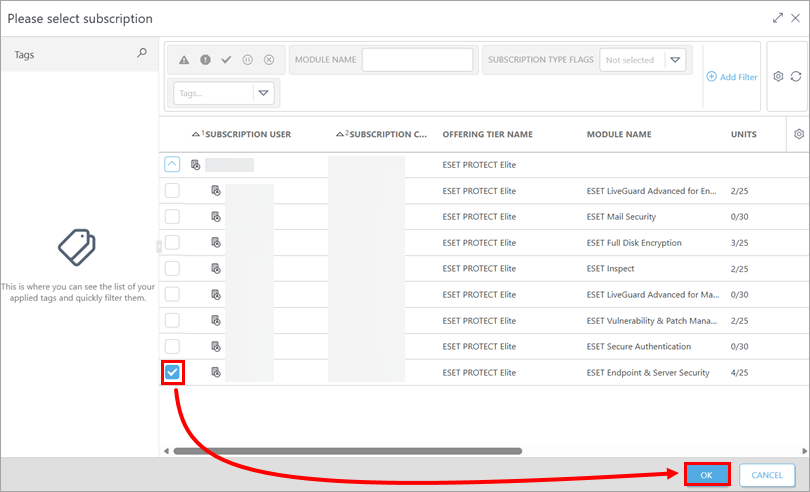
Select a subscription and click OK.
-
-
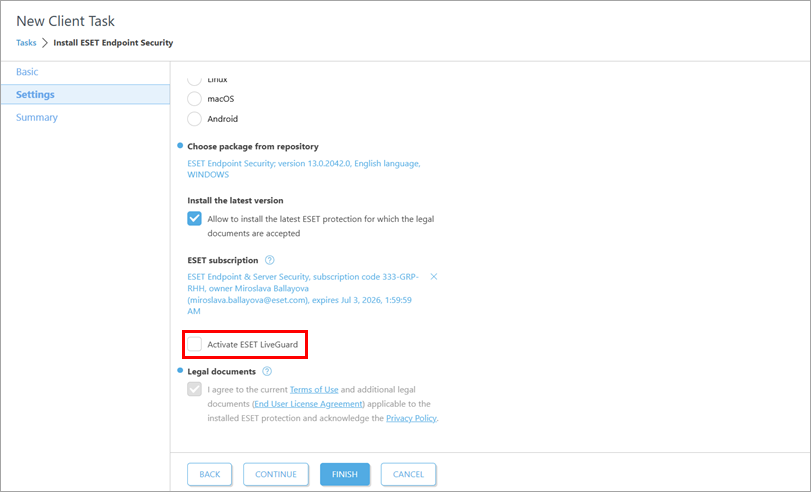
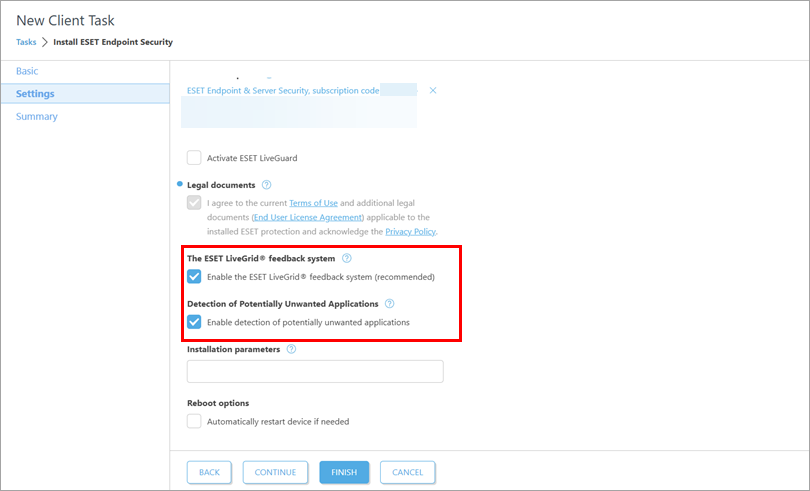
If applicable, select the Activate ESET LiveGuard check box if you want to activate ESET LiveGuard.
-
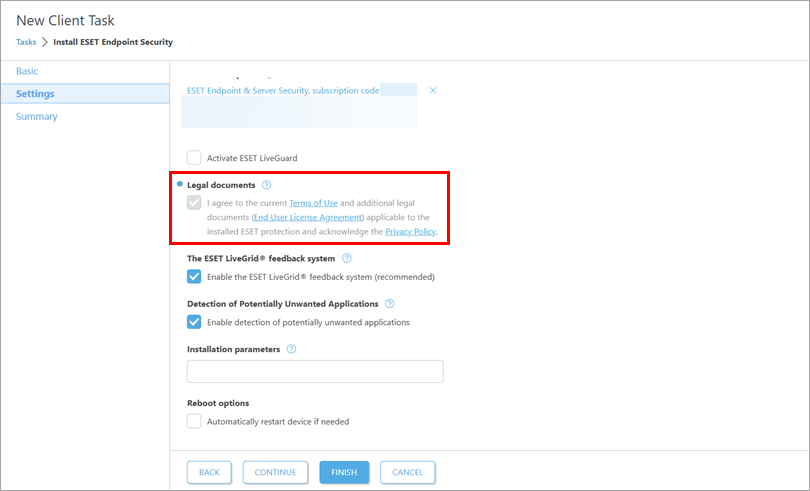
If needed, review the Terms of Use, End User License Agreement, and Privacy Policy.
-
If you do not want to activate ESET LiveGrid or the detection of potentially unwanted applications, deselect the respective check box.
-
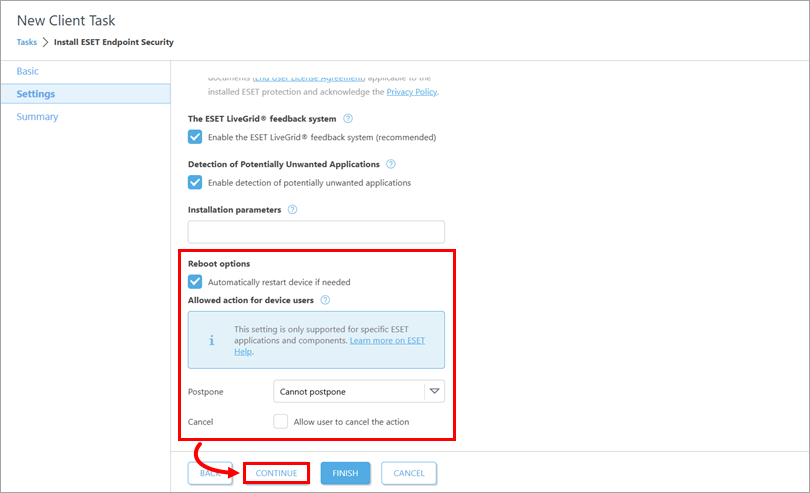
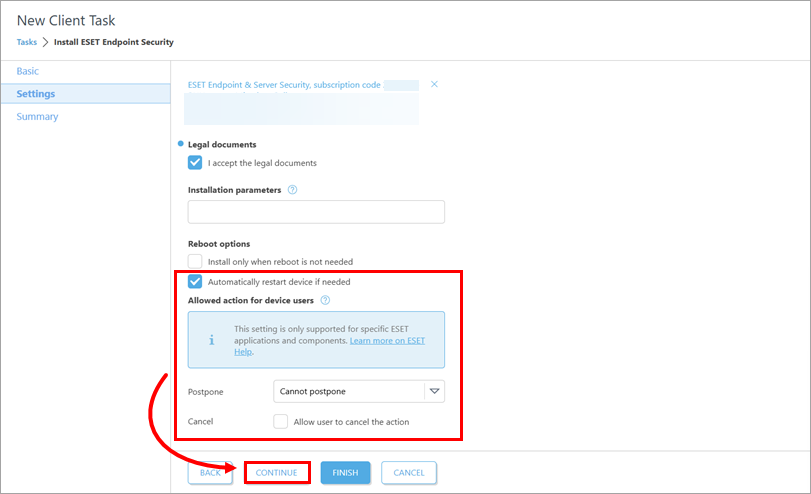
Select the check box next to Automatically restart device if needed to force an automatic restart of the client device after installation. Below Allowed action for device users, define if the device users can postpone or cancel the restart. Click Continue.
Install a package by entering the target URL
-
Check for the latest version of your ESET business applications.
-
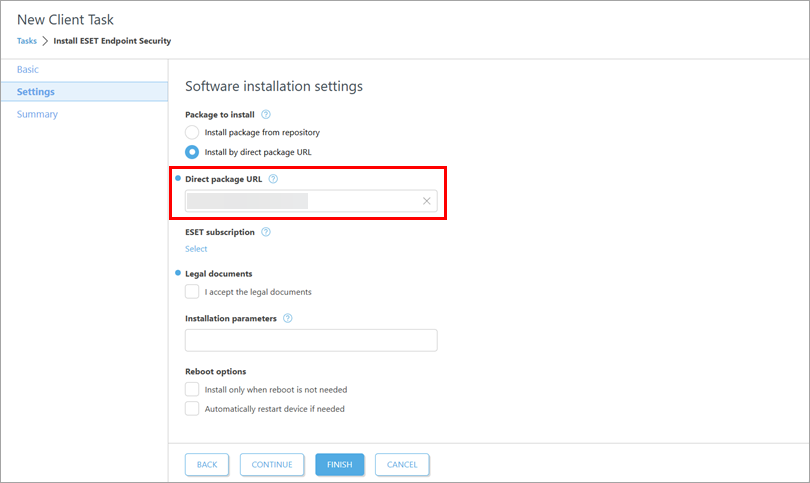
Into the Direct package URL field, type or copy/paste the package URL.
-
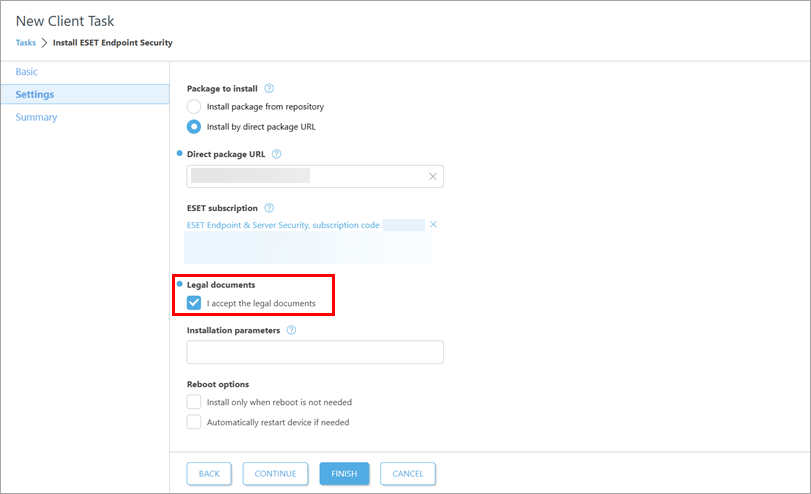
If needed, below ESET subscription, add a subscription to use.
-
Select the check box next to I accept the legal documents.
-
Select the check box next to Automatically restart device if needed to force an automatic restart of the client device after installation. Below Allowed action for device users, define if the device users can postpone or cancel the restart. Click Continue.
-
-
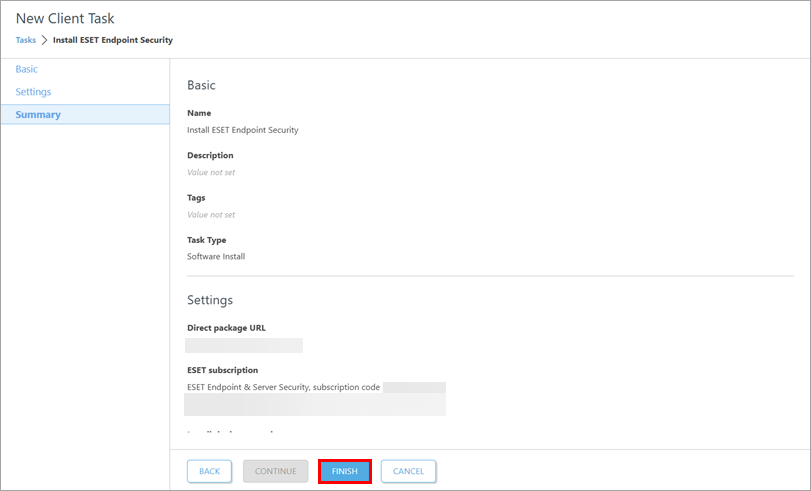
Under Summary, review the task details and click Finish.
-
Create a trigger to execute the task and select the target devices.
-
For a new deployment, activate the installed applications: create and trigger an activation task on the devices where you installed the ESET business applications.
ESET PROTECT On-Prem
-
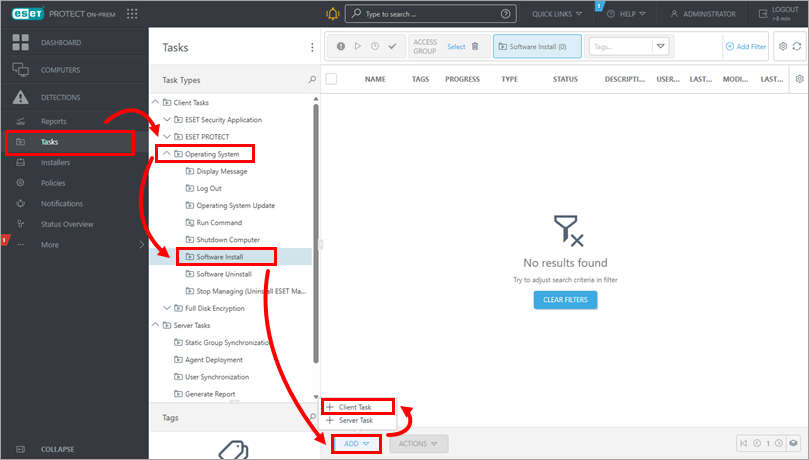
Click Tasks → Operating System → Software Install → Add → Client Task.
-
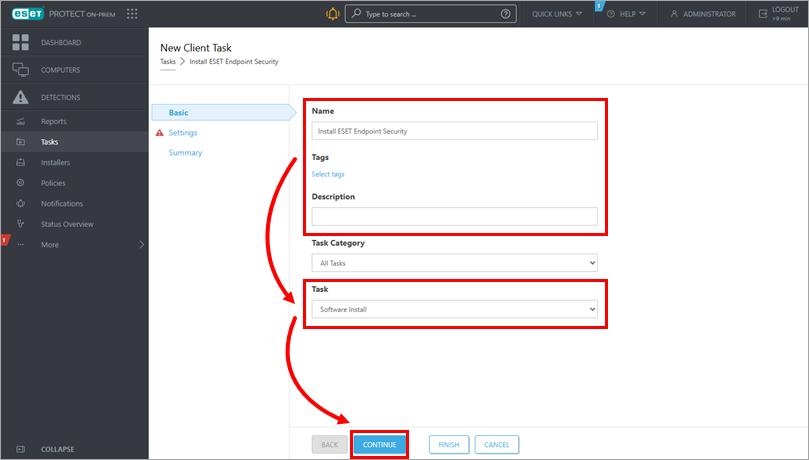
Under Basic, update the task name and type the description if needed. Verify that Software Install is selected in the Task drop-down menu. Click Continue.
-
Under Settings, choose how you want to obtain the installation package. Below Package to install, select either Install package from repository or Install by direct package URL.
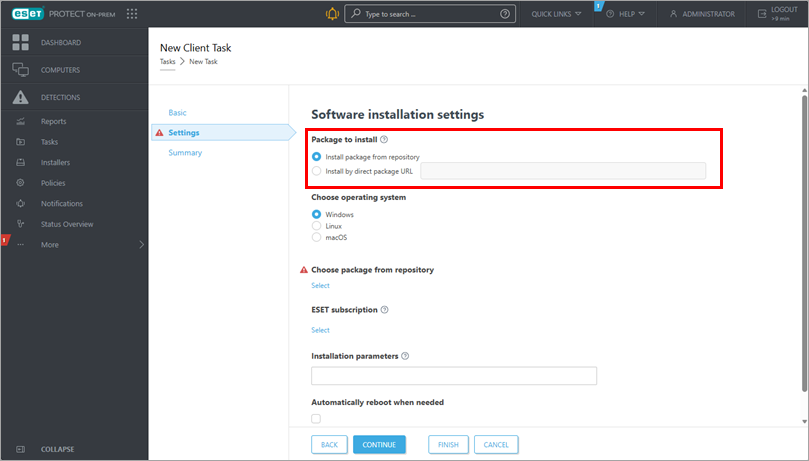
-
Proceed according to the selected option:
Install a package from the repository
-
Below Choose operating system, select the operating system according to the device where you want to deploy or upgrade the business application. Below Choose package from repository, click Select.
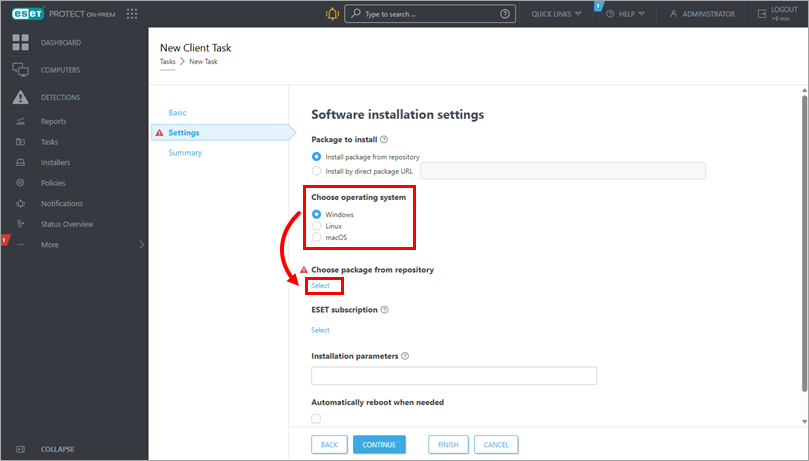
-
In the Choose application dialog box, select the application and the installation language. Click OK. If needed, you can click Customize more settings to select a specific application version. Check for the latest version of your ESET business applications.
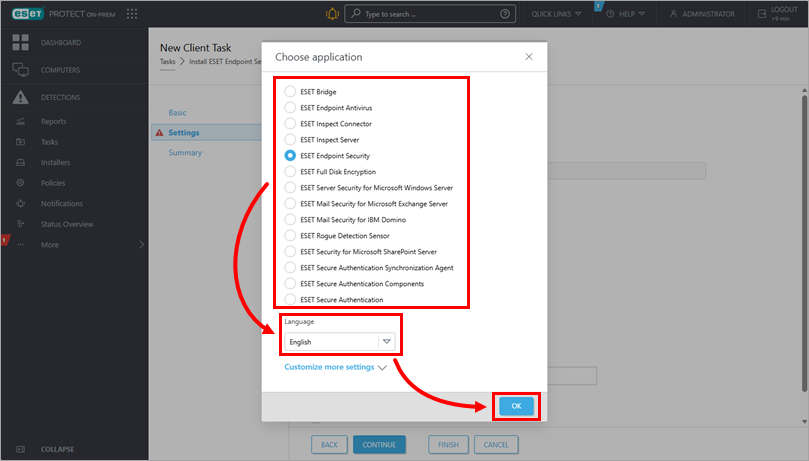
-
Note the check box below Install the latest version and deselect the check box if you do not want to install the latest version of the application.
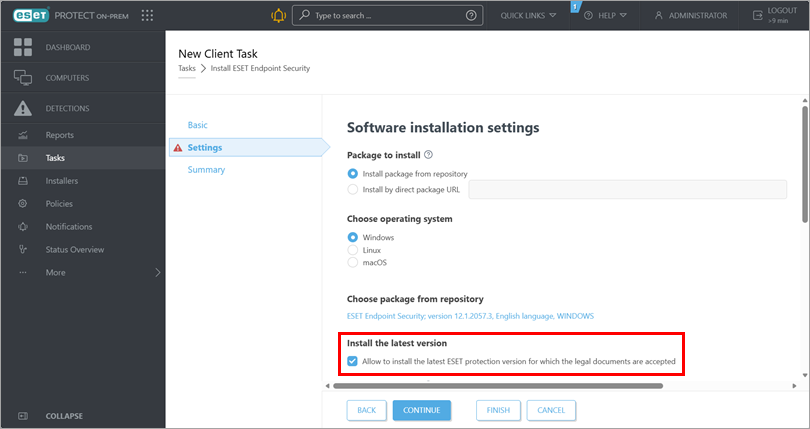
-
Below ESET subscription, check the preselected subscription. If needed, add or change the subscription to use, or remove it: click the remove icon (x) next to the selected subscription.
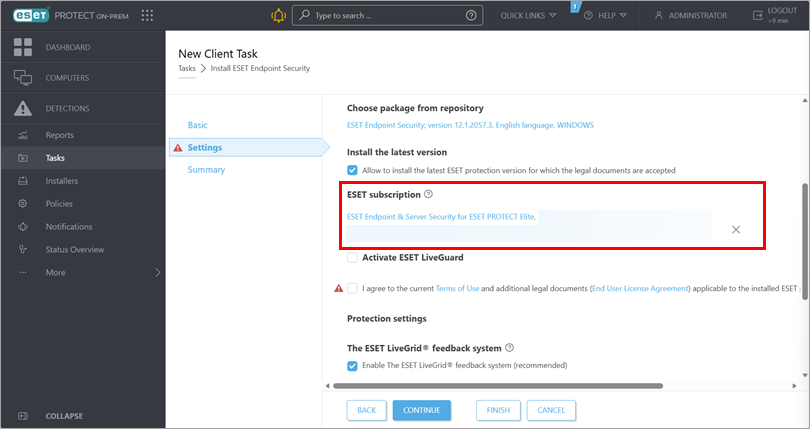
Add or change the subscription
-
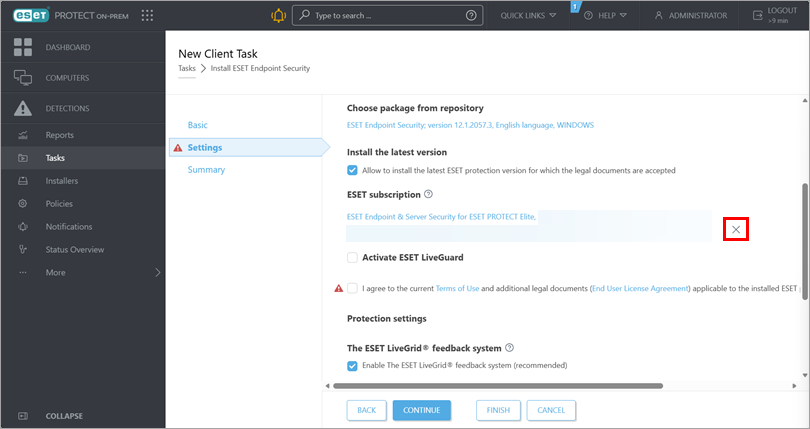
If needed, click the remove icon (x) next to the selected subscription.
-
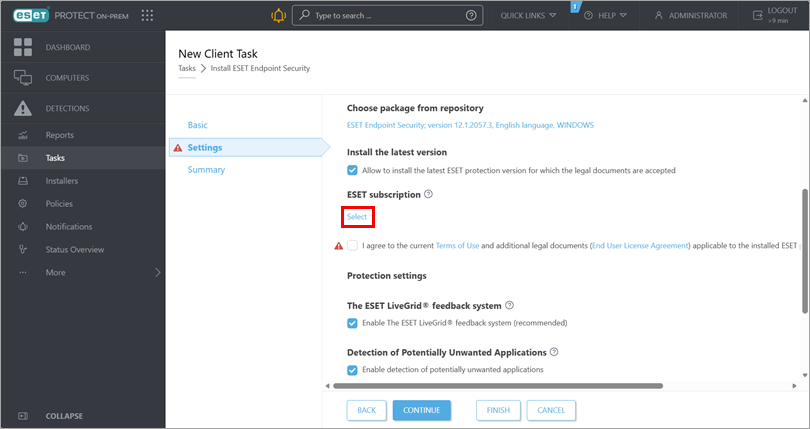
Click Select below ESET subscription.
-
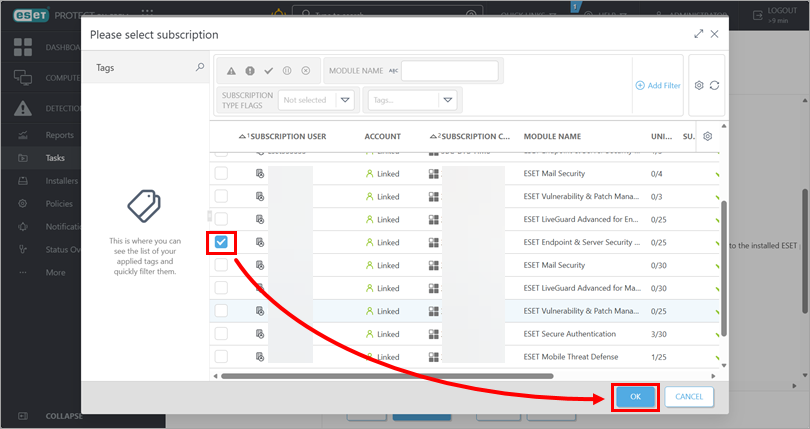
Select a subscription and click OK.
-
-
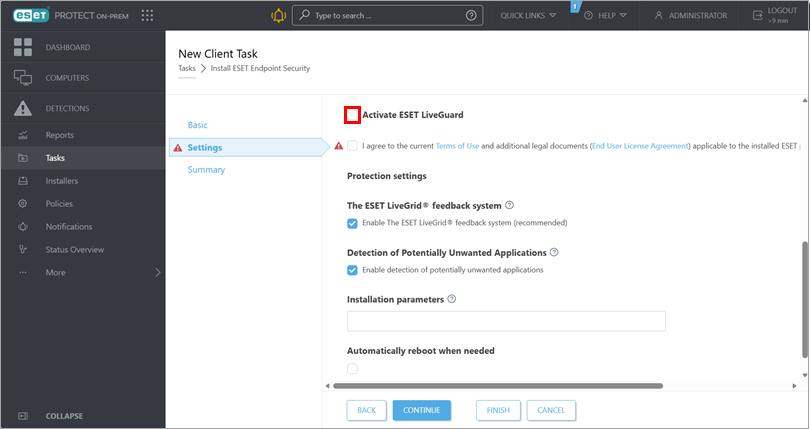
If applicable, select the Activate ESET LiveGuard check box if you want to activate ESET LiveGuard. For more information, see additional information about the ESET Subscription section.
-
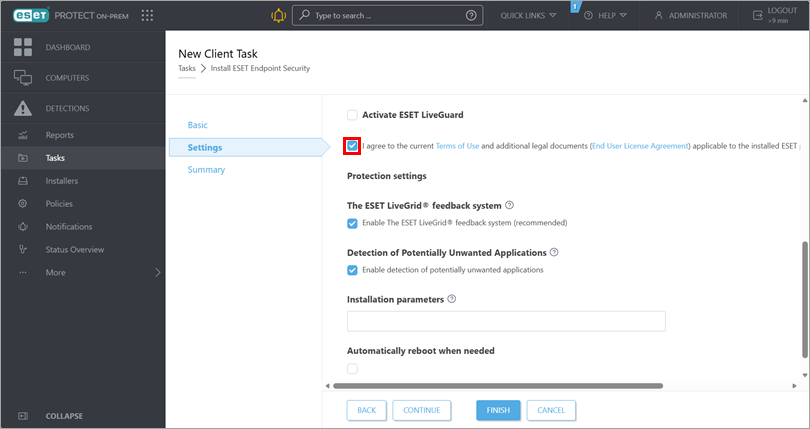
Review the Terms of Use and the End User License Agreement and confirm your agreement by selecting the respective check box.
-
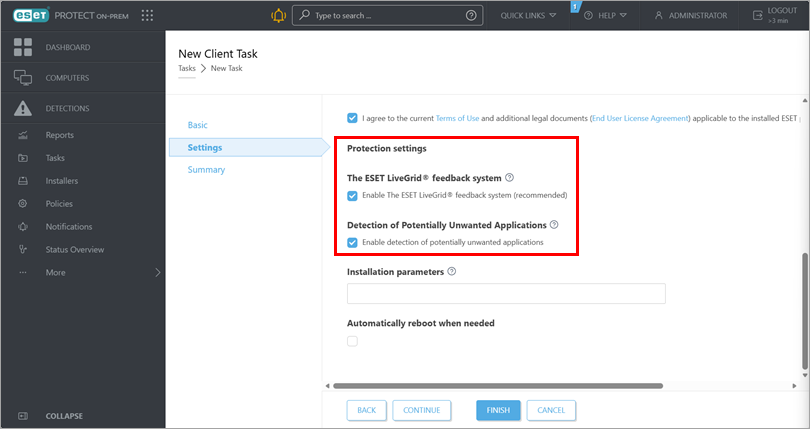
Review the Protection settings section. If you do not want to activate ESET LiveGrid or the detection of potentially unwanted applications, deselect the respective check box.
-
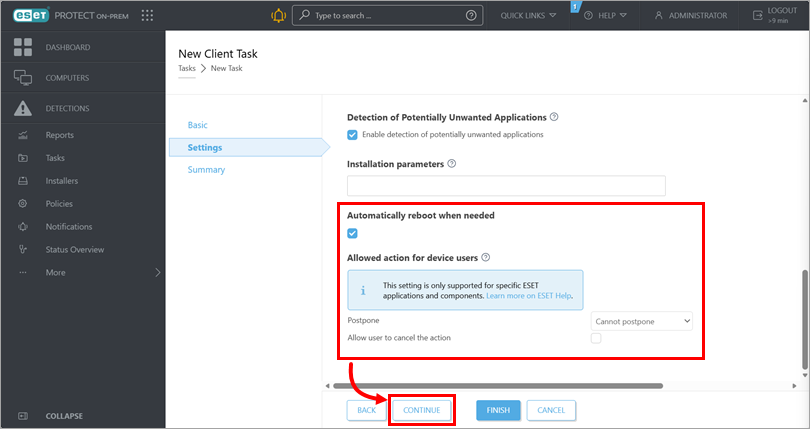
Select the check box below Automatically reboot when needed to force an automatic reboot of the client device after installation. Below Allowed action for device users, define if the device users can postpone or cancel the reboot. Click Continue.
Install a package by entering the target URL
-
Check for the latest version of your ESET business applications.
-
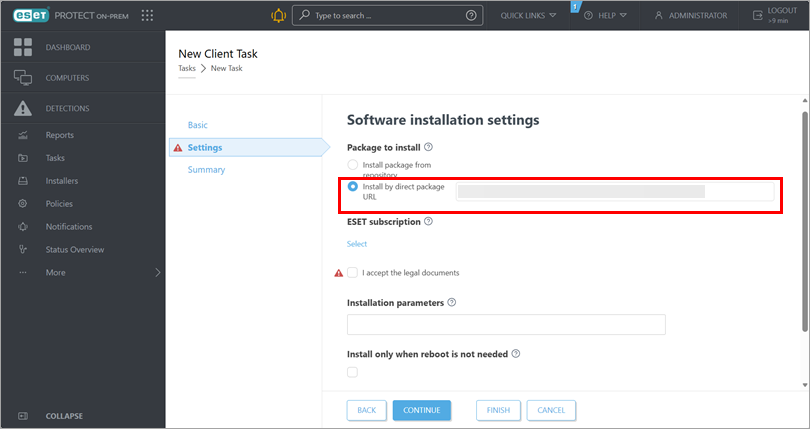
Into the field next to Install by direct package URL, type or copy/paste the package URL.
-
If needed, below ESET subscription, add a subscription to use.
-
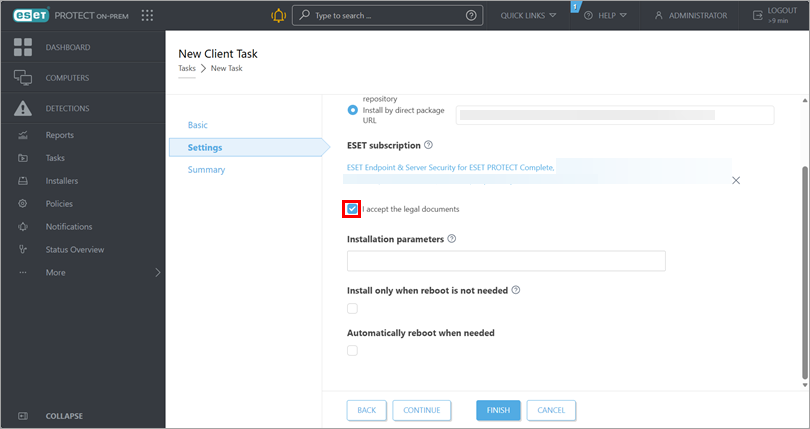
Select the check box next to I accept the legal documents.
-
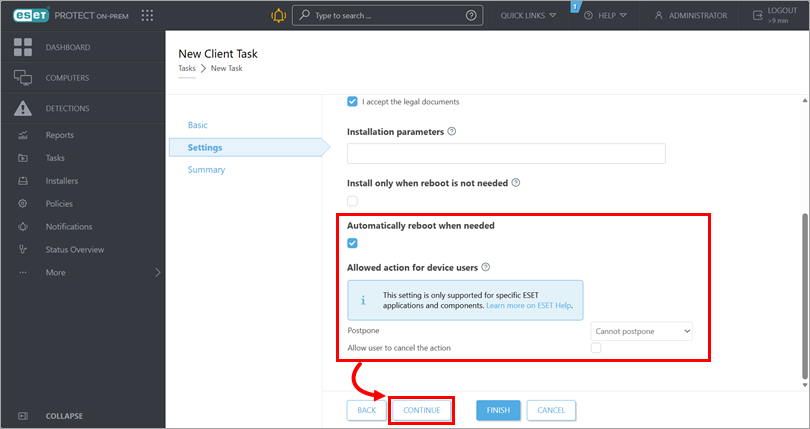
Select the check box below Automatically reboot when needed to force an automatic reboot of the client device after installation. Below Allowed action for device users, define if the device users can postpone or cancel the reboot. Click Continue.
-
-
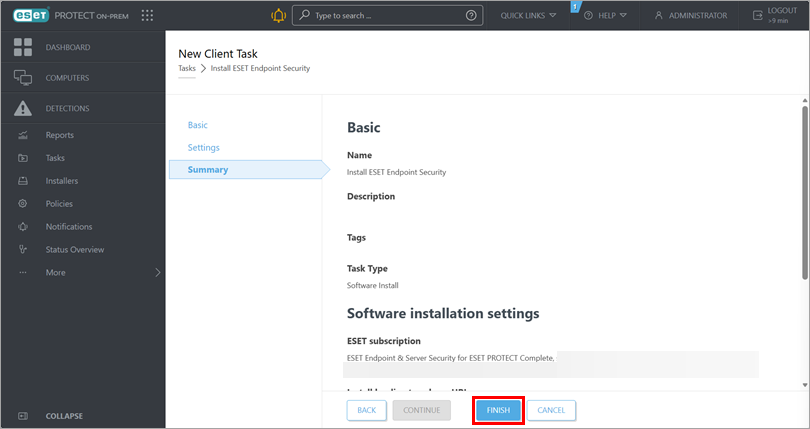
Under Summary, review the task details and click Finish.
-
Create a trigger to execute the task and select the target devices.
-
For a new deployment, activate the installed applications: create and trigger an activation task on the devices where you installed the ESET business applications.


