Issue
- You have uninstalled your ESET application for Windows, but you are not able to reinstall it
- Your ESET application for Windows remains active after uninstallation
- Your uninstallation of the ESET application for Windows fails
Details
Click to expand
You are not required to purchase an additional subscription to reinstall your ESET application. Your existing subscription remains active for its duration, regardless of how many times you remove or install ESET applications on your device.
To use advanced ESET Uninstaller commands, open the command prompt as an administrator in the folder where you saved the ESETUninstaller.exe file. To view a list of all available commands for ESET Uninstaller, type ESETUninstaller.exe /help and press the Enter key.
- If you are removing ESET applications from bootable media, you will be asked if you want to remove ESET files from each available partition separately
/mode=offlinespecifies the uninstallation mode for CD and USB drives/mode=onlinespecifies hard disks. You may rarely need to use the/mode=onlineparameter to force the ESET application file deletions if ESET Uninstaller does not detect your bootable media automatically/forceremoves all present ESET applications and components without being prompted; run the uninstaller with the/forceparameter- Sometimes, ESET Uninstaller must be launched by typing
ESETUninstaller.exe /reinstinto the command line and pressing the Enter key. ESET Uninstaller will prompt you if the switch is necessary
If you are prompted to use the ESETUninstaller.exe /reinst command, your Network Interface settings will reset.
Solution
Related solutions: macOS users
-
Download ESET Uninstaller and save it to your computer.
-
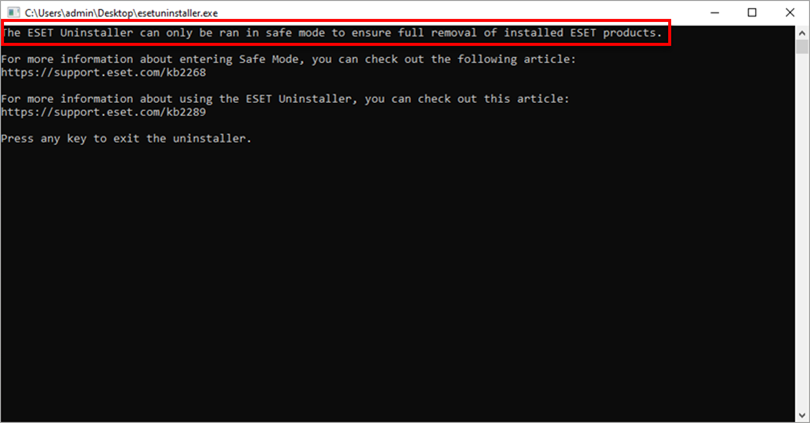
In Safe Mode, double-click the installer file you saved to your computer in step one to run ESET Uninstaller.
-
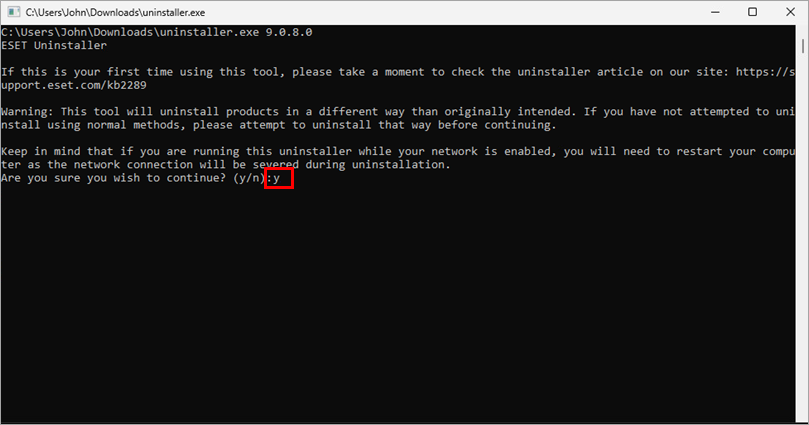
Read the warning and type y to confirm.
-
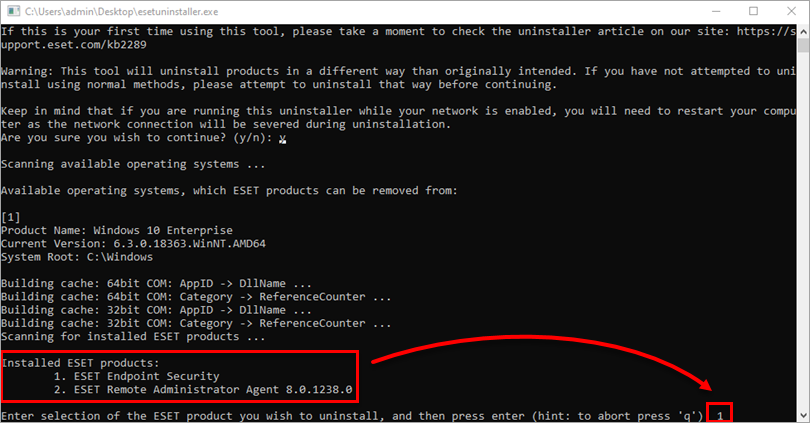
Review the items listed under Installed ESET products. Type the number that corresponds to the ESET installation that should be uninstalled and press the Enter key.
-
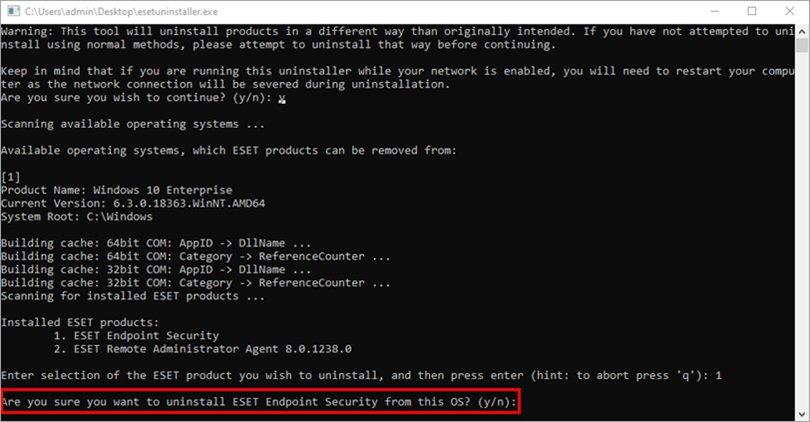
Verify that you are uninstalling the correct ESET application from the operating system and type y to confirm.
-
When ESET Uninstaller uninstalls the application, press any key to exit.
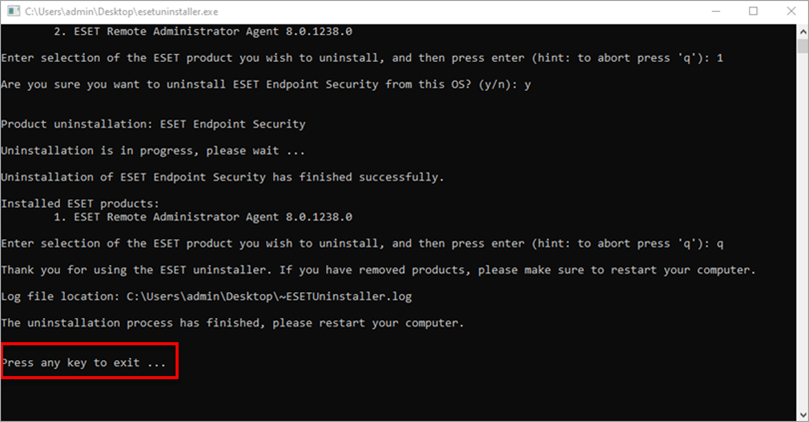
-
Run ESET Uninstaller again and verify that the application is no longer listed under Installed ESET products.
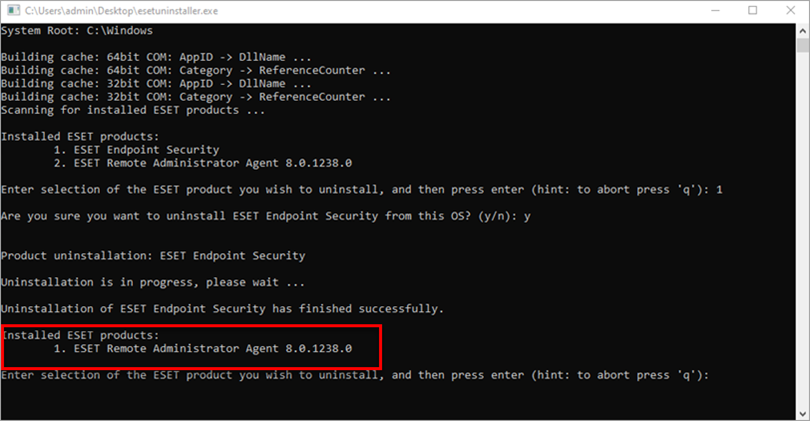
-
Restart your computer in Normal Mode. ESET Uninstaller creates a log of all its processes to the
~ESETUninstaller.logfile (located in the same folder as theESETUninstaller.exefile) for future reference. -
Click the appropriate link below to reinstall your ESET application.