Issue
- Enable or disable Network traffic scanner
- Exclude an application or IP address from the Network traffic scanner
- Enable or disable SSL/TLS protocol filtering
- Remove an SSL/TLS certificate
- Change SSL/TLS protocol filtering mode
- Change SSL/TLS application scan rules
Details
Click to expand
ESET Windows applications automatically check the security of network communications to and from your computer. This functionality is provided by the Network traffic scanner (protocol filtering), which inspects standard network traffic.
SSL/TLS protocol filtering is part of this functionality and enables the inspection of encrypted (HTTPS) communications. Network traffic scanner must be enabled for SSL/TLS protocol filtering to work.
For more information, see Network traffic scanner or SSL/TLS.
Solution
Enable or disable Network traffic scanner
-
Open the main program window of your ESET Windows application.
-
Press F5 to open Advanced setup.
-
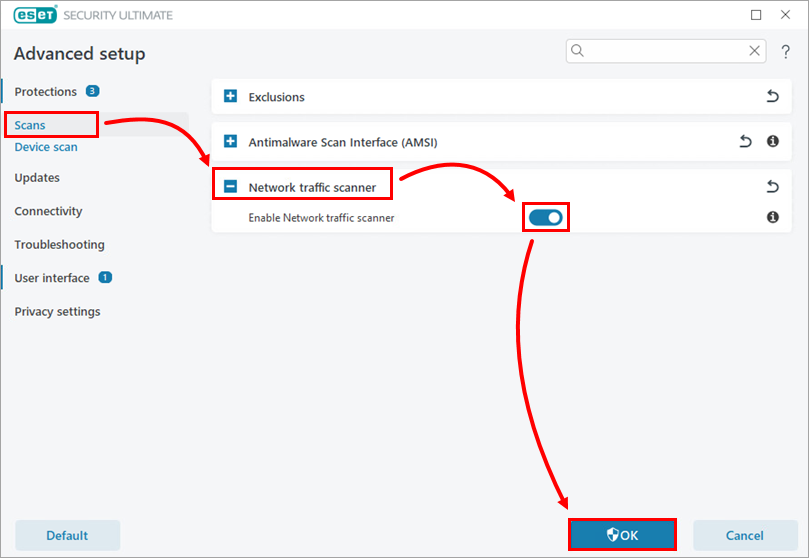
Click Scans, expand Network traffic scanner and click the toggle next to Enable Network traffic scanner to enable or disable the feature. Click OK.
Exclude an application or IP address from the Network traffic scanner
-
Open the main program window of your ESET Windows application.
-
Press F5 to open Advanced setup.
-
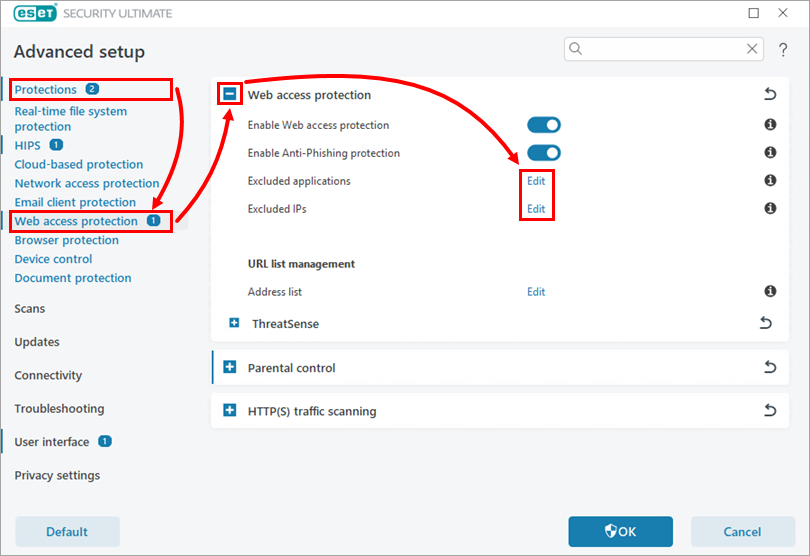
Click Protections → Web access protection, expand Web access protection and click Edit next to Excluded applications or Excluded IPs (the example below applies to the Excluded applications option).
-
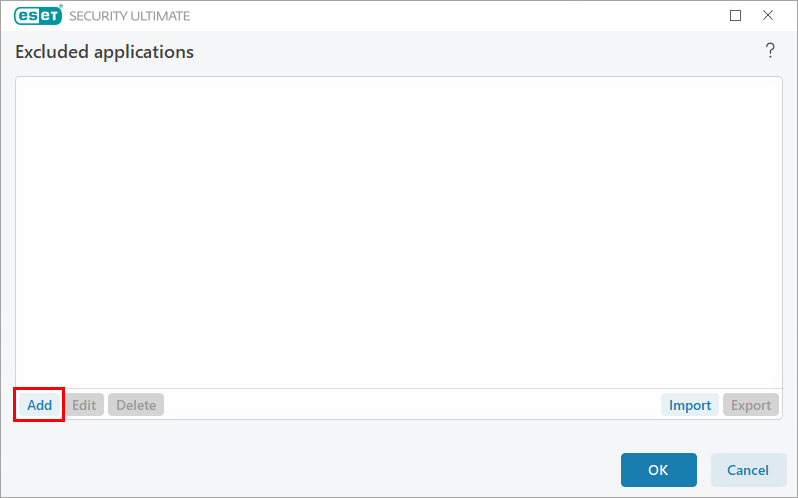
Click Add.
-
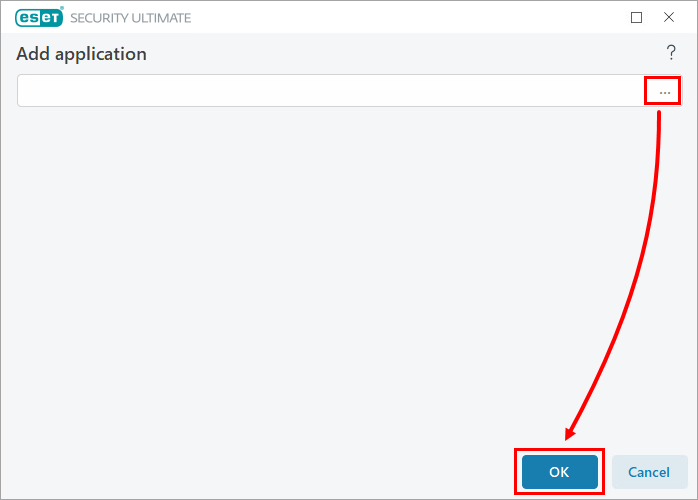
Click the browse icon (three dots) next to the input field, select an application and click OK.
-
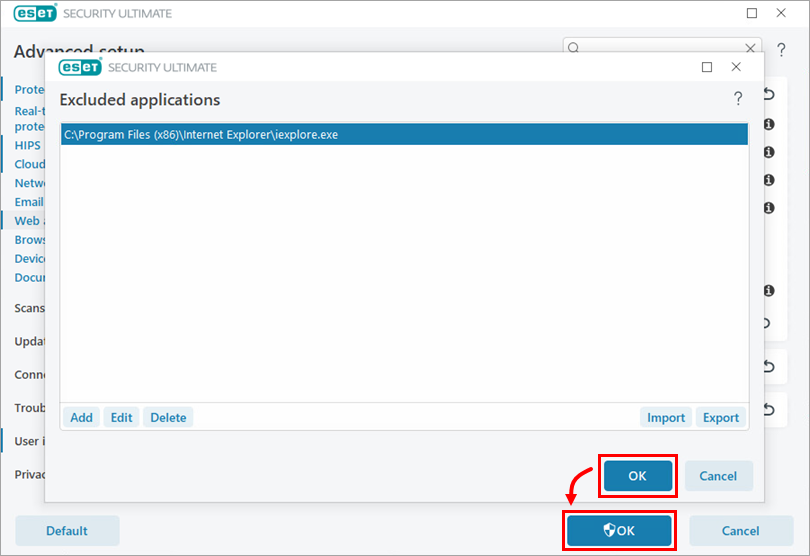
Click OK → OK.
Enable or disable SSL/TLS protocol filtering
-
Open the main program window of your ESET Windows application.
-
Press F5 to open Advanced setup.
-
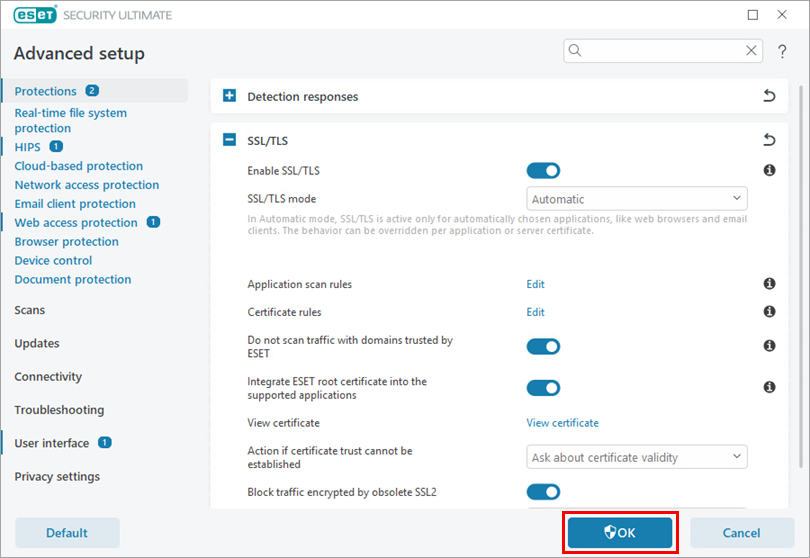
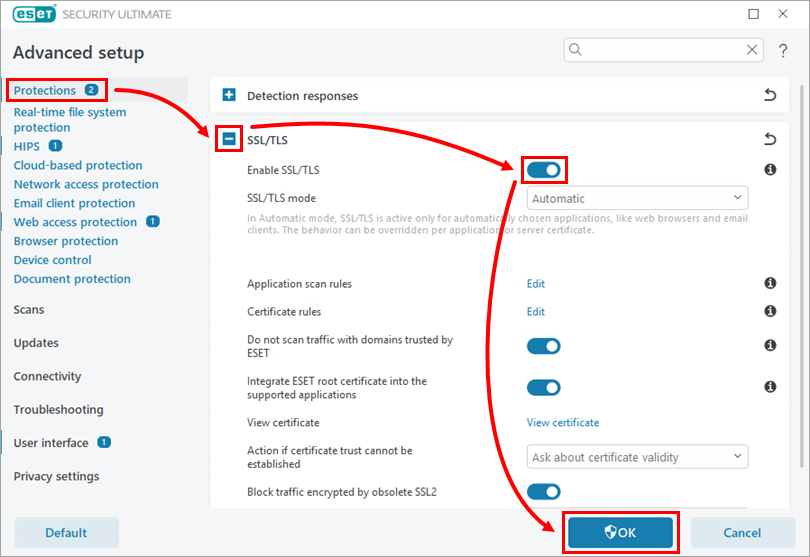
Click Protections, expand SSL/TLS and click the toggle next to Enable SSL/TLS to enable or disable the feature. Click OK.
Remove an SSL/TLS certificate
-
Open the main program window of your ESET Windows application.
-
Press F5 to open Advanced setup.
-
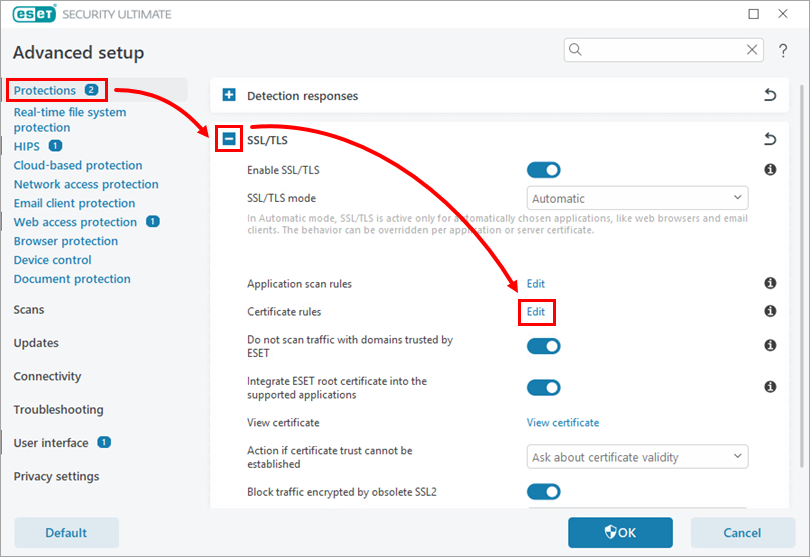
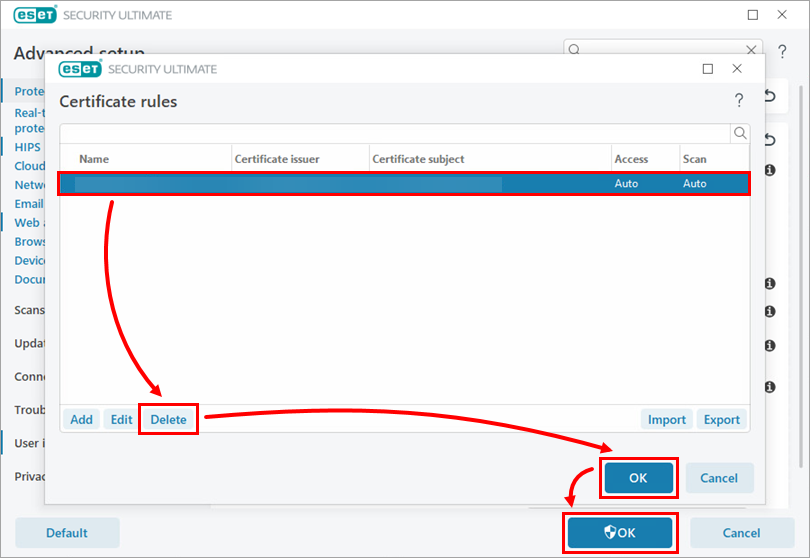
Click Protections, expand SSL/TLS and click Edit next to Certificate rules.
-
Select a certificate and click Delete. Click OK → OK.
Change SSL/TLS protocol filtering mode
For more information, see SSL/TLS.
-
Open the main program window of your ESET Windows application.
-
Press F5 to open Advanced setup.
-
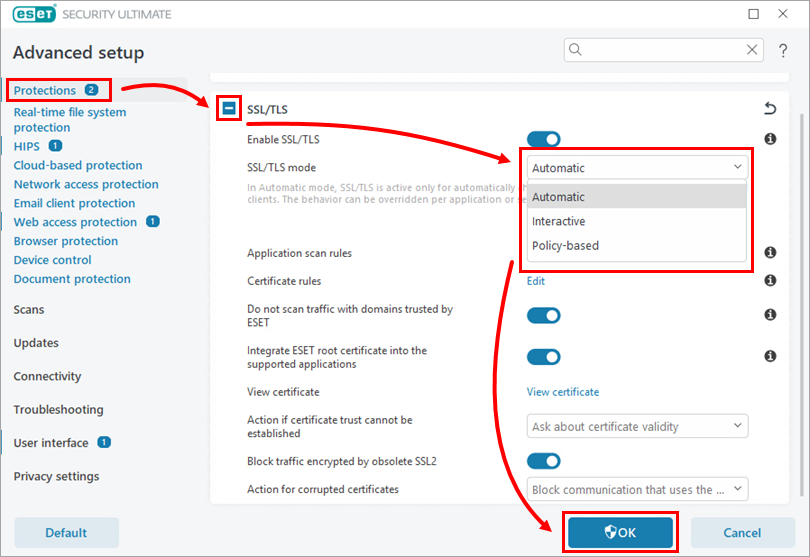
Click Protections, expand SSL/TLS and select a mode from the SSL/TLS mode drop-down menu. Click OK.
Change SSL/TLS application scan rules
For more information, see Application scan rules.
-
Open the main program window of your ESET Windows application.
-
Press F5 to open Advanced setup.
-
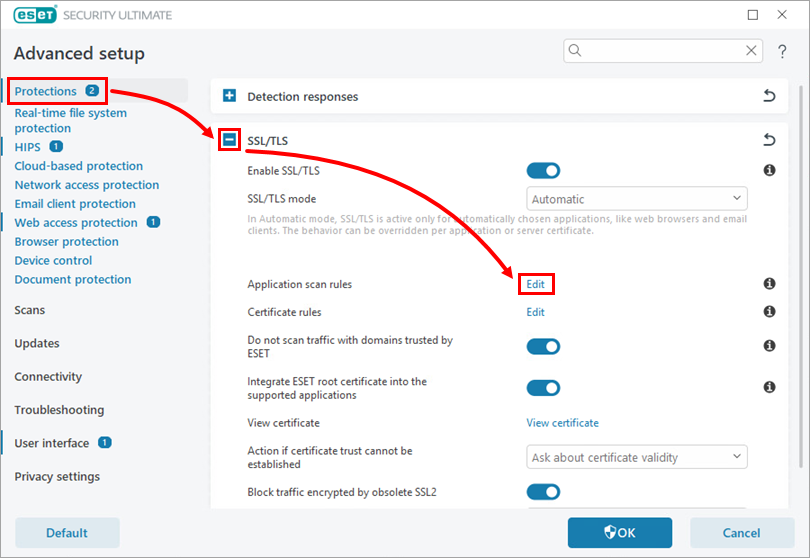
Click Protections, expand SSL/TLS and click Edit next to Application scan rules.
-
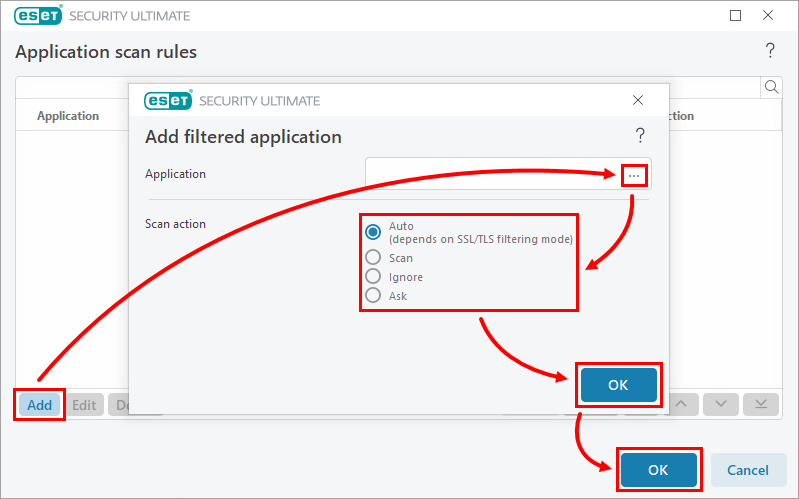
Click Add. Click the browse icon (three dots) next to the Application field and select an application. Next to Scan action, select the scan action for the application and click OK → OK.
-
Click OK.