Issue
- Resolve Windows Kernel crash, STOP Error, or Blue Screen of Death (BSOD)
- BSOD—Prevention
- BSOD—Quick troubleshooting
- BSOD—ESET-related troubleshooting
- BSOD—Diagnosing
- BSOD—Memory dump
Details
Click to expand
A Blue Screen of Death (BSOD), also known as a STOP error, occurs when Windows encounters a critical system error and must stop running unexpectedly. The system typically restarts automatically and may create a memory dump file for later analysis.
BSOD errors can have many causes, including hardware failures, driver issues, software conflicts, operating system errors, or malware. To begin troubleshooting, collect the error details displayed on the Blue Screen, as they can help identify the cause of the crash and guide further investigation.
Solution
BSOD—Prevention
Regular system maintenance
- Update your drivers—Keep your device drivers and related software up to date.
- Update your operating system—For more information, see Windows Update FAQ.
- Maintain your antivirus software—Install the latest version of your ESET application | Update your ESET application.
- Check your system for malware—Perform an ESET malware scan | Schedule an ESET malware scan. If you are unable to scan your computer for malware, remove your system disk and connect it to another computer to perform the scan.
- Monitor and maintain your hardware—Ensure your hardware is fully supported by your operating system. Check your hard disk(s) for errors (especially important before installing Windows). Run benchmarking tests to ensure your system hardware components (for example, RAM and GPU) are functioning correctly.
What to avoid
- Incorrect BIOS configuration—Do not change your BIOS settings unless absolutely necessary. Do not overclock your CPU.
- Misuse of hardware—Do not unplug devices still being used by your computer. Take increased care with your PC during an operating system installation.
BSOD—Quick troubleshooting
- Restart your computer. If this solves the issue, perform regular system maintenance afterward to prevent further BSOD occurrences.
- Perform basic BSOD troubleshooting steps for Windows.
- Disable, remove or uninstall any newly installed hardware or software on your system to help you isolate and resolve the cause of your BSOD.
BSOD—ESET-related troubleshooting
If you have reason to believe your BSOD issue is related to an ESET application:
-
Perform regular system maintenance and restart your computer.
-
Uninstall your ESET application and restart your computer. If this does not solve the issue, the ESET application does not cause the BSOD. Install your ESET application again immediately to prevent a possible malware attack.
-
Contact ESET Technical Support and provide as many details about the issue as possible. See BSOD—Diagnosing for instructions on what information to include.
BSOD—Diagnosing
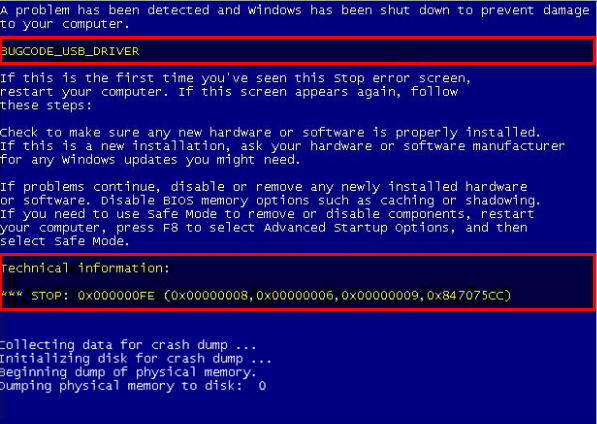
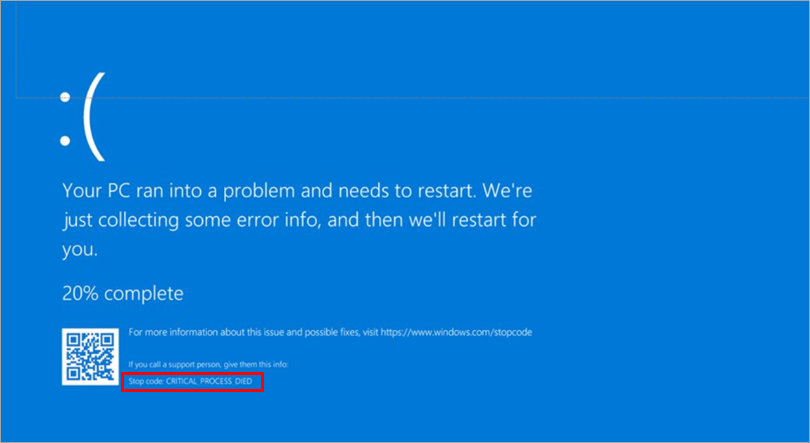
Although the appearance of Blue Screen errors varies between Windows versions, the following information is typically the most useful for troubleshooting:
- Stop code: Identifies the error that caused Windows to stop unexpectedly (for example,
MEMORY_MANAGEMENTorCRITICAL_PROCESS_DIED). The Stop code can help determine the cause of the issue. - Error code or failure information: Depending on the type of error and Windows version, additional details may be displayed, such as a hexadecimal error code (for example,
0x00000080) or the name of the file, driver, or module associated with the crash. This information can help identify the component responsible for the issue.
BSOD—Memory dump
When a Blue Screen (BSOD) occurs, Windows can create a memory dump file that captures information about the system at the time of the crash. Depending on your memory dump settings, the file is typically saved as C:\Windows\MEMORY.DMP. To verify the dump file location, check your memory dump settings.
If no memory dump file is available, or if ESET Technical Support requests a full memory dump, generate a memory dump manually and reproduce the BSOD.
If you suspect that the BSOD is related to your ESET application, contact ESET Technical Support (or your local support channel) and provide the memory dump file generated during the crash—compress the file before sending it.


