Issue
- You want to create a new Web control rule that logs blocked websites when visited by devices running an ESET Endpoint or ESET Server Security application
- You want to create Web control logs report template for blocked websites
Solution
- Create a new Web control rule
- Create a new Web control logs report template
- Add a new Web control logs Dashboard report
I. Create a new Web control rule
If you have already created a Web control rule and want to create a Dashboard report, change each rule's Logging severity to Warning (see step c below) and skip to part II.
-
Perform the following actions:
-
Manage URL rules and ensure that Logging severity is set to Warning.
-
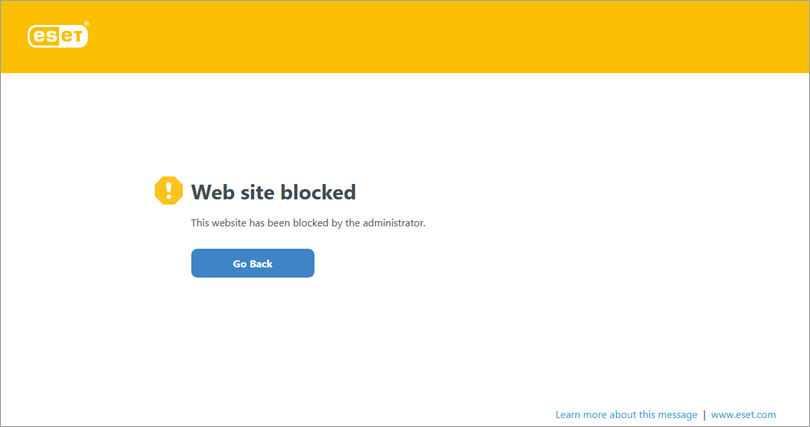
An error message appears anytime a client attempts to visit a link blocked by Web control. You can also customize the blocked web page message and graphic. Continue to Part II.
II. Create a new Web control logs report template
-
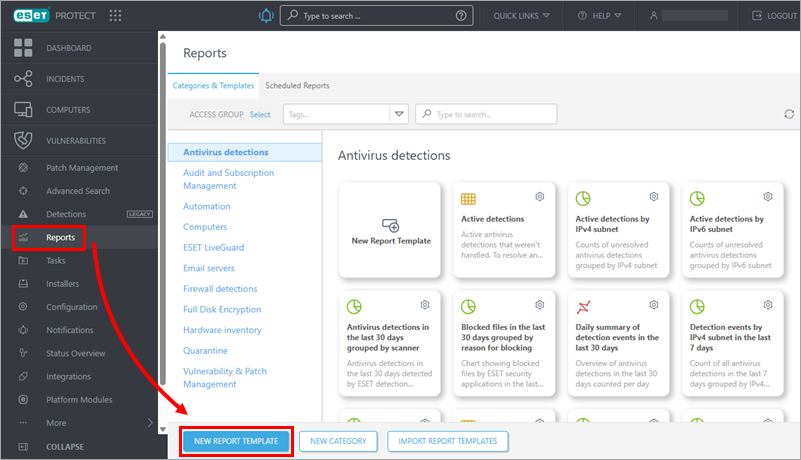
Click Reports → New Report Template.
-
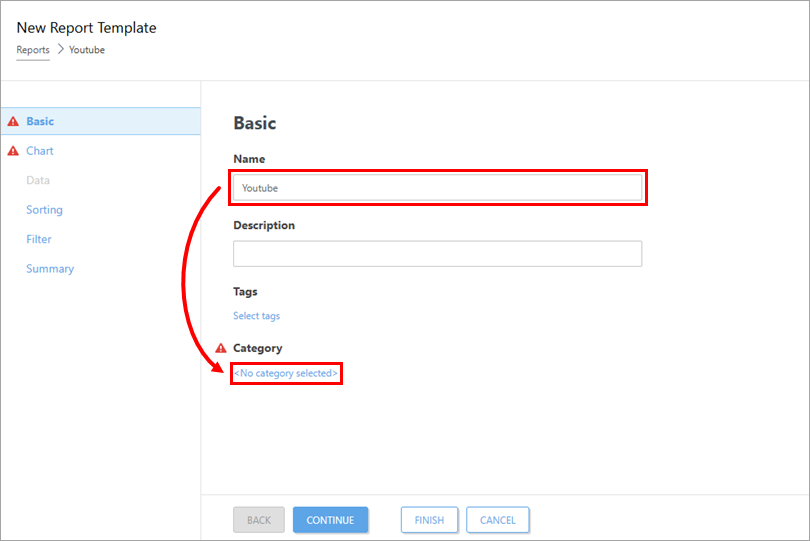
Type a name for the new report template and click No category selected.
-
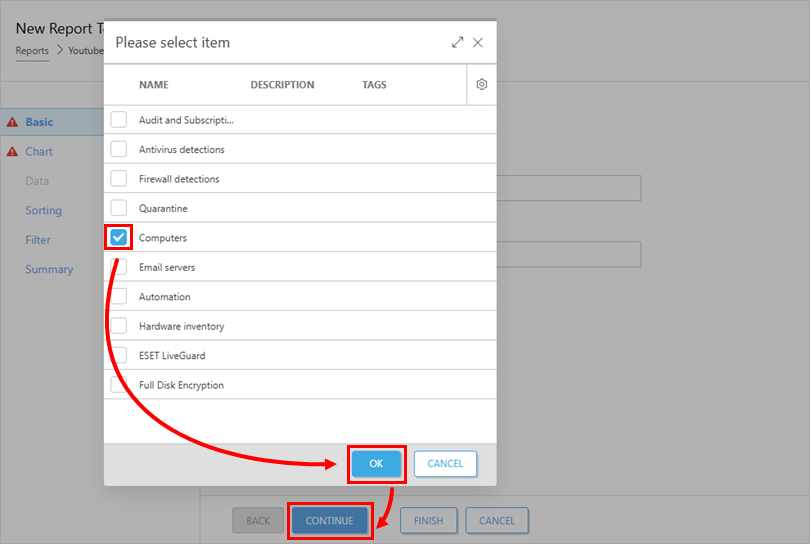
Select the check box next to Computers and click OK → Continue.
-
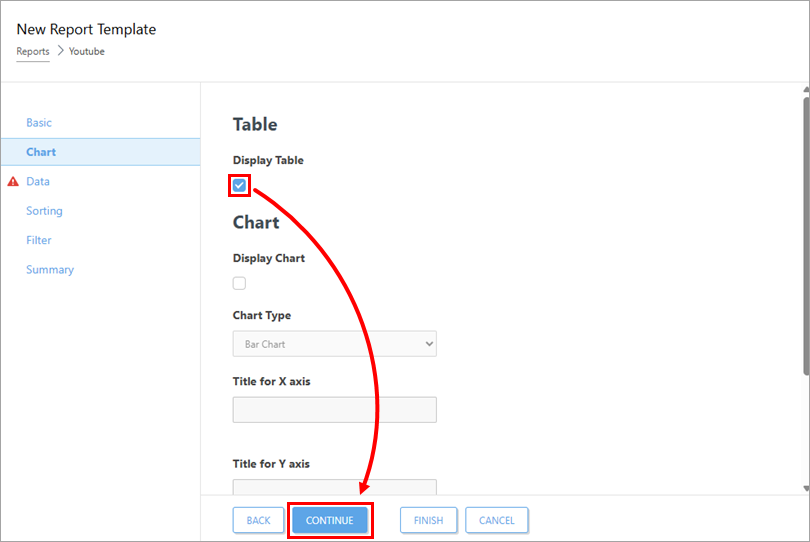
Select the check box under Display Table and click Continue.
-
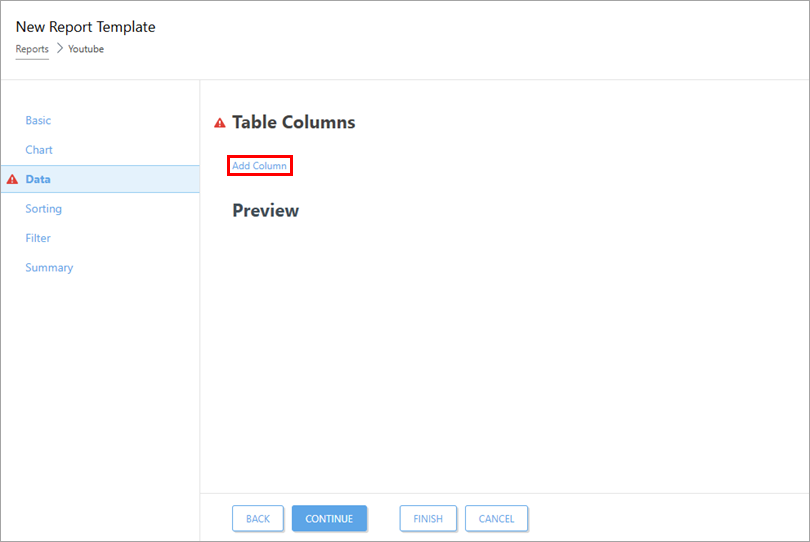
Click Add Column.
-
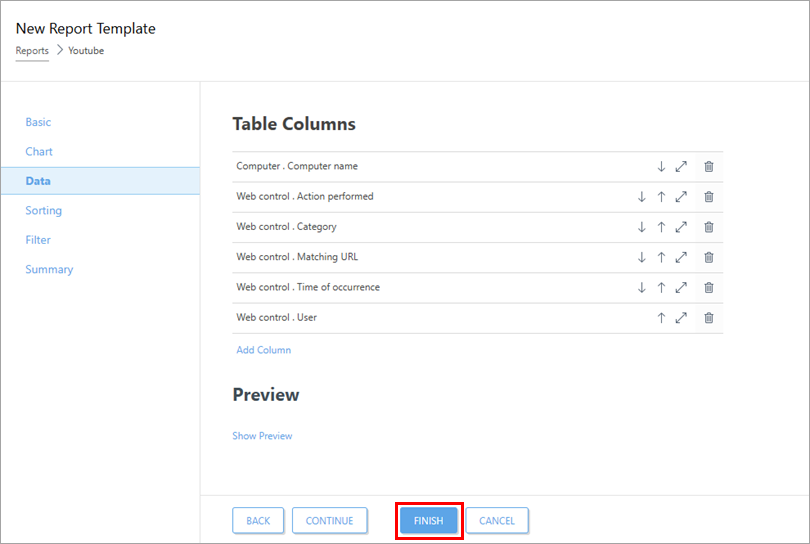
Add the following columns to the table template:
-
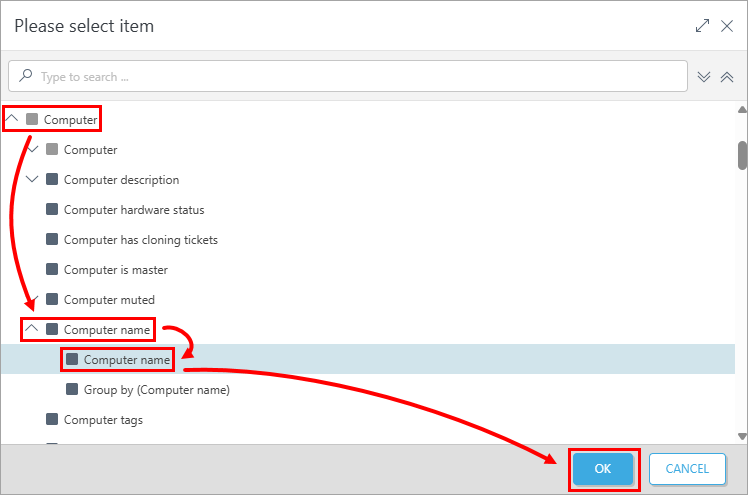
Expand Computer → Computer name, select Computer name and click OK.
-
Expand Web control, select Action performed and click OK.
-
Expand Web control, select Category and click OK.
-
Expand Web control, select Matching URL and click OK.
-
Expand Web control → Time of occurrence, select Time of occurrence and click OK.
-
Expand Web control, select User and click OK.
-
-
Click Finish.
III. Add a new Web control logs Dashboard report
-
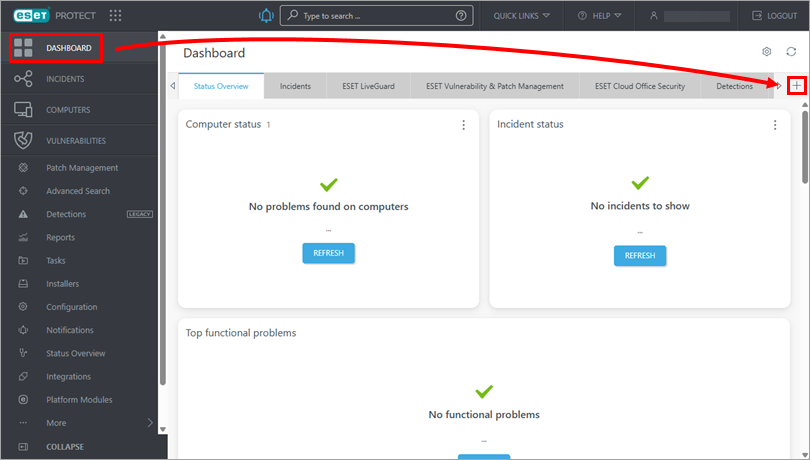
Click Dashboard → the plus icon to add a new dashboard.
-
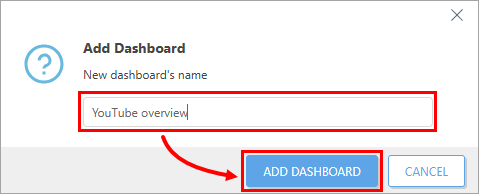
Type a name for the new dashboard and click Add Dashboard.
-
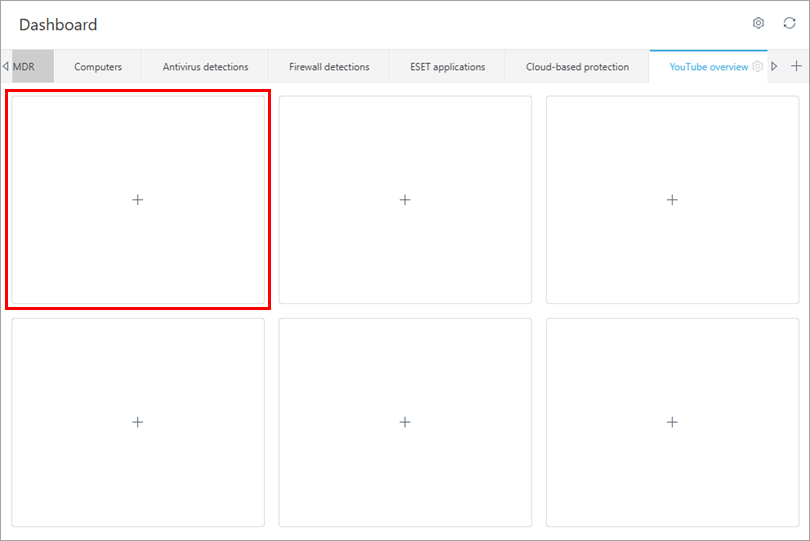
Click the tile where you want to display the dashboard report.
-
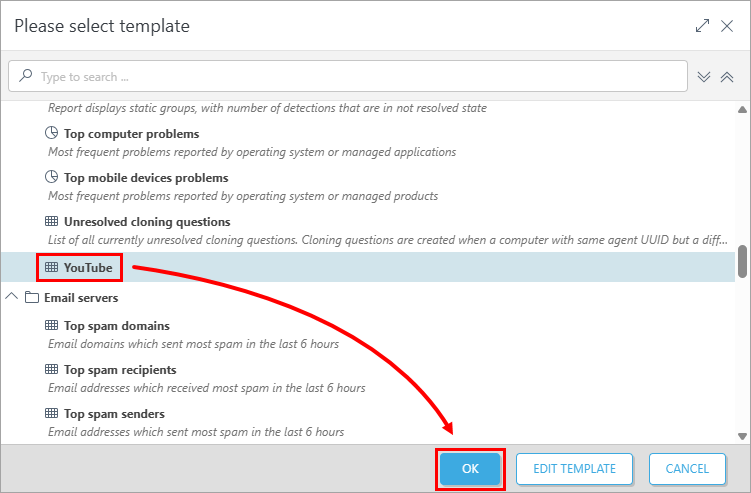
Select the report you created in Part II (in this example: Expand Computers and click YouTube → OK).
-
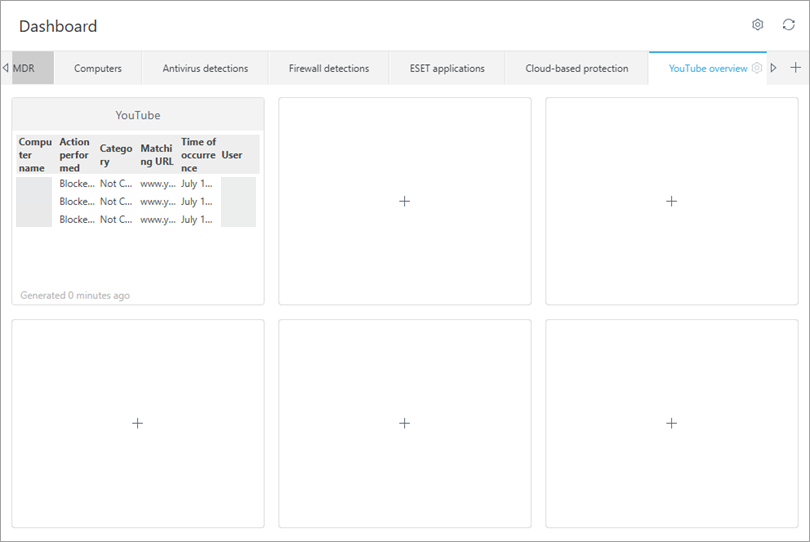
Your dashboard is now available. Each link blocked by Web control will be listed there.