Solution
- Prerequisites
- Manually install SQL Express on Computer 1
- Allow TCP/IP connections to the SQL database on Computer 1
- Install ESET PROTECT Server on Computer 2
I. Prerequisites
- Ensure that your system meets the system requirements for ESET PROTECT On-Prem.
- Visit the ESET PROTECT On-Prem All-in-one installer download page, select the appropriate installer file for your system and click Download. When it finishes downloading, extract the .zip file to an easy-to-find location.
II. Manually install SQL Express on Computer 1
-
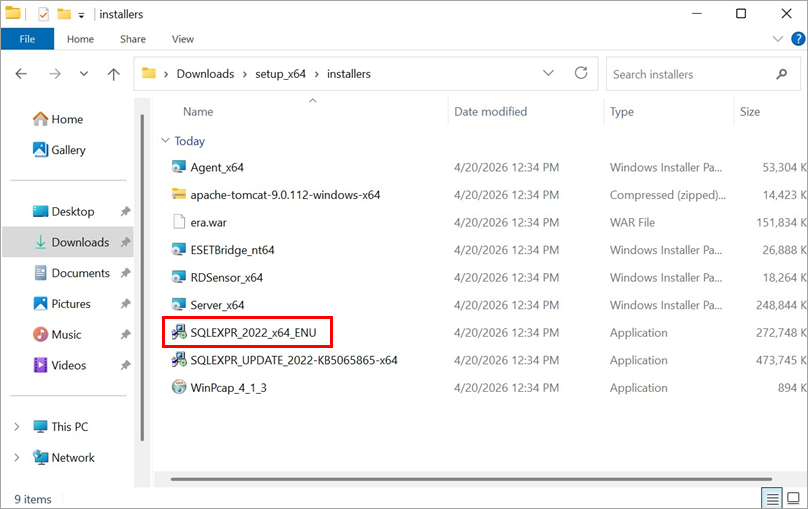
Open the setup_x64 folder that you extracted from the ESET PROTECT On-Prem All-in-one installer file, navigate to Installers and double-click SQLEXPR_2022_x64_ENU.
-
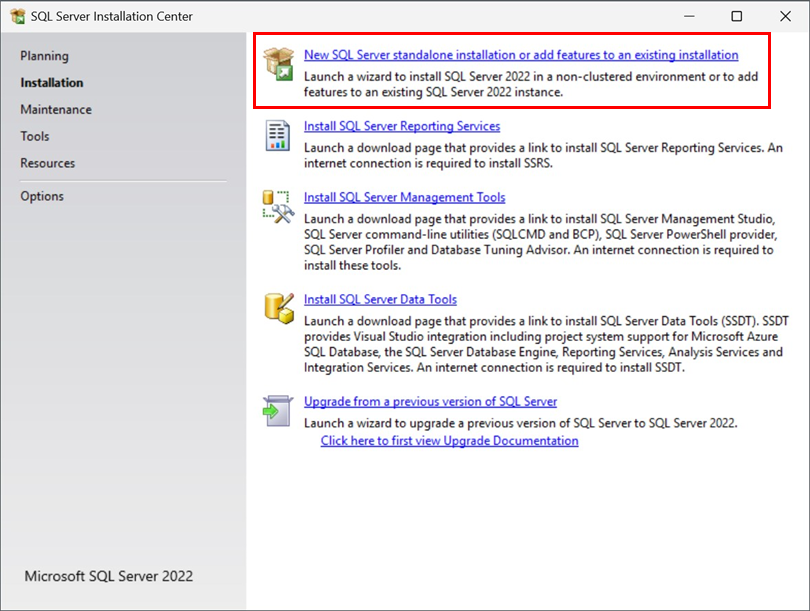
Click New SQL Server stand-alone installation or add features to an existing installation.
-
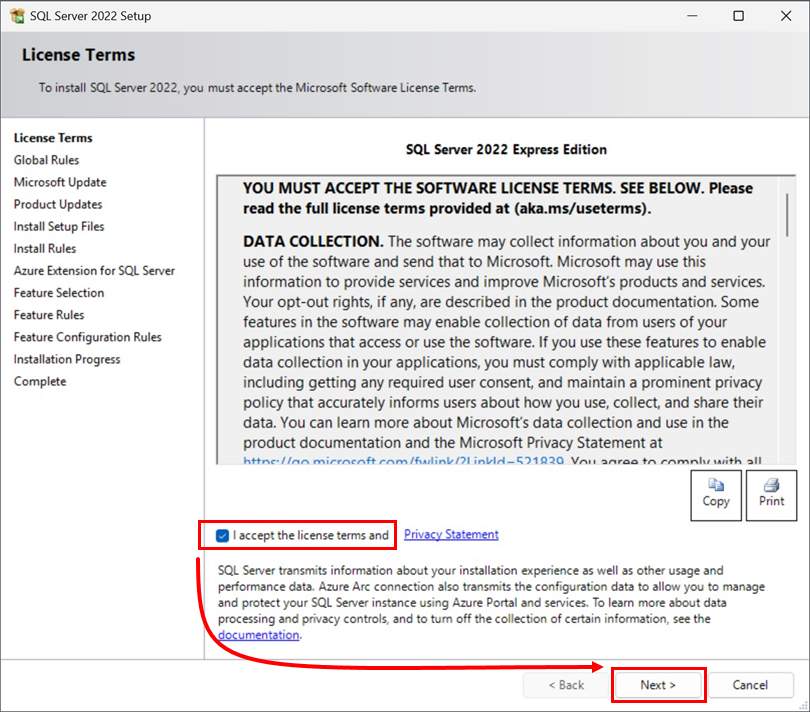
Read the SQL Server License Terms, select the checkbox labeled I accept the license terms and Privacy Statement, and then click Next.
-
Choose if you want to use Microsoft Updates to check for Updates or not, and click Next.
-
Set up the Azure Extension for SQL, or skip this step and click Next.
-
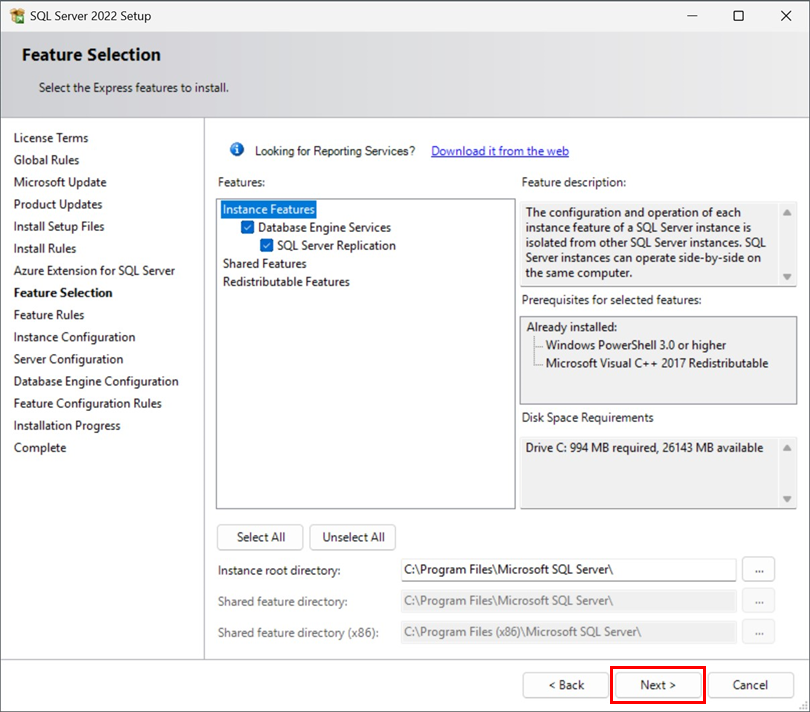
After the support files finish installing, in the Feature Selection window, leave the default values selected and click Next.
-
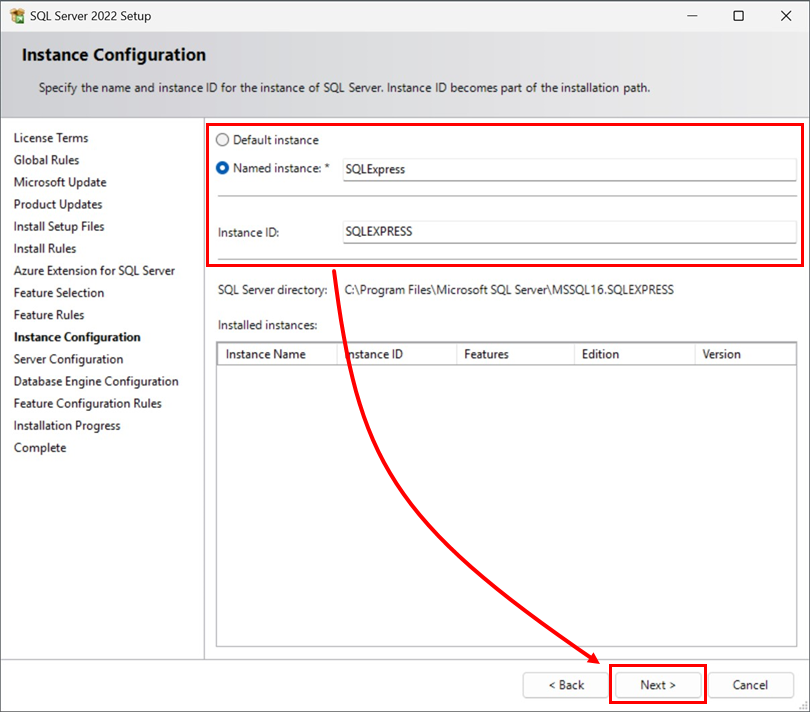
The default name for your database instance is SQLExpress. If you prefer a custom name, type it in the Named instance and Instance ID fields, and click Next.
-
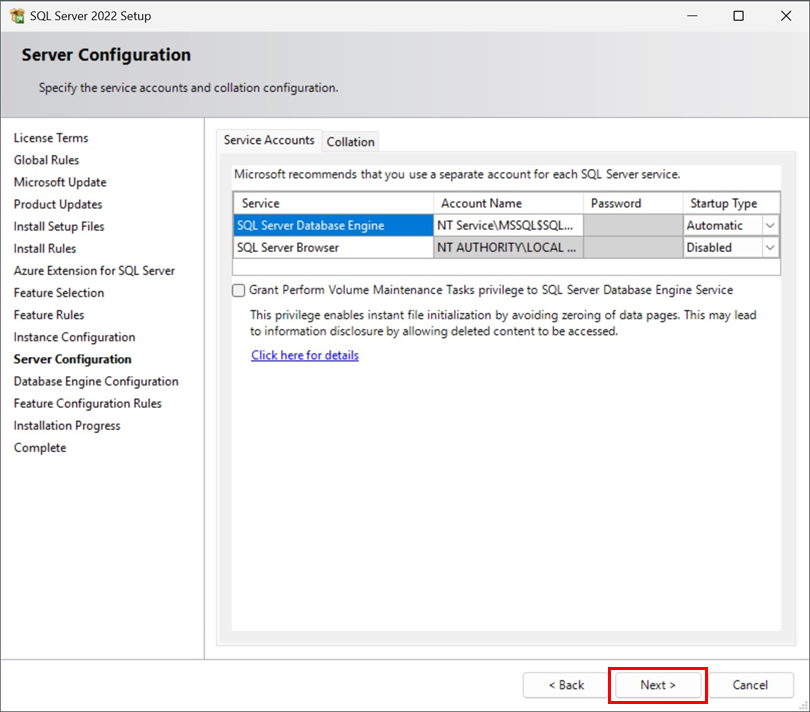
Keep the default settings and click Next.
-
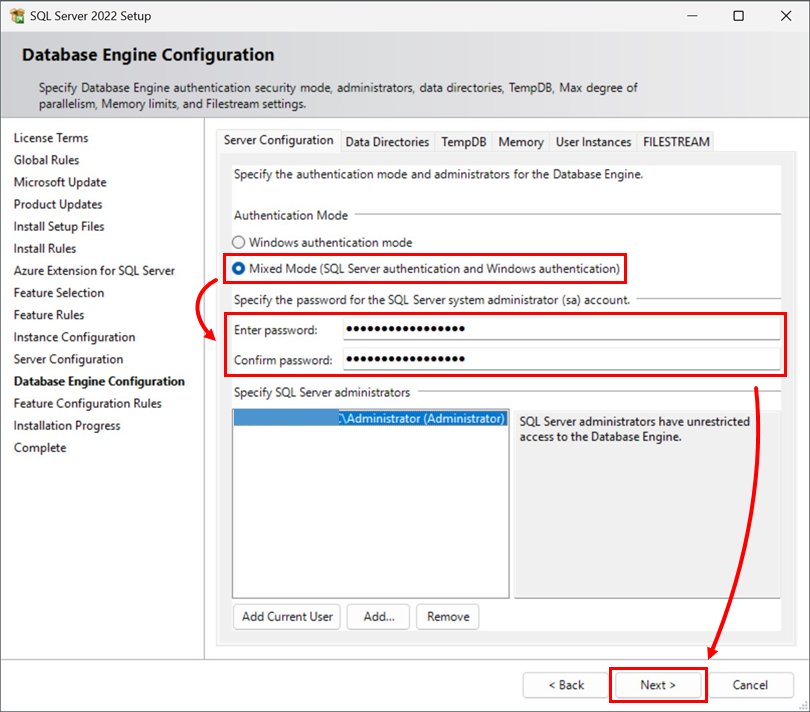
In the Database Engine Configuration window, select Mixed Mode (SQL Server authentication and Windows authentication), type a password for your database into the Enter password and Confirm password fields and then click Next.
-
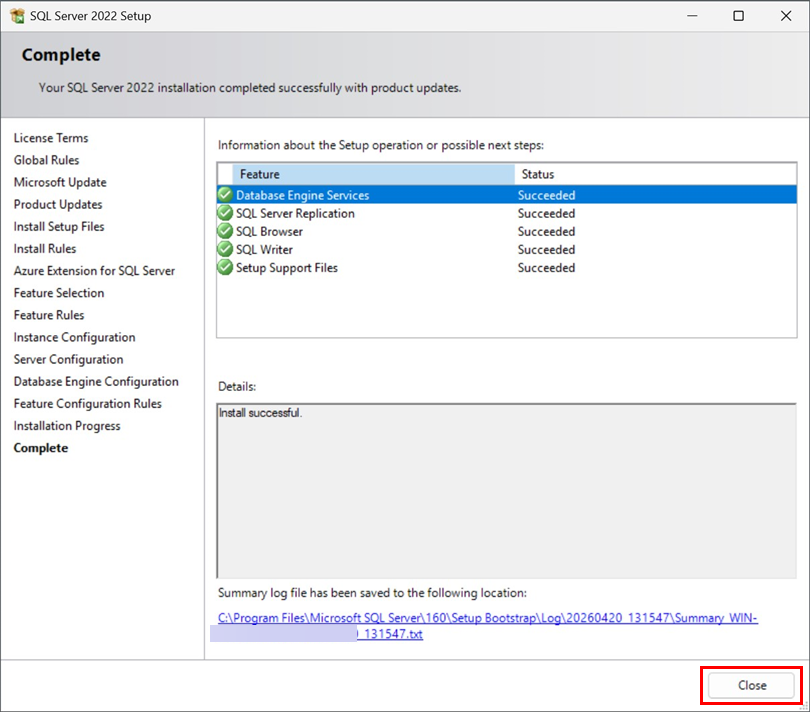
When SQL Server installation completes, click Close. Continue to part III below.
III. Allow TCP/IP connections to the SQL database on Computer 1
-
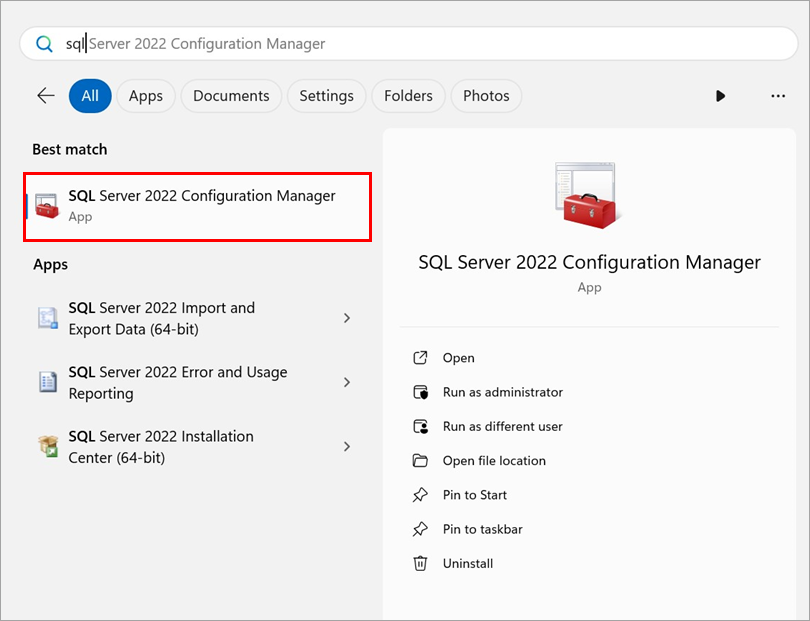
Click Start → SQL Server 2022 Configuration Manager.
-
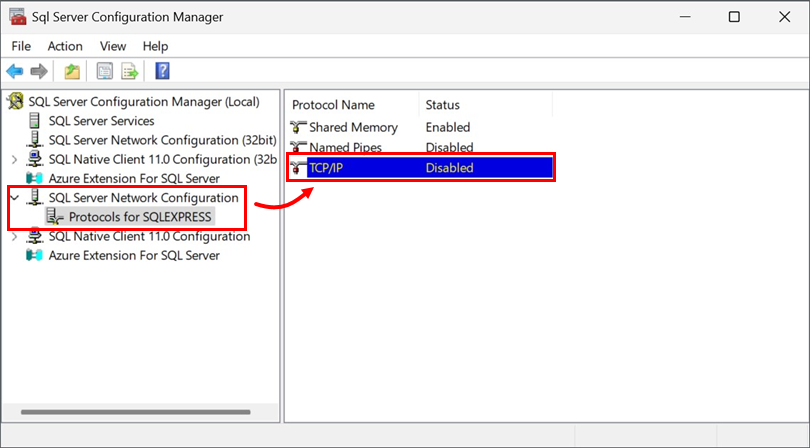
Expand SQL Server Network Configuration → Protocols for SQLEXPRESS, select the database instance that will be used with ESET PROTECT On-Prem and then double-click TCP/IP.
-
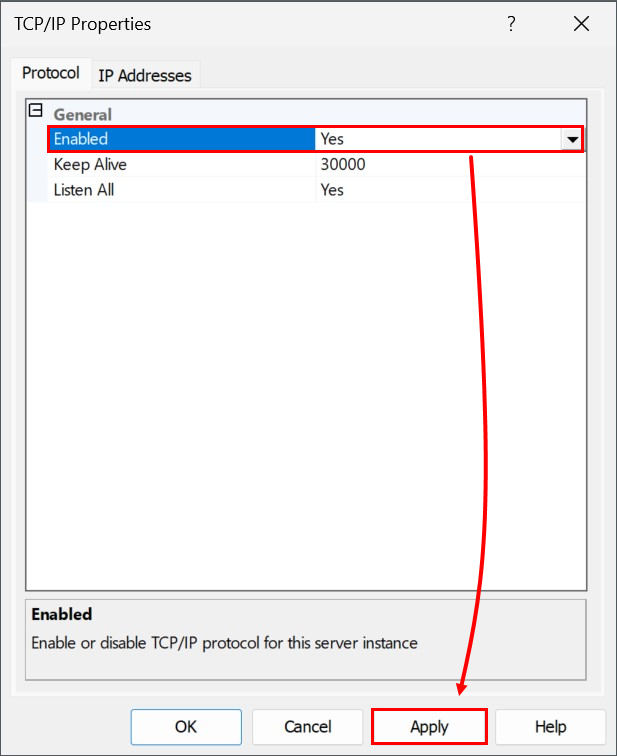
Select Yes from the drop-down menu next to Enabled and click Apply. Click OK if you are prompted.
-
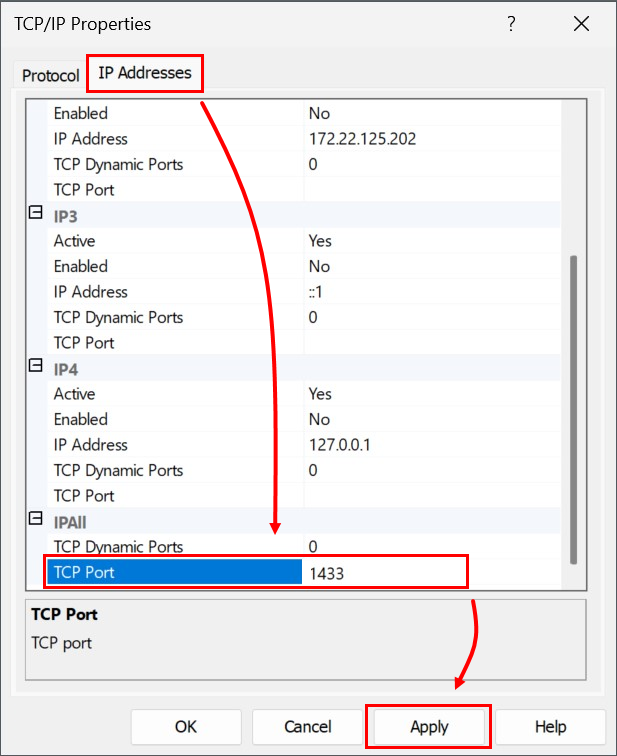
Click the IP Addresses tab and locate the IPAII section. Set the TCP Port value to 1433 and click Apply. Click OK if you are prompted, and click OK to exit the TCP/IP window.
-
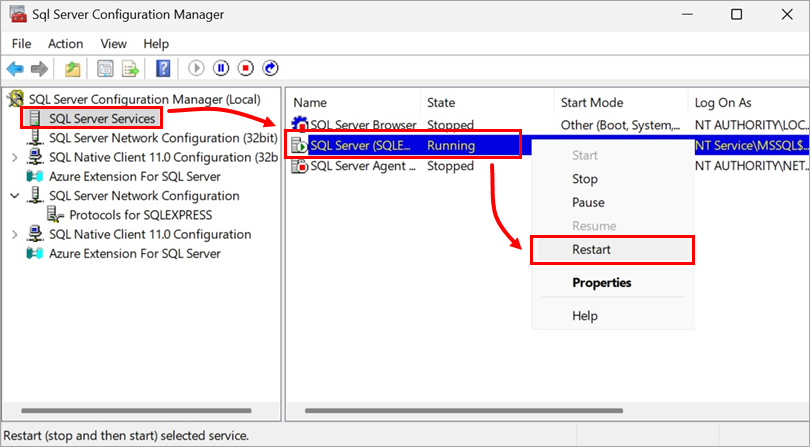
Select the SQL Server Services entry from the drop-down menu, right-click the database instance that will be used with ESET PROTECT On-Prem, and select Restart from the context menu. When you are finished, continue to part IV below.
IV. Install ESET PROTECT Server on Computer 2
-
Open the setup_x64 folder that you extracted from the ESET PROTECT On-Prem All-in-one installer file and double-click Setup.exe.
-
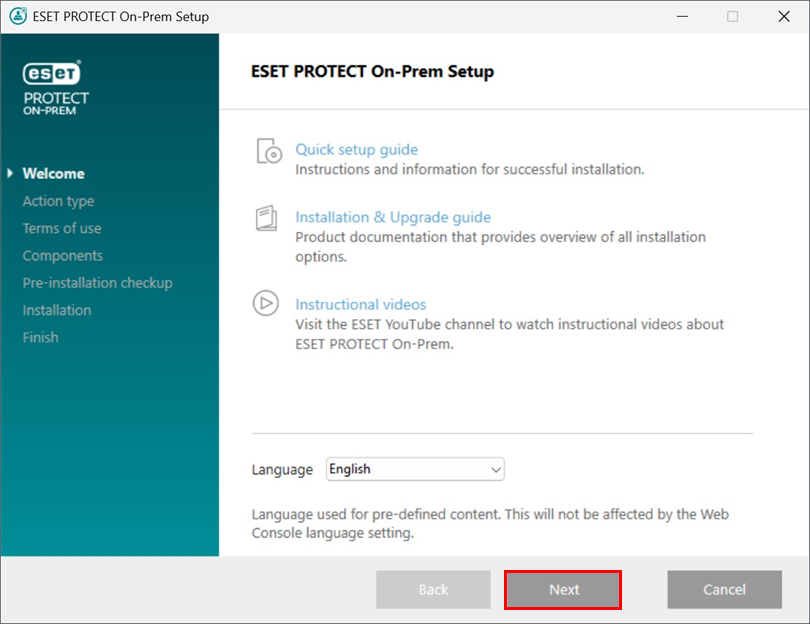
Click Next.
-
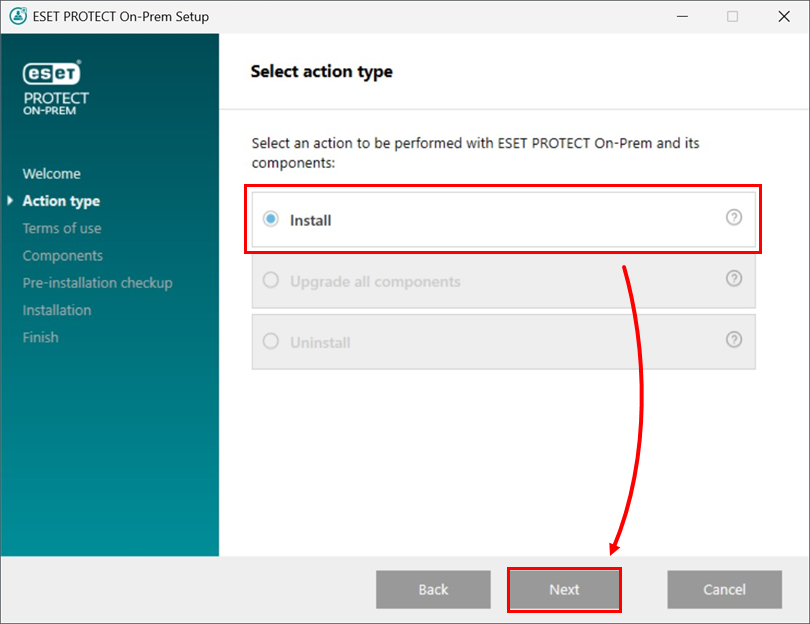
Select Install, and click Next.
-
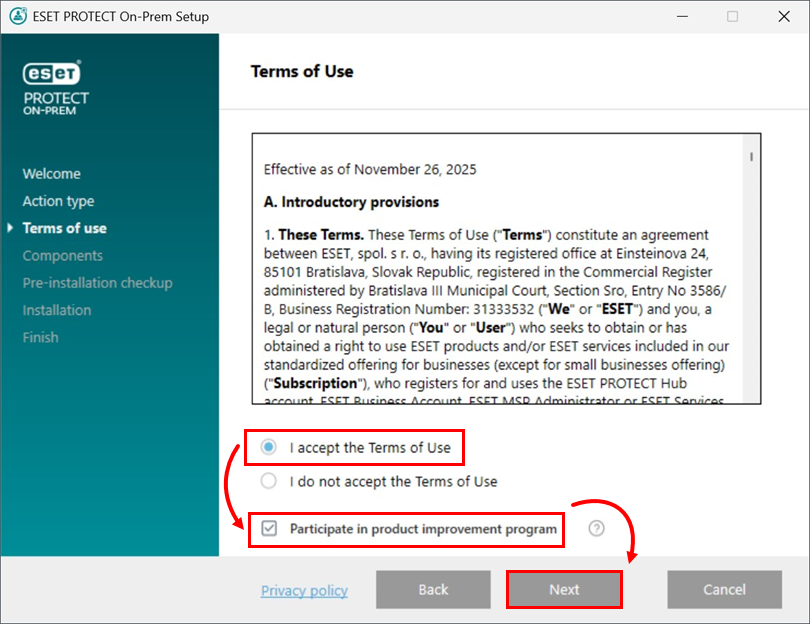
Read the End User License Agreement, select I accept the terms in the Terms of Use if you agree. Deselect the check box Participate in product improvement program if you do not agree to send crash reports and telemetry data to ESET. If the check box is left selected, telemetry data and crash reports will be sent to ESET. Click Next to continue.
-
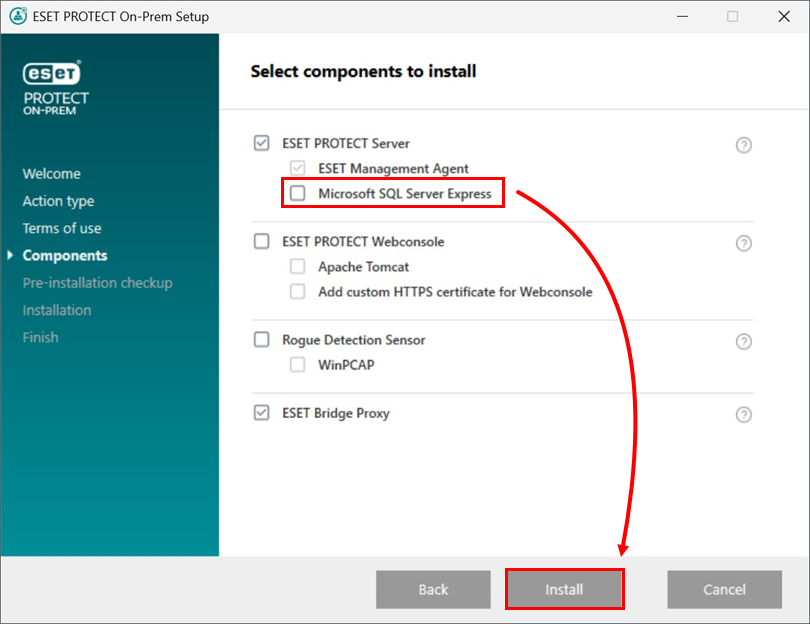
Deselect the check box next to Microsoft SQL Server Express. Optionally, select the check box next to ESET Bridge Proxy if you want to install that component. Click Install when you are ready.
If you are prompted to install prerequisites, follow the link provided, install the prerequisites and then click Retry.
-
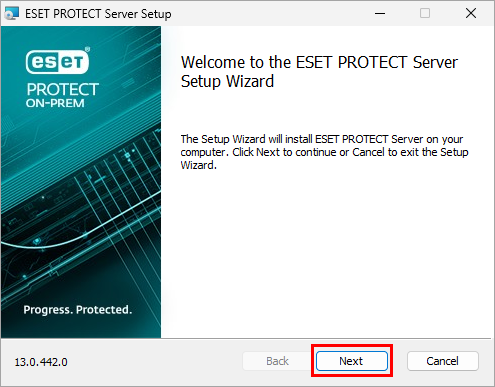
Click Next.
-
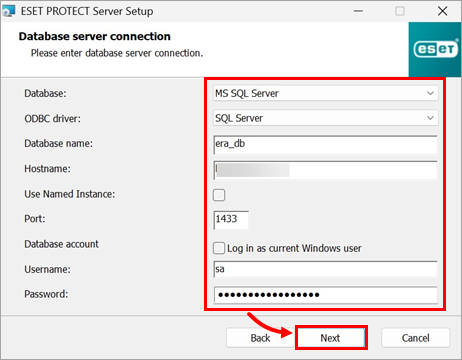
Select or type the data below and click Next:
- Database: Microsoft SQL Server
- ODBC driver: SQL Server
- Database name: era_db (This is the default database name; you can provide another name. If the database does not exist, the installer will create it.)
- Hostname: Hostname of the computer where the SQL database is installed
- Use named instance: Leave unchecked
- Port: 1433
- Username: sa
- Password: the password you set in step 7 from section II of this article.
-
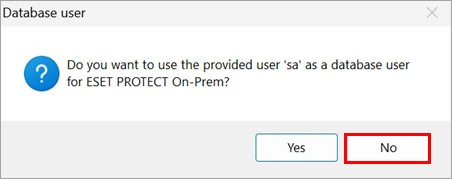
In the Database user window, select No to create a new database user.
-
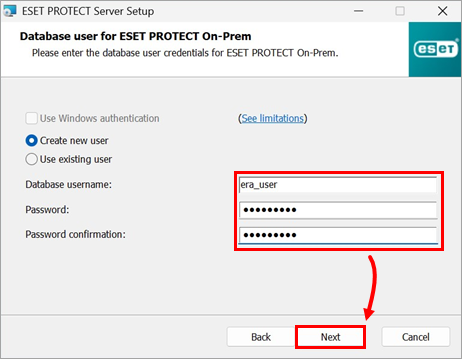
In the Database user for PROTECT On-Prem window, provide the new Database username (era_user is the default username) and type the Password and Password confirmation and click Next.
-
Type your login password for the ESET PROTECT Web Console into the Password and Password confirmation fields. Make sure to record this password for later use and click Next.

-
In the Certificate information window, you can customize your Certificate Authority. The only mandatory fields are Authority common name and Certificate validity. Type any information about your Certificate Authority that you want to add. If you create a password, make sure you record it, because all client computers using this certificate will require it. Click Next when you are finished.

-
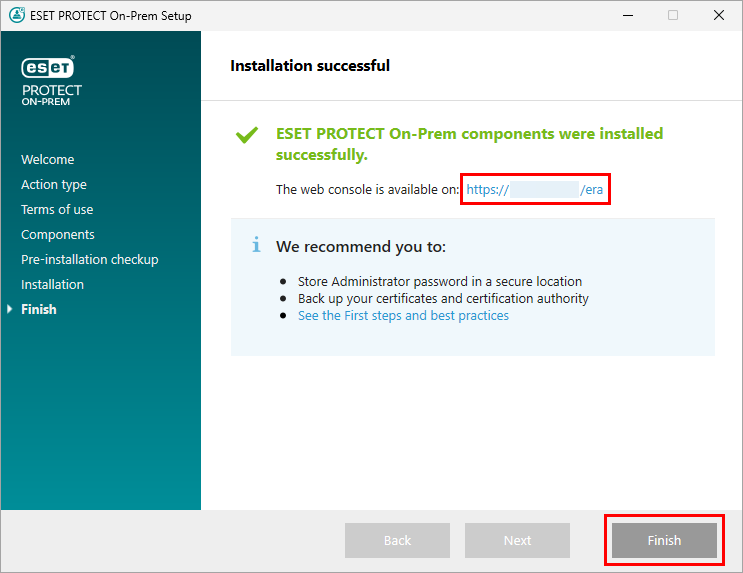
Continue with the ESET PROTECT Server installation and other ESET PROTECT On-Prem components. At the Installation successful window, click the URL link to open ESET PROTECT Web Console. We recommend that you bookmark or note this link for future reference. By default, the ESET PROTECT On-Prem installer creates e a link to the ESET PROTECT Web Console in your Start menu. Click Finish to close the installer.
-
Locate and deploy the ESET Management Agent to client computers.


