Issue
- ESET Technical Support has requested a copy of log files
Details
Click to expand
Your ESET application keeps logs of all previous scans run on your computer. These scan logs are useful in determining whether previous threats have been successfully cleaned or deleted. See below for more information about each type of log file:
- Detections: Detailed information about infiltrations detected by your ESET application modules
- Events: All important actions performed by your ESET application are recorded in the event log
- Computer scan: Results of all completed manual or planned scans
- Blocked files: Contains records of files that were blocked and could not be accessed
- Sent files: Contains records of files that were sent to ESET LiveGrid® or ESET LiveGuard Advanced for analysis
- Audit logs: Each log contains information about the date and time when the change was performed, the type of change, description, source, and user
- HIPS: A record of specific rules that were marked for recording by the user
- Network protection: Displays all remote attacks on your computer detected by the Network protection (only in ESET Endpoint Security)
- Filtered websites: List of websites that were blocked by Web access protection or Web Control
- Antispam protection: Contains records related to email messages that were marked as spam
- Web control: Shows web pages that were blocked or allowed by Web Control, as well as how filtering rules were applied. Only in ESET Endpoint Security
- Device control: Contains records of removable media or devices that were connected to the computer. Only devices with a Device control rule will be recorded to the log file
Solution
Related solutions: Home users | ESET PROTECT On-Prem users
-
Open the main program window of your Windows ESET application.
-
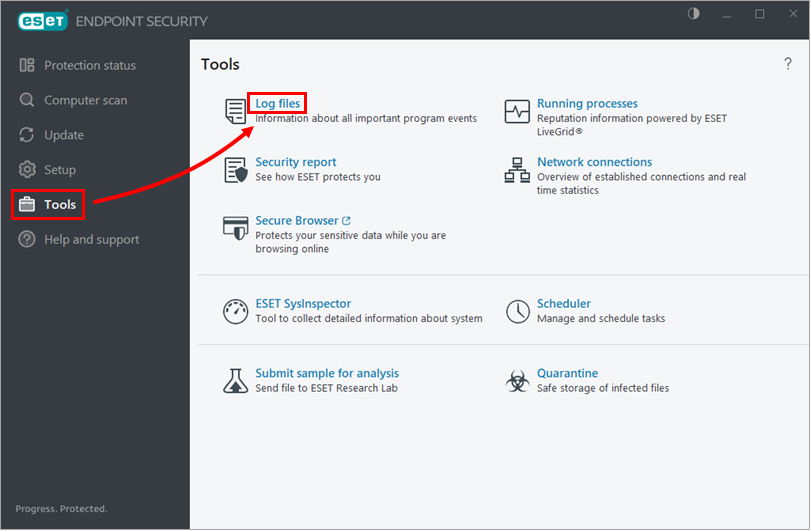
Click Tools → Log files.
-
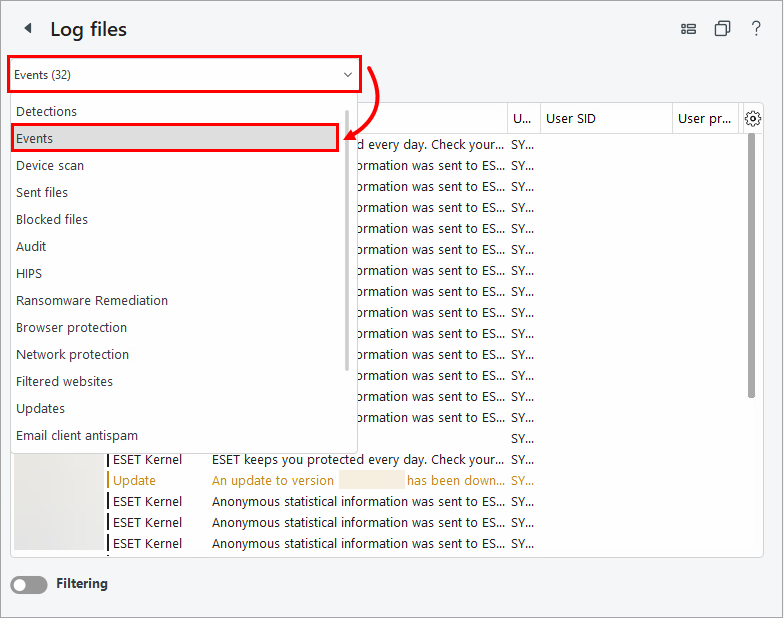
From the drop-down menu, select the type of log you want to export (for example, Events).
-
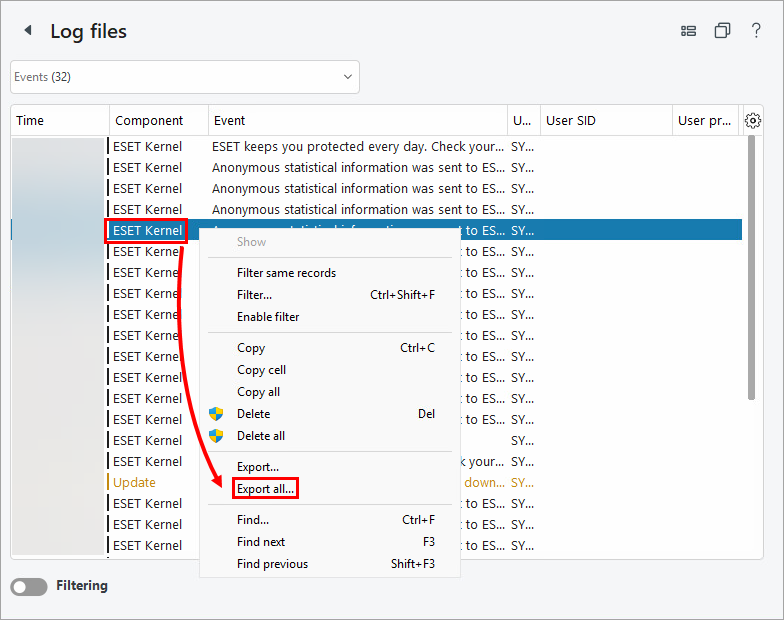
Right-click any log entry and select Export all.
-
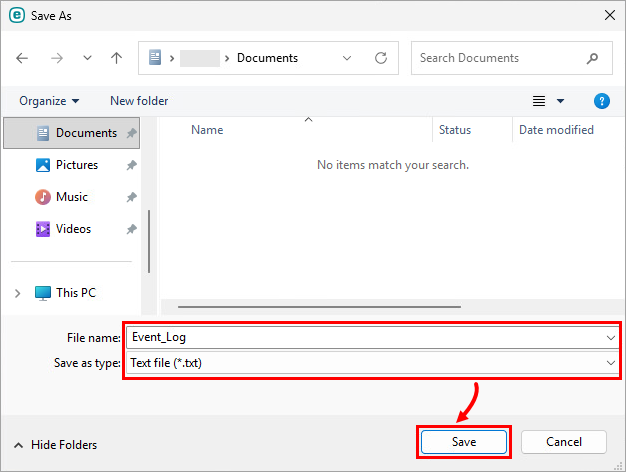
Choose a location to save your log file, type a filename and select Text file from the Save as type drop-down menu. Click Save.
-
If you have not done so already, contact ESET Technical Support. Attach this file to an email reply to ESET Technical Support. ESET Technical Support will examine the log and respond as soon as possible with the recommended steps to resolve your issue.


