[KB7727] Install or upgrade ESET Endpoint Security or ESET Endpoint Antivirus on a client device (Windows)

Issue

  • Download and install ESET Endpoint Security or ESET Endpoint Antivirus on client devices
  • Upgrade earlier versions of ESET endpoint applications to the latest version

Solution

Related solutions: macOS users | Managed users

  1. Click a link in a table below to download the an ESET endpoint application installer for your operating system. If needed, verify which version of the ESET endpoint application you should download.

    Thin installers available below

    The tables below contain download links for thin installers.

    A thin installer is a small installation package that downloads all required application modules from ESET servers during or immediately after installation. Because of this, an active internet connection is required to complete the installation successfully.

    If an internet connectivity issue occurs during installation or shortly afterward, the ESET Endpoint application will display a red warning message indicating a problem with module updates. When the connection is restored, click UpdateCheck for updates.

    If needed, download a full MSI installer for ESET endpoint applications.

    Application 64-bit 32-bit ARM 64-bit
    ESET Endpoint Security installer without AV Remover (.msi) Download Download Download
    ESET Endpoint Security installer with AV Remover (.exe) Download Download
    Application 64-bit 32-bit ARM 64-bit
    ESET Endpoint Antivirus installer without
    AV Remover (.msi)
    Download Download Download
    ESET Endpoint Antivirus installer with
    AV Remover (.exe)
    Download Download
  2. Create a dedicated folder for the installation package and save or move the installer to the folder before running it.

    Different installation flows

    The ESET Endpoint Security installer with ESET AV Remover is used as an example for the installation instructions below.

    The flow for the other installers might look slightly different and might not include the ESET AV Remover settings.

  3. Double-click the installer to run it.

    Windows User Account Control (UAC)

    If you are using Windows User Account Control (UAC), you will be prompted by additional dialog boxes during installation. When prompted, confirm you want to install ESET and any associated device drivers.

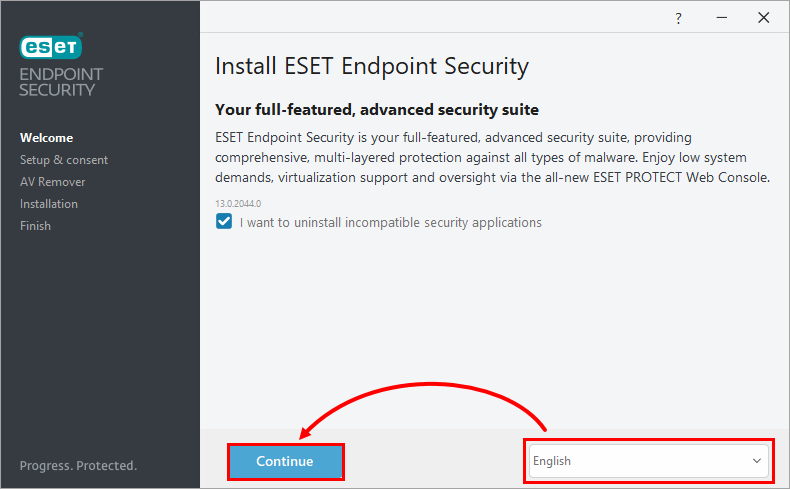
  4. Select the installation language and click Continue. If you do not want to remove other security applications, deselect the check box next to I want to uninstall incompatible security applications.
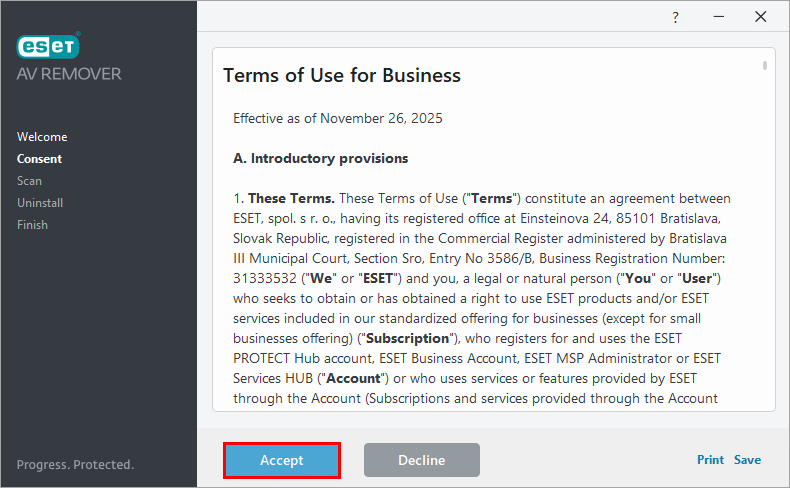
  5. Read the Terms of Use and click Accept.
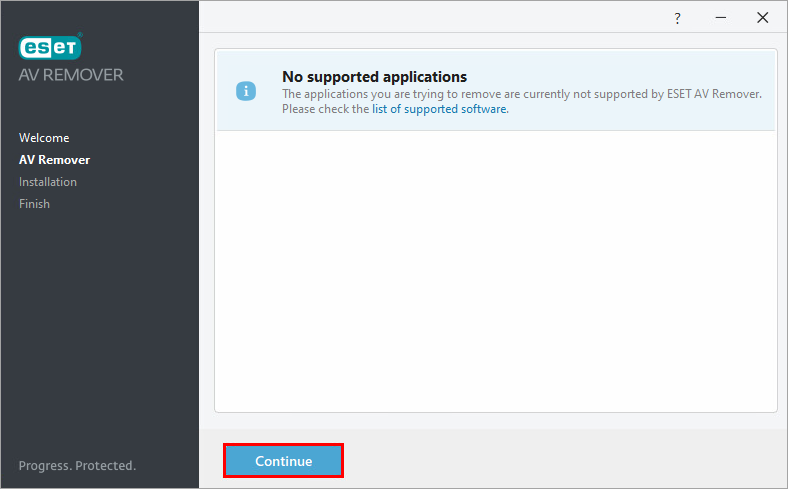
  6. Wait for the scan for security applications to finish. You will be notified if any applications to be removed are found. Click Continue.
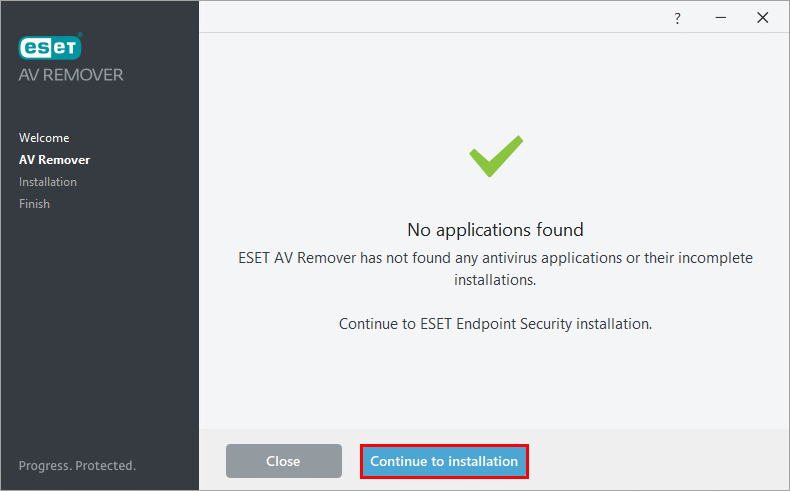
  7. If no applications are found, click Continue to Installation. If other security applications were found, follow the on-screen instructions to remove them.
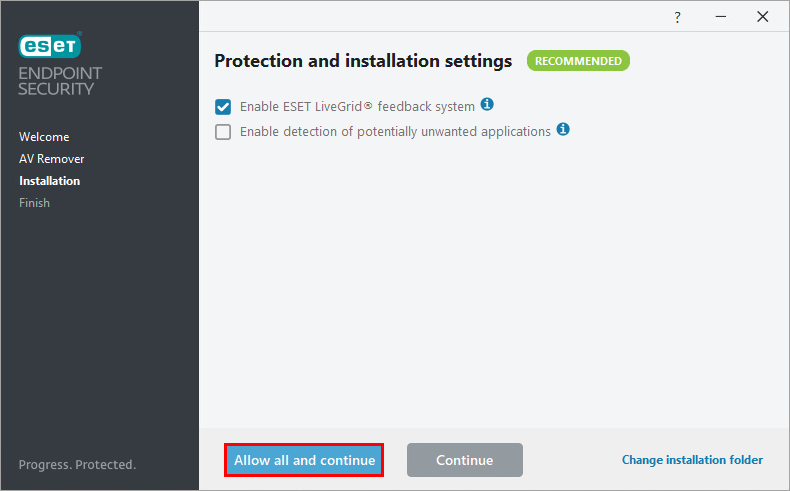
  8. Click Allow all and continue. You can later change the protection settings in the Advanced Settings. Learn more about LiveGrid or potentially unwanted applications.
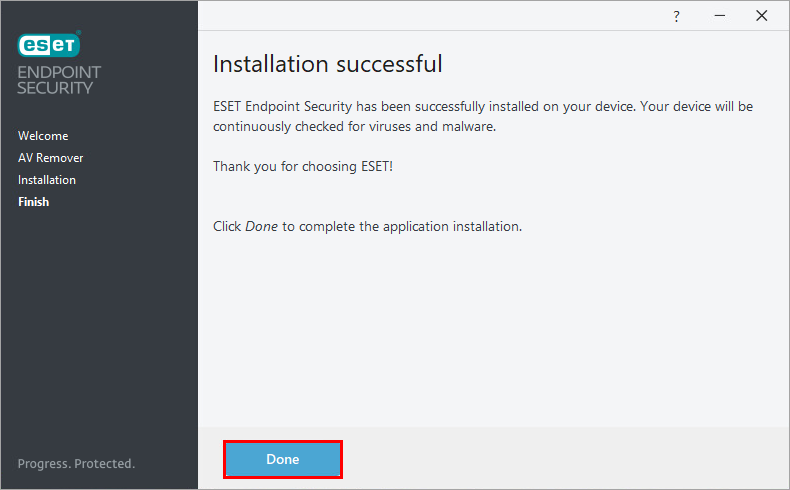
  9. Click Done.

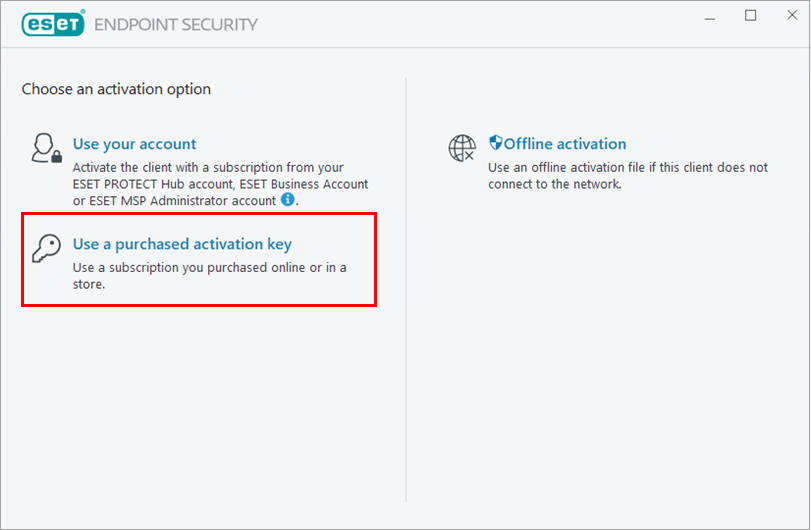
  10. Click Use a purchased activation key.

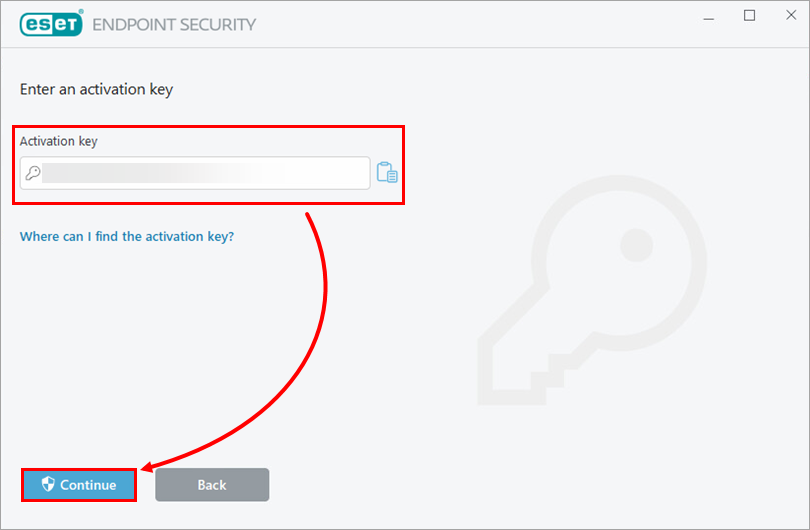
  11. Type or copy/paste your activation key and click Continue. If needed, recover your activation key.
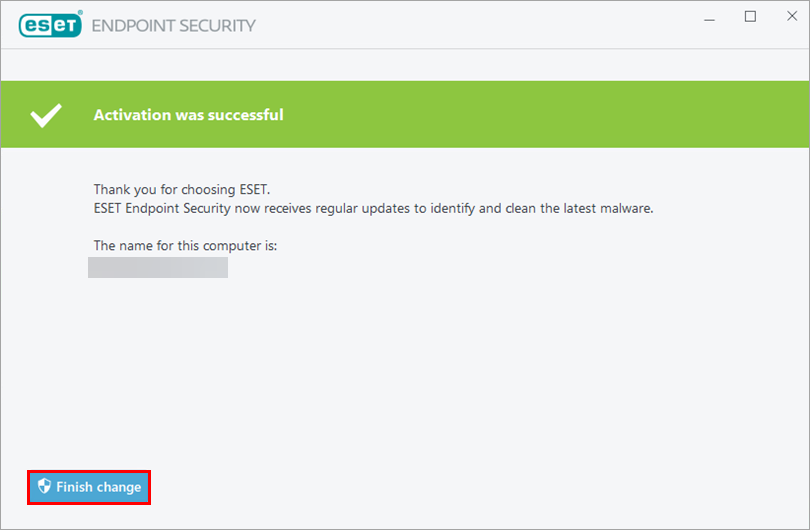
  12. Click Finish change.

    Product activation issues

    Your ESET application must communicate with ESET activation servers to activate your subscription and function correctly. This communication takes place over the internet using the standard HTTP protocol on port 80 or HTTPS on port 443.

    If you experience issues during activation, verify that outbound traffic on ports 80 and 443 to ESET activation servers is allowed on your firewall. If access to these servers is blocked, product activation may fail.

    For more information, see Ports and addresses required to use your ESET application with a third-party firewall.

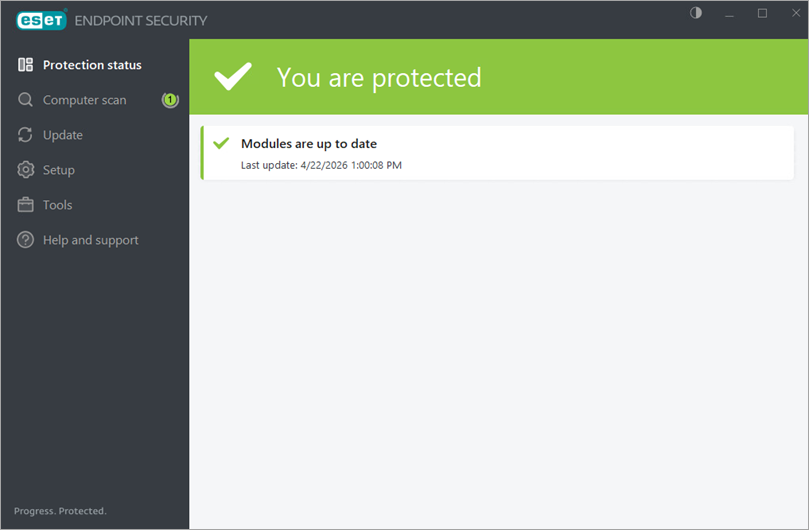
Your ESET Windows endpoint application has been installed successfully.