Issue
- Deploy ESET Management Agent on client computers using Agent script Installer from ESET PROTECT or ESET PROTECT On-Prem
Click the expanders below to show the procedure for ESET PROTECT or ESET PROTECT On-Prem:
ESET PROTECT
Solution
-
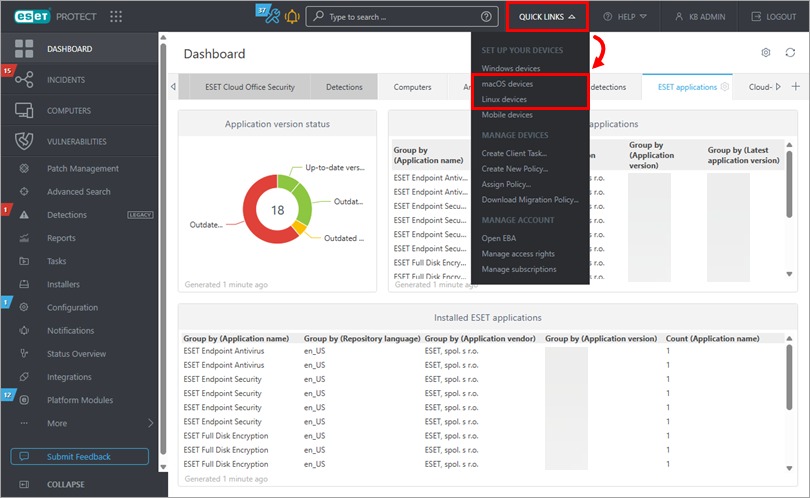
Click Quick links and, depending on the operating system, click macOS devices or Linux devices (in this example, the macOS devices option has been selected).
-
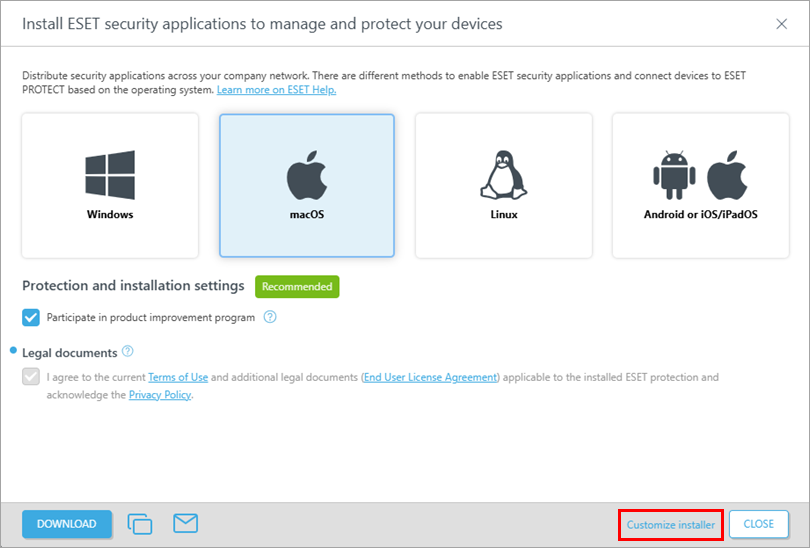
Click Customize Installer.
-
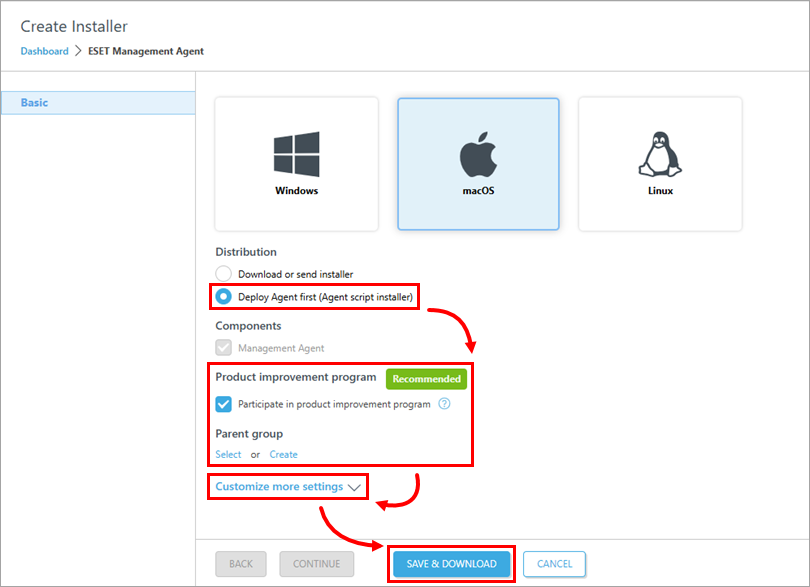
Select Deploy Agent first (Agent script installer). Configure other settings as needed. Optionally, click Customize more settings to review additional settings. Click Save & Download.
-
Download and run the installation package file on a client computer.
- See how to deploy ESET Management Agent on a macOS client computer or a Linux client computer. The ESET Management Agent will connect the client computer to ESET PROTECT.
Troubleshooting
- Occasionally, during ESET Management Agent installation, the notification "Error code 1603 - Installation ended prematurely" appears. Use the following troubleshooting steps to resolve this error:
-
- If you run the Agent script installer from a shared location, copy the script installer file to the local disk and attempt the installation again.
- If the issue persists, collect and submit an ESET Sysinspector log for ESET Technical Support.
ESET PROTECT On-Prem
- Deploy ESET Management Agent using the Agent script installer from ESET PROTECT On-Prem
- Troubleshooting
Solution
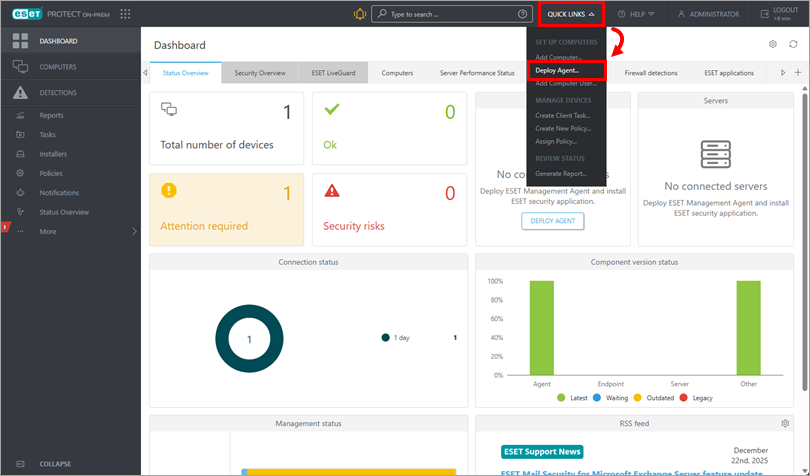
-
-
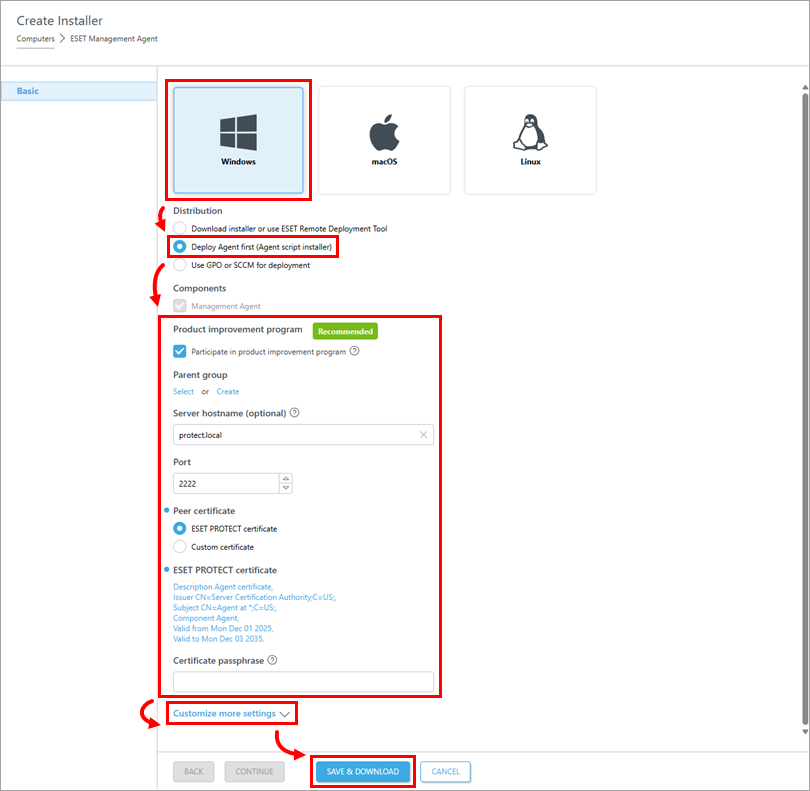
Select Windows and verify that the Deploy Agent first (Agent script installer) option is selected. Configure other settings as needed. Optionally, click Customize more settings to review additional settings. Click Save & Download.
-
Download and run the installation package file on a client computer.
-
See how to deploy ESET Management Agent on a Windows client computer. The ESET Management Agent will connect the client computer to ESET PROTECT On-Prem.
-
-
-
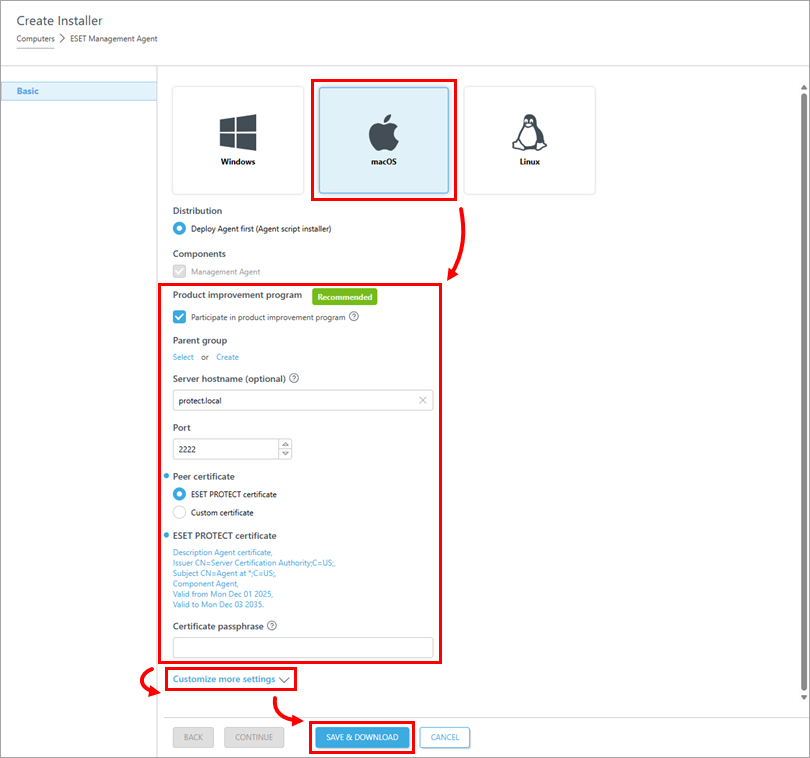
Select macOS and configure other settings as needed. Optionally, click Customize more settings to review additional settings. Click Save & Download.
-
Download and run the installation package file on a client computer.
-
See how to deploy ESET Management Agent on a macOS client computer. The ESET Management Agent will connect the client computer to ESET PROTECT On-Prem.
-
Deploy ESET Management Agent on Linux
-
-
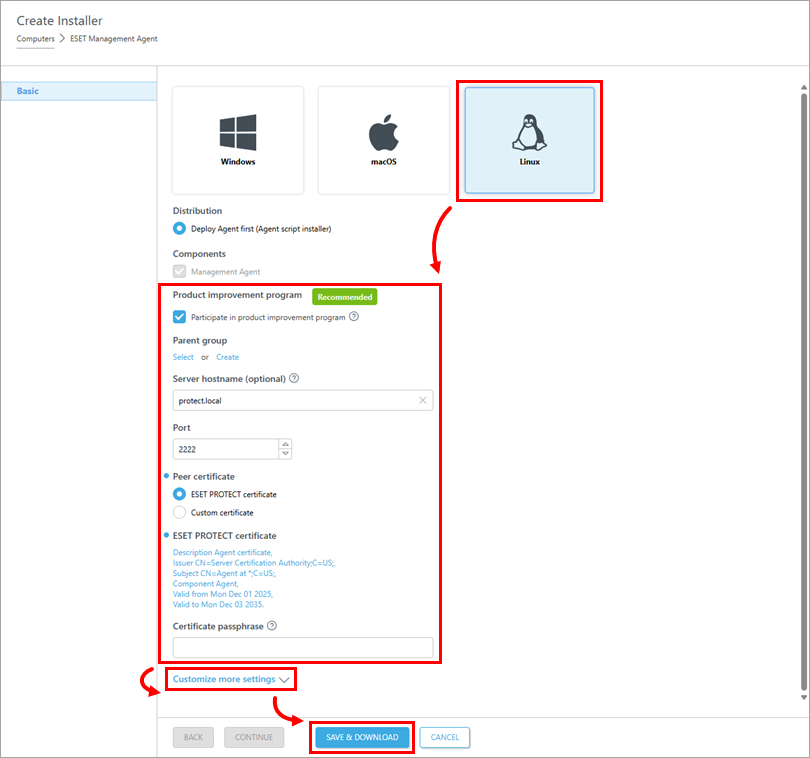
Select Linux and configure other settings as needed. Optionally, click Customize more settings to review additional settings. Click Save & Download.
-
Download and run the installation package file on a client computer.
-
See how to deploy ESET Management Agent on a Linux client computer. The ESET Management Agent will connect the client computer to ESET PROTECT On-Prem.
-
Troubleshooting
-
If you receive a "Failed to get installers" or "Failed to synchronize package repository" error while performing the steps below, your third-party firewall could be blocking certain communications based on the country of origin. If this is the case, we recommend allowing communications for ESET PROTECT On-Prem repository.
-
Occasionally, during ESET Management Agent installation, the notification "Error code 1603- Installation ended prematurely" will be displayed. Use the following troubleshooting steps to resolve this error:
- Read more about failed installation of ESET Management Agent (Windows)
- If you run the Agent script installer from a shared location, copy the script installer file to the local disk and attempt the installation again
- When you run the Agent script installer, right-click it and select Run as Administrator from the context menu (Windows)
- If the issue persists, collect and submit an ESET Sysinspector log to ESET Technical Support


