Issue
- Remove an antivirus application that was installed on your computer before you install an ESET application
- Download and run ESET AV Remover
- Application removal results
- Applications that can be removed using ESET AV Remover
Solution
Download and run ESET AV Remover
-
Based on your Windows operating system, click the appropriate link below to download ESET AV Remover. To determine which version to download, check whether your system is 32-bit or 64-bit.
-
Run the downloaded file.
-
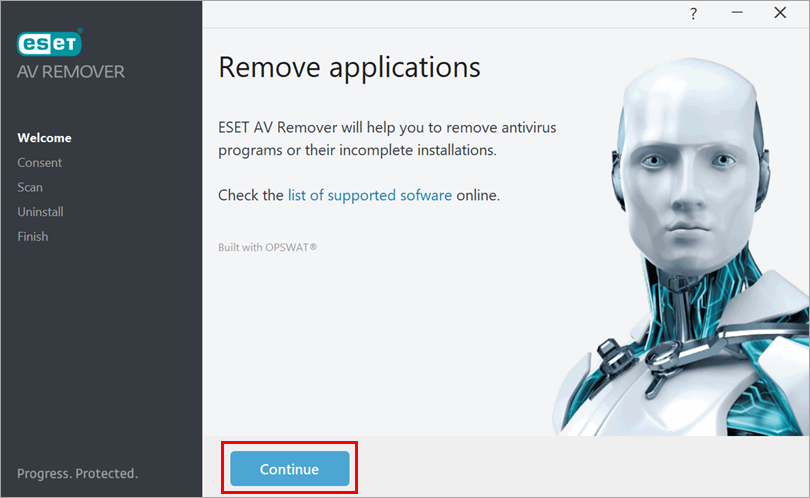
Click Continue.
-
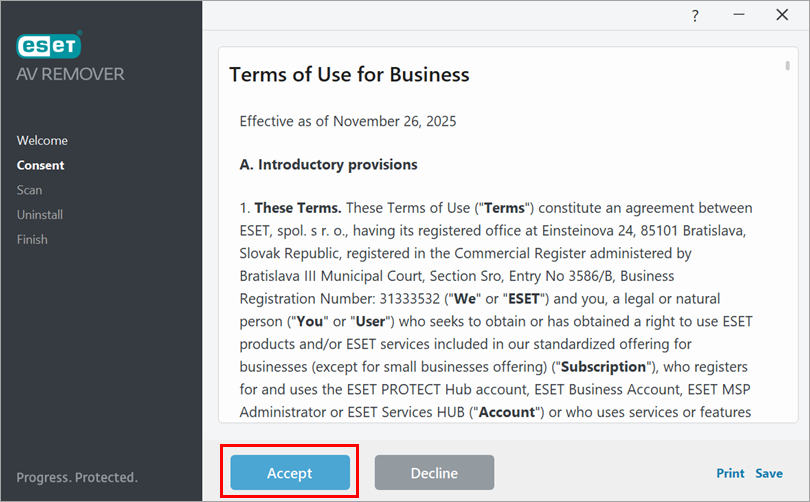
Read the Terms of Use and click Accept.
-
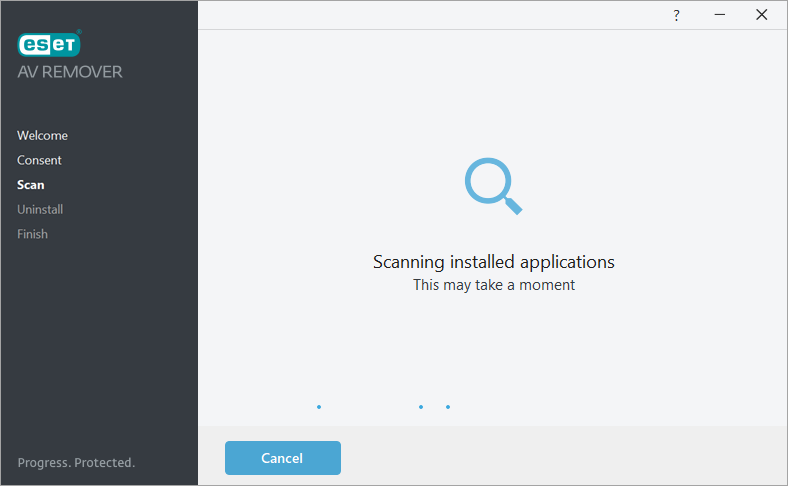
ESET AV Remover will scan your computer for the installed antivirus applications.
-
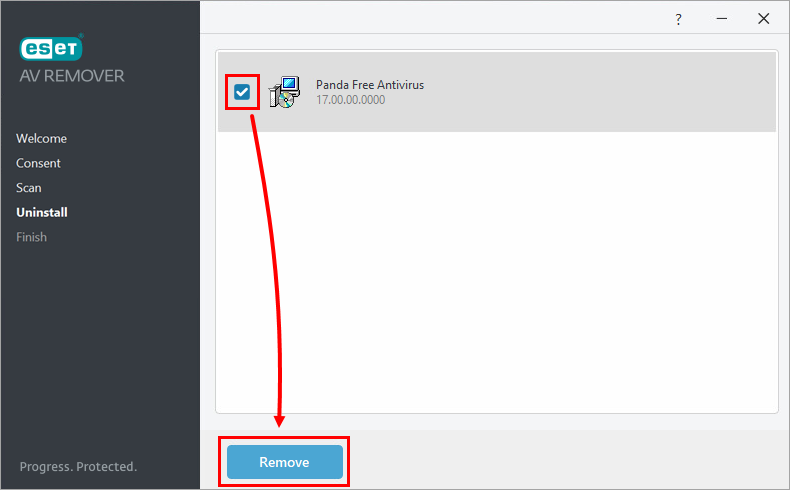
Select the check box next to the antivirus application you want to remove and click Remove.
-
Click the applicable expander below to continue based on the message you receive after attempting to remove an application using ESET AV Remover.
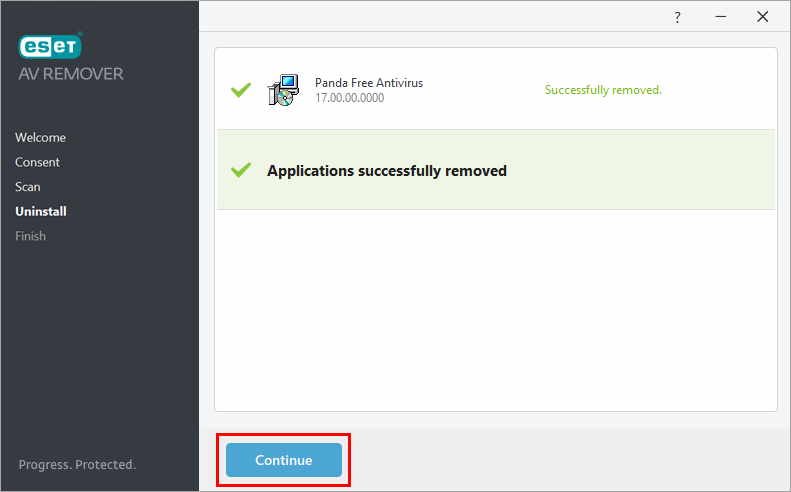
Applications successfully removed
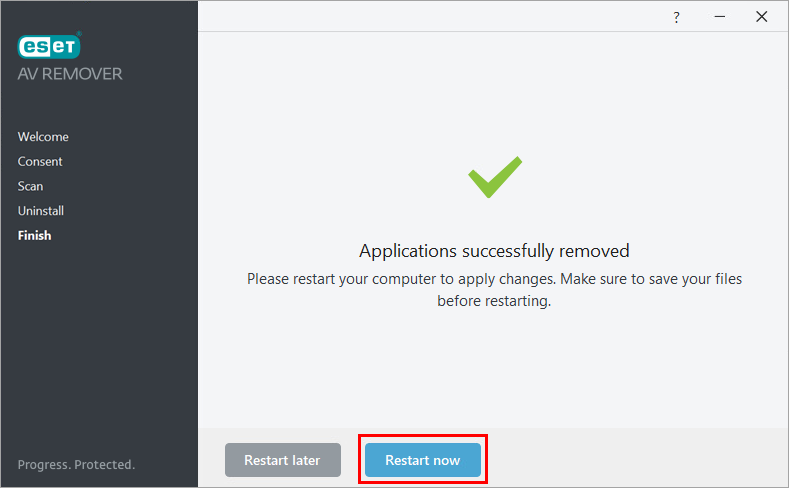
If you receive the Applications successfully removed message, the removal process is complete.-
Click Continue.
-
Click Restart now. You can run ESET AV Remover again after your computer restarts to ensure that all antivirus applications are removed.
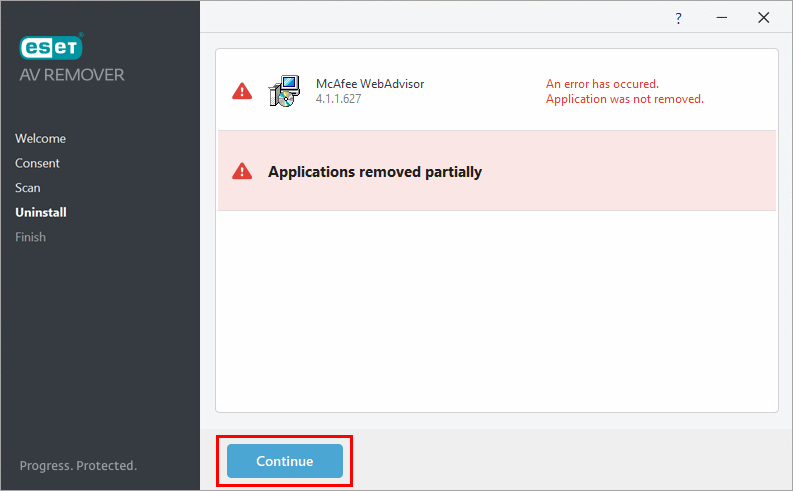
Applications removed partially
If you receive the Applications removed partially message, restart your computer and run ESET AV Remover again.-
Click Continue.
-
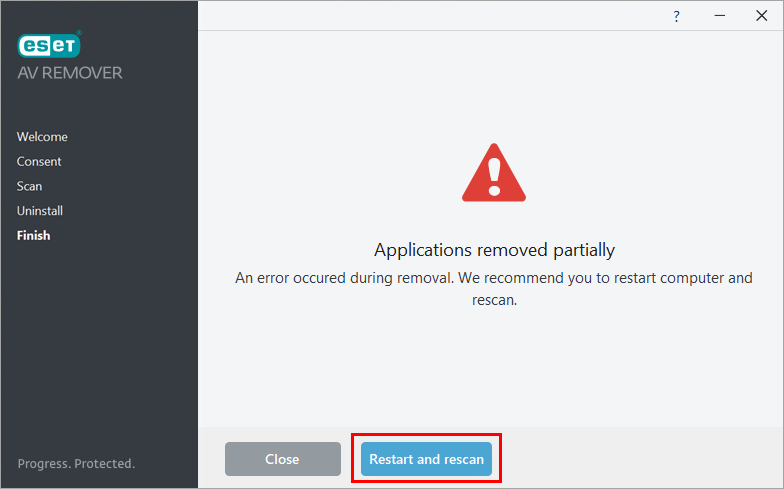
Click Restart and rescan. After your computer restarts, run ESET AV Remover again.
If you receive the same message when running ESET AV Remover the second time, uninstall the application manually. See Uninstallers (removal tools) for common Windows antivirus applications or find an uninstaller on the official web page of the application vendor.
No antivirus application removed
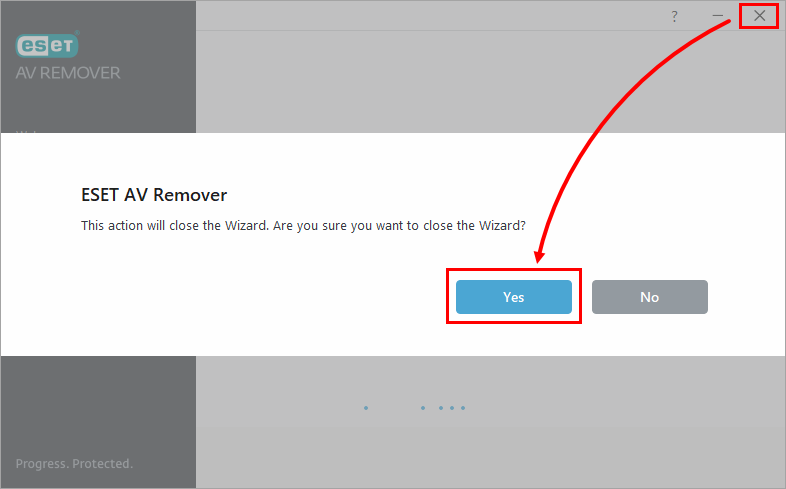
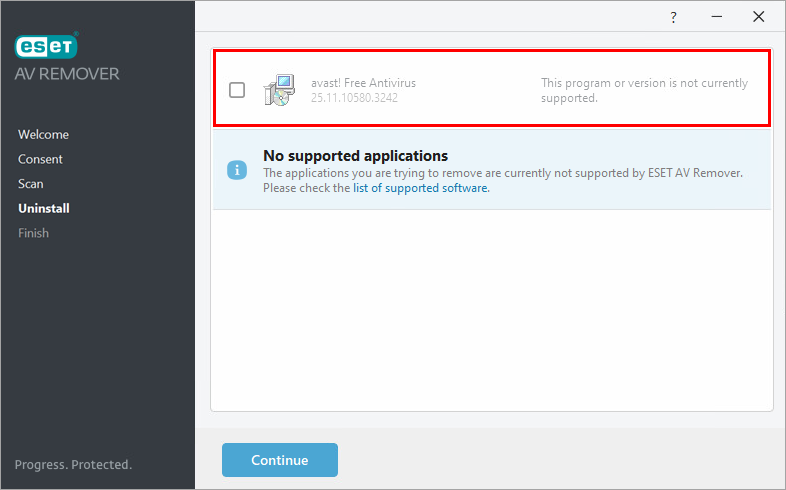
If you receive the No antivirus application removed message, exit ESET AV Remover and uninstall the application manually.-
Click the exit icon (X) → Yes.
-
See Uninstallers (removal tools) for common Windows antivirus applications or find an uninstaller on the official web page of the application vendor.
-
Applications that can be removed using ESET AV Remover
In the table below you can find all applications that can be removed using ESET AV Remover.


