Issue
- Check the version of the Detection Engine that is installed on client computers
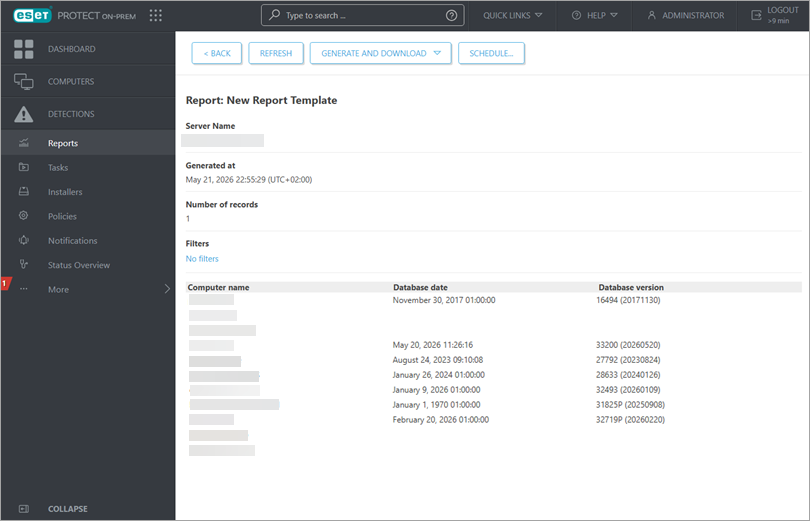
- Generate a report to view the Detection Engine version that is installed on client computers
- To see the current version of the Detection Engine, visit the ESET Online Help Detection Engine updates page.
Details
Click to expand
By default, ESET applications check for application module updates every hour and receive new Detection Engine updates at least once a day. If a client workstation has not yet downloaded the latest Detection Engine update, you can trigger the update manually by following the steps in this article.
Solution
Related solutions: Endpoint users | Home and small office users
ESET PROTECT
Check the version of the Detection Engine installed on client workstations from ESET PROTECT
-
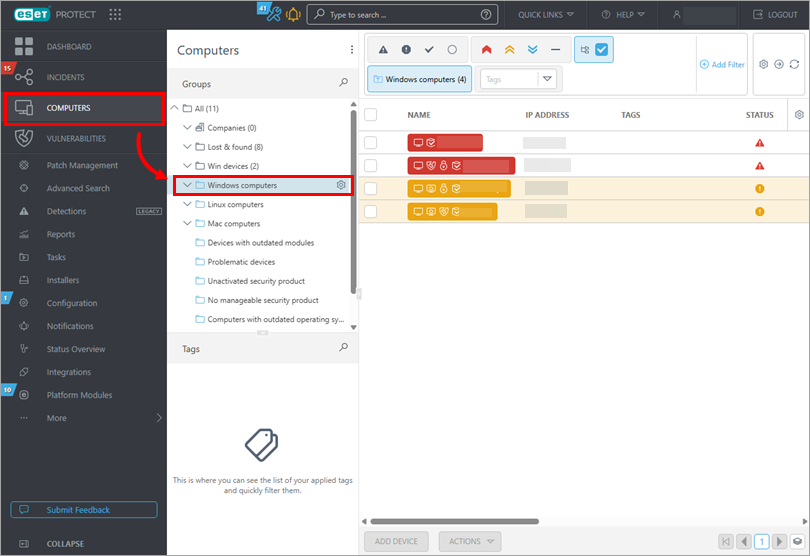
Click Computers, select the group of computers you want to check (in this example, the Windows computers group.
-
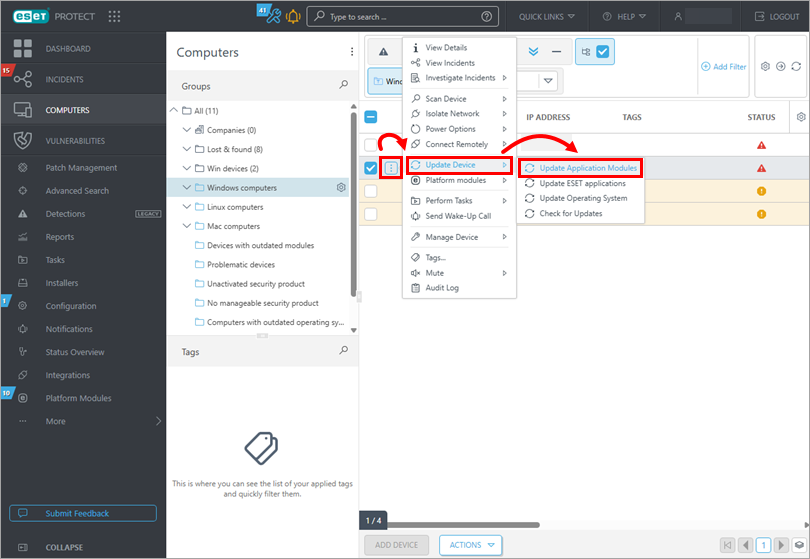
The update status is located in the Application modules column. If you see Not updated in this column, click the menu, and from the context menu select Update Device → Update Application Modules. Client workstations will download the latest module updates when this task is executed.
-
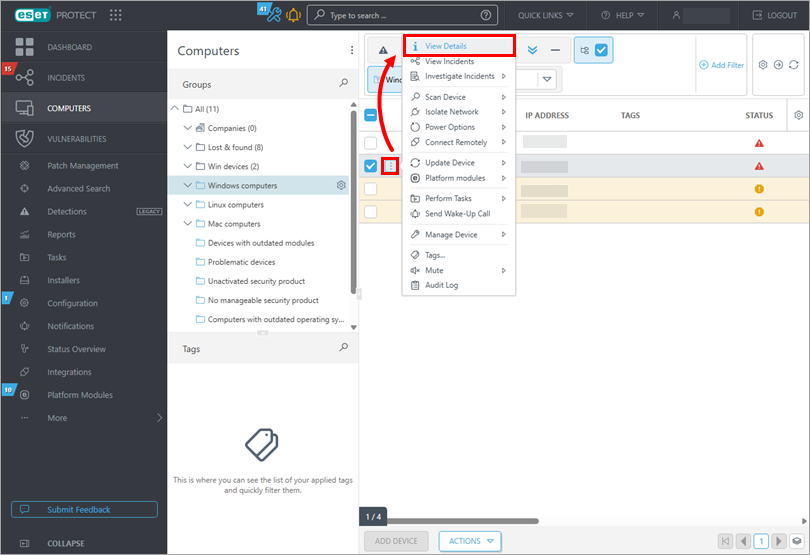
Click the menu button on the desired client, and click View Details to view the Detection Engine version installed on that client.
-
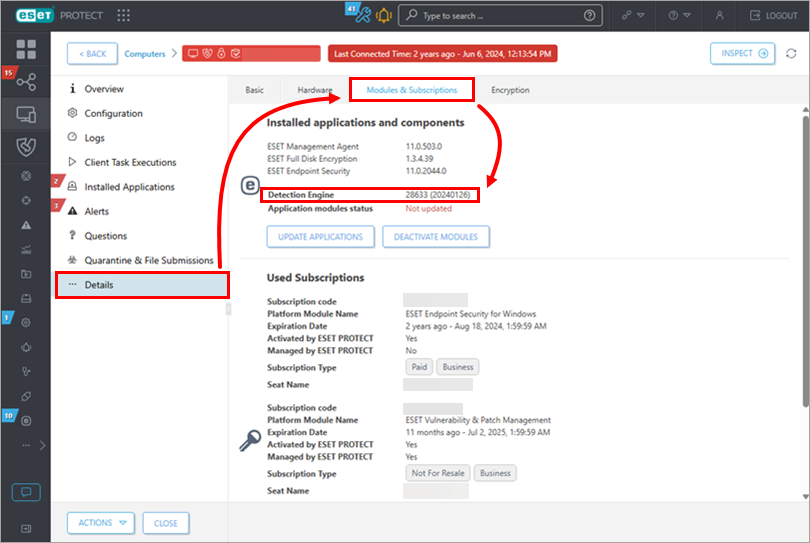
Click Details → Modules & Subscriptions. The version number of the Detection Engine on a client is displayed next to Detection Engine.
Create a report to view the version of the Detection Engine installed on client computers
-
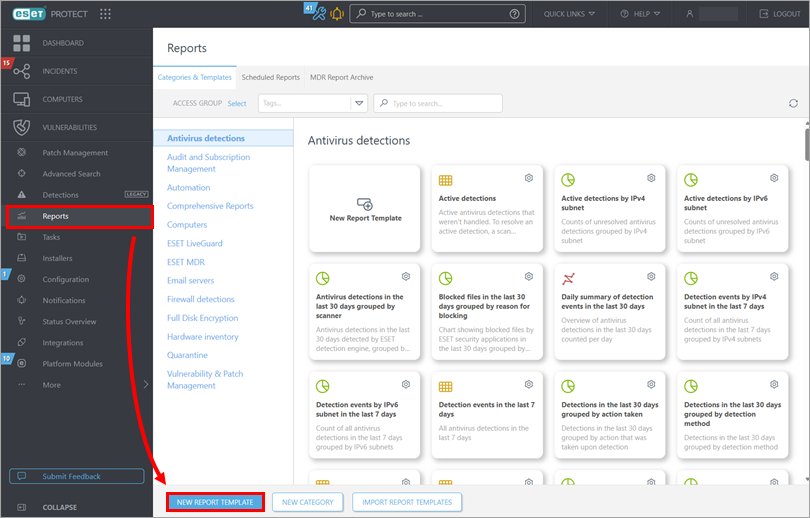
Click Reports → New Report Template.
-
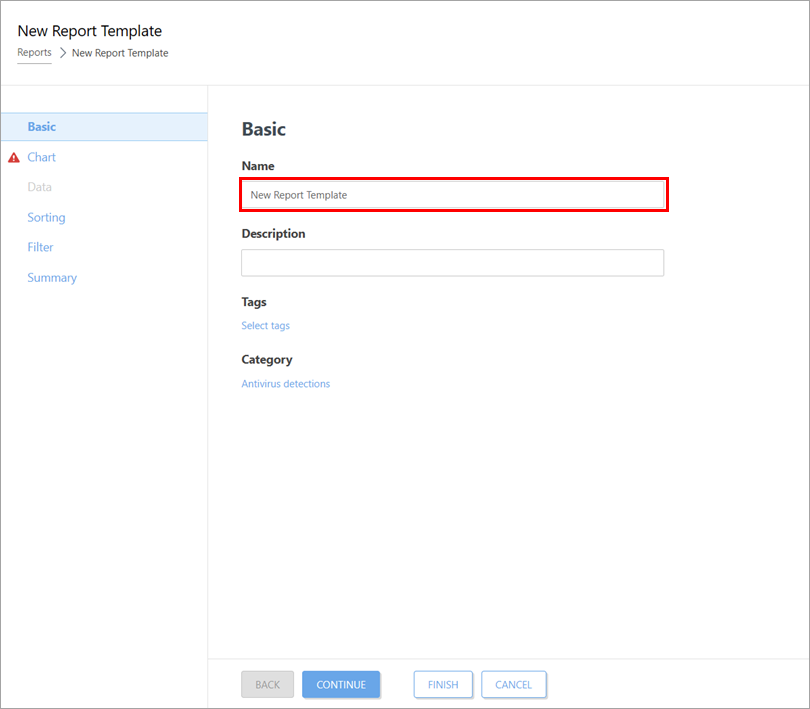
Type a name into the Name field.
-
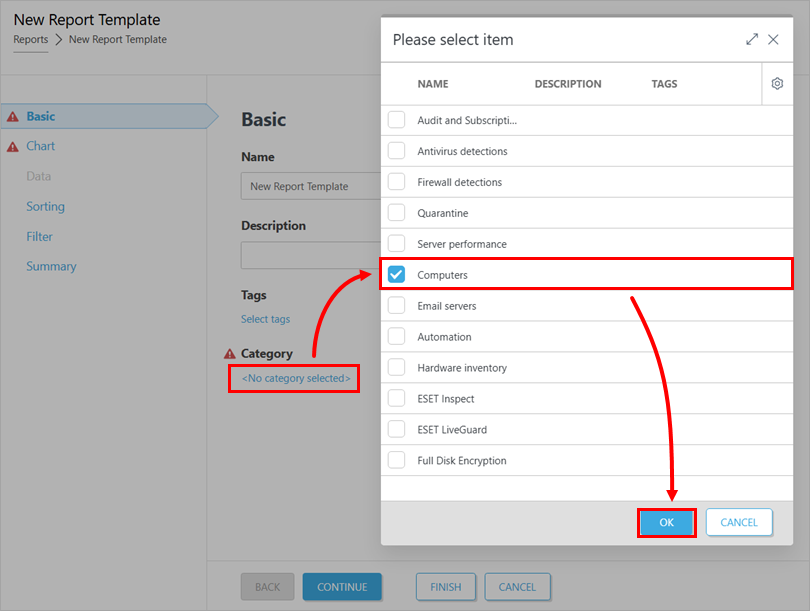
Under Category, click No category selected, click the check box next to the Computers and click OK.
-
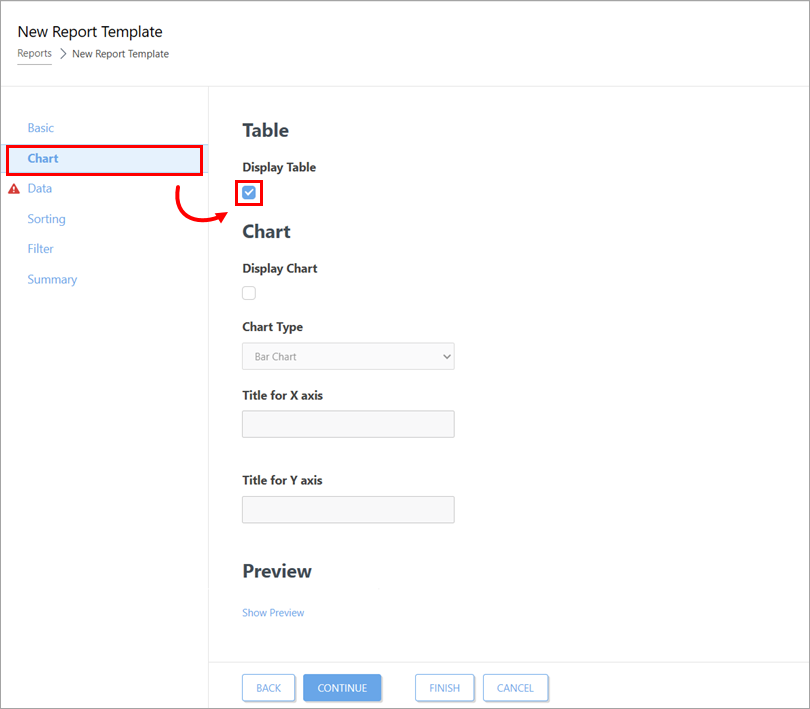
Click Chart and select Display Table.
-
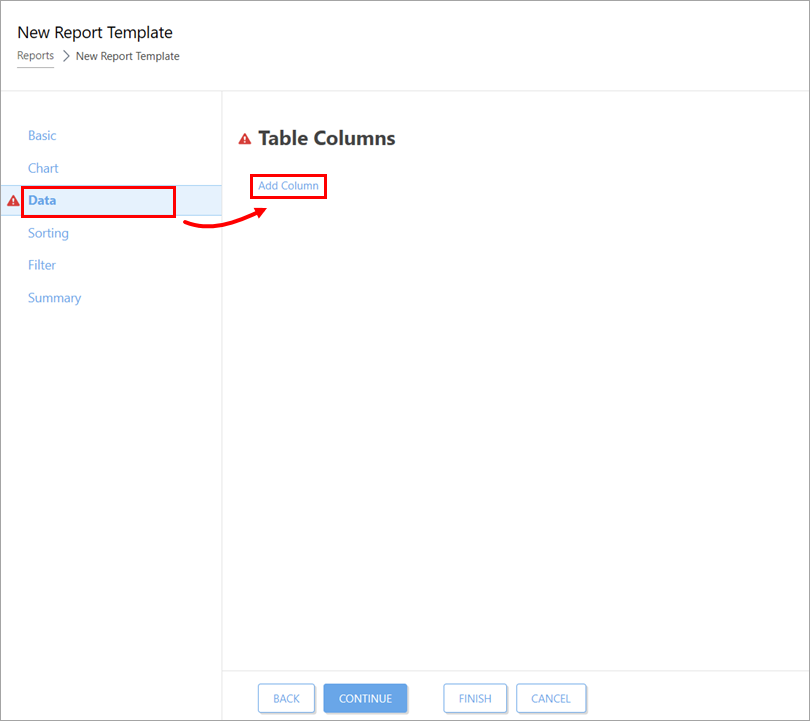
-
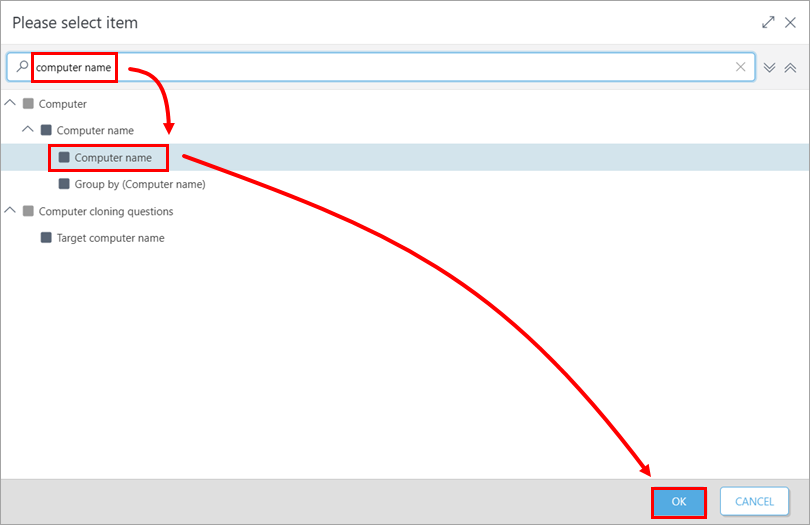
In the Please select item window, select these columns: Computer → Computer name → Computer name, Database engine → Database date, Detection engine → Database version. Repeat step 6 and step 7 for every column.
-
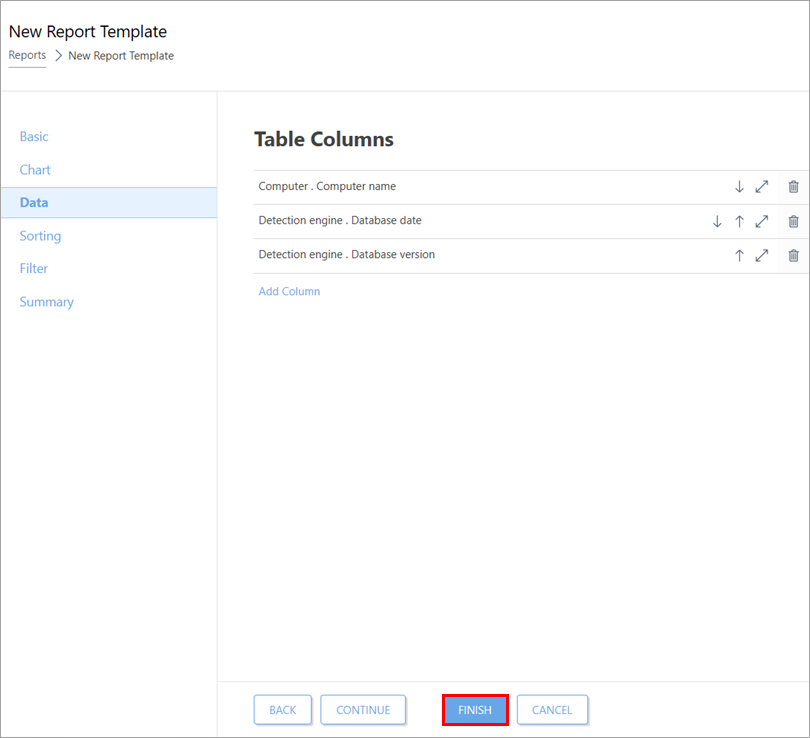
Click Finish.
-
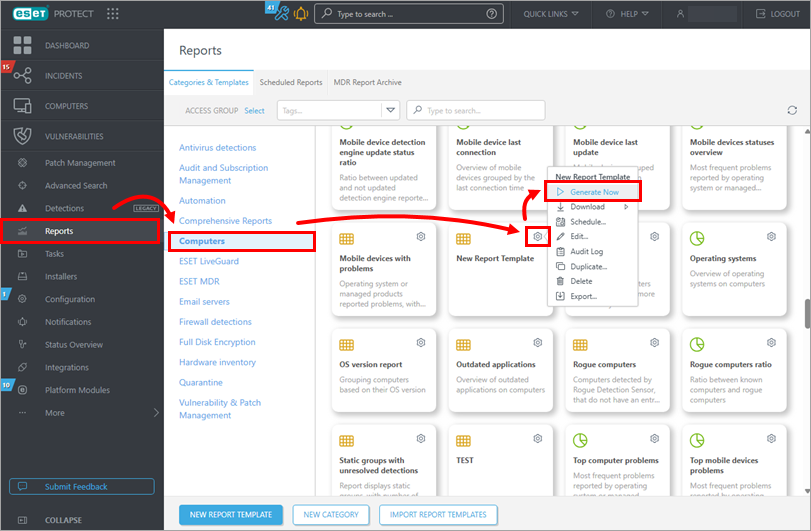
Click Reports → Computers, select the report you created in the steps above ("New Report Template" in this example), and then click the gear icon and Generate Now.
-
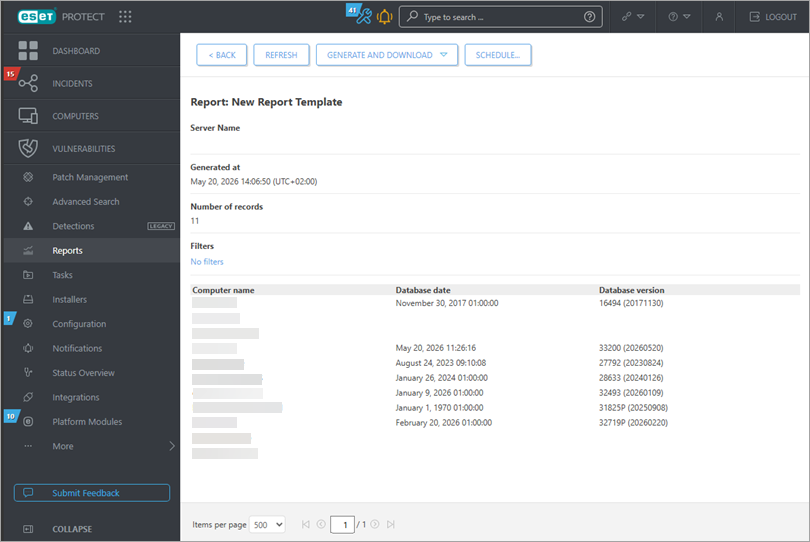
A report will be generated that displays a list of all client computers, the version of the Detection Engine installed, and the date of the Detection Engine. You can now view this report at any time.
ESET PROTECT On-Prem
Check the version of the Detection Engine installed on client workstations from ESET PROTECT On-Prem
-
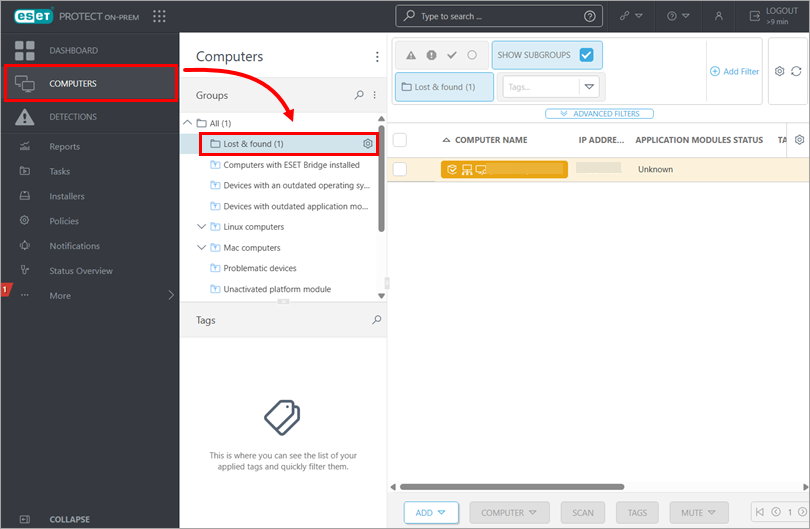
Click Computers, select the group of computers you want to check (in this example, the Lost & Found group.
-
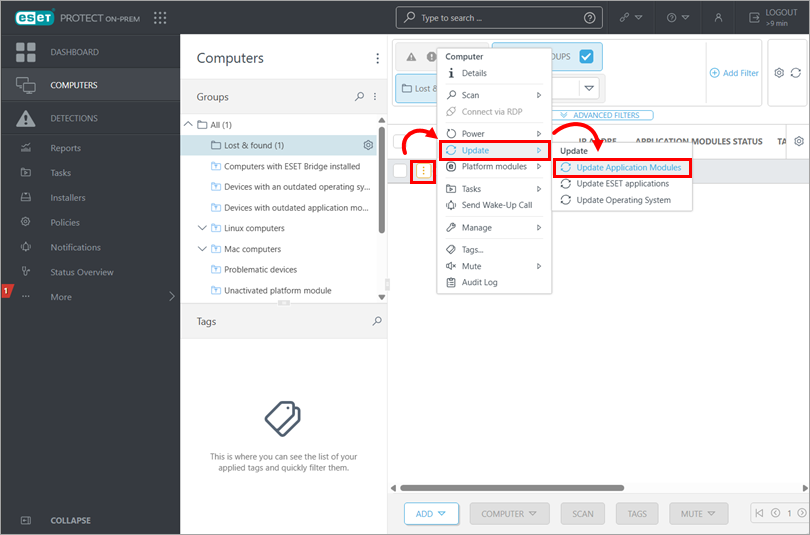
The update status is located in the Application modules column. If you see Not updated in this column, click the menu, and from the context menu select Update → Update Application Modules. Client workstations will download the latest module updates when this task is executed.
-
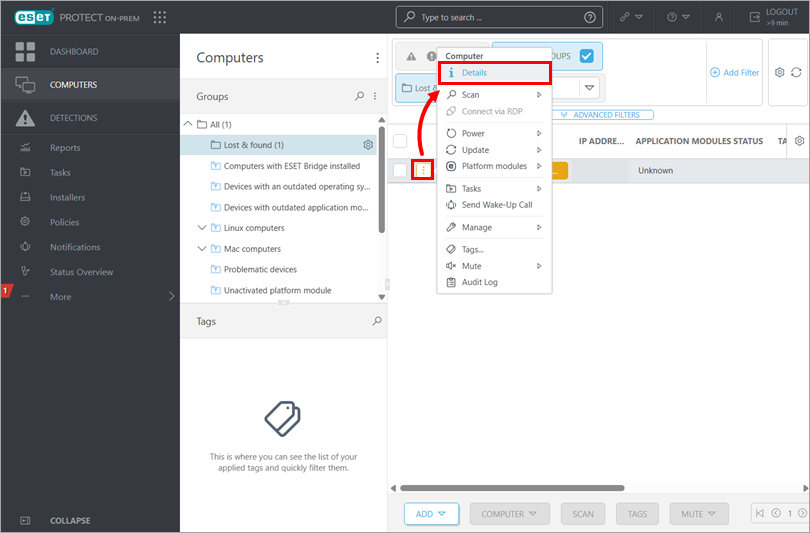
Click the desired client, and click Details to view the Detection Engine version installed on that client.
-
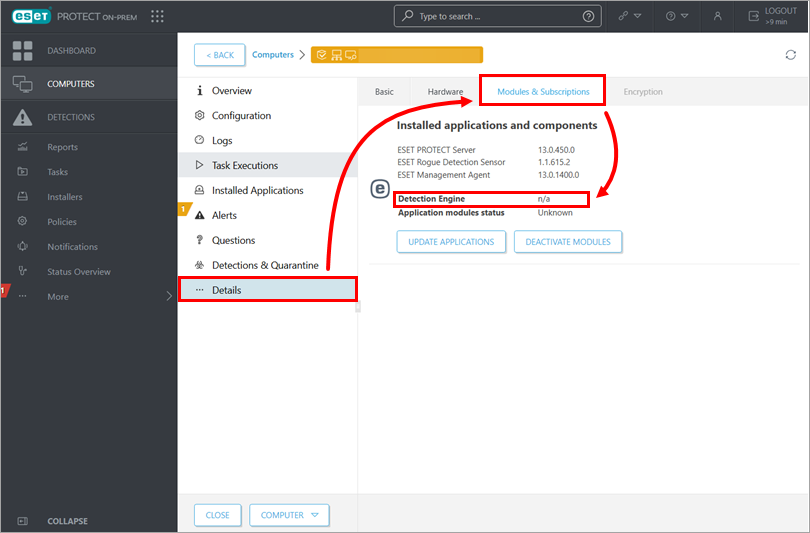
Click Details → Modules & Subscriptions. The version number of the Detection Engine on a client is displayed next to Detection Engine.
Create a report to view the version of the Detection Engine installed on endpoint computers
-
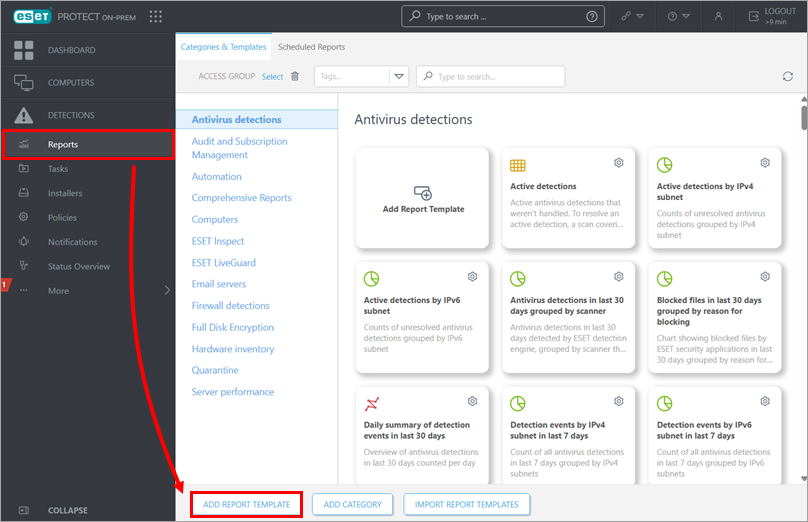
Click Reports → Add Report Template.
-
Type a name into the Name field.
-
Under Category, click No category selected. Select the check box next to the Computers and click OK.
-
-
In the Please select item window, select theese columns: Computer → Computer name → Computer name, Database engine → Database date, Detection engine → Database version. Repeat step 6 and step 7 for every column.
-
Click Finish.
-
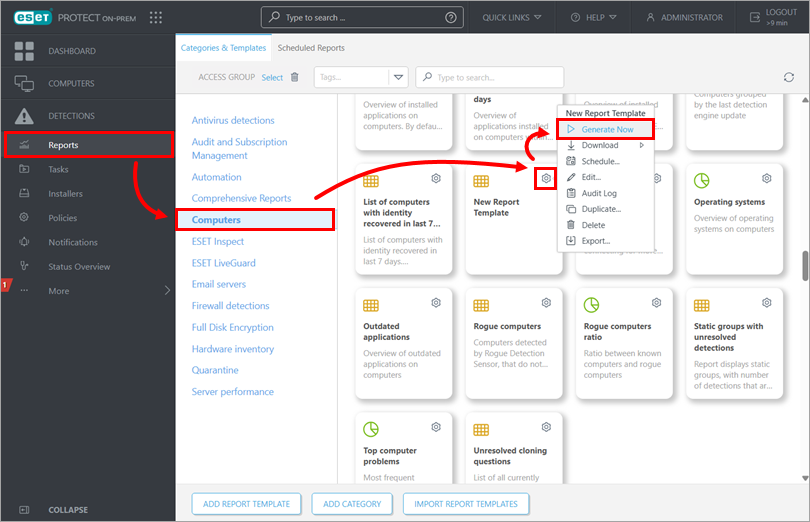
Click Reports → Computers, select the report you created in the steps above ("New Report Template" in this example), and then click the gear icon and Generate Now.
-
A report will be generated that displays a list of all client computers, the version of the Detection Engine installed, and the date of the Detection Engine.