[KB6985] Exclude files or folders from Real-time scanning on an individual workstation in ESET endpoint applications

Issue

  • File-level scanning of some email servers, backup software, Customer Relationship Management (CRM) software, etc. causes abnormal system behavior
  • Use ESET Configuration Editor to create a configuration that excludes specific applications or folders from Real-time scanning

Solution

Only create exclusions when it is absolutely necessary

To ensure that all objects are scanned, we recommend only creating exclusions when it is absolutely necessary. Situations where you may need to exclude an object include scanning large database entries that would slow your computer, or software that conflicts with the scan.

To add an exclusion using a detection name or SHA1 file hash, read the Detection exclusions ESET Online Help topic for more information. Excluding by detection name or SHA-1 file hash poses a high security risk and is recommended only for advanced users.

Related solutions: ESET PROTECT On-Prem users

  1. Open the main program window of your ESET Windows application.

  2. Press F5 to open Advanced setup.

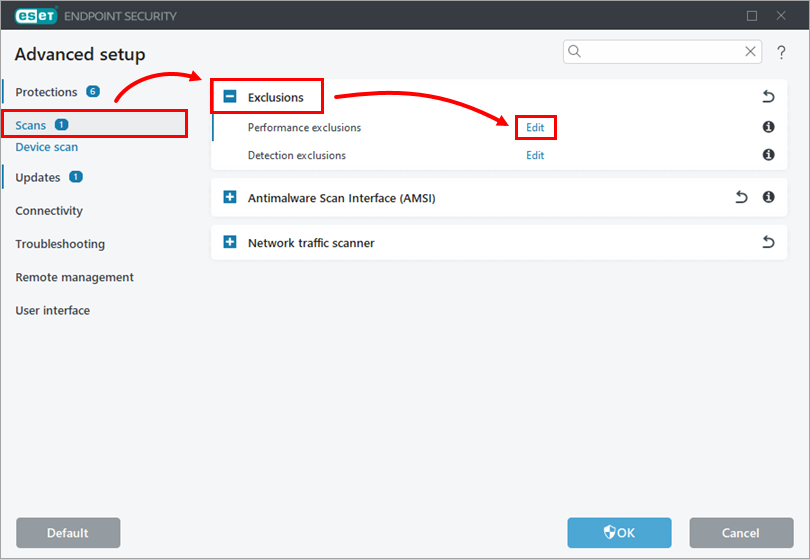
  3. Click Scans, expand the Exclusions section and then click Edit next to Performance exclusions.
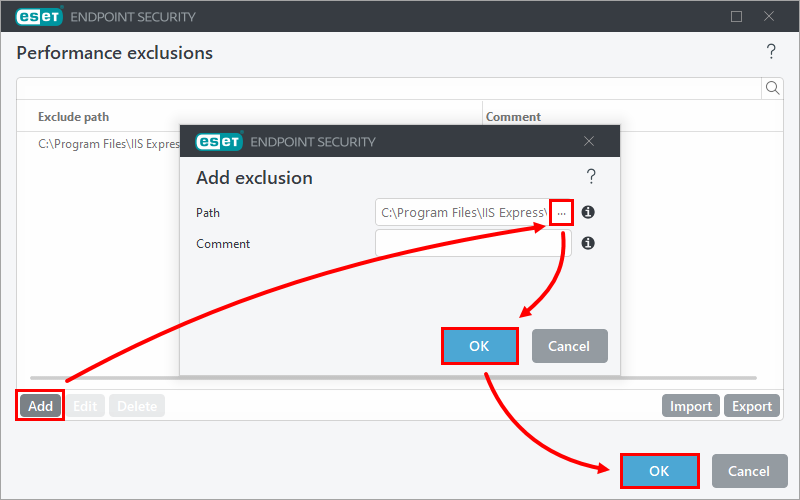
  4. Click Add and click Browse (...), select a file or folder in the Windows Explorer window or paste in the location, and to confirm, click OK → OK.
    Using wildcards

    Use wildcards to exclude a group of files. Use a question mark (?) to exclude a single character and an asterisk (*) to exclude a string of characters. We recommend that you do not use wildcards in the middle of a path. For more information about using wildcards, read the Add or Edit performance exclusion ESET Online Help topic.

  5. If you are still experiencing issues with your application, it is possible that you need to exclude it from Web access protection if it connects to the internet.