Problem
- Aktivera skärmläsningsprogram (NVDA, JAWS och Narrator) för åtkomst till ESET-program för Windows
- Host Intrusion Prevention System i ESET-program blockerar programvara för skärmläsning
- Aktivera förbättringar av tillgängligheten under installationen
- Importera en konfigurationsfil till ESET-programmet
- Skapa en ny regel för Host Intrusion Prevention System
Lösning för
Aktivera förbättringar av tillgängligheten under installationen
Aktivera förbättringar av tillgängligheten under installationen för att göra det möjligt för skärmläsningsprogram att komma åt ESET-programmet.
-
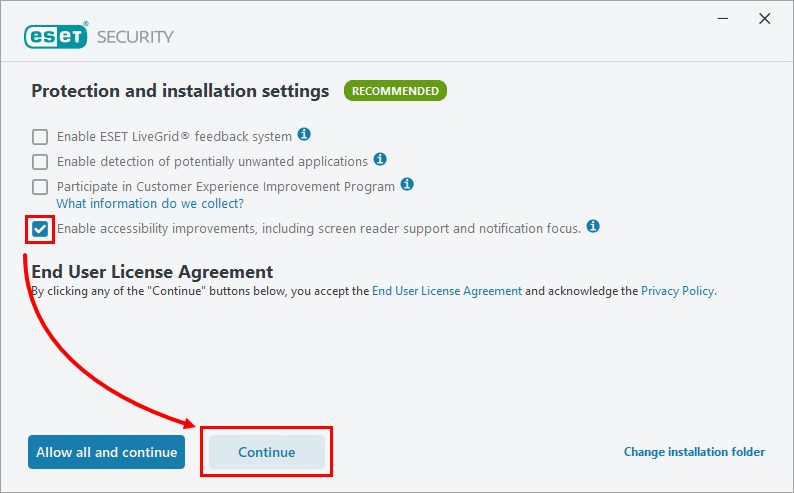
Under installationen, på skärmen Skydds- och installationsinställningar, markerar du kryssrutan bredvid Aktivera förbättringar av tillgängligheten, inklusive stöd för skärmläsare och meddelandefokus och klickar på Fortsätt. Alternativt kan du klicka på Tillåt alla och fortsätt för att automatiskt välja det här alternativet.
-
Fortsätt processen för att slutföra installationen.
Importera en konfigurationsfil till ESET-programmet
Om du redan har ett ESET-program installerat kan du importera en konfigurationsfil som innehåller en regel för Host Intrusion Prevention System för att göra det möjligt för skärmläsningsprogram att komma åt ESET-programmet.
-
Hämta konfigurationsfilen och extrahera .zip-arkivet.
-
Importera ESET-konfigurationsinställningar med hjälp av den extraherade filen screen_readers_config.xml.
Skapa en ny regel för Host Intrusion Prevention System
Om du redan har ett ESET-program installerat kan du skapa en ny Host Intrusion Prevention System-regel för att göra det möjligt för skärmläsningsprogram att komma åt ESET-programmet.
-
Öppna huvudprogramfönstret för ditt ESET-program för Windows.
-
Tryck på F5 för att öppna Avancerad installation.
-
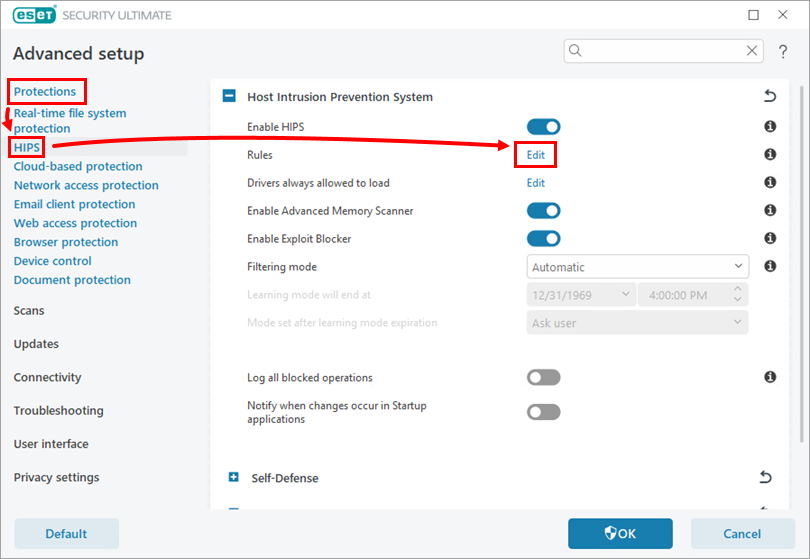
Klicka på Skydd → HIPS och klicka på Redigera bredvid Regler.
-
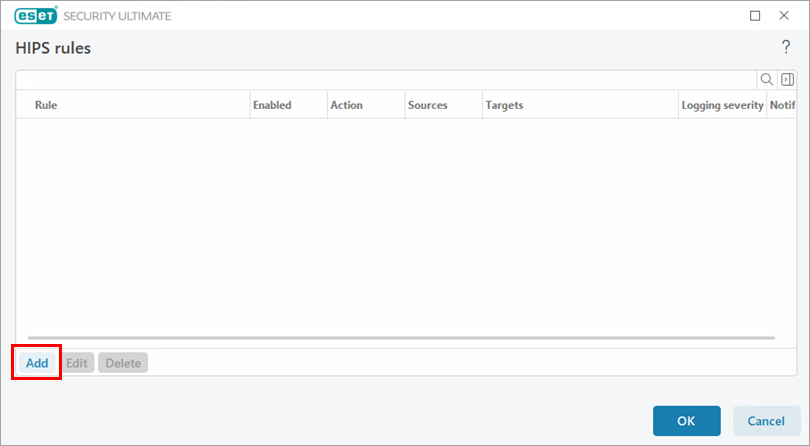
Klicka på Lägg till.
-
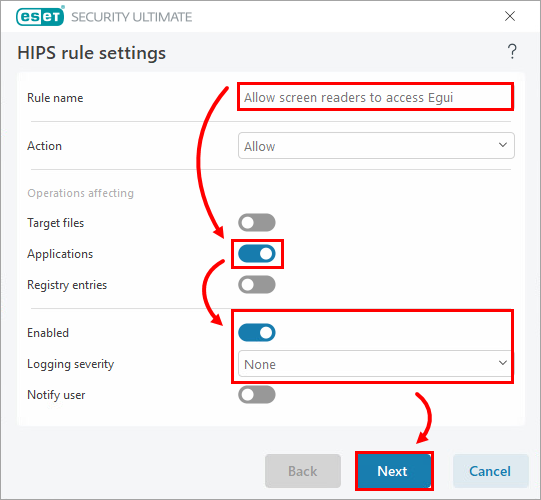
Skriv Tillåt skärmläsare att få åtkomst till Egui i fältet Regelnamn och aktivera växlingsrutan bredvid Program. Klicka på Nästa.
-
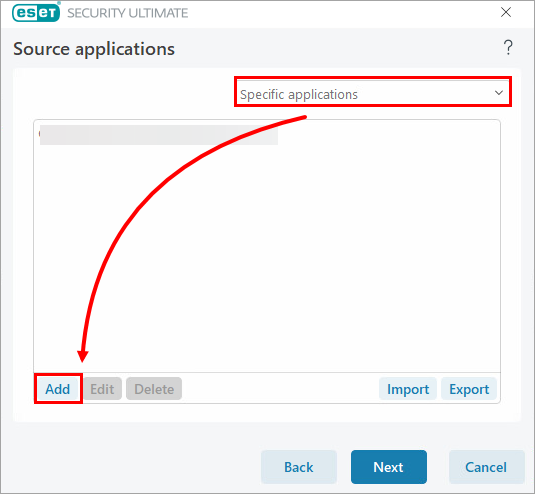
Välj Specifika program i rullgardinsmenyn och klicka på Lägg till.
-
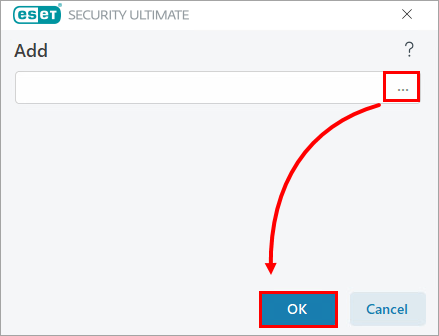
Klicka på bläddringsikonen (tre prickar). Sök efter och välj det skärmläsningsprogram som är installerat på din enhet. Klicka på OK.
-
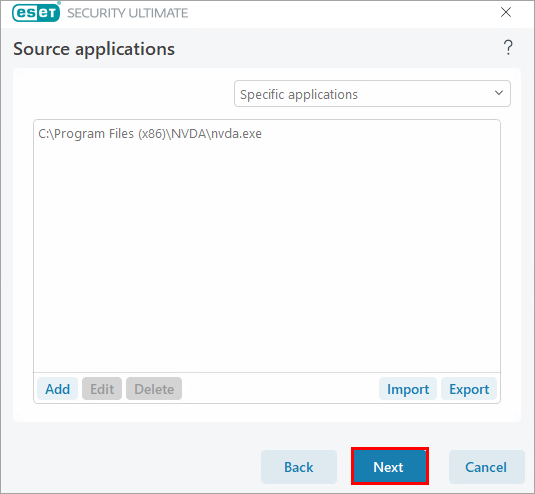
Klicka på Nästa.
-
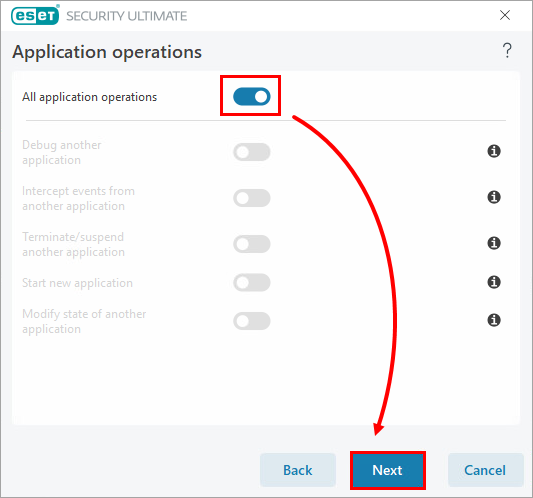
Aktivera omkopplaren bredvid Alla programfunktioner och klicka på Nästa.
-
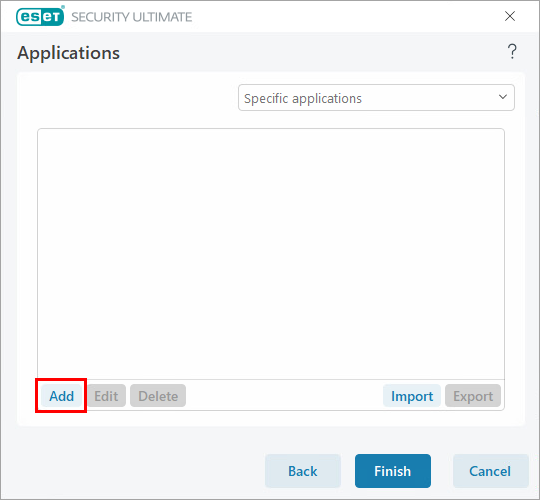
Klicka på Lägg till.
-
Skriv %InstallDir%egui.exe
i textfältet och klicka på OK → Slutför.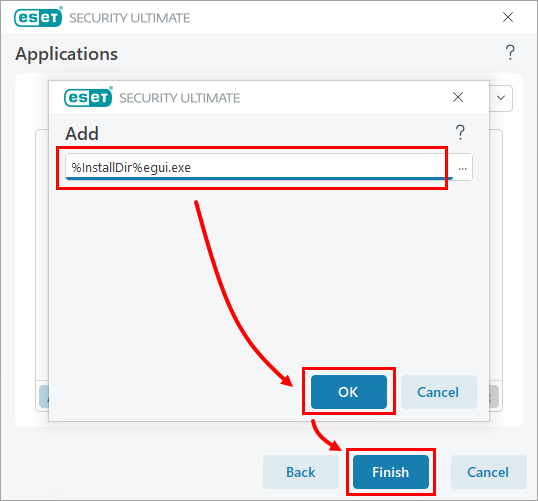
-
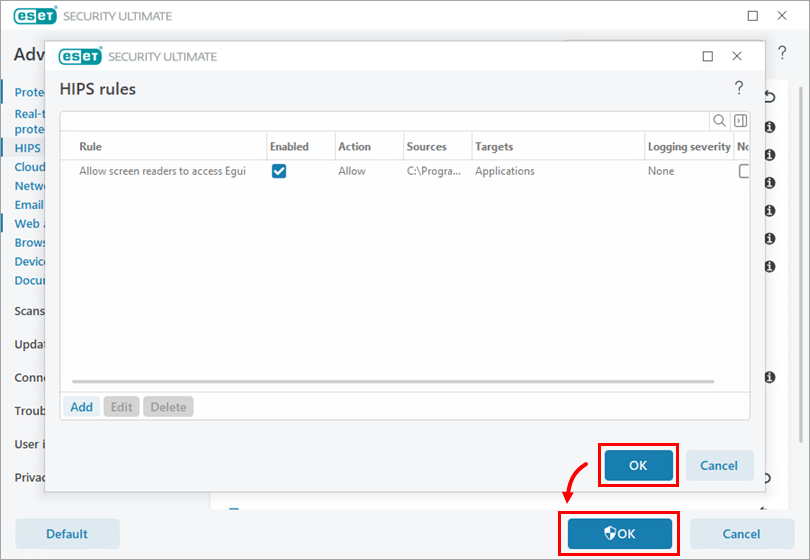
Klicka på OK → OK.