Probleem
- Schermleessoftware inschakelen (NVDA, JAWS en Narrator) om toegang te krijgen tot ESET toepassingen voor Windows
- Host Intrusion Prevention System in ESET toepassingen blokkeert schermleessoftware
- Toegankelijkheidsverbeteringen inschakelen tijdens installatie
- Een configuratiebestand importeren in de ESET-toepassing
- Een nieuwe regel voor Host Intrusion Prevention System maken
Oplossing
Toegankelijkheidsverbeteringen inschakelen tijdens installatie
Schakel toegankelijkheidsverbeteringen in tijdens de installatie om schermleessoftware toegang te geven tot de ESET-toepassing.
-
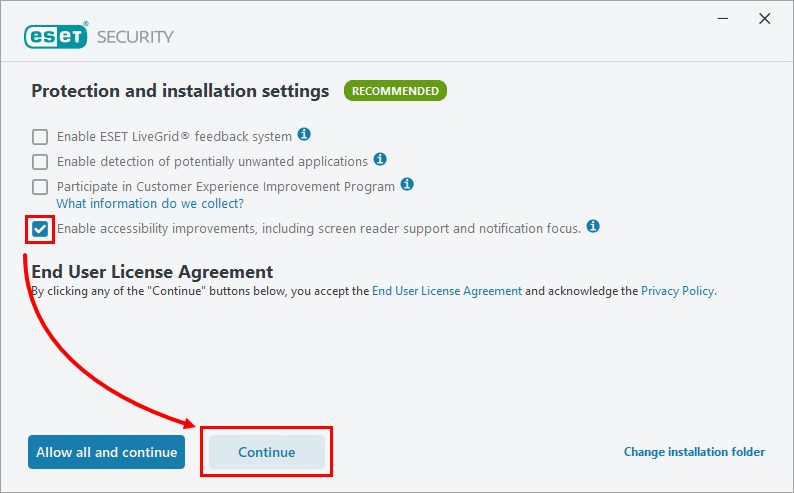
Schakel tijdens de installatie in het scherm met de beschermings- en installatie-instellingen het selectievakje in naast Toegankelijkheidsverbeteringen inschakelen, inclusief ondersteuning voor schermlezers en meldingsfocus, en klik op Doorgaan. U kunt ook op Alles toestaan en doorgaan klikken om deze optie automatisch te selecteren.
-
Ga door met het proces om de installatie te voltooien.
Een configuratiebestand importeren in de ESET-toepassing
Als u al een ESET-toepassing hebt geïnstalleerd, kunt u een configuratiebestand importeren dat een regel bevat voor het Host Intrusion Prevention System om schermleessoftware toegang te geven tot de ESET-toepassing.
-
Download het configuratiebestand en pak het .zip-archief uit.
-
ESET configuratie-instellingen importeren met behulp van het uitgepakte screen_readers_config.xml bestand.
Een nieuwe Host Intrusion Prevention System-regel maken
Als je al een ESET-toepassing hebt geïnstalleerd, kun je een nieuwe Host Intrusion Prevention System-regel maken om schermleessoftware toegang te geven tot de ESET-toepassing.
-
Druk op de F5-toets om Geavanceerde instellingen te openen.
-
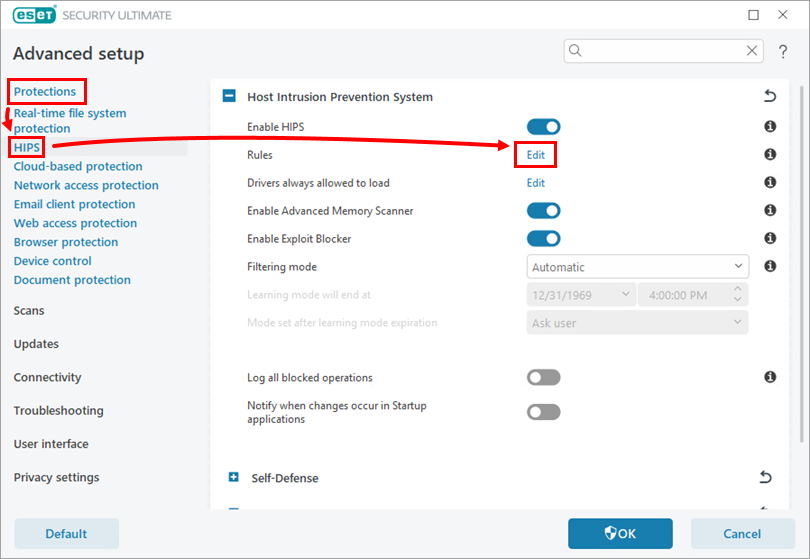
Klik op Beveiligingen → HIPS en klik op Bewerken naast Regels.
-
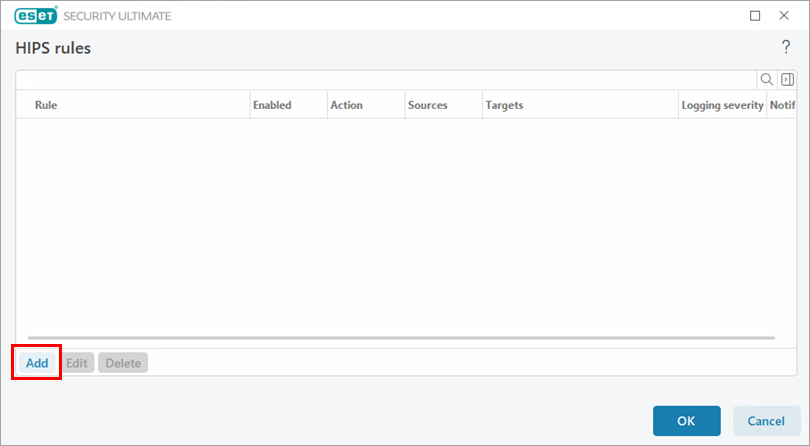
Klik op Toevoegen.
-
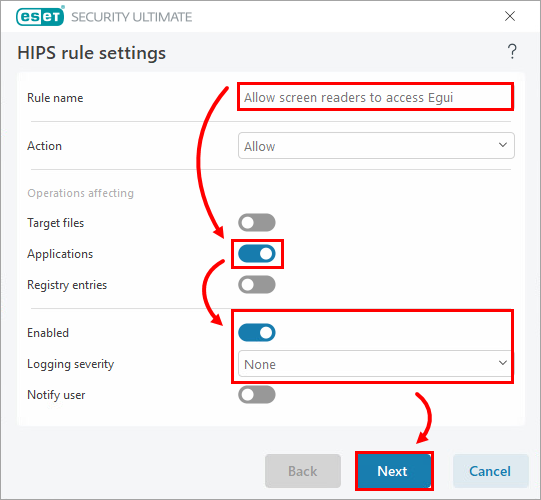
Typ in het veld Rule name (Regelnaam ) Allow screen readers to access Egui (Schermlezers toegang verlenen tot Egui) en schakel het schakelaartje naast Applications (Toepassingen) in. Klik op Volgende.
-
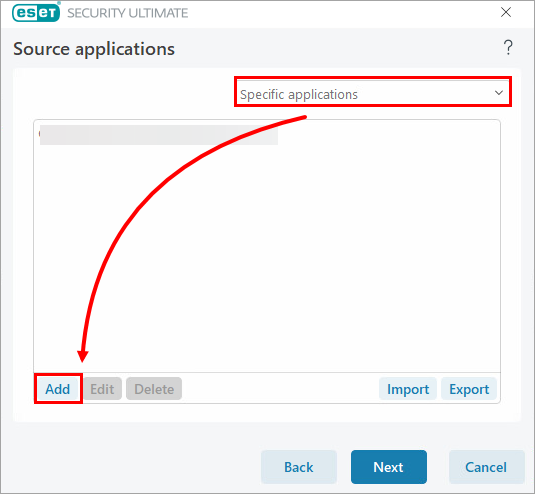
Selecteer Specifieke toepassingen in het vervolgkeuzemenu en klik op Toevoegen.
-
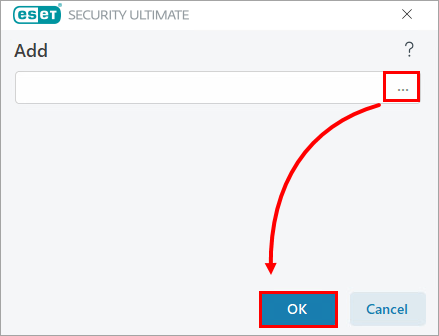
Klik op het browse-pictogram (drie puntjes). Zoek en selecteer de schermleestoepassing die op uw apparaat is geïnstalleerd. Klik op OK.
-
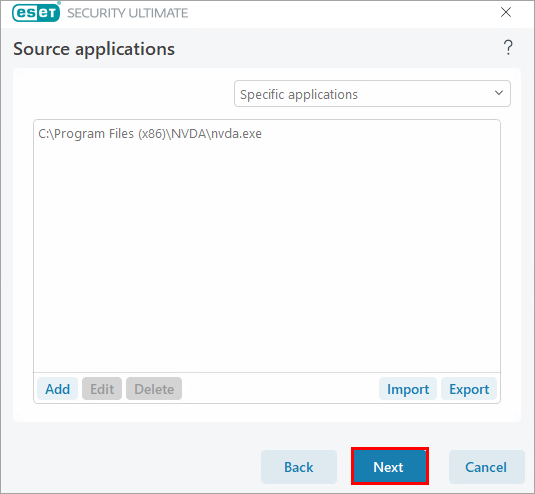
Klik op Volgende.
-
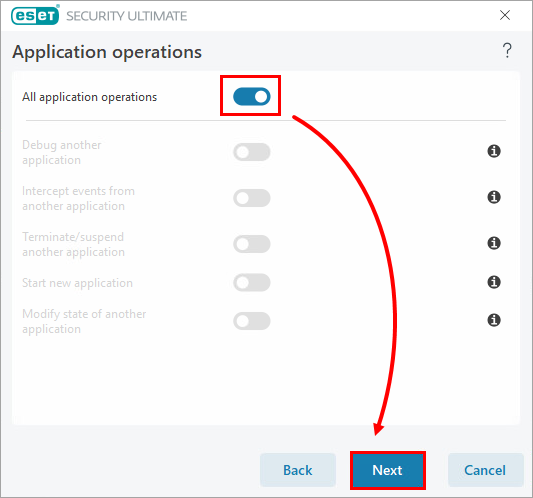
Schakel het selectievakje naast Alle applicatiebewerkingen in en klik op Volgende.
-
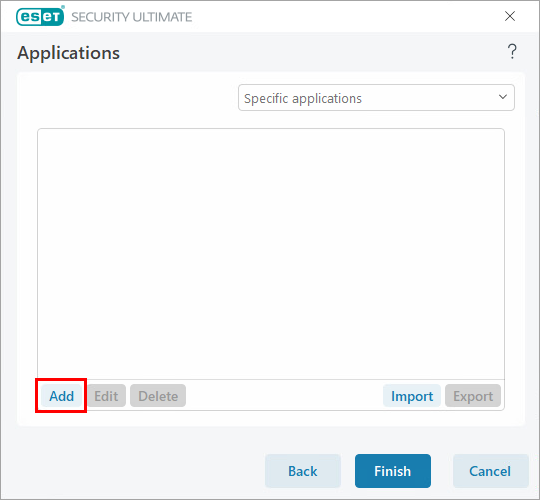
Klik op Toevoegen.
-
Typ %InstallDir%egui.exe
in het tekstveld en klik op OK → Voltooien.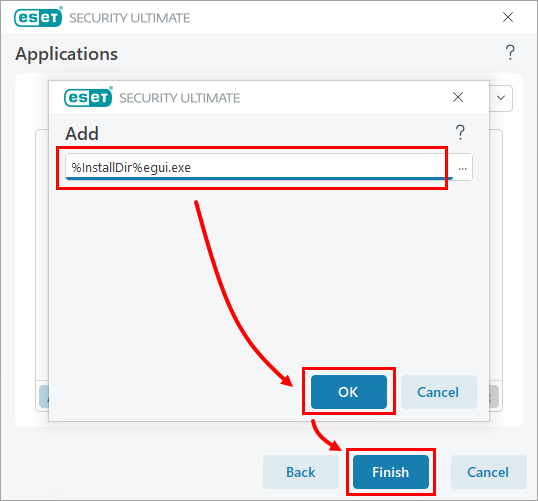
-
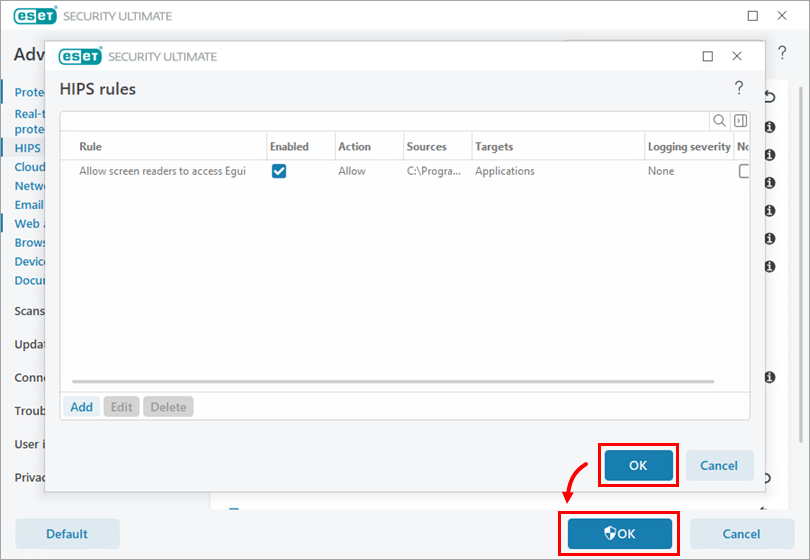
Klik op OK → OK.