[KB7375] 启用屏幕阅读器访问 ESET Windows 应用程序

注意:

本页已由电脑翻译。点击本页面语言下的英文,显示原文。如果你发现有什么不清楚的地方,请联系你当地的支持。

问题

解决方案

支持的读屏软件

ESET 应用程序支持以下读屏软件:NVDA、JAWS 和 Narrator。其他读屏软件也可以使用,但不在官方支持之列。

在安装过程中启用辅助功能改进

在安装过程中启用辅助功能改进,使读屏软件能够访问 ESET 应用程序。

  1. 下载并安装 ESET Windows 应用程序

  2. 在安装过程中,在 "保护和安装设置"屏幕上,选择 "启用辅助功能改进(包括屏幕阅读器支持和通知焦点)"旁边的复选框,然后单击 "继续"。或者,单击 "全部允许并继续"自动选择该选项。
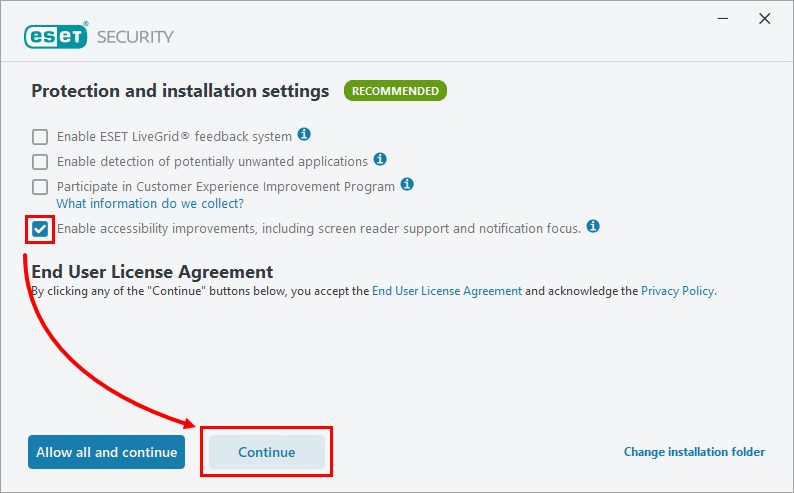
    ESET Security installation window showing protection and installation settings. The check box for Enable accessibility improvements, including screen reader support and notification focus, is selected. At the bottom of the window, the Continue button on the right is highlighted by a red outline and arrow.
  3. 继续完成安装。


将配置文件导入 ESET 应用程序

如果已安装 ESET 应用程序,则可以导入配置文件,其中包含主机入侵防御系统的规则,以启用读屏软件访问 ESET 应用程序。

  1. 下载配置文件并解压 .zip 压缩包。

  2. 导入 ESET 配置设置使用解压缩后的screen_readers_config.xml文件。


创建新的主机入侵防御系统规则

如果已经安装了 ESET 应用程序,则可以创建新的主机入侵防御系统规则,以启用读屏软件访问 ESET 应用程序。

  1. 打开 ESET Windows 应用程序的主程序窗口

  2. F5键打开高级设置。

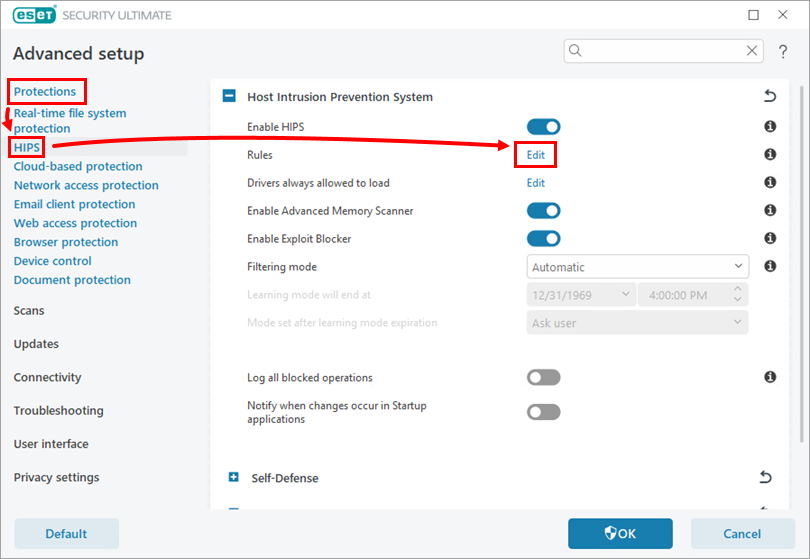
  3. 单击保护HIPS,然后单击规则旁边的编辑

    ESET Advanced setup window with ‘Protections’ selected in the left menu and ‘HIPS’ highlighted. A red arrow points to the ‘Edit’ button next to ‘Rules’ under the Host Intrusion Prevention System section.
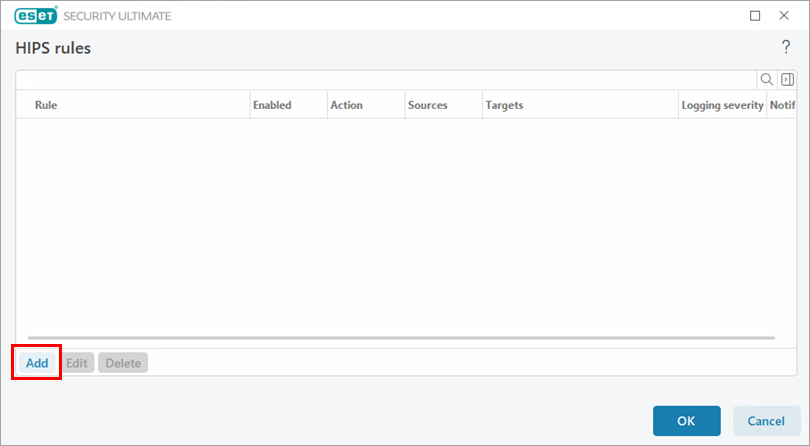
  4. 单击添加

    ESET Security Ultimate window titled ‘HIPS rules’ showing an empty list of rules. The ‘Add’ button in the lower-left corner is highlighted with a red box.
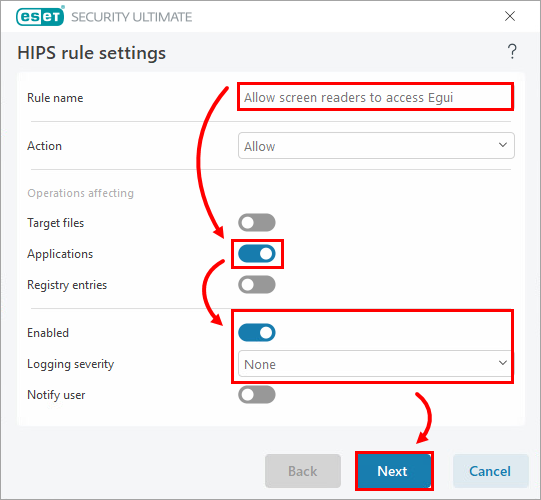
  5. 规则 名称 字段中,键入允许屏幕阅读器访问 Egui,并启用应用程序旁边的切换。单击下一步

    HIPS rule settings window with fields and toggles. ‘Rule name’ is set to ‘Allow screen readers to access Egui’. The ‘Applications’ toggle and ‘Enabled’ toggle are switched on. The ‘Next’ button at the bottom is highlighted with a red box and arrow.
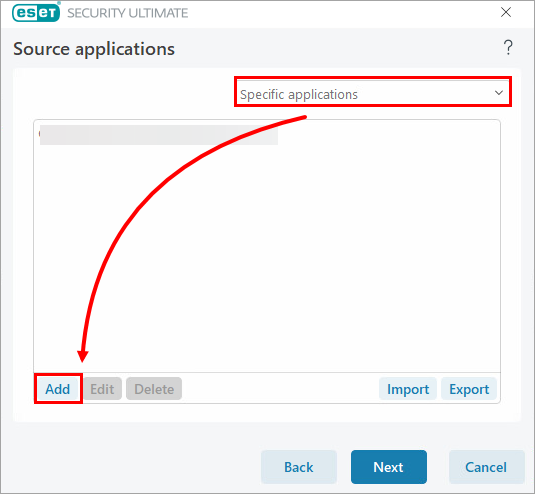
  6. 从下拉菜单中选择特定应用程序,然后单击添加

    Source applications window with ‘Specific applications’ selected from a drop-down menu. An arrow highlights the ‘Add’ button at the bottom left.
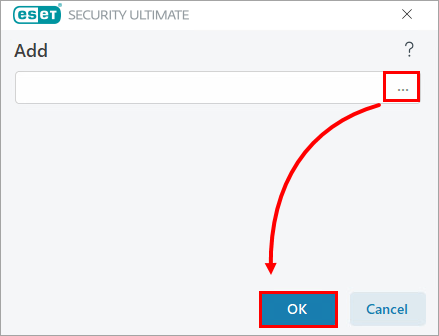
  7. 单击浏览图标(三个点)。搜索并选择设备上安装的屏幕阅读器应用程序。单击确定

    Add dialog window with an empty text field. A button with three dots at the right side of the field is highlighted with a red box and arrow pointing to the ‘OK’ button.
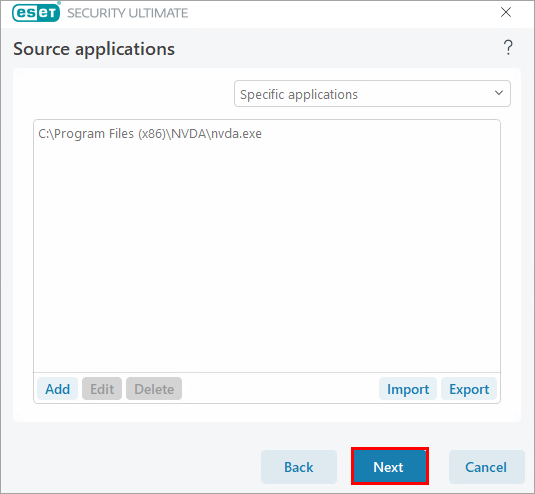
  8. 单击下一步

    Source applications window showing a single entry: ‘C:\Program Files (x86)\NVDA\nvda.exe’. The ‘Next’ button at the bottom is highlighted.
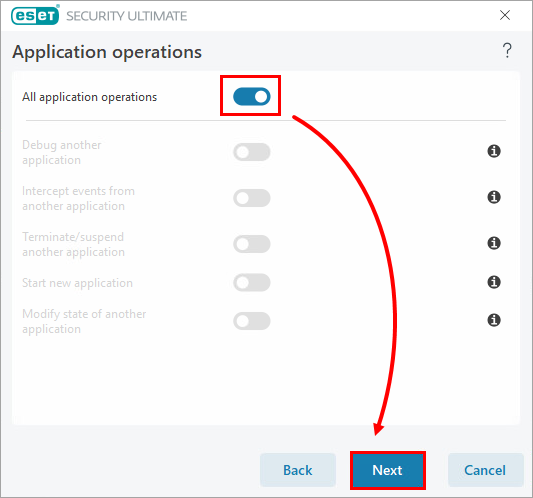
  9. 启用所有应用程序操作 旁边的切换,然后单击下一步

    Application operations window with the toggle ‘All application operations’ enabled. The ‘Next’ button at the bottom is highlighted with a red arrow.
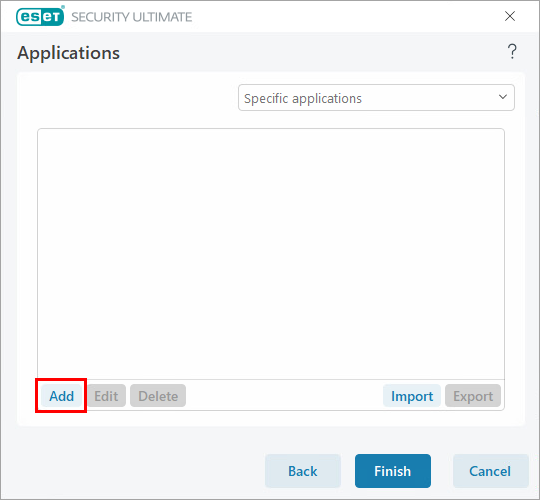
  10. 单击添加

    Applications window with an empty applications list. The ‘Add’ button in the lower-left corner is highlighted with a red box.
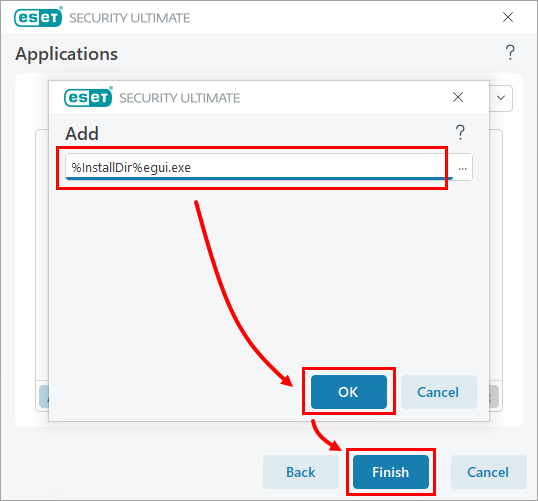
  11. 在文本字段中输入%InstallDir%egui.exe ,然后单击确定完成

    Small dialog titled ‘Add’ with a text field containing the value ‘%InstallDir%egui.exe’. The ‘OK’ button is highlighted, and below it, the ‘Finish’ button in the background window is highlighted with arrows.
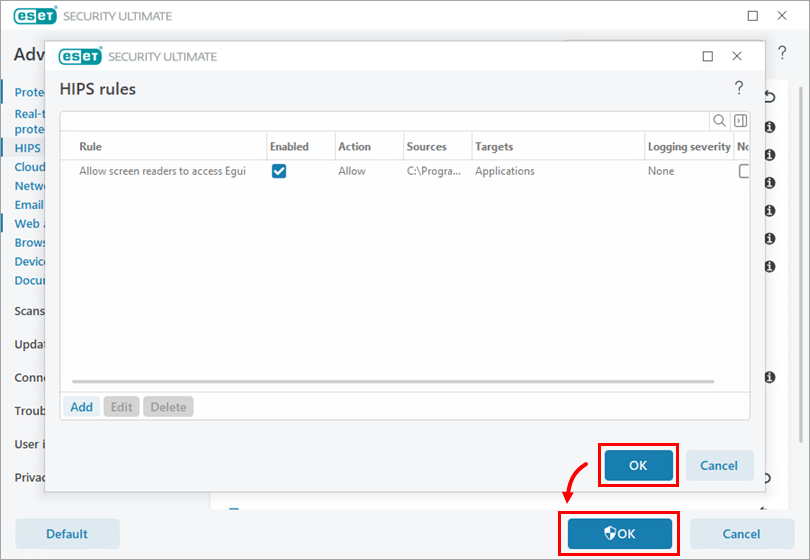
  12. 单击确定 →确定

    HIPS rules window listing one rule: ‘Allow screen readers to access Egui’, enabled with a check box. Two ‘OK’ buttons are highlighted—one inside the dialog and one in the main window behind it.