Problema
- Habilite el software de lectura de pantalla (NVDA, JAWS y Narrator) para acceder a las aplicaciones de ESET para Windows
- El sistema de prevención de intrusiones en host de las aplicaciones ESET bloquea el software lector de pantalla
- Habilitar mejoras de accesibilidad durante la instalación
- Importar un archivo de configuración en la aplicación ESET
- Crear una nueva regla de Host Intrusion Prevention System
Solución
Active las mejoras de accesibilidad durante la instalación
Active las mejoras de accesibilidad durante la instalación para que el software de lectura de pantalla pueda acceder a la aplicación ESET.
-
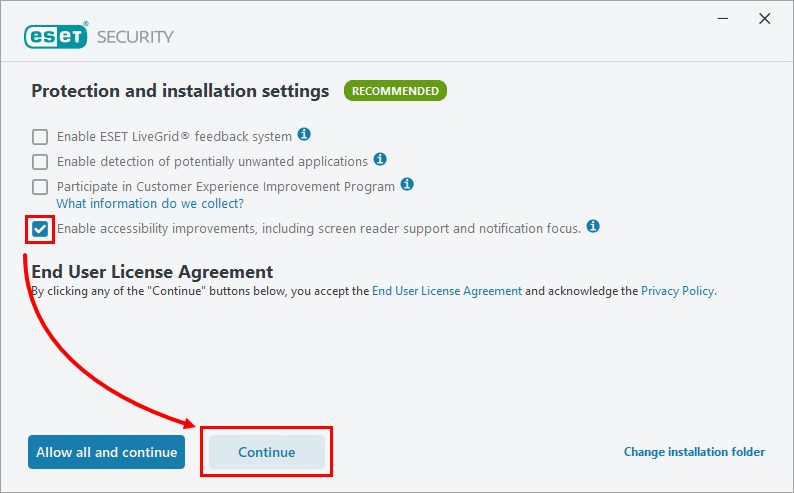
Durante la instalación, en la pantalla Configuración de protección e instalación, seleccione la casilla de verificación situada junto a Habilitar mejoras de accesibilidad, incluida la compatibilidad con lectores de pantalla y el enfoque de notificaciones y haga clic en Continuar. También puedes hacer clic en Permitir todo y continuar para seleccionar automáticamente esta opción.
-
Continúe el proceso para completar la instalación.
Importar un archivo de configuración en la aplicación ESET
Si ya tiene instalada una aplicación ESET, puede importar un archivo de configuración que contenga una regla para que el Sistema de prevención de intrusiones en host permita que el software lector de pantalla acceda a la aplicación ESET.
-
Descargue el archivo de configuración y extraiga el archivo .zip.
-
Importar ajustes de configuración de ESET utilizando el archivo screen_readers_config.xml extraído.
Cree una nueva regla del sistema de prevención de intrusiones en host
Si ya tiene una aplicación ESET instalada, puede crear una nueva regla del Sistema de prevención de intrusiones en host para permitir que el software lector de pantalla acceda a la aplicación ESET.
-
Abra la ventana del programa principal de su aplicación ESET para Windows.
-
Pulse la tecla F5 para abrir Configuración avanzada.
-
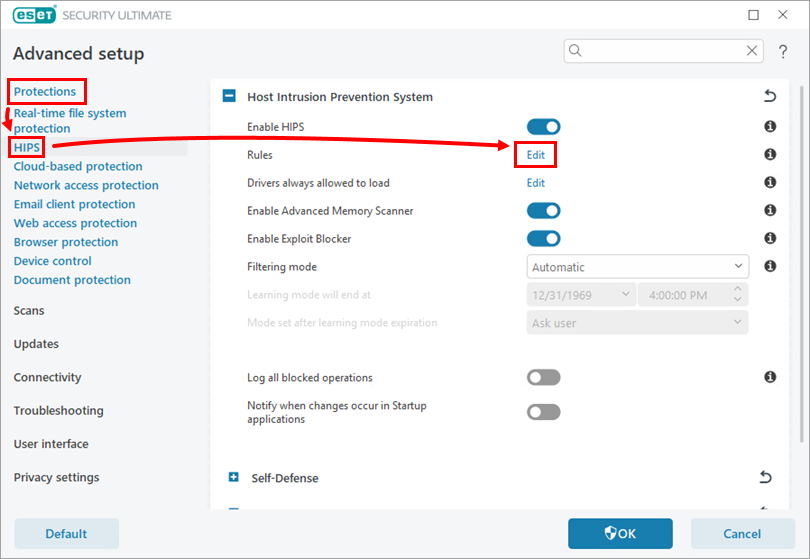
Haga clic en Protecciones → HIPS y haga clic en Editar junto a Reglas.
-
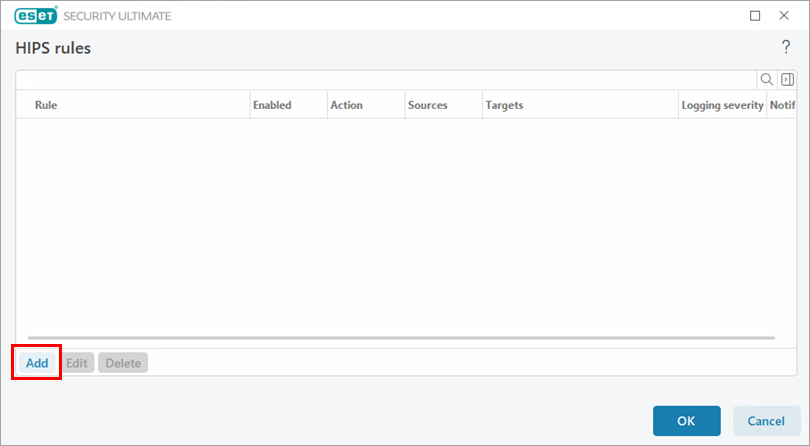
Haga clic en Agregar.
-
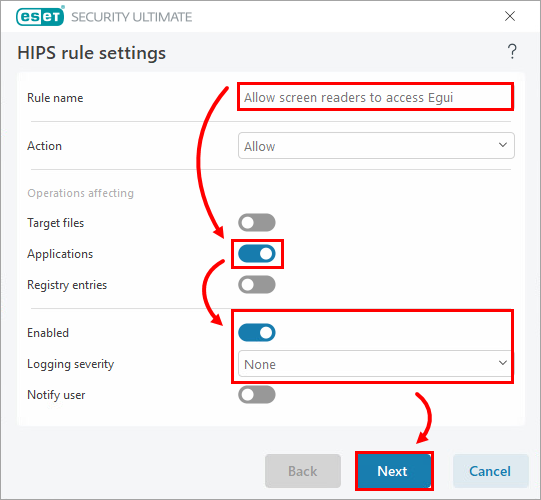
En el campo Nombre de regla, escriba Permitir que los lectores de pantalla accedan a Egui y active el conmutador situado junto a Aplicaciones. Haz clic en Siguiente.
-
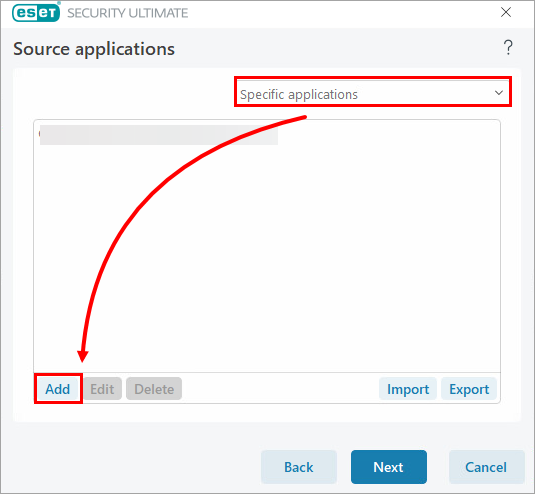
Seleccione Aplicaciones específicas en el menú desplegable y haga clic en Añadir.
-
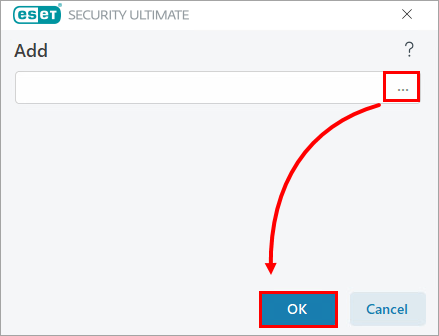
Haz clic en el icono de búsqueda (tres puntos). Busca y selecciona la aplicación de lector de pantalla instalada en tu dispositivo. Haz clic en Aceptar.
-
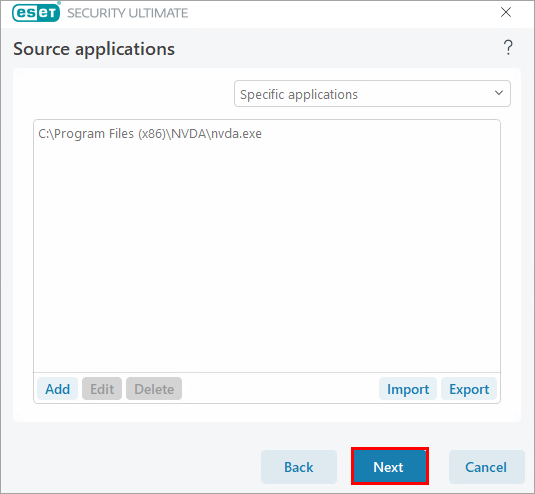
Haz clic en Siguiente.
-
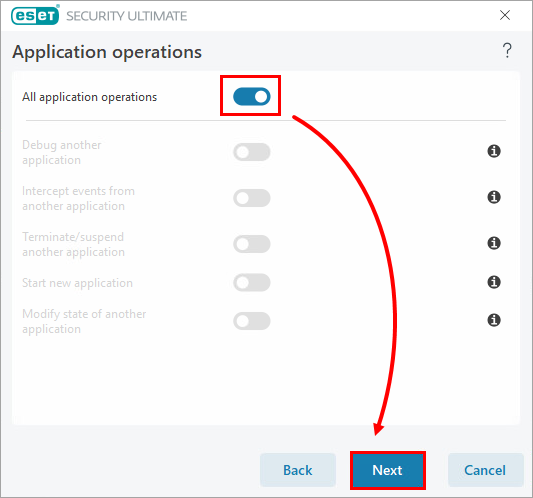
Habilite el conmutador situado junto a Todas las operaciones de la aplicación y haga clic en Siguiente.
-
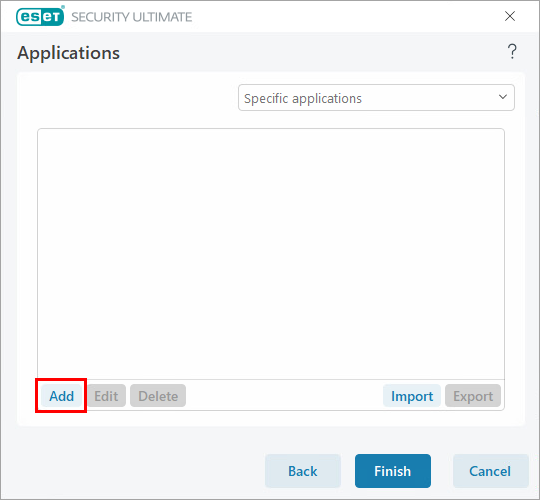
Haga clic en Añadir.
-
Escriba %InstallDir%egui.exe
en el campo de texto y haga clic en Aceptar → Finalizar.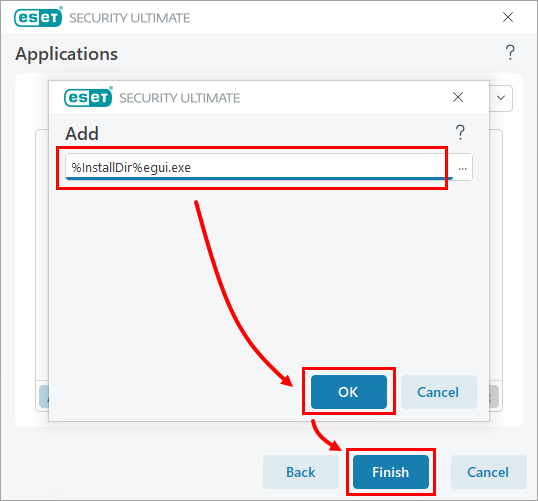
-
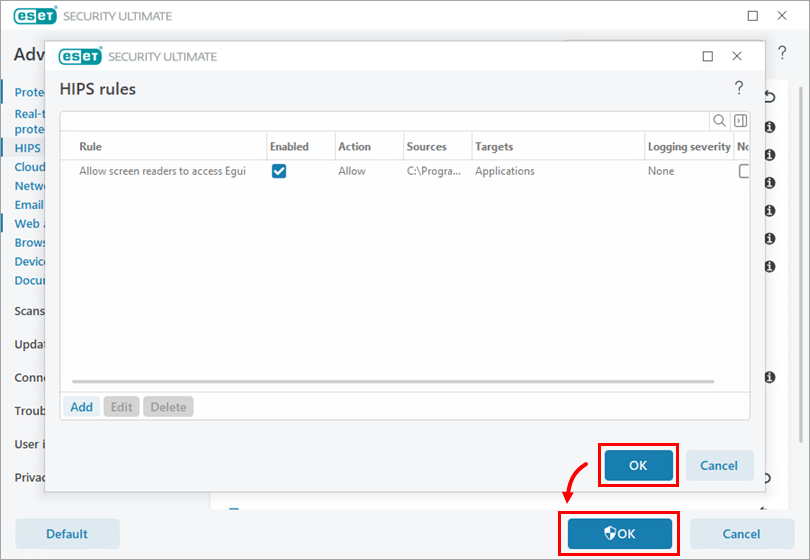
Haga clic en Aceptar → OK.