Issue
- Unlock Advanced setup in your ESET home or small office application if you lost your Advanced setup password
Solution
Related solution: Android users
-
Open the main program window of your ESET Windows home or small office application.
-
Press F5 to access the Advanced setup.
-
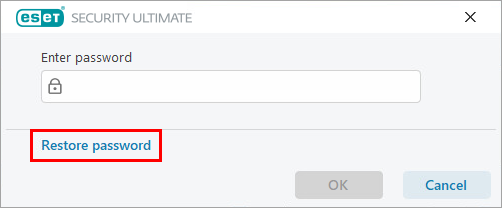
Click Restore password.
-
Restore the password using your preferred method:
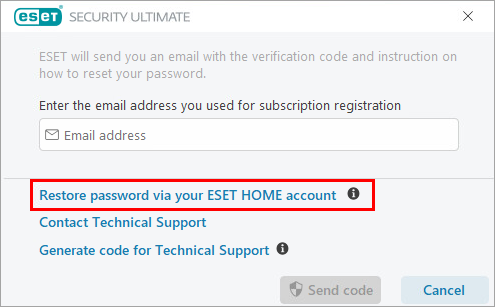
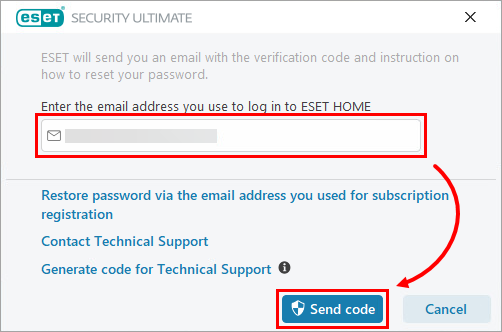
Through ESET HOME
Through email
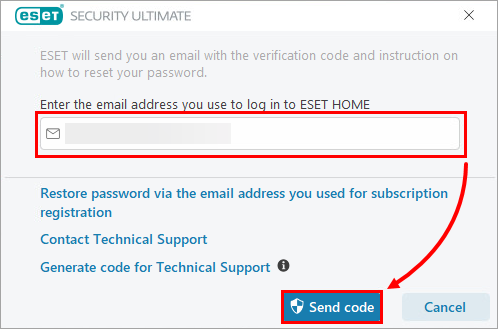
Type the email address associated with your subscription and click Send code.
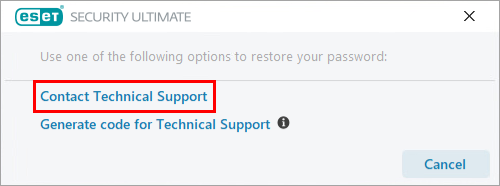
If you do not remember the email address associated with your subscription, click Contact Technical Support to submit a support request form to ESET Technical Support.
Through ESET Technical Support (generate a code for ESET Technical Support)
-
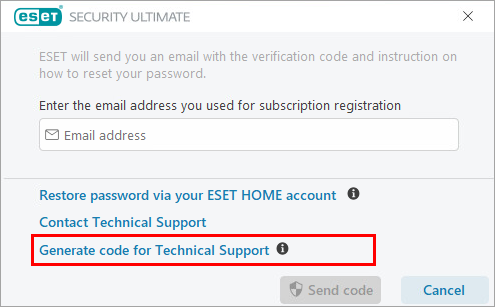
Click Generate code for Technical Support.
-
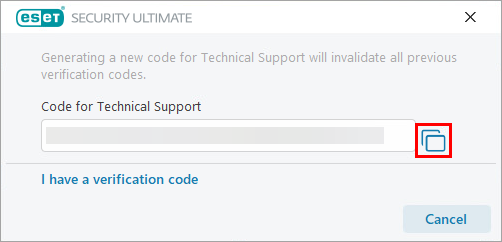
Click the copy button to copy the code for ESET Technical Support.
-
Provide the code to ESET Technical Support using the method you used to contact them.
-
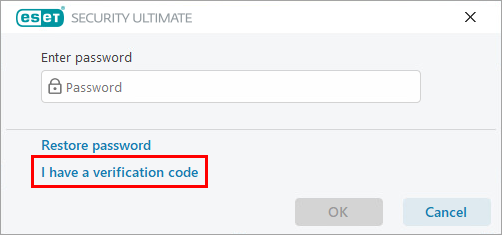
After ESET Technical Support receives the code, you will receive an email from ESET with a verification code. Copy the verification code. Return to your ESET Windows application and click I have a verification code.
If you do not see the option or you have closed the application in the meantime, open the main program window of your ESET Windows home or small office application and press F5.
-
-
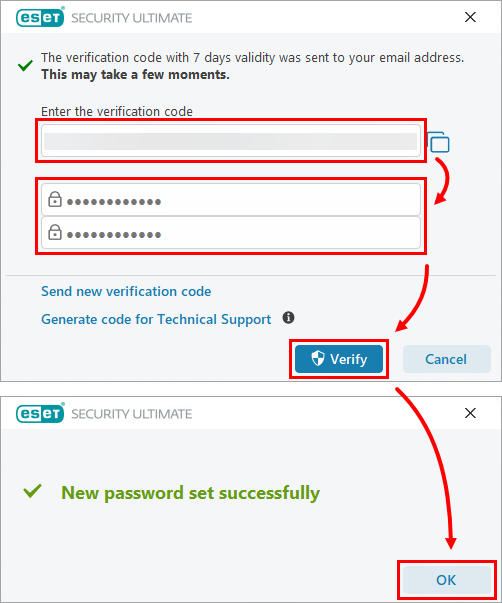
Enter the verification code and remove or set a new Advanced setup password.
Enter the verification code and remove the Advanced setup password
Type or paste the verification code and leave the password fields empty. Click Verify → OK.
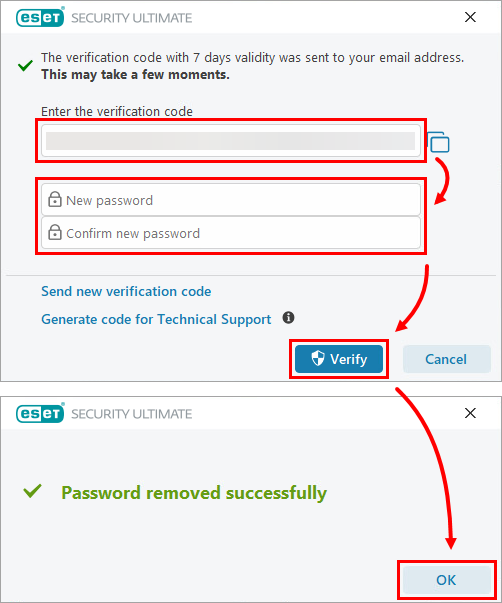
Enter the verification code and set a new Advanced setup password
Type or paste the verification code and type a new password in the New password and Confirm new password fields. Click Verify → OK.