Issue
- Remotely deploy ESET Endpoint Security for Android to client devices using ESET PROTECT
- Create and send an enrollment link via ESET PROTECT
- Create and send an enrollment link via ESET PROTECT using a CSV file with device information
- Enroll your Android device and deploy ESET Endpoint Security for Android
Solution
Create and send an enrollment link via ESET PROTECT
-
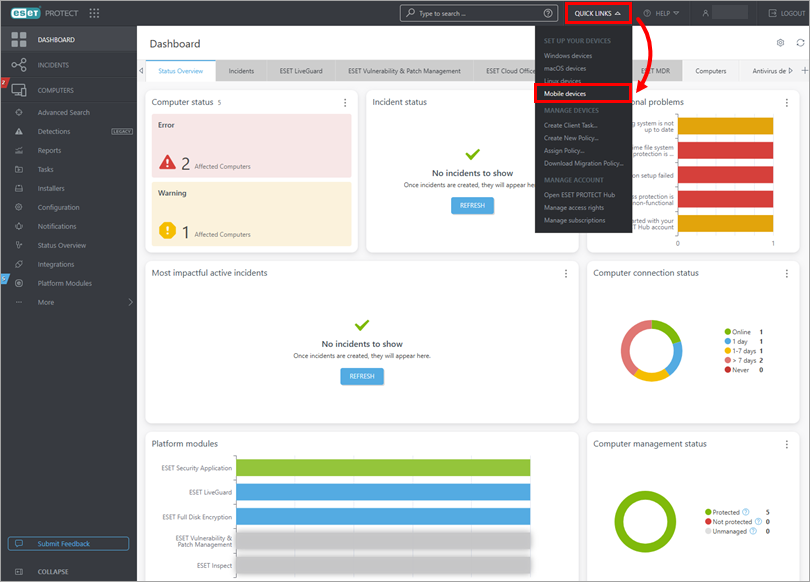
Click Quick Links → Mobile devices.
-
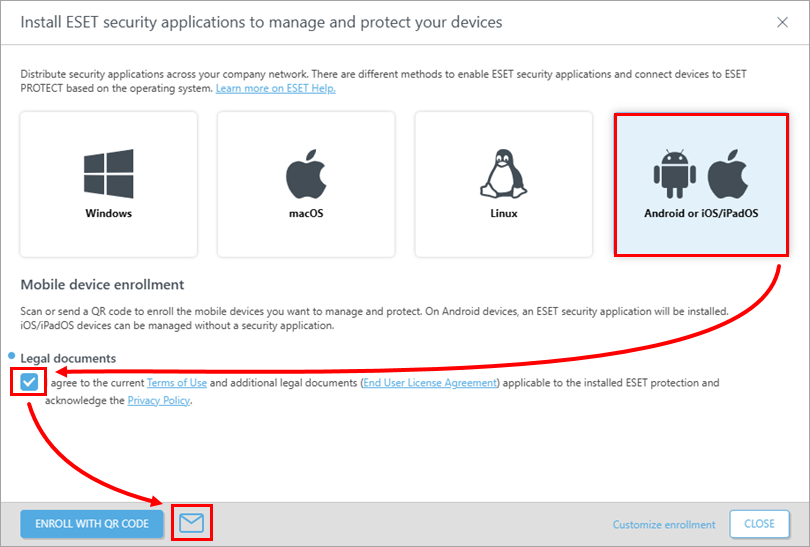
Ensure that Android or iOS/iPadOS is selected. Select the check box under Legal documents, and click the envelope icon to enroll the devices via email. For other enrollment methods, visit our Online Help page.
-
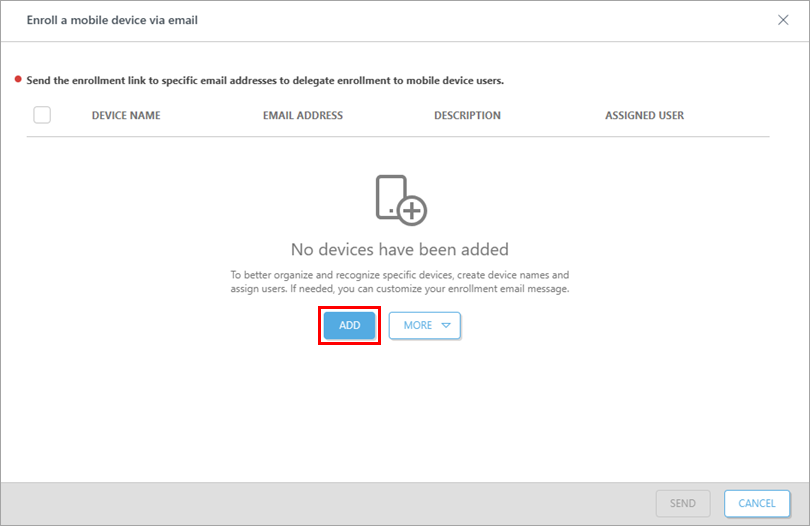
Click Add.
-
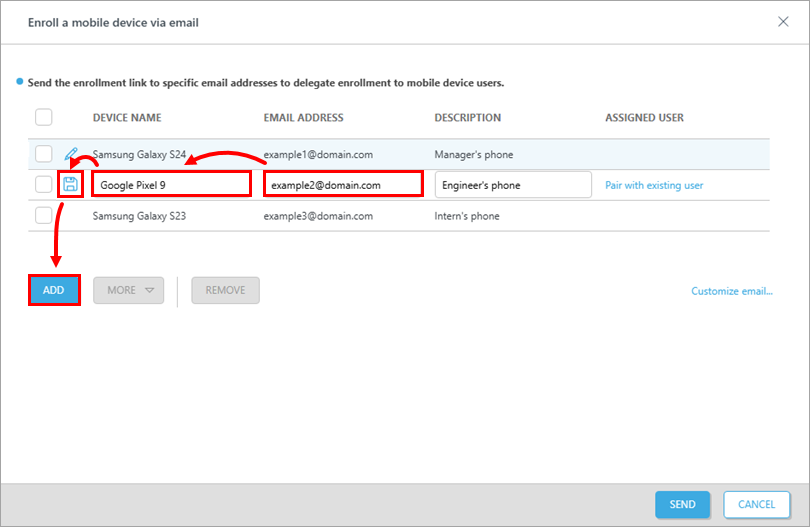
Type in the Device name and Email Address (this email address will be used to deliver the enrollment email message). The Description field is optional. Optionally use Pair with an existing user to match it to an existing Computer User. Click the Save icon to save the device. To add another device, click Add.
-
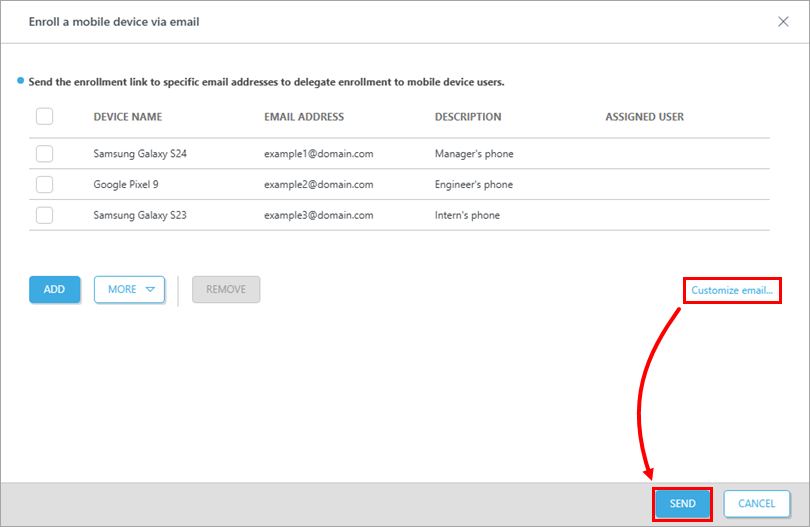
When finished adding devices, click Customize email if you want to make changes to the enrollment email. Click Send to enroll all devices.
-
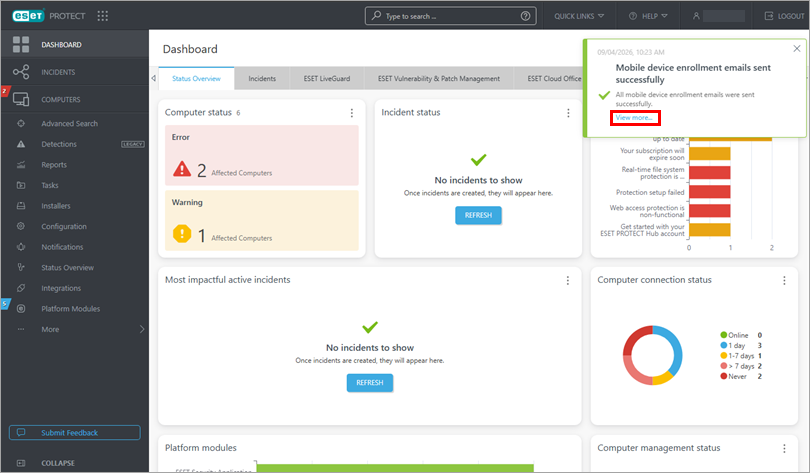
The notification window will show you about the status of the device enrollment. Click View more to show details about the device enrolment.
-
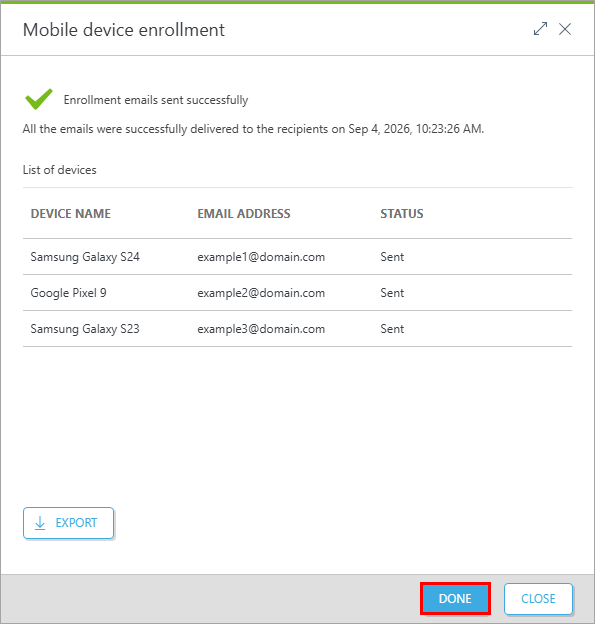
The Mobile device enrollment window will show you about the status of the device enrollment. Click Done.
Create and send an enrollment link via ESET PROTECT using a CSV file with device information
To simplify the mass enrollment process, prepare a comma-separated values (CSV) file with all of the required data. The CSV file should be formatted Device Name,Email Address,Description as shown in the example below:
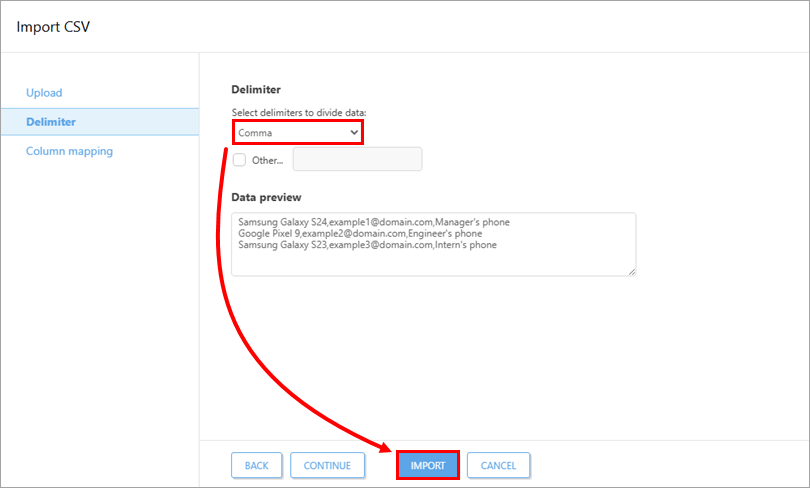
Samsung Galaxy S24,example1@domain.com,Manager's phone
Google Pixel 9,example2@domain.com,Engineer's phone
Samsung Galaxy S23,example3@domain.com,Intern's phone-
Click Quick Links → Mobile devices.
-
Ensure that Android or iOS/iPadOS is selected. Select the check box under Legal documents, and click the envelope icon to enroll the devices via email. For other enrollment methods, visit our Online Help page.
-
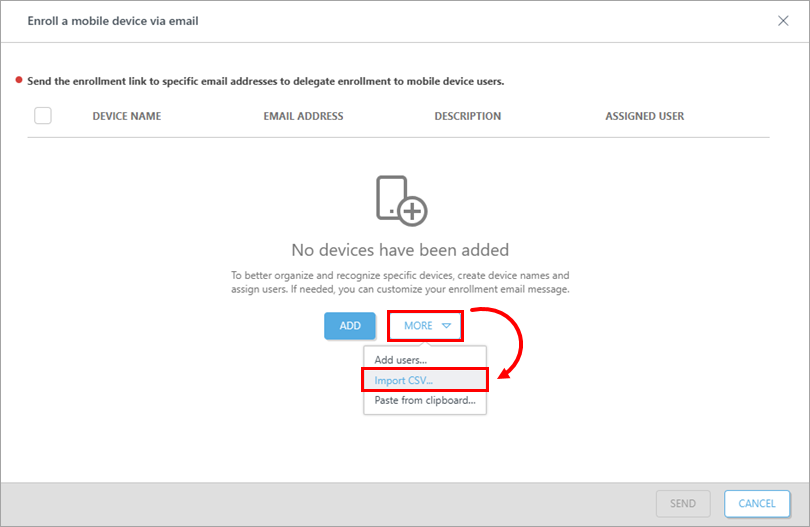
To import the CSV file, click More → Import CSV.
-
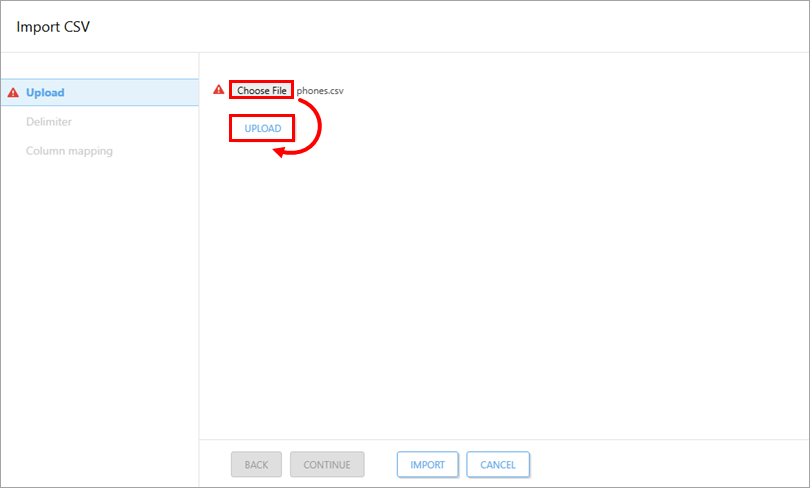
In the Upload section, click Choose File to select the CSV file to upload. After the file is selected, click Upload. If the file is uploaded successfully, you will be automatically forwarded to the Delimiter section.
-
In the Delimiter section, select the delimiters that will divide the data in the CSV file from the drop-down menu (in this example, a comma is selected), or select the check box next to Other and specify the delimiter that is in your CSV file. Check the output from the CSV file in the Data Preview section. Click Continue.
-
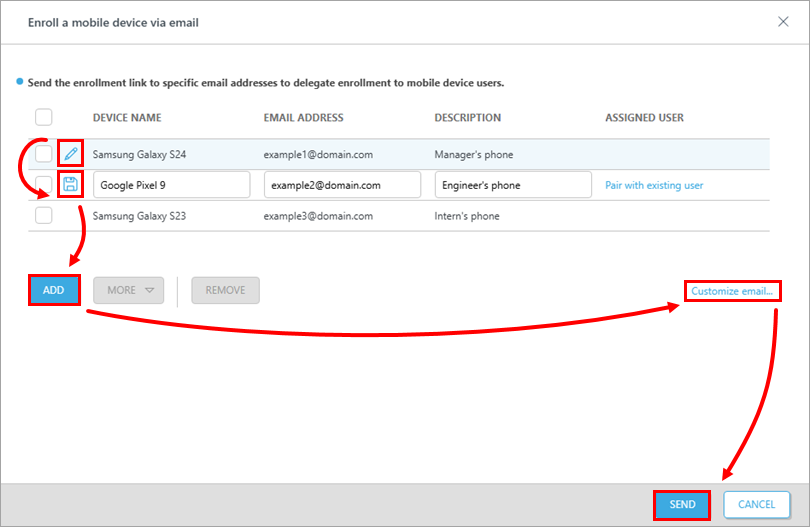
Click the Edit icon in the row you want to change any of the imported values. Type in the Device name and Email Address (this email address will be used to deliver the enrollment email message). The Description field is optional. To assign a specific user, click Pair with existing user to match it to an existing Computer User. Click the Save icon to save the device. To add another device, click Add. Click Customize email if you want to make changes to the enrollment email. When finished adding devices, click Send to enroll all mobile devices.
-
The notification window will show you about the status of the device enrollment. Click View more to show details about the device enrolment.
-
The Mobile device enrollment window will show you about the status of the device enrollment. Click Done.
Enroll your Android device and deploy ESET Endpoint Security for Android
-
Open the email from eca.mdm@protect.eset.com. If you open it on the mobile device you want to enroll, tap the Enroll name of your device. If you opened the email on another device, scan the QR code with the device you want to enroll in and open the link.
-
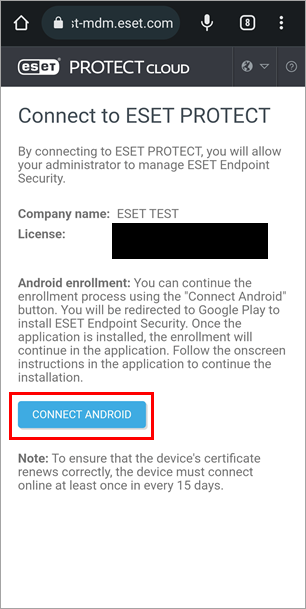
Tap Connect Android.
-
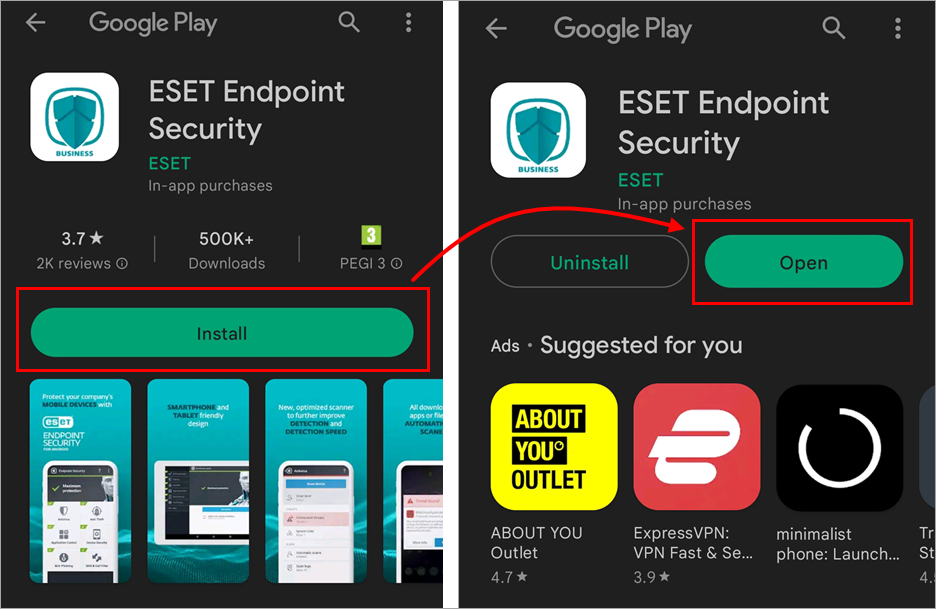
You will be redirected to the Google Play Store. Tap Install and wait for the installation to finish. Tap Open.
-
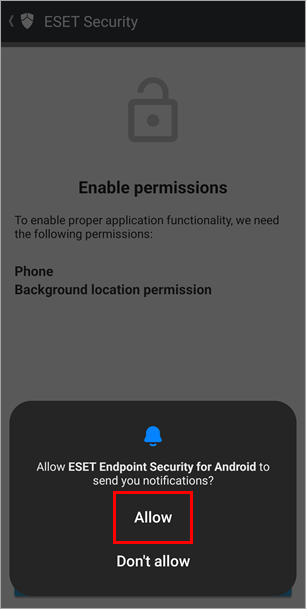
Tap Allow.
-
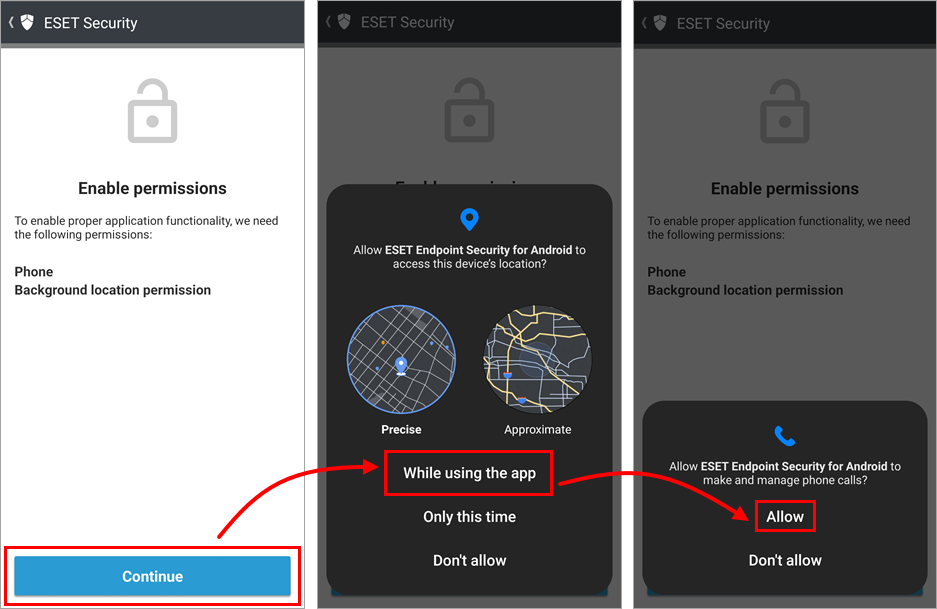
Tap Continue to open the displayed permissions settings. Tap While using this app and Allow.
-
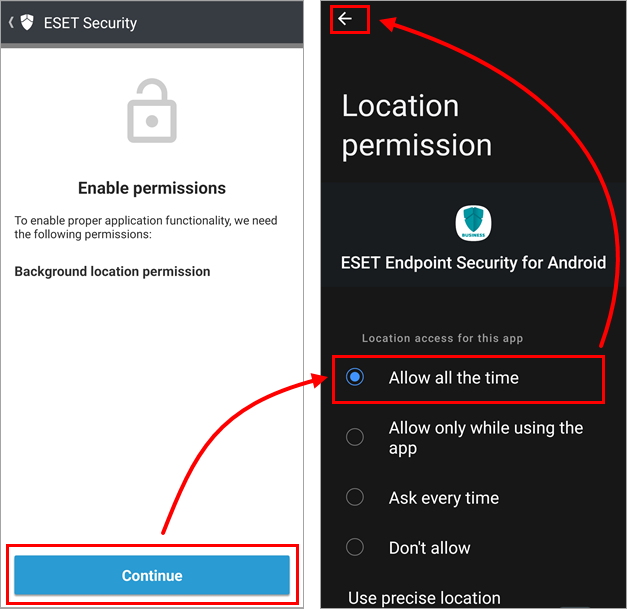
Tap Continue to open the displayed permissions settings. You will be temporarily taken out of the app to the Location permission settings. Tap Allow all the time, and in the top left corner, tap the arrow back to return to the wizard.
-
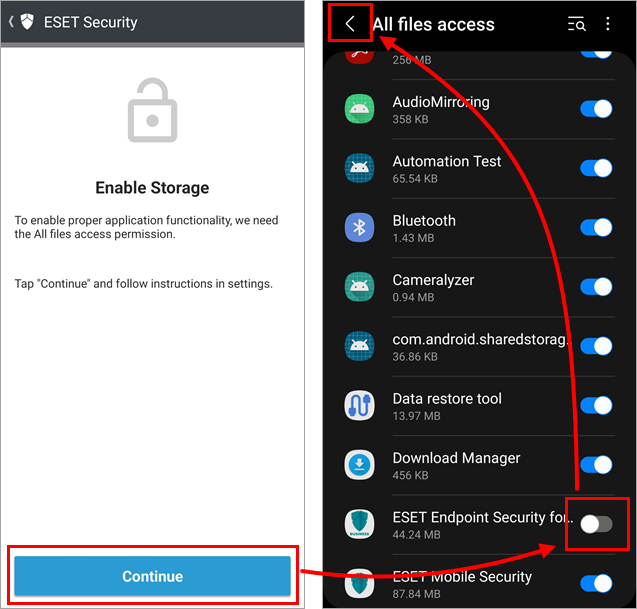
Tap Continue to open the All files access permission settings. You will be temporarily taken out of the app to the All files access settings. Tap the toggle next to ESET Endpoint Security for Android to turn it on (from grey to blue, but colors may differ based on your device manufacturer), and in the top left corner, tap the arrow back to return to the wizard.
-
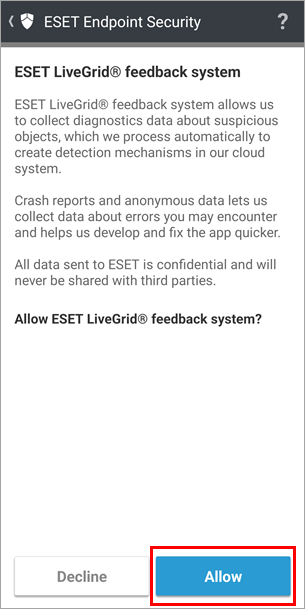
Tap Allow.
-
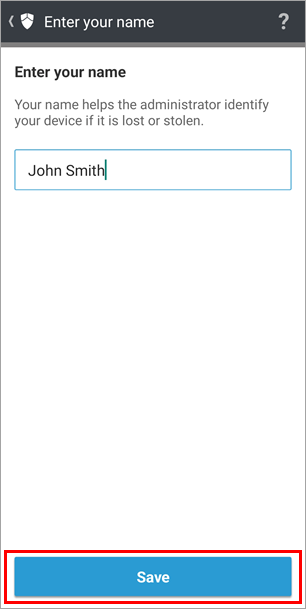
Type in your name to help the admin recognize your device and tap Save.
-
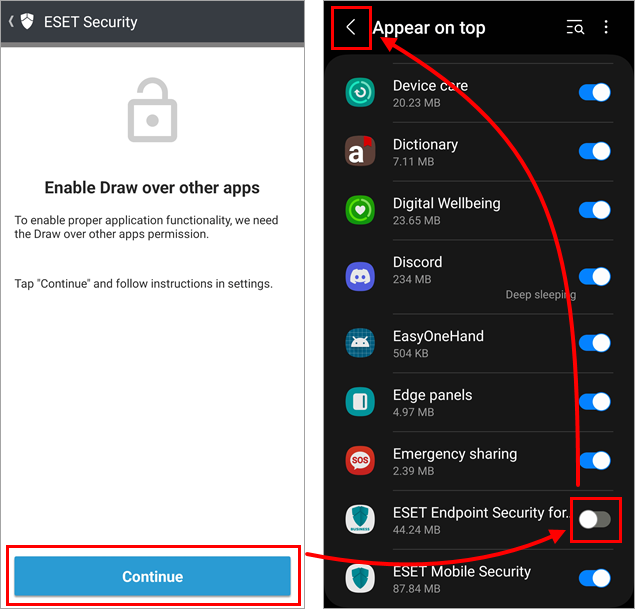
In the Enable draw over other apps, tap Continue. You will be temporarily taken out of the app to the Appear on top settings. Tap the toggle next to ESET Endpoint Security for Android to turn it on (from grey to blue, but colors may differ based on your device manufacturer), and in the top left corner, tap the arrow back to return to the wizard.
-
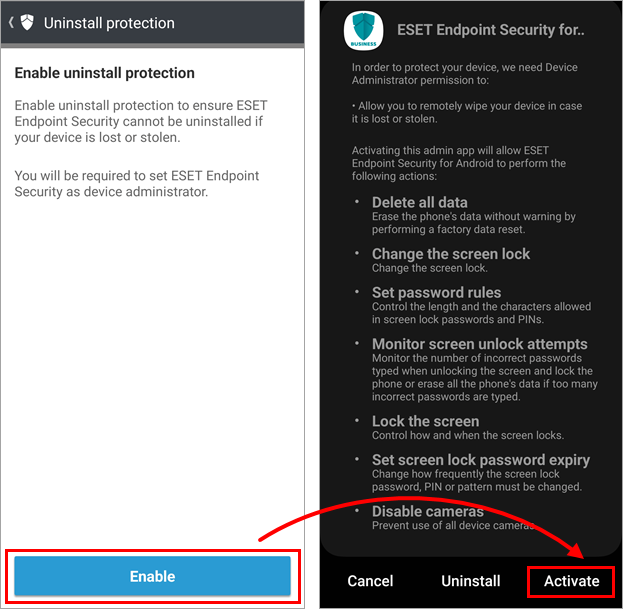
In the Enable uninstall protection section, tap Enable. This will open the uninstall protection settings. Tap Activate.
-
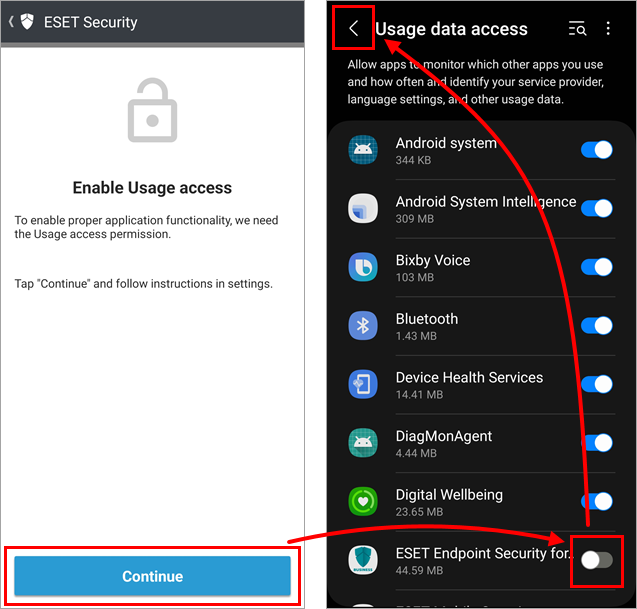
In Enable usage access, tap Continue. You will be temporarily taken out of the app to the Usage data access settings. Tap the toggle next to ESET Endpoint Security for Android to turn it on (from grey to blue, but colors may differ based on your device manufacturer), and in the top left corner, tap the arrow back to return to the wizard.
-
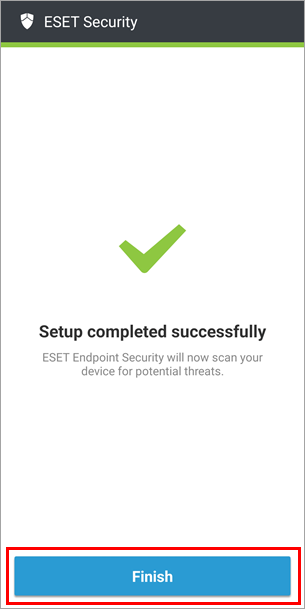
Tap Finish to exit the wizard.
-
The Android device is now protected.