Issue
Solution
Types of threat notifications
Depending on the type of threat, your ESET home and small office application for Windows might clean, block, or quarantine one or multiple files, block access to a website, make changes to online communication settings, or take no action at all. To see records of previous detections, view your detections log.
See different warnings and notifications from your ESET home or small office application for Windows below, and suggestions on how to follow up when you see them:
Threat removed
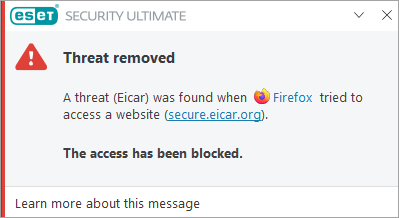
This type of notification is displayed when your ESET application detects a malicious file or communications that might damage your system. The Threat parameter displays the name of the threat that was detected.
In most cases, your ESET application will clean, quarantine, or block threats that result in this type of notification. If a threat is not cleaned, deleted, or quarantined, it is a special case and requires further action.
Potentially unwanted application found
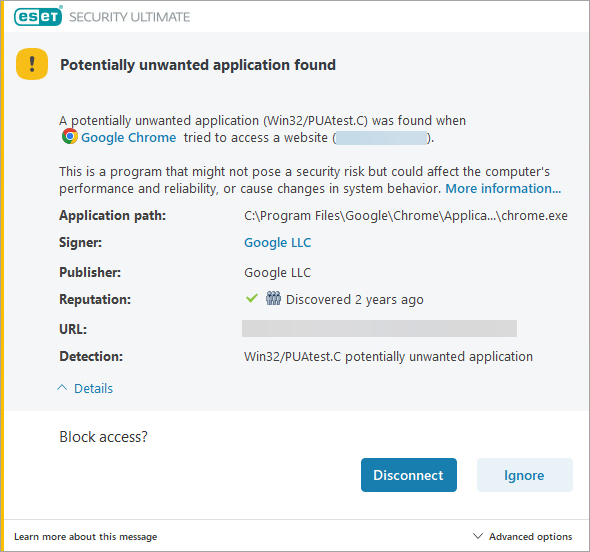
This type of notification is displayed when your ESET application detects a file associated with a potential threat. In most cases, this type of notification is displayed because a potentially unwanted application (PUA) was detected on your system. Potentially unwanted applications are licensed software that ESET has identified because they contain adware, install toolbars or perform other actions that might negatively affect your experience when using your computer.
You can configure your ESET application to detect or ignore these types of applications, based on your preference. To remove all applications of this type, ensure that you have configured your ESET application to detect PUAs and then perform a scan with strict cleaning.
Threat found during a scan
If your ESET application detects a threat during a scheduled or On-demand scan and does not automatically clean the threat, the Threats found dialog will be displayed.
The Name and Threat columns will display the location and type of threat. Use the drop-down menus in the Action column to select the type of action taken against a threat. Click Finish.
Network threat blocked: Suspected botnet
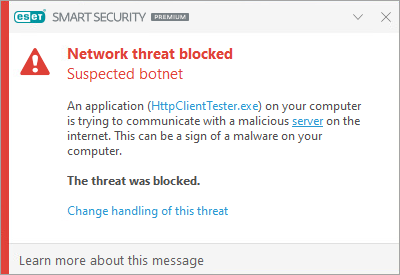
If your ESET application detects a suspected botnet, the Network threat blocked: Suspected botnet dialog will be displayed. You can click Change handling of this threat to change the way this detection will be handled.
Botnet Protection detects and blocks communication with malicious command and control servers based on typical patterns when the computer is infected and a bot is attempting to communicate.
Potential ransomware behavior detected
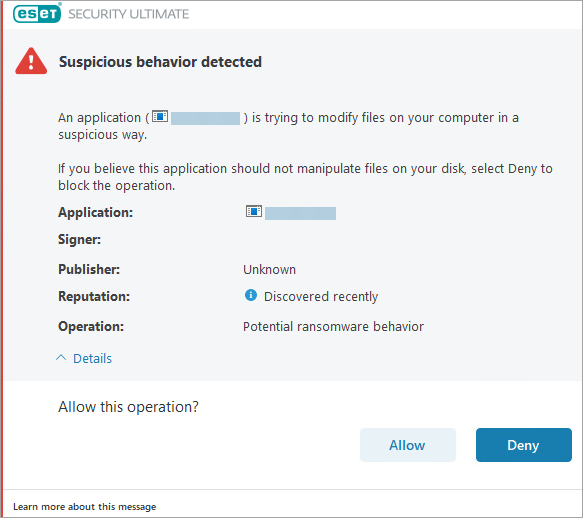
If your ESET application detects ransomware behavior, the Potential ransomware behavior detected dialog will be displayed. Click Allow or Deny to allow or deny the operation.
HIPS: Anti-ransomware protection is a part of the Host-based Intrusion Prevention System (HIPS) feature. If HIPS is not functional, the Ransomware protection is not functional either.
For proper functionality of HIPS: Anti-ransomware protection, the ESET LiveGrid reputation system must be enabled.
Special cases
If a threat is not cleaned, deleted, or quarantined automatically, you have to perform additional steps. See the list of special cases below:
The infected file or folder is hidden
If there was a threat found in a hidden file or folder, and the file was not cleaned, deleted, or quarantined automatically, follow the steps below:
-
Navigate to the infected file or folder.
-
Right-click the infected file or folder and click Delete. When prompted to confirm, click Yes.
-
Navigate to your Desktop, right-click Recycle Bin, and click Empty Recycle Bin. When prompted, click Yes to confirm.
-
Restart your computer and run a Computer scan.
The infected file is in use by another program or locked in memory
If you receive this notification while scanning your system, follow the steps below:
-
Allow the scan to finish.
-
Restart your computer.
-
Run another Computer scan.
"Unable to open," "Error opening," or "Archive damaged" entries in the scan log
Windows uses and locks certain files from startup until shutdown. These files and any others running in memory cannot be used by or tampered with by other programs, including ESET applications or potential malware.
ESET scans these files during startup and again during shutdown to ensure that they are not corrupt. See notifications in the Scan log for more information.
DNS Cache poisoning attack or Detected ARP cache poisoning attack
This message usually appears due to a conflict between a router and the Personal firewall in ESET Smart Security Premium.
The threat was detected inside a damaged or password-protected archive file
Archives (such as .zip or .rar) combine multiple files into one compressed file. ESET applications do not delete archives because an archive file identified as infected may contain clean and infected files. If your ESET application has detected an infected file within an archive, you have two options:
- Delete the archive file: Although you will lose the clean files within the archive, attempting to recover material from an infected archive could potentially spread the infection
- Use a file-archiving program (such as
WinZip,7-ZiporWinRAR) to move individual files out of the archive (be sure to scan these files when you extract them from the archive)
The Virus was detected inside a Microsoft Outlook Express .dbx file
If you locate an infected .dbx file, follow the steps below:
-
Open the
.dbxfile in Outlook Express. -
Locate the message with the virus according to the sender, date of sending, subject, etc.
-
Delete the infected message (click here for guidelines on submitting samples to ESET).
To prevent Outlook Exchange from downloading a virus when retrieving mail from your internet service provider in the future, make sure that email client protection is enabled in your ESET application:
-
Open the main program window of your ESET Windows application.
-
Press the F5 key to open Advanced setup.
-
Expand Email client integration → Mailbox protection → Integrations and click the toggle to enable Integrate into Microsoft Outlook.
Your computer was infected before installing an ESET application
Your ESET application may be unable to remove viruses and threats that were present on your system before your ESET application was installed.
If you think that your computer was infected before you installed ESET and is still infected, contact ESET Technical Support.
The virus was found in the Java cache directory
If a virus is discovered in the cache directory, we recommend that you clear the cache manually.
Review the scenario when a virus is found in the Java cache directory.
You see "retained" entries in the scan log
Scan logs show "retained" entries if:
- The Cleaning level of your ESET application has been set to No cleaning (running a scan of your computer will detect threats without taking action to remove them)
- The scan has been interrupted and did not finish successfully
- You choose not to clean the infected file in the interactive window during the scan
To resolve this issue, set the cleaning level to Always remedy detection. See advanced scanning options in ESET home and small office applications for Windows for more information.
Infected files found in the System Volume Information
If your system creates System Restore files while it is infected with a virus and later that virus is removed, the infected files can remain in the System Volume Information folder. To resolve this issue, clean the System Volume Information folder.
The virus was detected in an .exe or .dll file archived with UPX
UPX files are similar to archive files but contain files used to run a program. With JavaScript enabled, you can view and delete an infected UPX file using Windows Explorer. If your ESET application cannot clean an infected UPX file, submit the file as a sample to ESET.


