Issue
- Run a full system scan
- Enable Idle-state scanning
- Malware scan scanning options
- Advanced scanning options – ThreatSense
- Create a custom scan profile
Details
Click to expand
The default scan settings are configured to maximize your computer's performance and security. However, some options are not enabled within the default profile to keep scan times low and prevent conflicts. You can enable these options to perform a more in-depth scan of your system, or define scanning parameters for a specific use.
Solution
Run a full system scan
The standard computer scan excludes some scan targets that are unlikely to contain malware.
-
Open the main program window of your ESET Windows application.
-
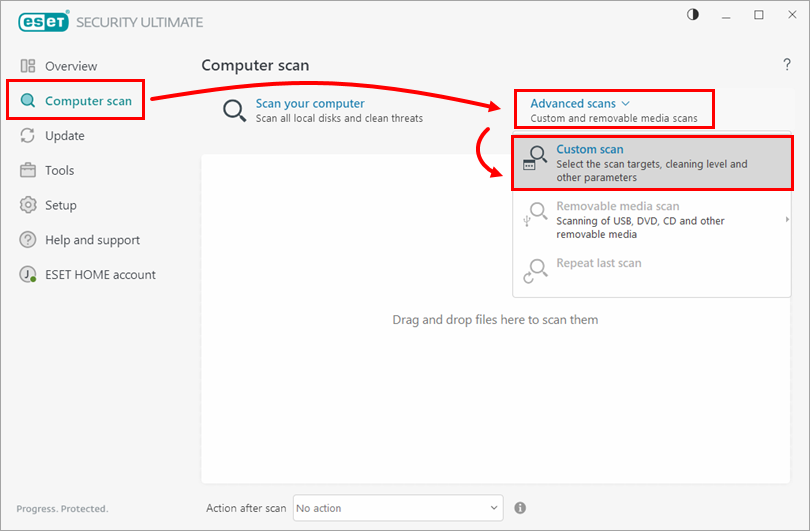
Click Computer scan → Advanced scans, and select Custom scan from the drop-down menu.
-
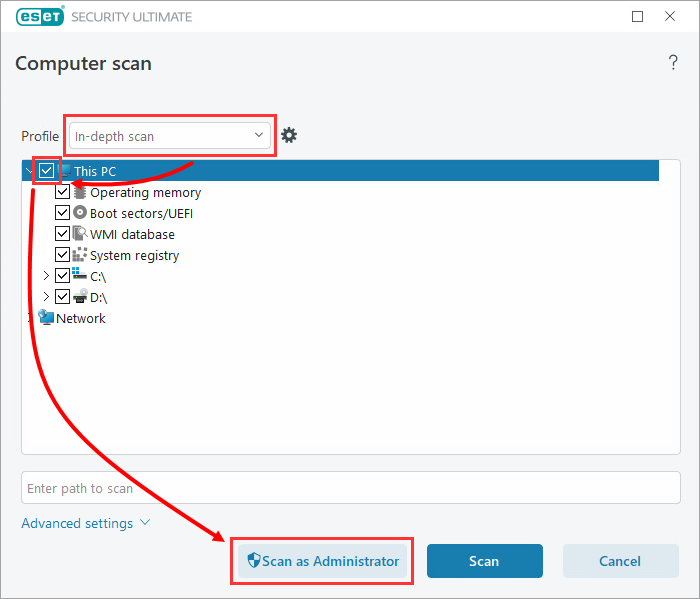
Select In-depth scan from the Profile drop-down menu, select the check box next to This PC, and click Scan as Administrator.
Enable Idle-state scanning
You can enable Idle-state scanning to trigger automatic computer scans at times when there is little or no load on system resources.
-
Open the main program window of your ESET Windows application.
-
Press the F5 key to open Advanced setup.
-
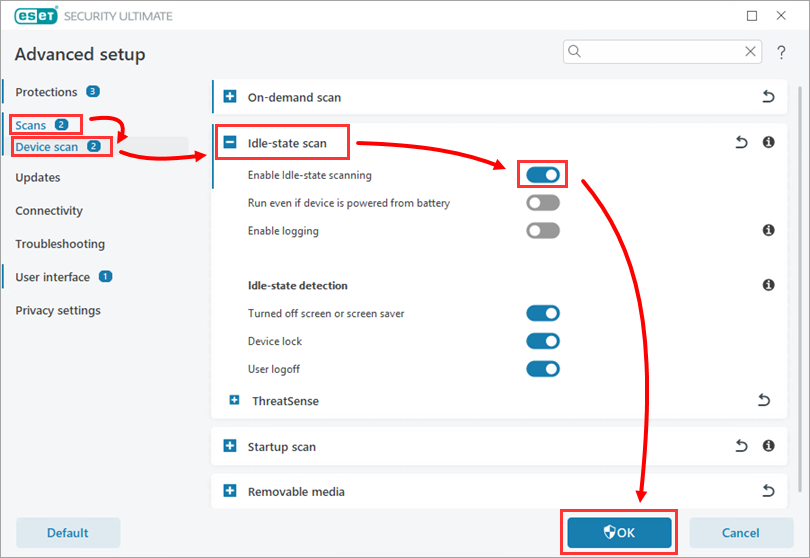
Click Scans → Device scan, expand Idle-state scan, and enable the toggle next to Enable Idle-state scanning. Click OK to save your changes and exit Advanced setup.
Malware scans scanning options
-
Open the main program window of your ESET Windows application.
-
Press the F5 key to access Advanced setup.
-
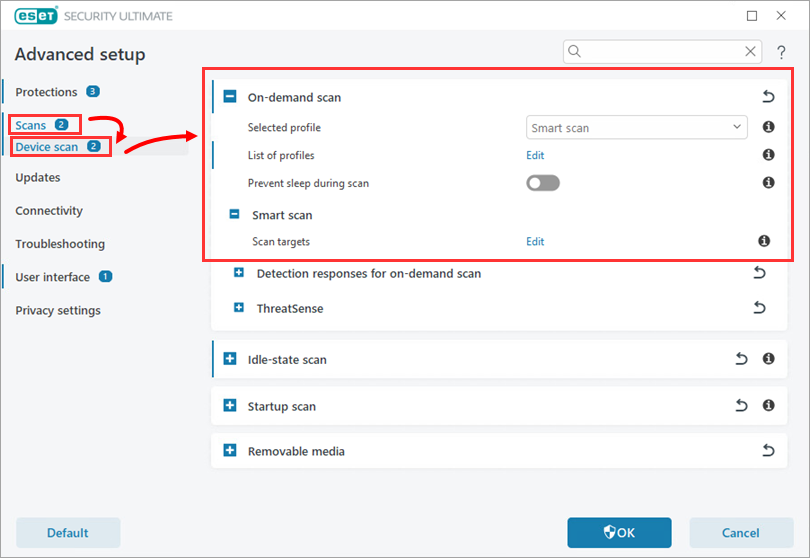
Click Scans → Device scan, and expand the section On-demand scan.
- Selected profile: Scan profiles allow you to save a scan configuration (scan targets, methods, and other settings). You can use one of the pre-configured scan profiles in the ESET application.
- List of profiles: Click Edit to create custom profiles to fit your preference. See instructions to create a custom profile.
- Scan targets: select pre-defined scan targets.
Advanced scanning options – ThreatSense
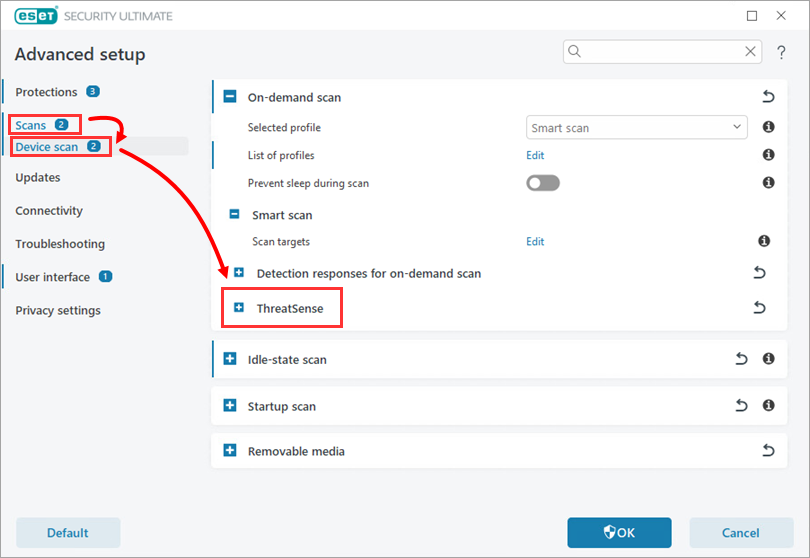
The settings available in ThreatSense allow you to define the types of files the scanner examines, the methods used to examine files during scanning, and the default action to take if a threat is found during scanning.
-
Open the main program window of your ESET Windows application.
-
Press the F5 key to access Advanced setup.
-
Click Scans → Device scan, and expand the section ThreatSense to show the settings in this section.
The ESET ThreatSense scanning engine can be configured to use your custom settings when performing an On-demand scan. Changes made here will not affect settings for other application modules (for example, if you disable removable media scanning here, it will remain active in Real-time file system protection). To learn more about ThreatSense sections, visit the ESET Online Help.
Create a custom scan profile
-
Open the main program window of your ESET Windows application.
-
Press the F5 key to open Advanced setup.
-
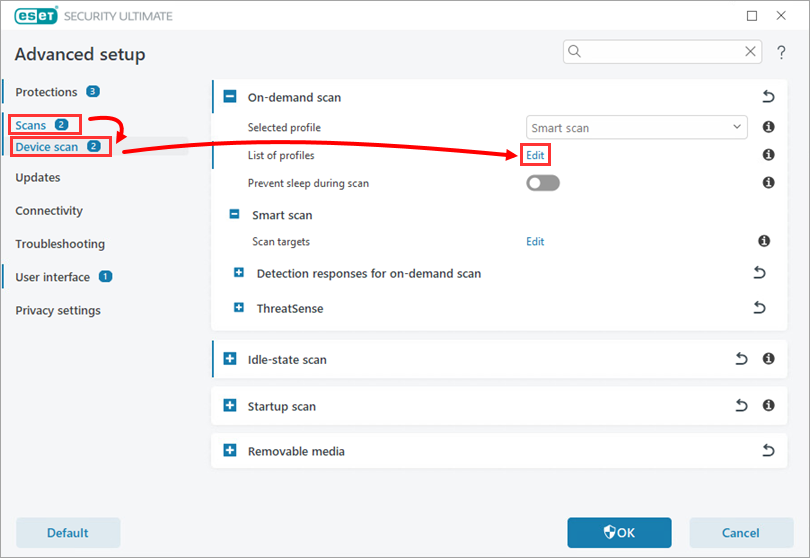
Click Scans → Device scan and click Edit next to List of profiles.
-
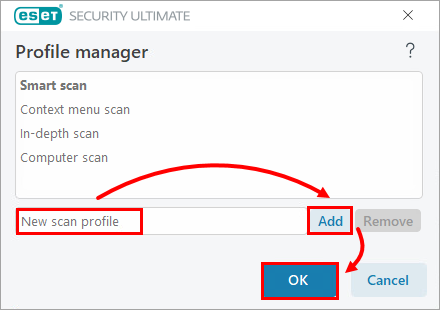
Type the new profile name and click Add → OK.
-
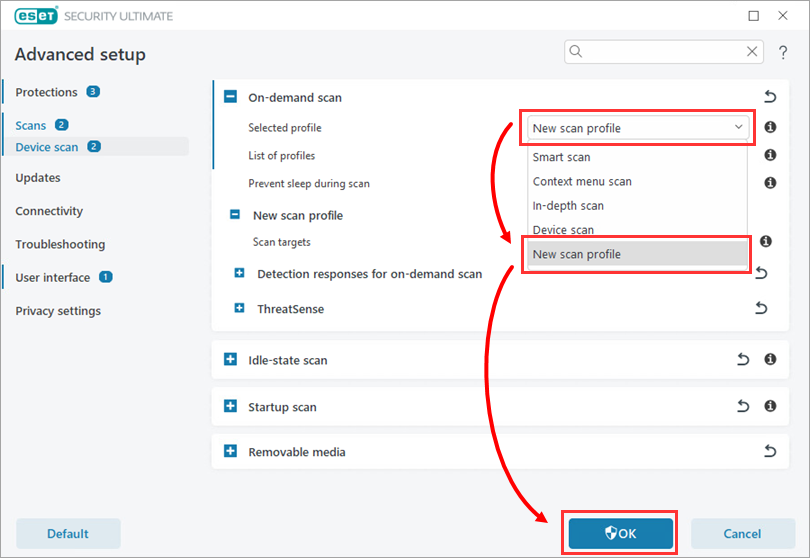
Select your new profile in the Selected profile drop-down menu. Configure your profile as desired and click OK to exit Advanced setup.