Issue
- Restart ESET Firewall on client devices
- Enable ESET Firewall on client devices
Solution
Related solution: Non-managed users
-
Open policies overview.
ESET PROTECT
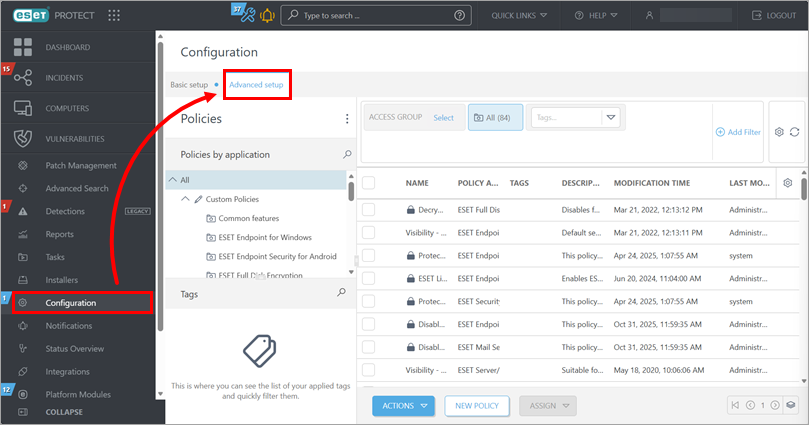
Click Configuration → Advanced setup.
ESET PROTECT On-Prem
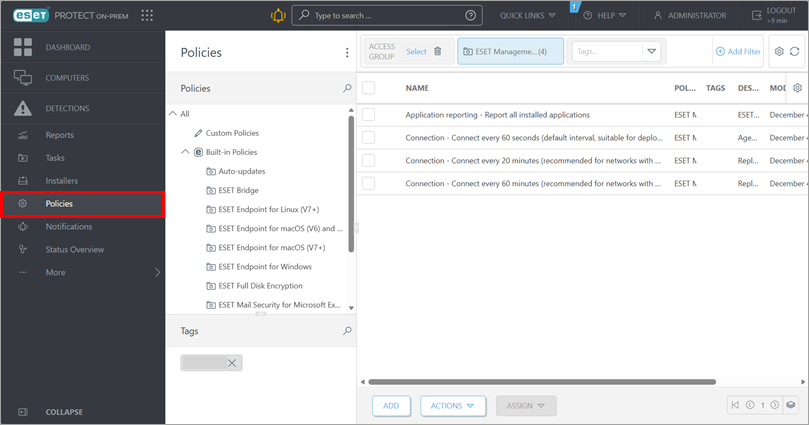
Click Policies.
-
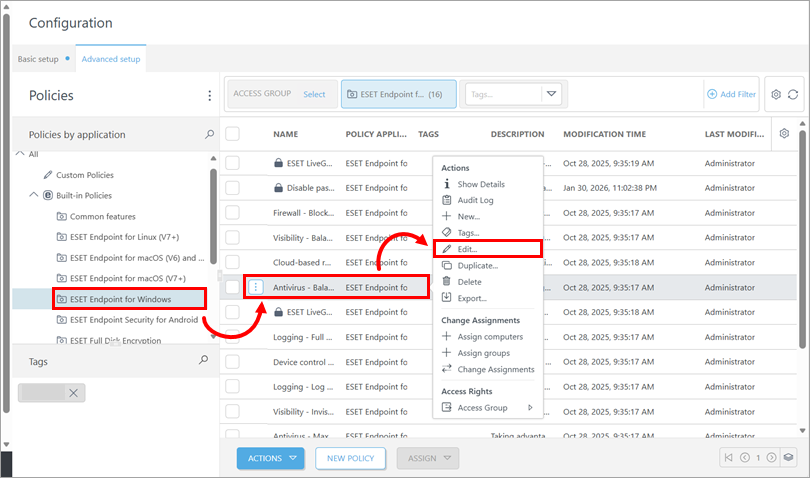
Select the policy that is applied to the devices where you want to disable ESET Firewall: below Policies, click the respective policy category, click the policy and click Edit.
-
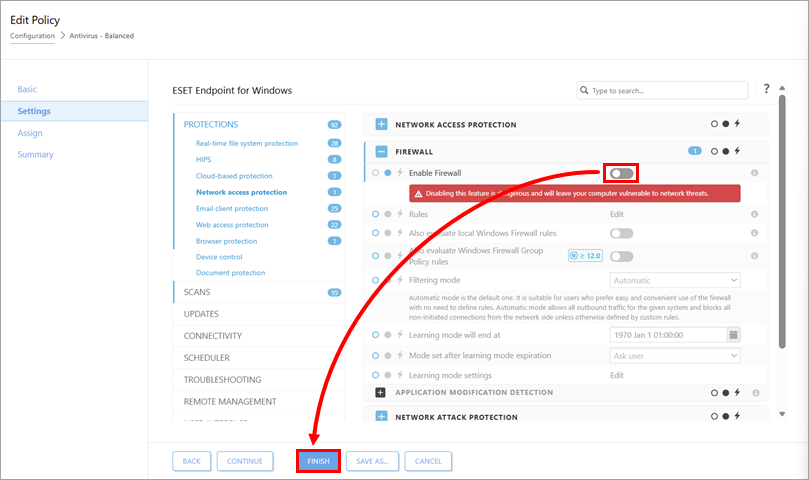
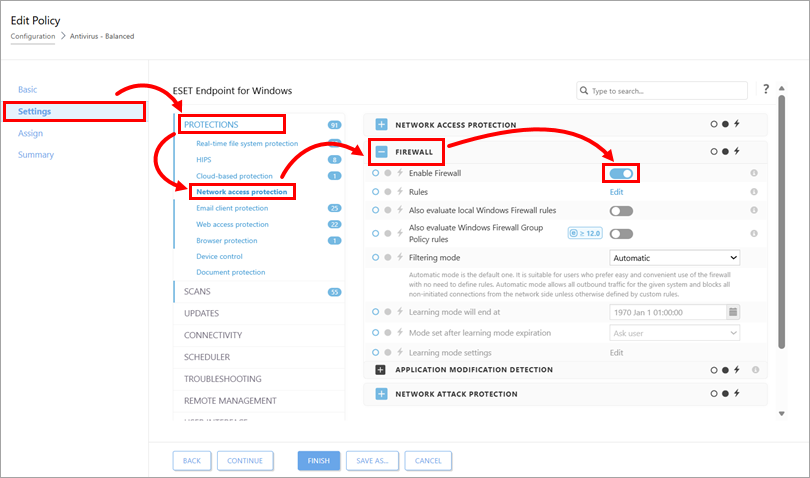
Click Settings, expand Protections, click Network access protection, expand Firewall and click the toggle next to Enable Firewall to disable it.
-
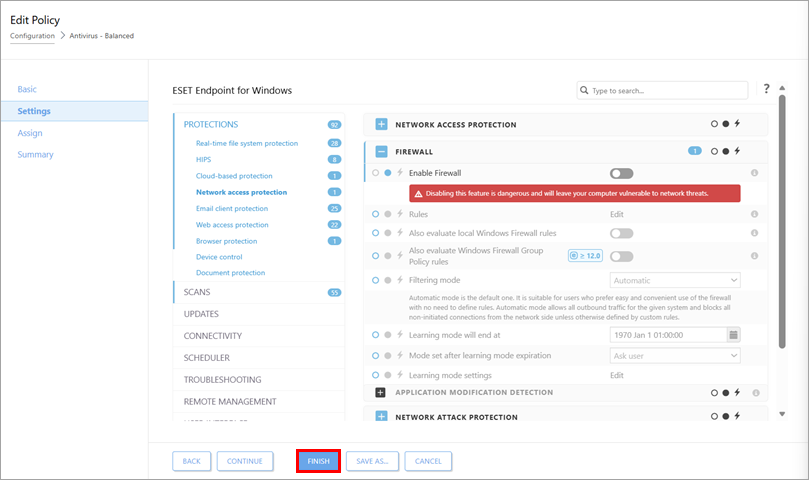
Click Finish.
-
After you finish troubleshooting, enable ESET Firewall on the client devices again: repeat the steps above to open the firewall settings of the same policy and click the toggle next to Enable Firewall to enable it. Click Finish.