Issue
- Prerequisites
- Install ESET Inspect Connector on Windows using the Setup Wizard (graphical mode)
- Assign the ESET Inspect Connector an ESET PROTECT On-Prem policy that allows communication with ESET Inspect Server
Solution
Prerequisites
- Deploy ESET Management Agent
- Deploy an ESET Endpoint application
- Activate ESET Inspect Connector with an ESET Inspect subscription: create a Module Activation task or contact your ESET PROTECT On-Prem administrator.
Install ESET Inspect Connector on Windows using the Setup Wizard (graphical mode)
-
Download the ESET Inspect Connector installation file and run the installation file.
-
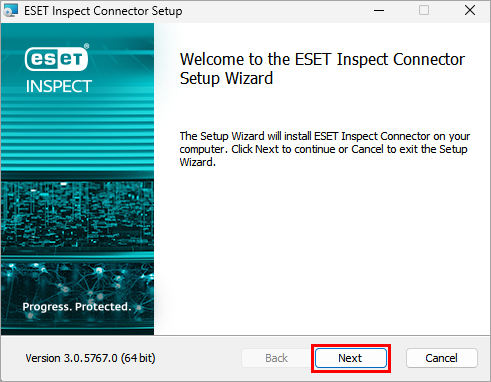
On the welcome screen, click Next.
-
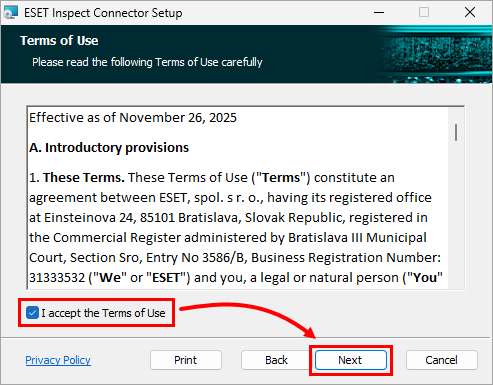
If you accept the Terms of Use, select the checkbox I accept the Terms of Use, and click Next.
-
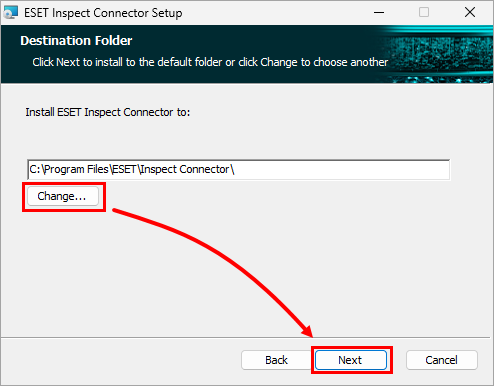
Change the destination folder or leave the default folder, and click Next.
-
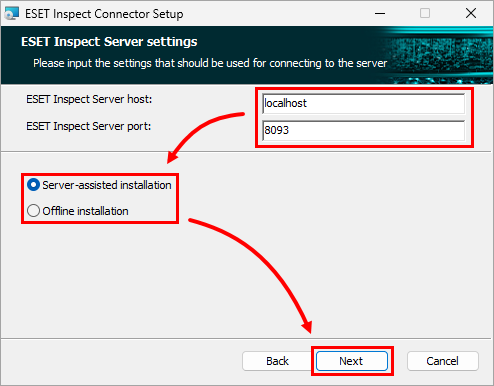
On the ESET Inspect Server settings screen, type in the correct values into the following fields: ESET Inspect Server host, ESET Inspect Server port. Choose the type of installation you want to proceed with: Server-assisted installation or Offline installation, and click Next.
-
Provide the Certification Authority based on your installation type:
-
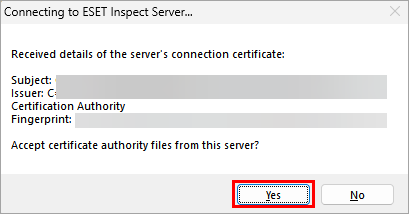
Server-assisted installation: In the dialog box with the Certificate Authority details, click Yes to accept the Certificate Authority for the ESET Inspect Connector.
-
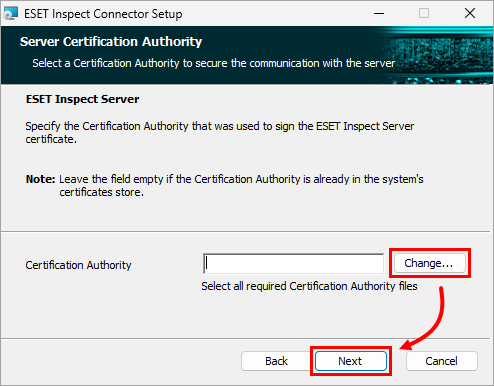
Offline installation: type or paste the path to the Certificate Authority file, or click Change to navigate to the file location and select the file manually. Click Next.
-
-
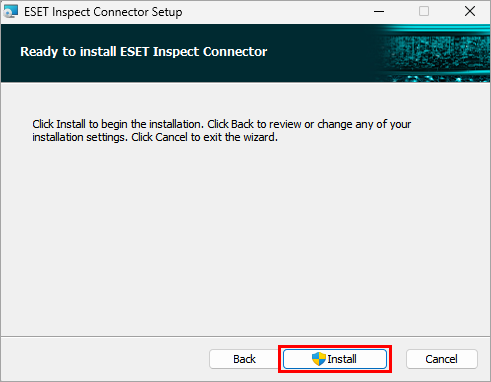
Click Install. A progress bar appears, displaying the current status.
-
After the installation is completed, click Finish.
Assign the ESET Inspect Connector an ESET PROTECT On-Prem policy that allows communication with ESET Inspect Server
To allow the computer with ESET Inspect Connector installed to communicate with the ESET Inspect Server, the computer must be assigned an ESET PROTECT On-Prem policy that allows the communication.
If you are just starting with the setup, create such a policy and assign the computer to it. If such a policy already exists, assign the computer to the existing policy.
Create a new policy and assign it to the ESET Inspect Connector
-
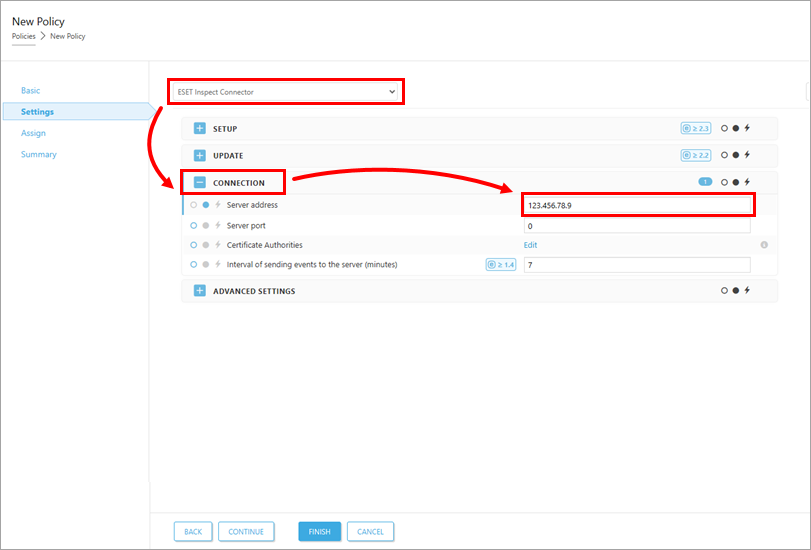
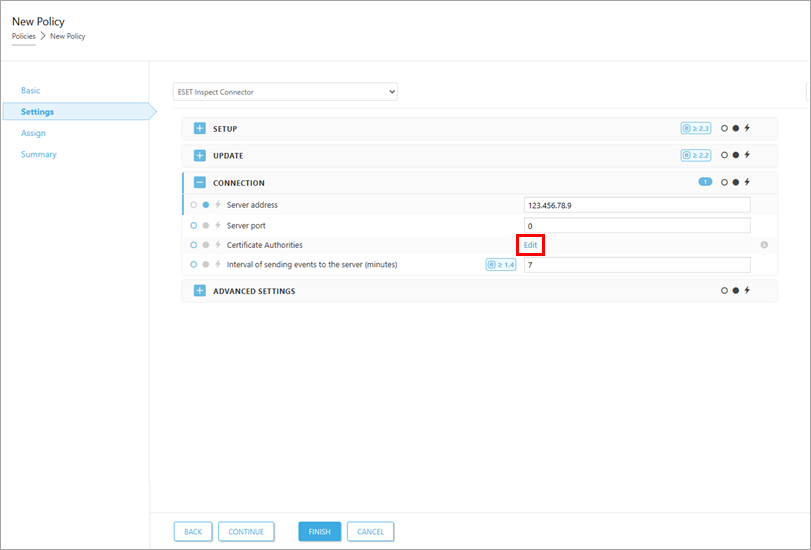
Under Settings, select ESET Inspect Connector. Then, expand Connection and in the Server address field, type the ESET Inspect Server IP address.
-
Next to Certificate Authorities, click Edit
-
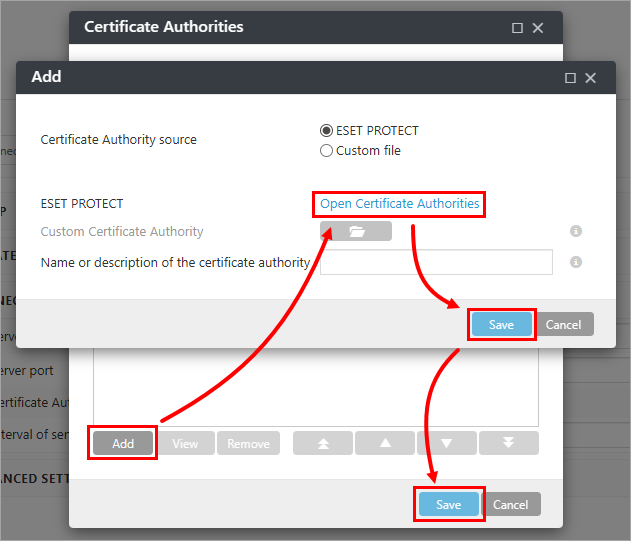
In the Certificate Authorities window, click Add → Open Certificate Authorities. Select the Certificate Authority file that was used during ESET Inspect Server installation and click OK. Click Save → Save.
-
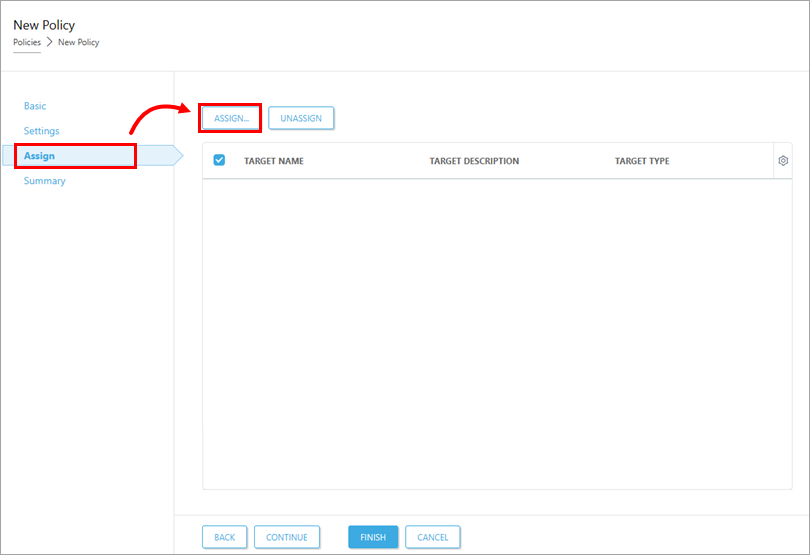
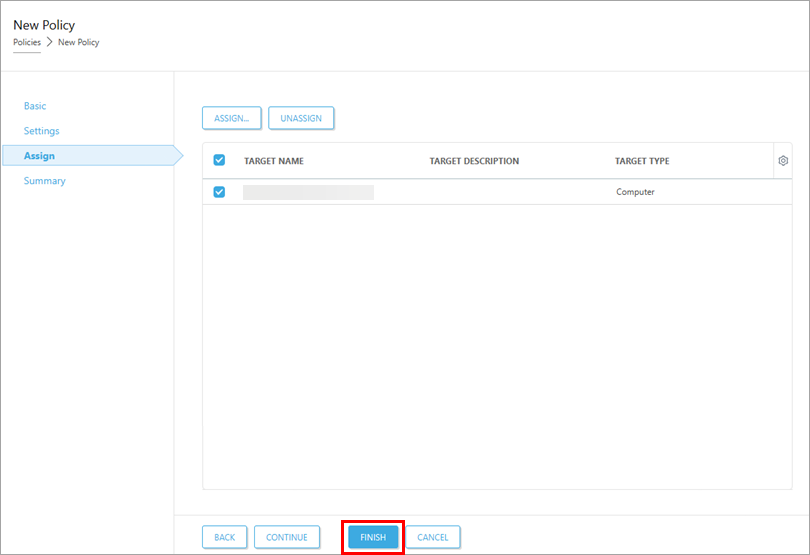
Click Assign, click Assign again.
-
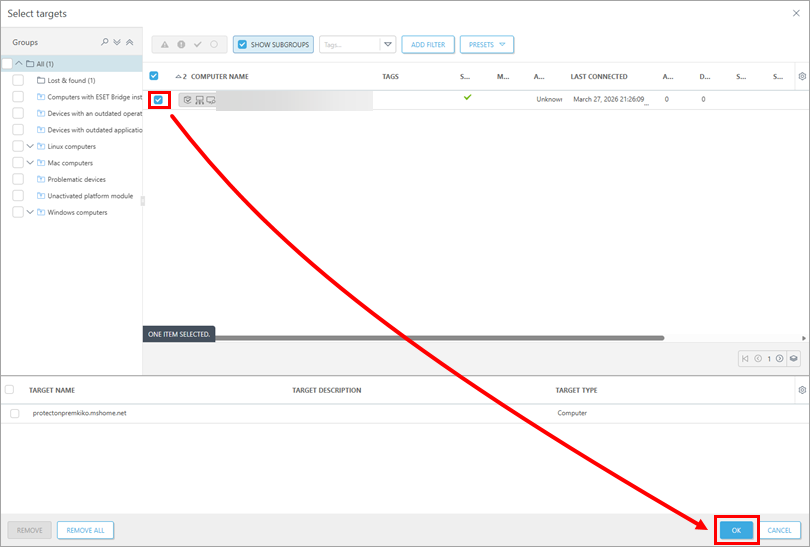
Search and select the computers to which you want to apply the policy, and click OK.
-
Click Finish to create the policy.
Assign an existing policy to the ESET Inspect Connector
-
Click Policies.
-
Locate the policy (the policy application must be ESET Inspect Connector), click the policy name and click Edit.
-
On the left, click Settings, expand Connection and verify the following connection settings:
- Server address contains the correct ESET Inspect Server IP address.
-
Certificate Authorities are set up. The Certificate Authority that was used during ESET Inspect Server installation must be selected. If needed, click Edit next to Certificate Authorities and verify or change the Certificate Authority.
-
On the left, click Assign. Under Assign, click Assign, select the computer to which you want to apply the policy and click OK.
-
Click Finish to update the policy.


