Issue
- Your ESET product notifies you with a yellow or red icon and displays the notification "Operating system is not up to date"
Solution
 Mac Users: click to view instructions
 ESET PROTECT On-Prem users: Perform these steps in ESET PROTECT On-Prem
-
Open ESET Endpoint Security or ESET Endpoint Antivirus. Open my ESET product.
-
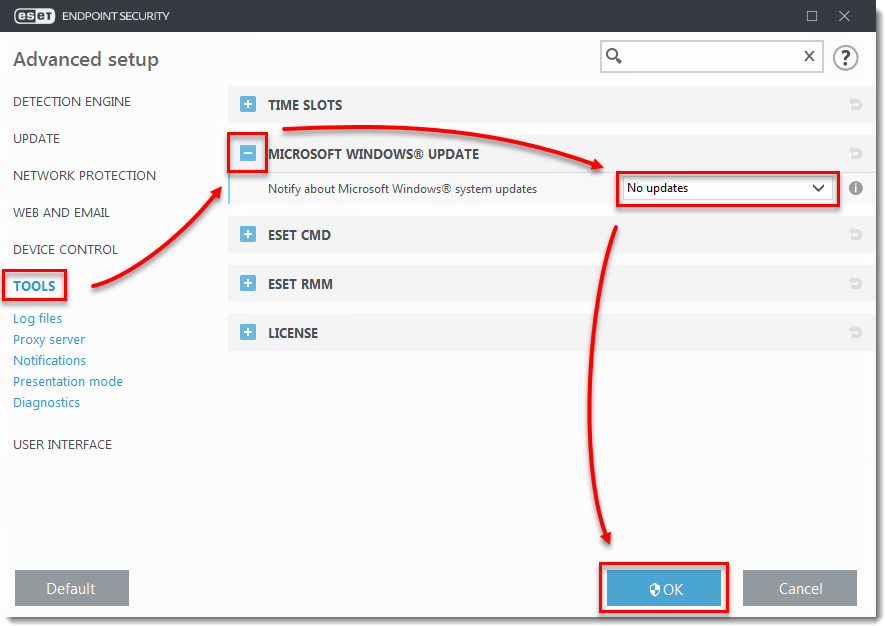
Press F5 to enter Advanced setup.
-
Click Tools, expand Microsoft Windows update and select No updates from the Notify about Microsoft Windows system updates drop-down menu. Click OK when you are finished.
Manually update Windows drivers
Windows operating system update delivery may cause some device or driver updates to fail during a normal operating system update. Your ESET product will continue to notify you of available updates. To resolve this issue, perform a manual update of these devices and drivers.
If you know which driver or device failed to update, follow the steps below to manually update them:
-
Press the Windows key + Q, type Device manager into the Search field and click Device manager.
-
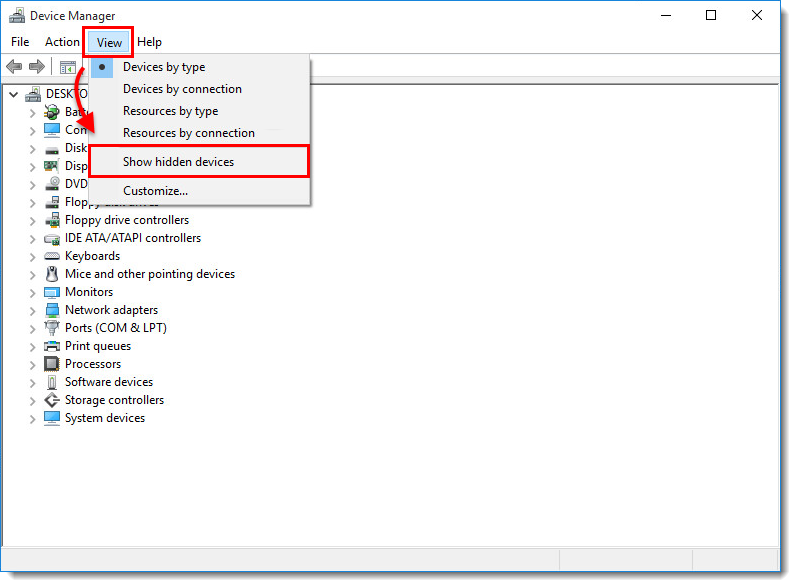
Click View → Show hidden devices.
-
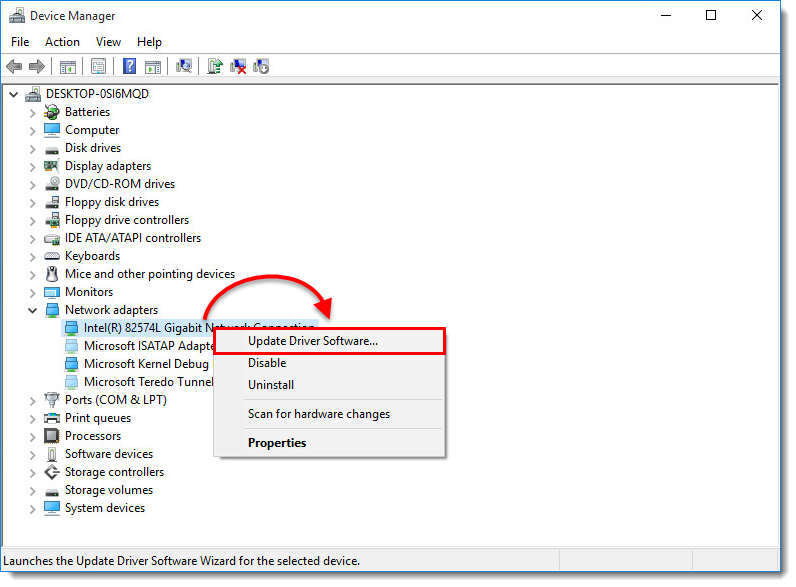
Navigate to the driver or device that requires a manual update, right-click it, and select Update Driver Software or Update driver from the context menu.
-
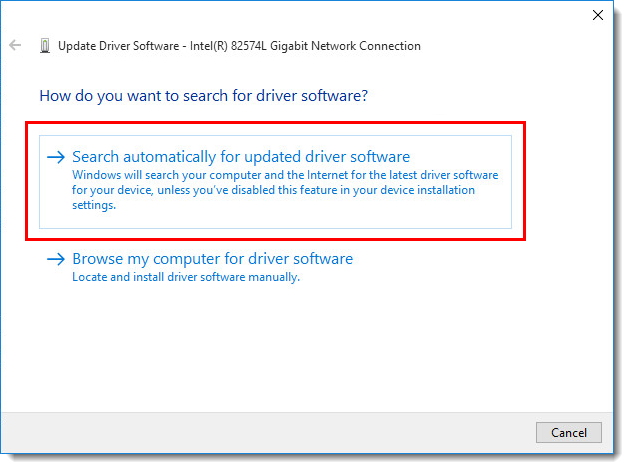
Click Search automatically for updated driver software. If an update is available, it will automatically be installed. In some cases, a system restart may be required to allow the updated driver to load.