Issue
- Create, edit or remove firewall rules for managed devices running ESET business applications through ESET PROTECT or ESET PROTECT On-Prem
- Manage firewall rules for managed devices running ESET business applications through ESET PROTECT or ESET PROTECT On-Prem
Details
Click to expand
Firewall rules are sets of conditions used to test all network connections and the actions assigned to them. Using Firewall rules, you can define the action that is taken when different types of network connections are established.
Solution
Related solution: Non-managed users
-
Open policies overview.
ESET PROTECT
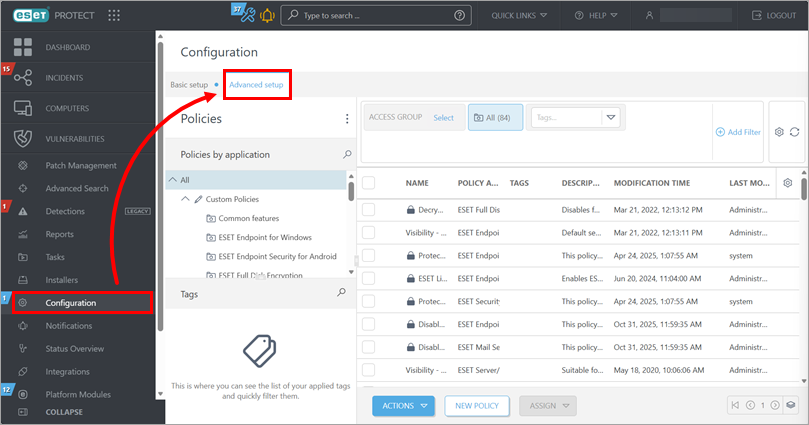
Click Configuration → Advanced setup.
ESET PROTECT On-Prem
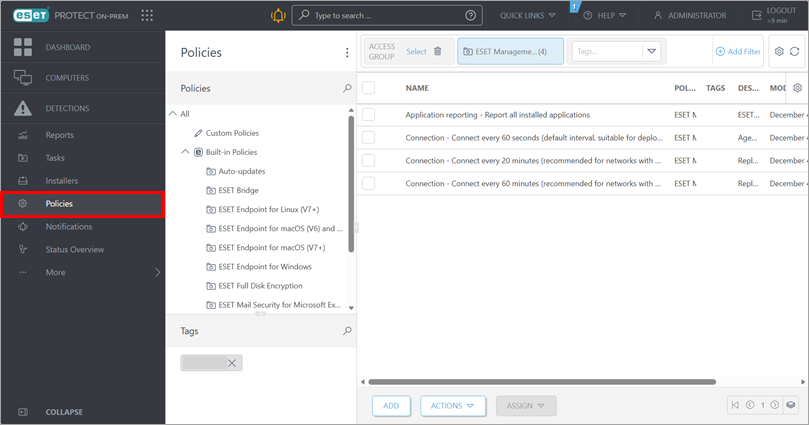
Click Policies.
-
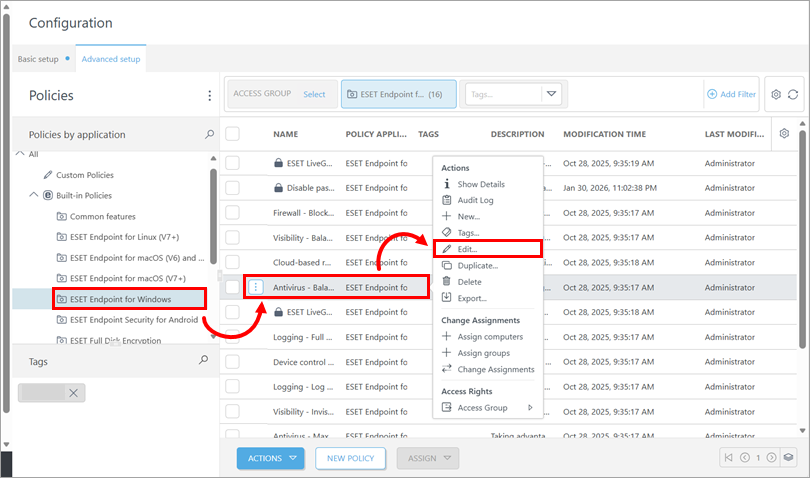
Select the policy that is applied to the devices where you want to create or edit firewall rules: below Policies, click the respective policy category, click the policy and click Edit.
-
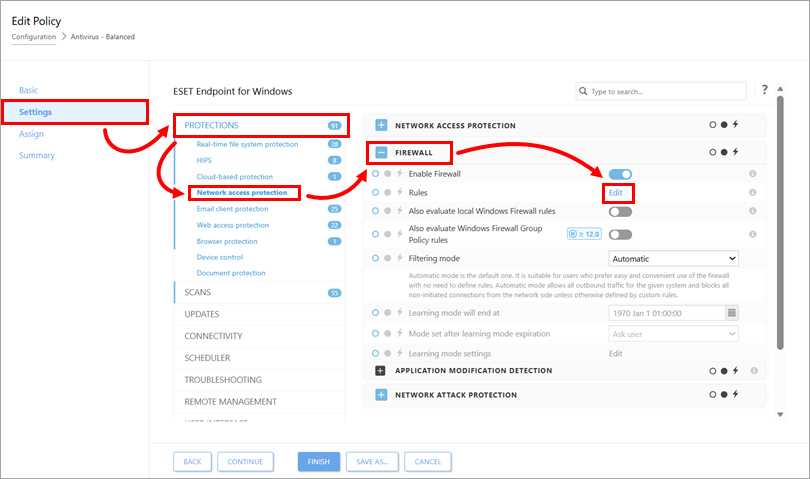
Click Settings, expand Protections, click Network access protection, expand Firewall and click Edit next to Rules.
-
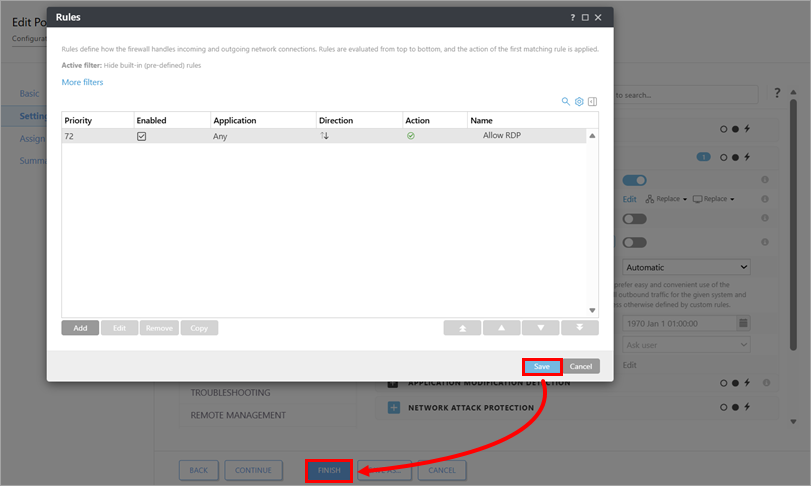
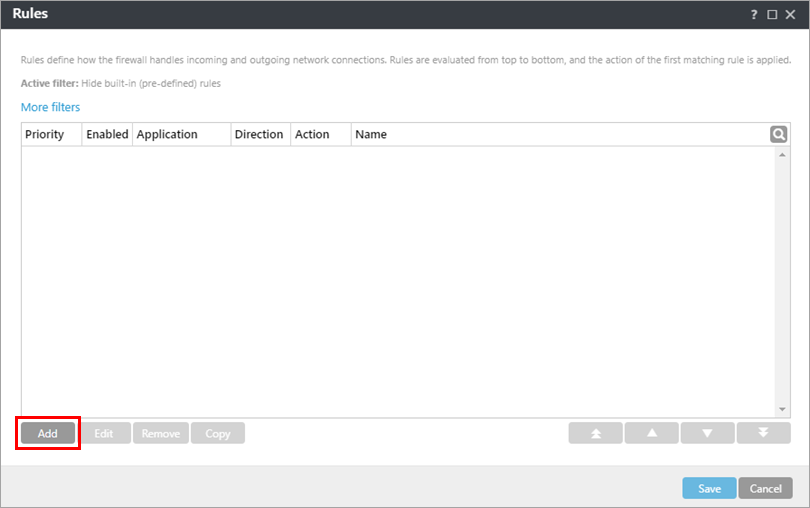
To create a rule, click Add. Alternatively, select a rule and click Edit, Remove, Copy, or the arrows to perform the action you want.
-
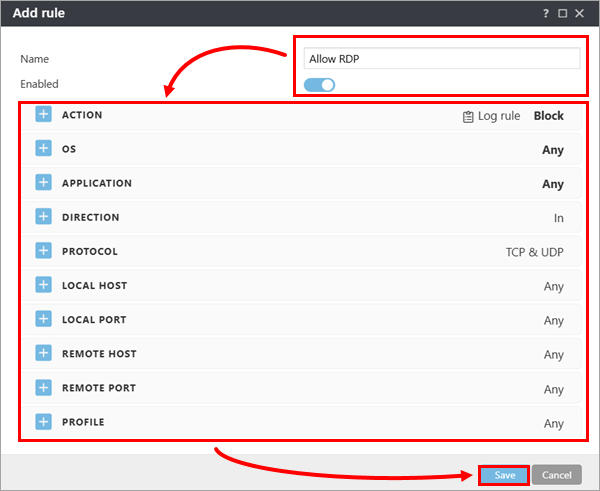
If needed, modify the rule name and ensure that the Enabled toggle is enabled. Configure the rule parameters as needed and click Save. For more information, see Adding or editing Firewall rules.
-
Click Save → Finish.