Problema
- Actualizați aplicațiile ESET Endpoint Security, ESET Endpoint Antivirus sau ESET Server/Mail Security la cea mai recentă versiune
- Implementați aplicațiile de afaceri ESET la clienți de la distanță utilizând o sarcină Software Install
- Instalarea aplicațiilor de afaceri ESET de la distanță
Soluție
ESET PROTECT
-
#@#publication_url id='2954' language=''' content='Open the ESET PROTECT Web Console' target='_blank' focus='#protect'#@#.
-
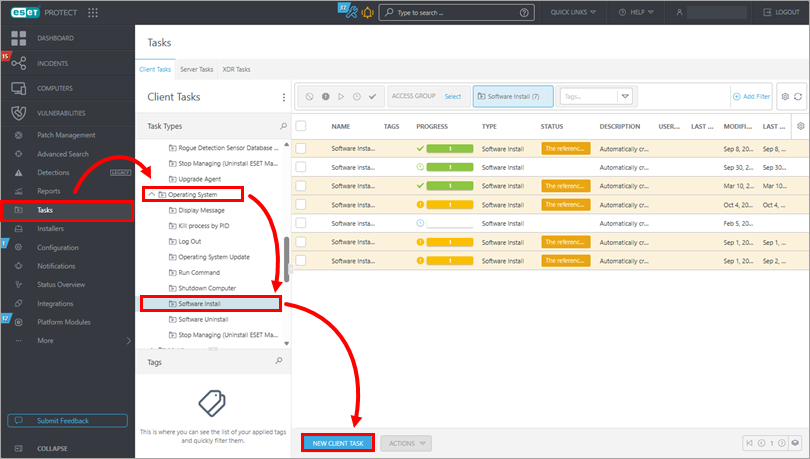
Faceți clic pe Tasks → Operating System → Software Install → New client task.
-
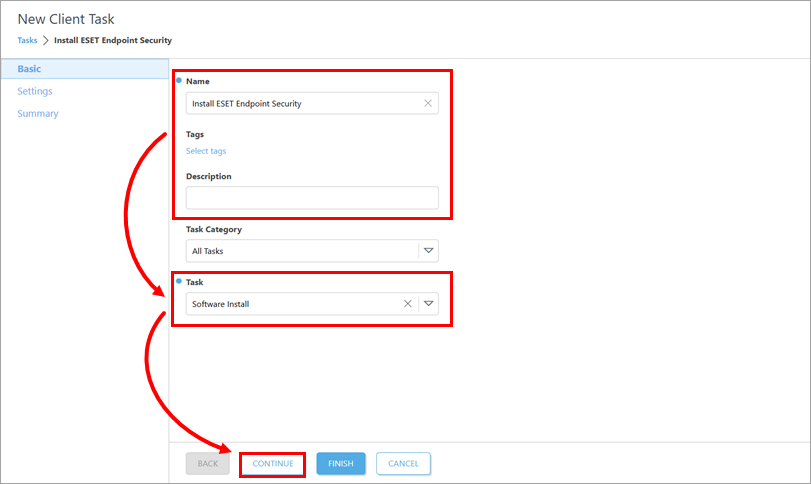
Sub Basic, actualizați numele sarcinii și tastați descrierea, dacă este necesar. Verificați dacă Software Install este selectat în meniul derulant Task (Sarcină ). Faceți clic pe Continue (Continuare).
-
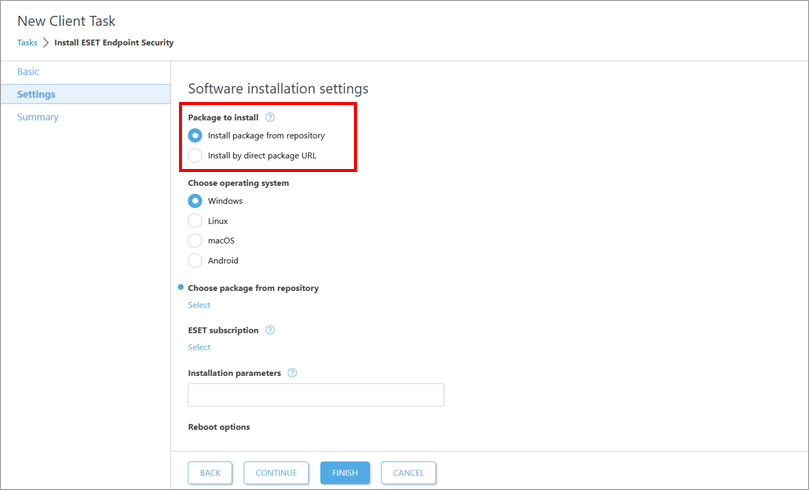
Sub Settings (Setări), alegeți modul în care doriți să obțineți pachetul de instalare. Sub Package to install (Pachet de instalat), selectați Install package from repository (Instalare pachet din depozit) sau Install by direct package URL (Instalare prin URL-ul direct al pachetului).
-
Procedați în funcție de opțiunea selectată:
Instalați un pachet din depozit
-
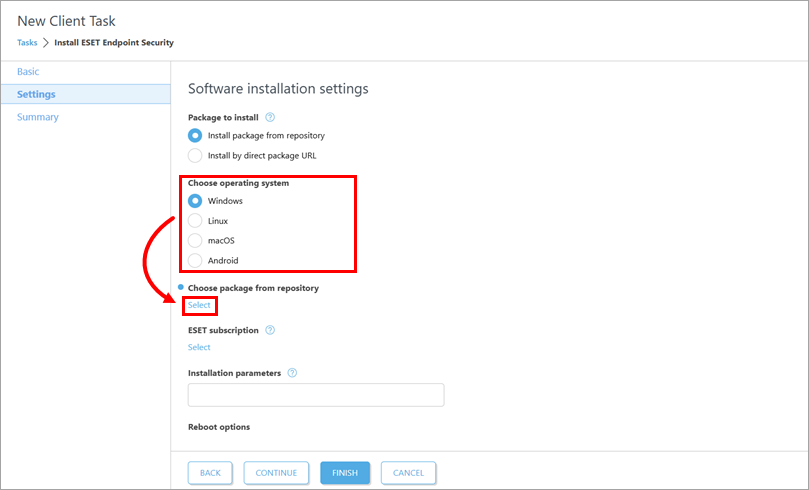
Sub Choose operating system (Alegeți sistemul de operare), selectați sistemul de operare în funcție de dispozitivul pe care doriți să implementați sau să actualizați aplicația de afaceri. Sub Choose package from repository, faceți clic pe Select (Selectare).
-
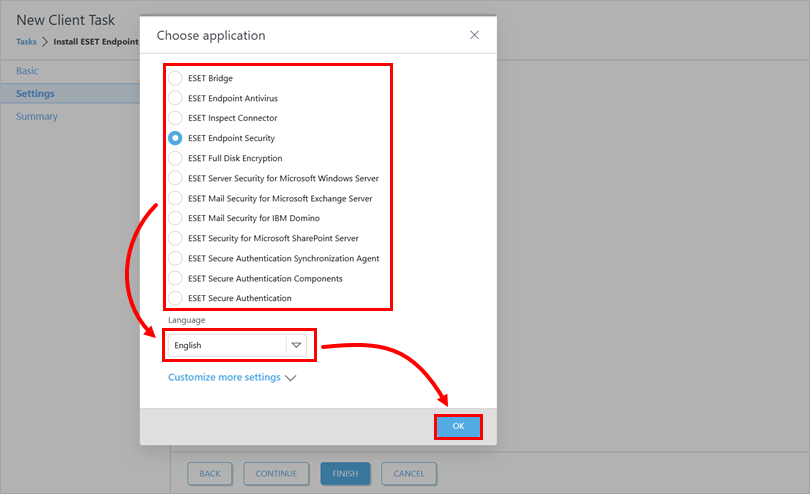
În caseta de dialog Choose application , selectați aplicația și limba de instalare. Faceți clic pe OK. Dacă este necesar, puteți face clic pe Personalizați mai multe setări pentru a selecta o versiune specifică a aplicației. Verificați cea mai recentă versiune a aplicațiilor dvs. de afaceri ESET.
-
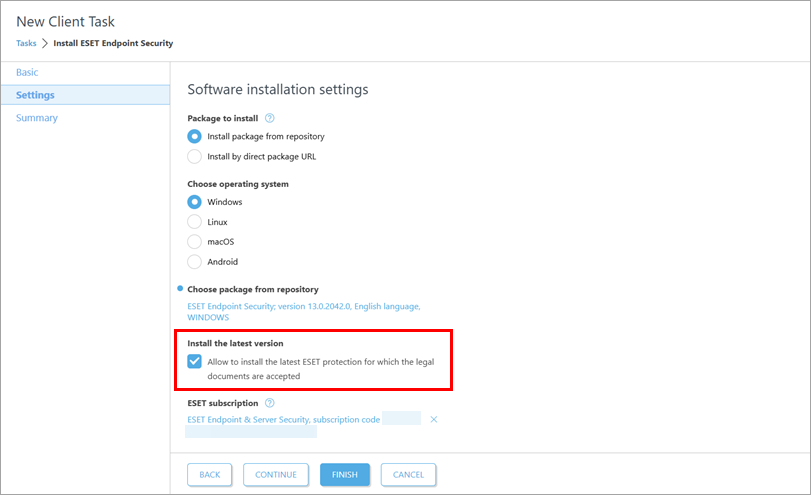
Notați căsuța de selectare de sub Install the latest version (Instalați cea mai recentă versiune ) și debifați căsuța de selectare dacă nu doriți să instalați cea mai recentă versiune a aplicației.
-
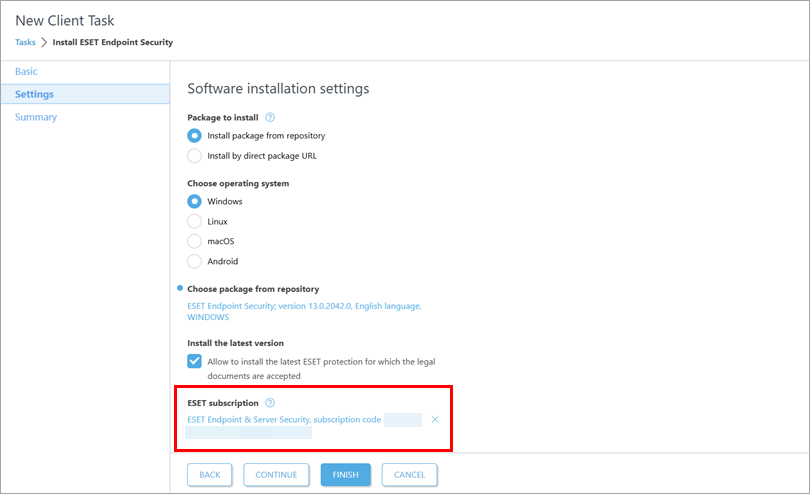
Sub abonamentul ESET, bifați abonamentul preselectat. Dacă este necesar, adăugați sau modificați abonamentul de utilizat, sau eliminați-l: faceți clic pe pictograma de eliminare(x) de lângă abonamentul selectat.
Adăugați sau modificați abonamentul
-
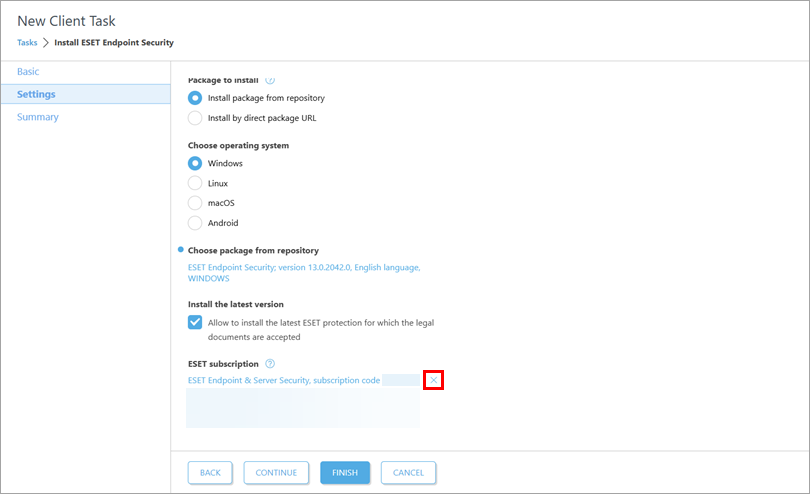
Dacă este necesar, faceți clic pe pictograma de eliminare(x) de lângă abonamentul selectat.
-
Faceți clic pe Selectați sub abonamentul ESET.
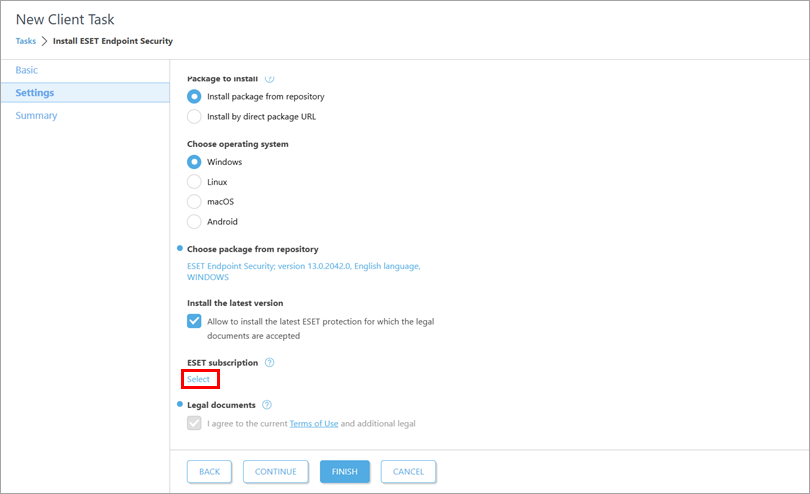
-
Selectați un abonament și faceți clic pe OK.
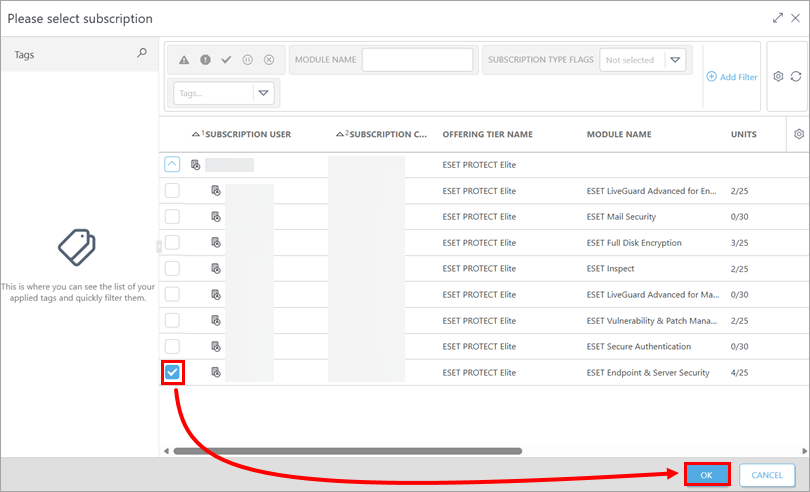
-
-
Dacă este cazul, bifați caseta de selectare Activare ESET LiveGuard dacă doriți să activați ESET LiveGuard.
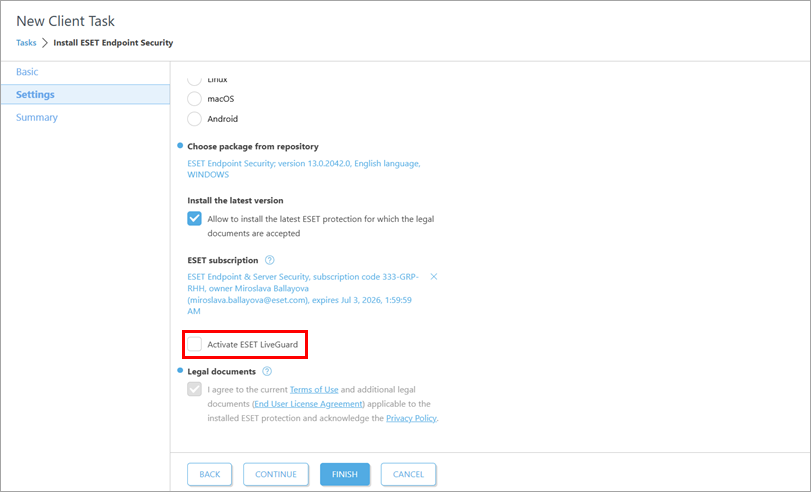
-
Dacă este necesar, consultați Termenii de utilizare, Acordul de licență pentru utilizatorul final și Politica de confidențialitate.
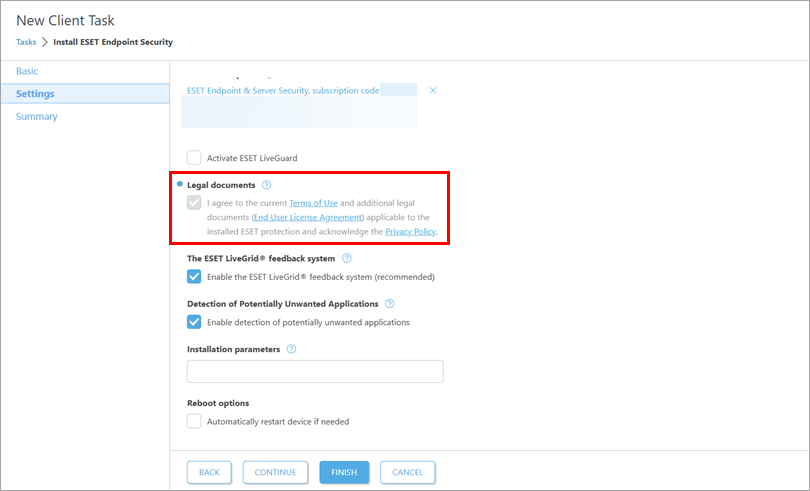
-
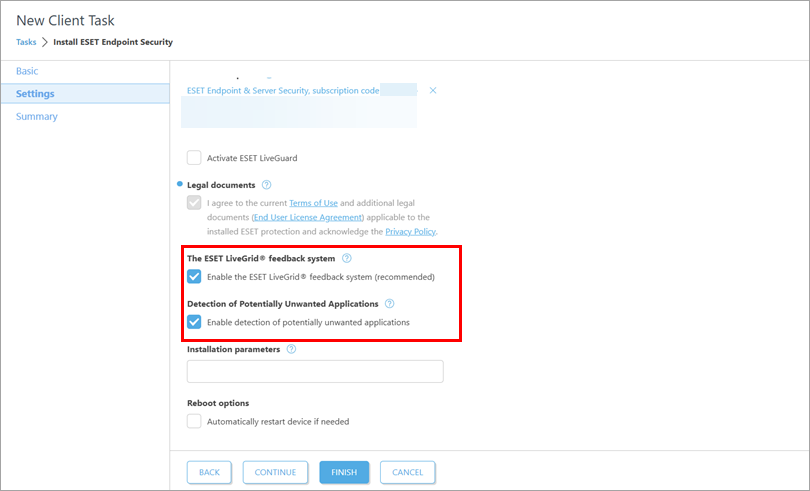
Dacă nu doriți să activați ESET LiveGrid sau detectarea aplicațiilor cu potențial nedorit, debifați caseta de selectare respectivă.
-
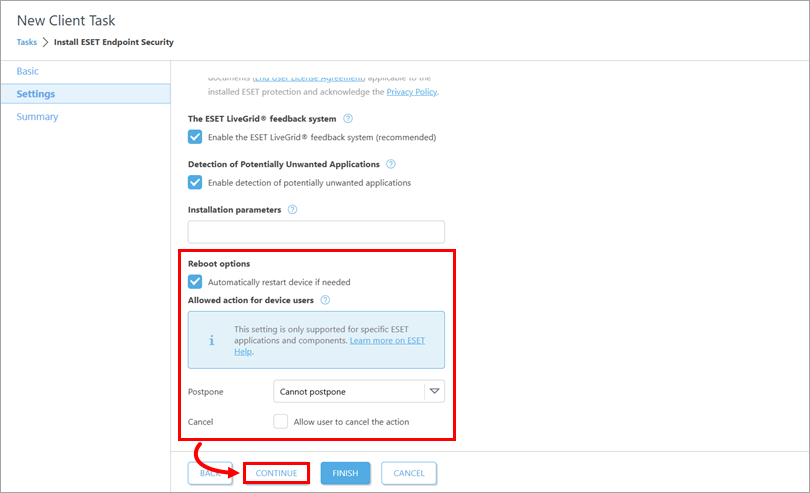
Selectați caseta de selectare de lângă Automatically restart device if needed (Repornire automată a dispozitivului, dacă este necesar) pentru a forța o repornire automată a dispozitivului client după instalare. Sub Acțiune permisă pentru utilizatorii dispozitivului, definiți dacă utilizatorii dispozitivului pot amâna sau anula repornirea. Faceți clic pe Continue (Continuare).
Instalați un pachet introducând URL-ul țintă
-
Verificați cea mai recentă versiune a aplicațiilor dvs. de afaceri ESET.
-
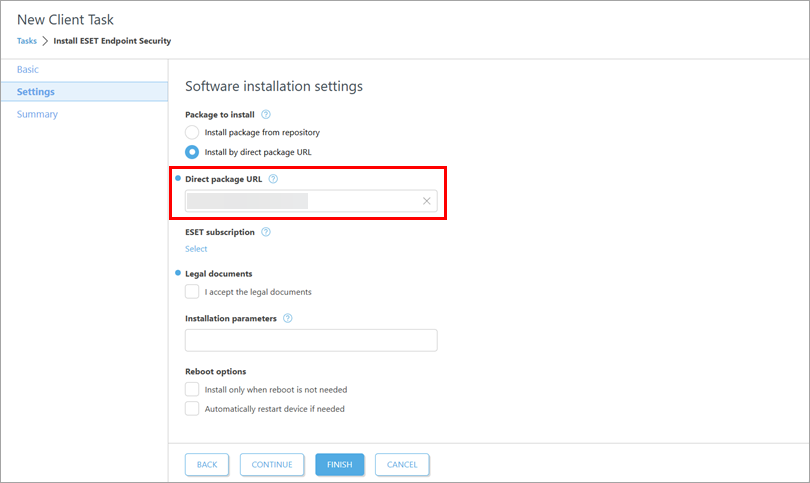
În câmpul Direct package URL, tastați sau copiați/copiți URL-ul pachetului.
-
Dacă este necesar, sub Abonament ESET, adăugați un abonament pentru utilizare.
Adăugați un abonament
-
Faceți clic pe Select (Selectare ) sub abonamentul ESET.
-
Selectați un abonament și faceți clic pe OK.
-
-
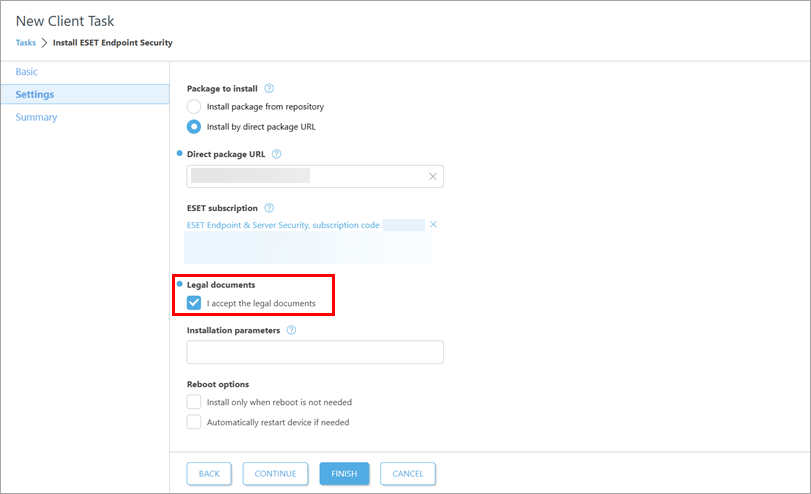
Selectați caseta de selectare de lângă I accept the legal documents (Accept documentele legale).
-
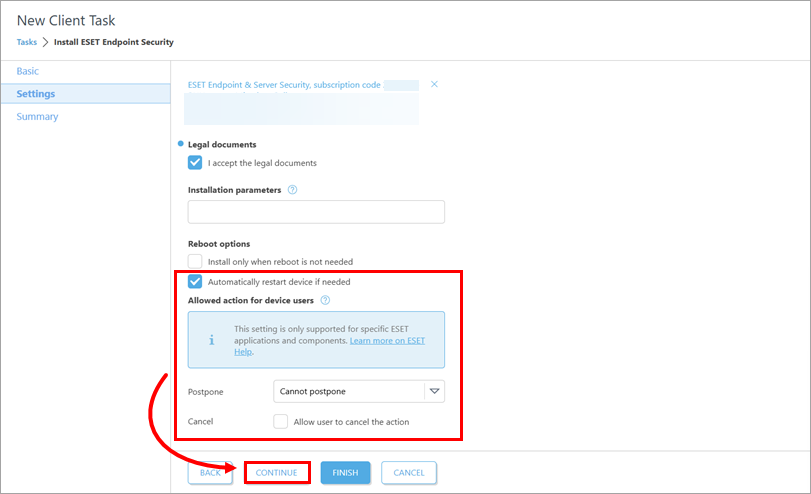
Selectați caseta de selectare de lângă Automatically restart device if needed (Repornire automată a dispozitivului dacă este necesar ) pentru a forța o repornire automată a dispozitivului client după instalare. Sub Acțiune permisă pentru utilizatorii dispozitivului, definiți dacă utilizatorii dispozitivului pot amâna sau anula repornirea. Faceți clic pe Continuare.
-
-
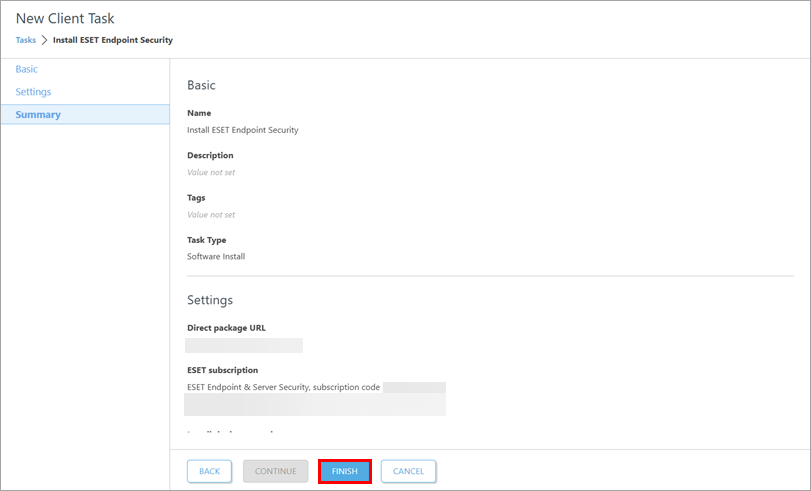
Sub Rezumat, examinați detaliile sarcinii și faceți clic pe Terminare.
-
#@#publication_url id='3075' language=''' content='Create a trigger to execute the task and select the target devices' target='_blank'#@#.
-
Pentru o nouă implementare, activați aplicațiile instalate: creați și declanșați o sarcină de activare a modulului pe dispozitivele pe care ați instalat aplicațiile ESET business.
ESET PROTECT On-Prem
-
#@#publication_url id='2954' language=''' content='Open the ESET PROTECT Web Console' target='_blank' focus='#protect-on-prem'#@#.
-
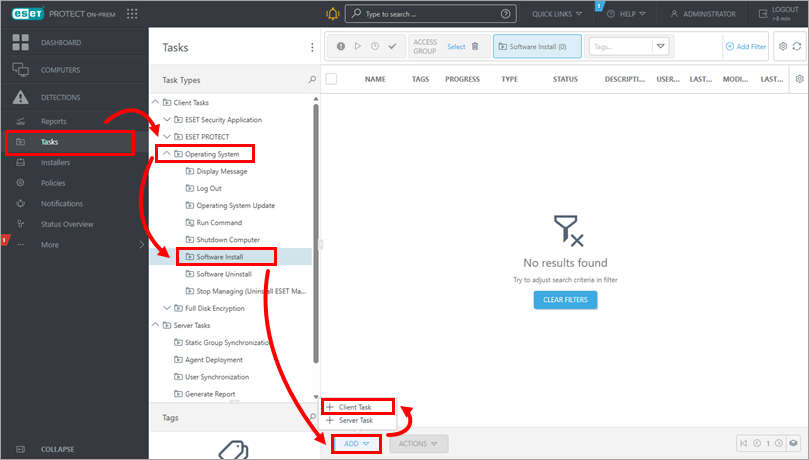
Faceți clic pe Tasks → Operating System → Software Install → Add → Client Task.
-
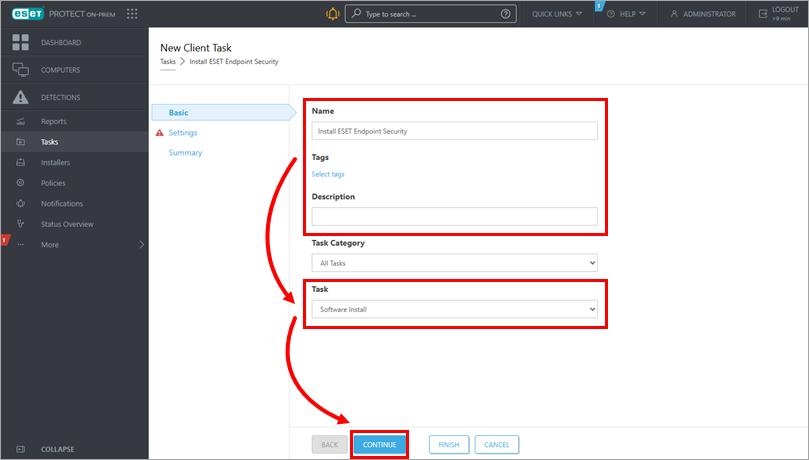
Sub Basic, actualizați numele sarcinii și tastați descrierea, dacă este necesar. Verificați dacă Software Install este selectat în meniul derulant Task (Sarcină ). Faceți clic pe Continue (Continuare).
-
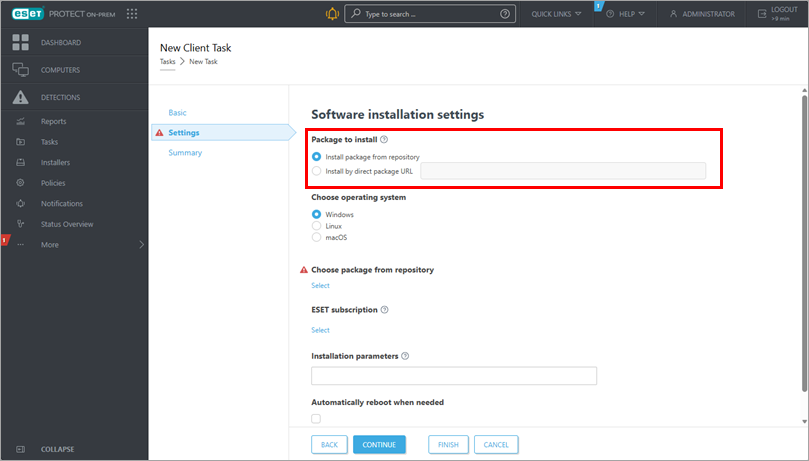
Sub Settings (Setări), alegeți modul în care doriți să obțineți pachetul de instalare. Sub Package to install (Pachet de instalat), selectați Install package from repository (Instalare pachet din depozit) sau Install by direct package URL (Instalare prin URL-ul direct al pachetului).
-
Procedați în funcție de opțiunea selectată:
Instalați un pachet din depozit
-
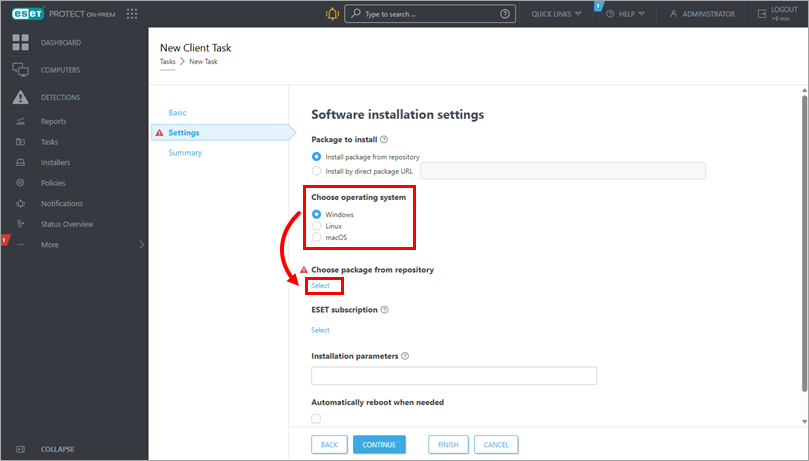
Sub Choose operating system (Alegeți sistemul de operare), selectați sistemul de operare în funcție de dispozitivul pe care doriți să implementați sau să actualizați aplicația de afaceri. Sub Choose package from repository, faceți clic pe Select (Selectare).
-
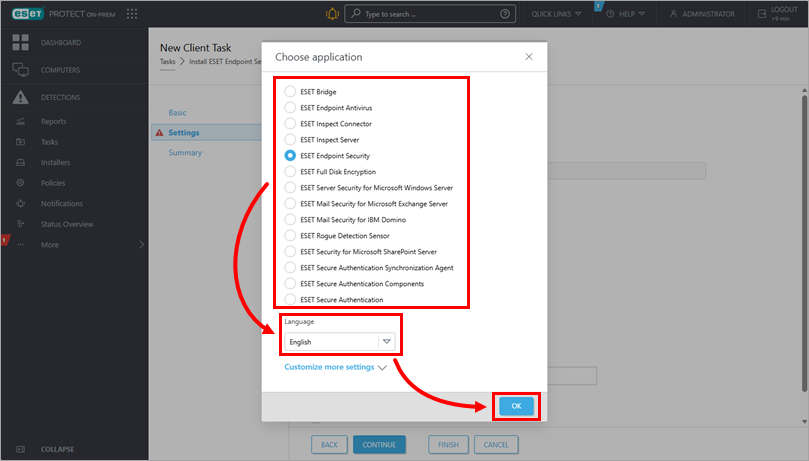
În caseta de dialog Choose application , selectați aplicația și limba de instalare. Faceți clic pe OK. Dacă este necesar, puteți face clic pe Personalizați mai multe setări pentru a selecta o versiune specifică a aplicației. Verificați cea mai recentă versiune a aplicațiilor dvs. de afaceri ESET.
-
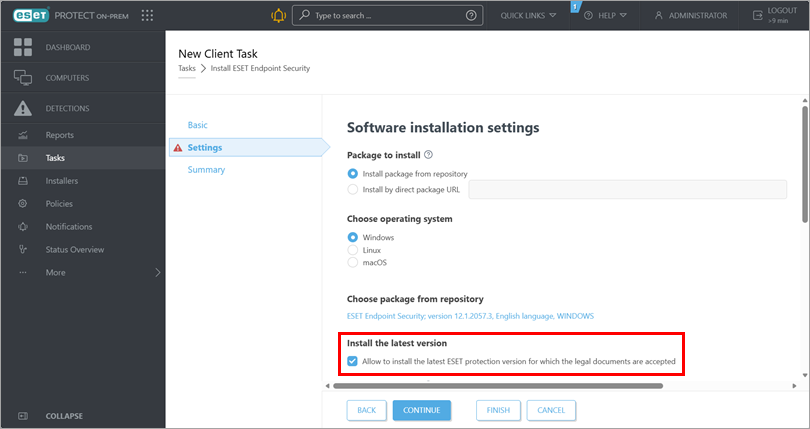
Notați căsuța de selectare de sub Install the latest version (Instalați cea mai recentă versiune ) și debifați căsuța de selectare dacă nu doriți să instalați cea mai recentă versiune a aplicației.
-
Sub Abonament ESET, bifați abonamentul preselectat. Dacă este necesar, adăugați sau modificați abonamentul de utilizat sau eliminați-l: faceți clic pe pictograma de eliminare(x) de lângă abonamentul selectat.
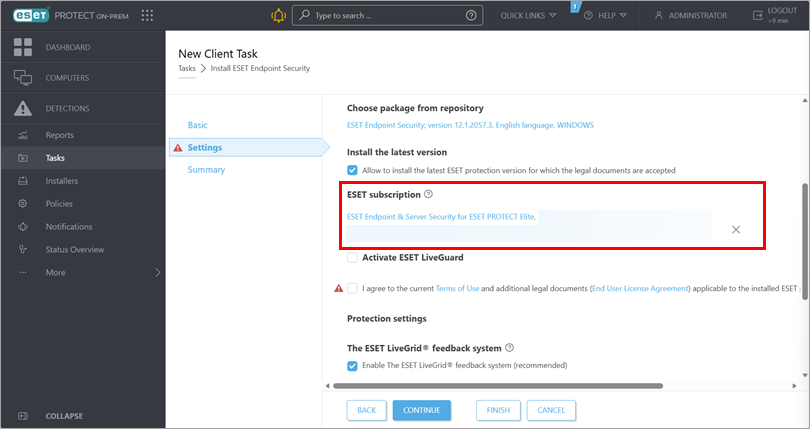
Adăugați sau modificați abonamentul
-
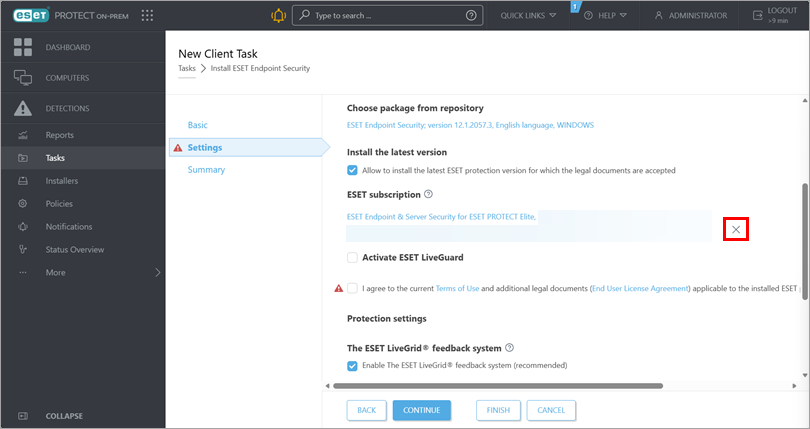
Dacă este necesar, faceți clic pe pictograma de eliminare(x) de lângă abonamentul selectat.
-
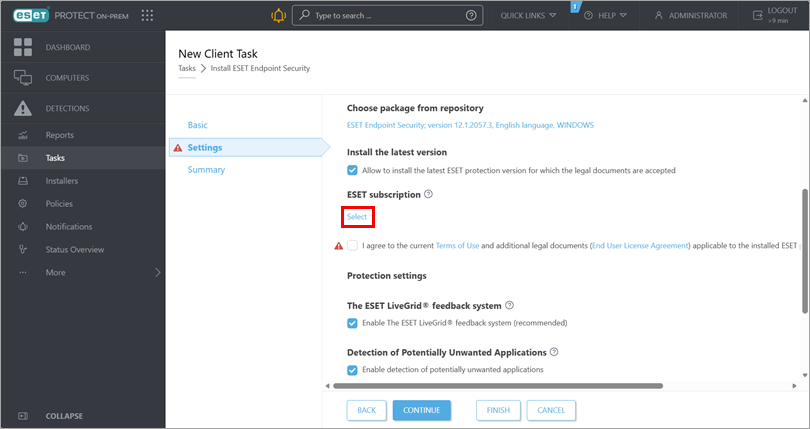
Faceți clic pe Selectare sub abonamentul ESET.
-
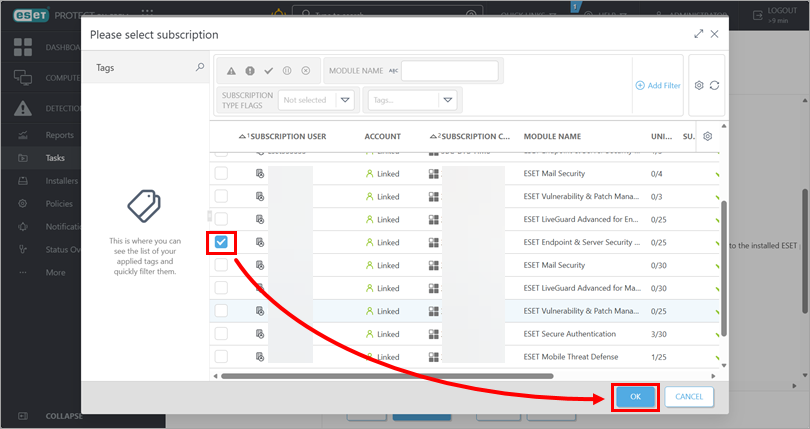
Selectați un abonament și faceți clic pe OK.
-
-
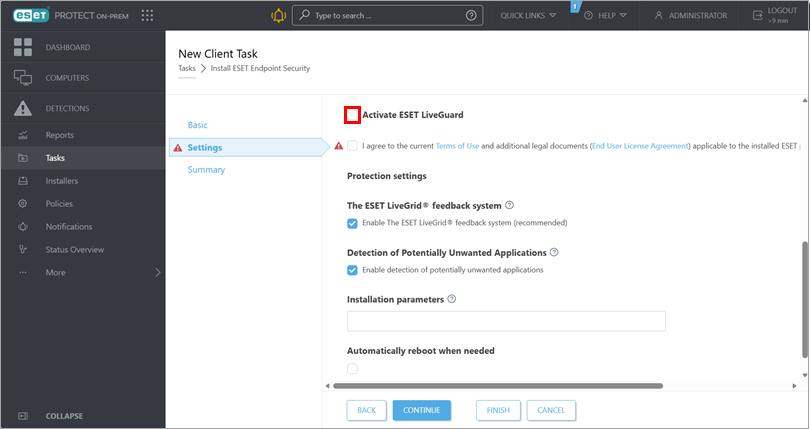
Dacă este cazul, bifați caseta de selectare Activare ESET LiveGuard dacă doriți să activați ESET LiveGuard. Pentru mai multe informații, consultați secțiunea Informații suplimentare despre abonamentul ESET.
-
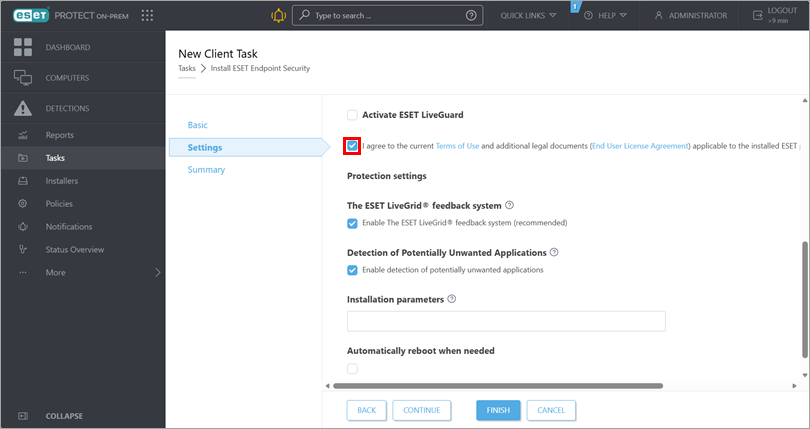
Consultați Termenii de utilizare și Acordul de licență pentru utilizatorul final și confirmați acordul selectând caseta de selectare respectivă.
-
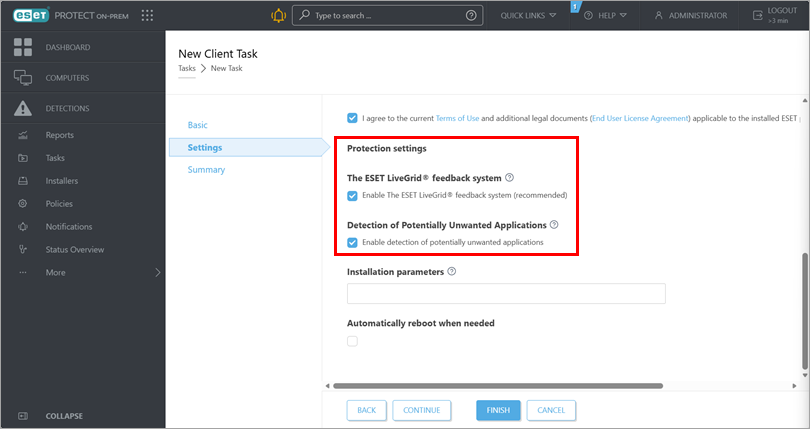
Consultați secțiunea Setări de protecție. Dacă nu doriți să activați ESET LiveGrid sau detectarea aplicațiilor cu potențial nedorit, debifați caseta de selectare respectivă.
-
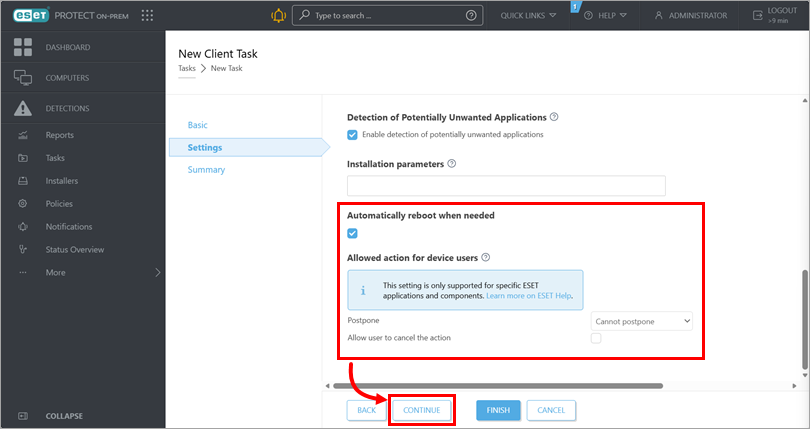
Selectați caseta de selectare de sub Automatically reboot when needed pentru a forța o repornire automată a dispozitivului client după instalare. Sub Acțiune permisă pentru utilizatorii dispozitivului, definiți dacă utilizatorii dispozitivului pot amâna sau anula repornirea. Faceți clic pe Continue (Continuare).
Instalați un pachet introducând URL-ul țintă
-
Verificați cea mai recentă versiune a aplicațiilor dvs. de afaceri ESET.
-
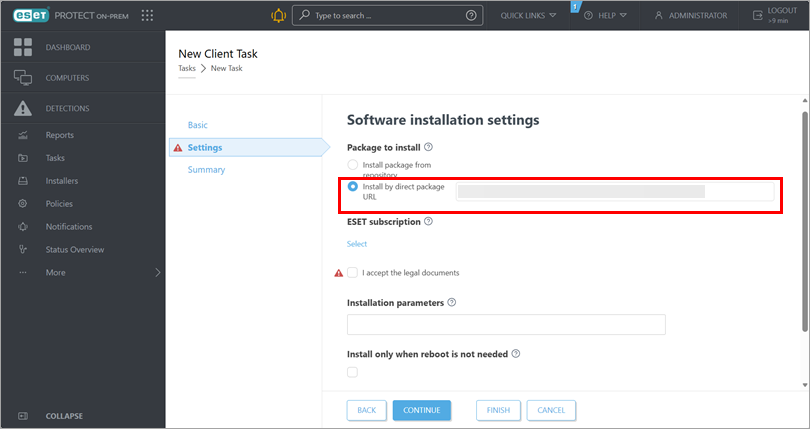
În câmpul de lângă Install by direct package URL, tastați sau copiați/copiți URL-ul pachetului.
-
Dacă este necesar, sub Abonament ESET, adăugați un abonament de utilizat.
Adăugați un abonament
-
Faceți clic pe Selectați mai jos abonamentul ESET.
-
Selectați un abonament și faceți clic pe OK.
-
-
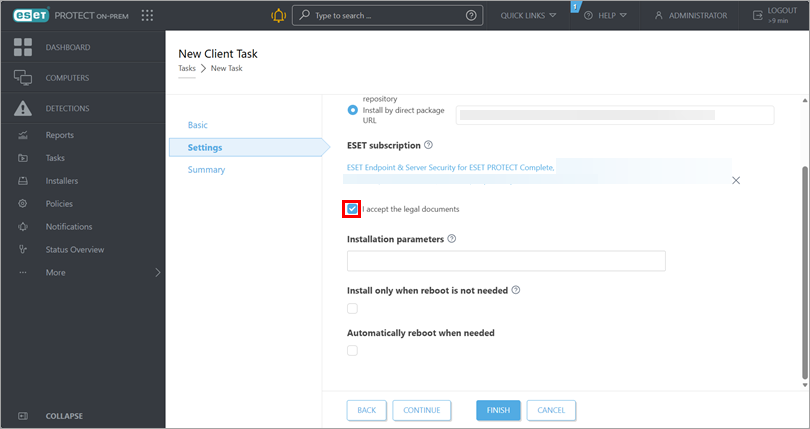
Selectați caseta de selectare de lângă I accept the legal documents (Accept documentele legale).
-
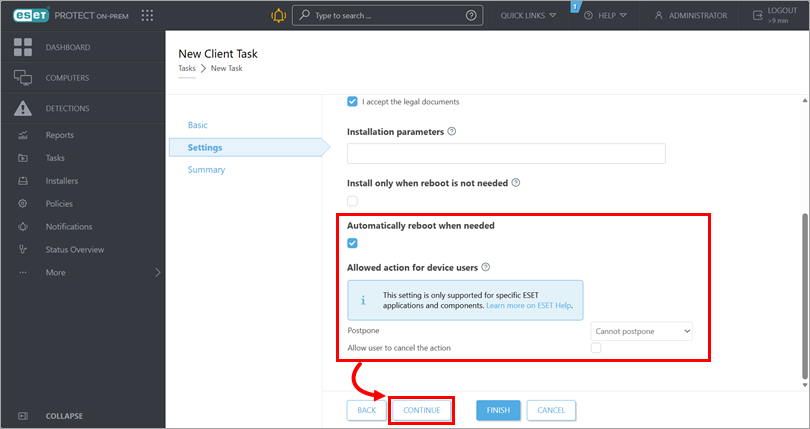
Selectați caseta de selectare de sub Automatically reboot when needed pentru a forța o repornire automată a dispozitivului client după instalare. Sub Acțiune permisă pentru utilizatorii dispozitivului, definiți dacă utilizatorii dispozitivului pot amâna sau anula repornirea. Faceți clic pe Continue (Continuare).
-
-
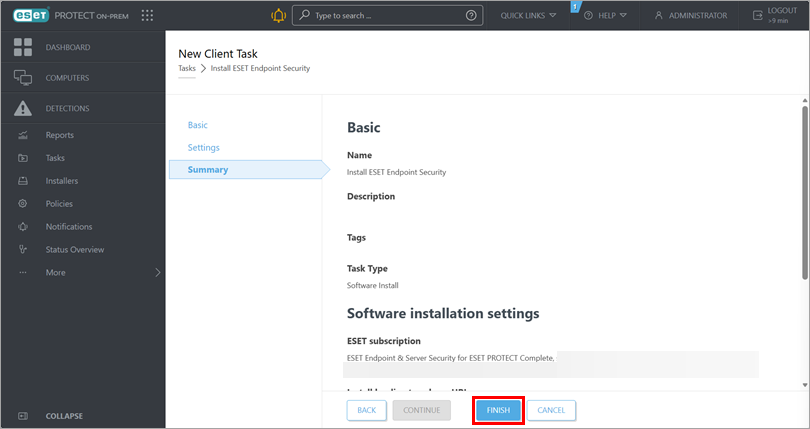
Sub Rezumat, revedeți detaliile sarcinii și faceți clic pe Terminare.
-
#@#publication_url id='3075' language=''' content='Create a trigger to execute the task and select the target devices' target='_blank'#@#.
-
Pentru o nouă implementare, activați aplicațiile instalate: creați și declanșați o sarcină de activare a modulului pe dispozitivele pe care ați instalat aplicațiile ESET business.


