Issue
- ESET PROTECT and ESET PROTECT On-Prem (Windows only) allow you to create a package to install the ESET Management Agent and ESET endpoint/server application together
- The All-in-one installer contains the ESET Management Agent, ESET application, subscription, policy, ESET PROTECT or ESET PROTECT On-Prem management configuration, and other features specific to the given ESET application in a pre-configured installer package
ESET PROTECT
- Create an All-in-one installation package in the ESET PROTECT Web Console
- Run the installation without user interaction (Silent mode installation)
Details
Click to expand
This method is for local installations, and an administrator should run it because:
- It requires user interaction on the client workstation (unless using the Silent mode installation)
- It requires a domain administrator account (not a regular user account)
- The certificate passphrase is embedded in the installer file and may be recoverable by users on the client workstation
The ESET Management Agent can also be installed using Live Installer, deployed remotely or installed manually (a local installation of the ESET Management Agent only). Read more about the deployment of the ESET Management Agent.
The ESET Management Agent facilitates communication between client computers and other ESET PROTECT components. ESET Management Agent must be installed on all client computers where other ESET PROTECT components or ESET endpoint/server applications are installed.
Solution
Create an All-in-one installation package in the ESET PROTECT Web Console
Follow the instructions below to use ESET PROTECT to create a Live Installer installation package.
-
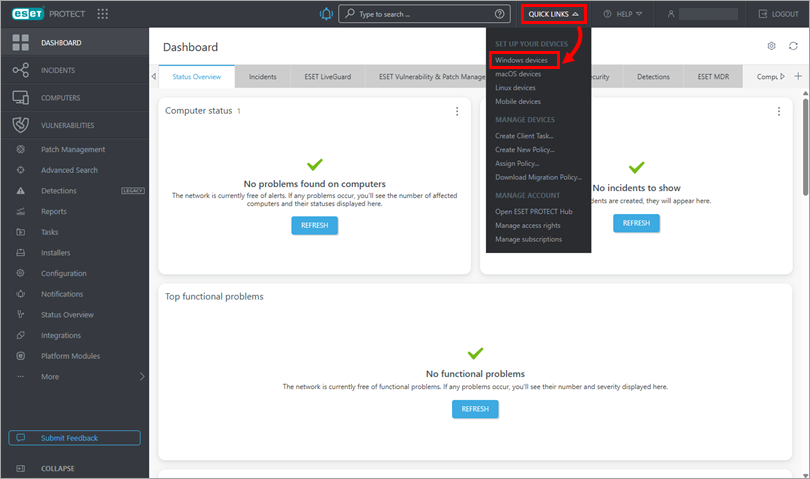
Expand Quick links, and click Windows devices.
-
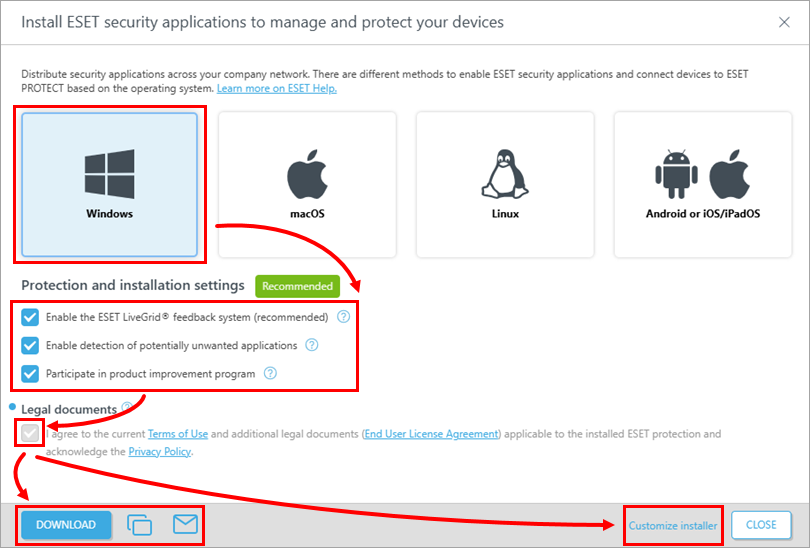
Select Windows and review the Protection and installation settings section. The Legal documents section cannot be deselected.
You have four options to distribute and deploy the ESET application:
- Click Download to download the installer package to your computer
- Click the Copy
 icon to copy the download link to the clipboard
 - Click the Envelope
 icon to send the download link via email
 - Click Customize installer to change some settings before downloading the installer (follow these steps)
-
Save the respective installer file to a shared location, or send it via email, and access it from the client computer where it will be installed.
-
Run the All-in-one installer package file on the client computer to start the Setup Wizard using a domain administrator account.
Customize installer
-
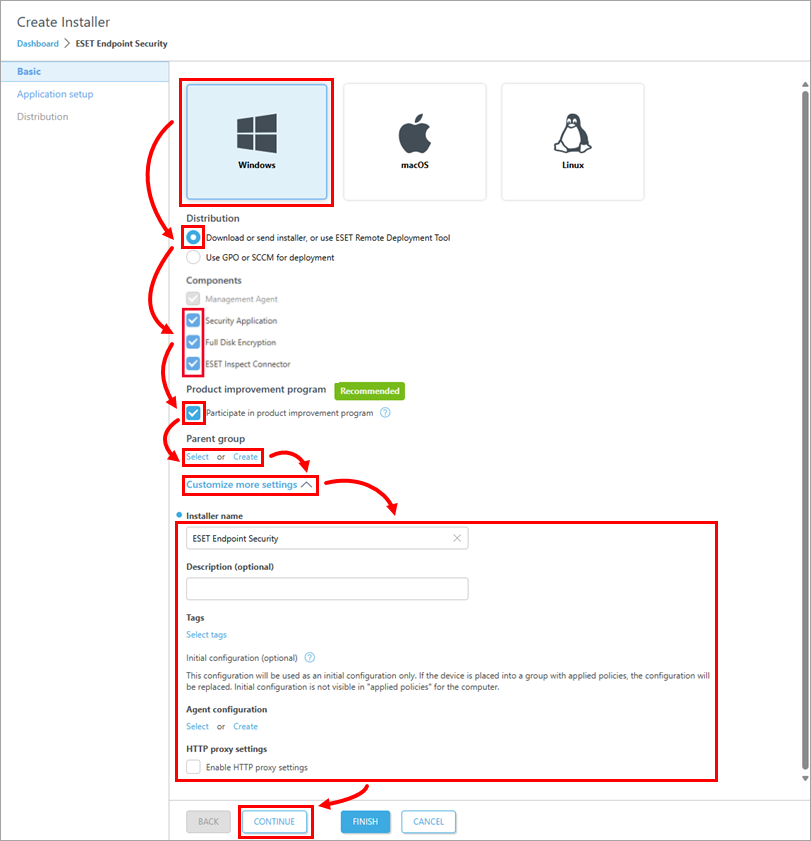
Customize your application setup:
-
Verify that the Download or send installer, or use ESET Remote Deployment Tool is selected (macOS and Linux users: verify that the Download or send installer is selected)
-
In the Components section, you can select the check boxes next to Full Disk Encryption and ESET Inspect Connector if you want to include these components in the installer
-
Review the check box next to Participate in product improvement program
-
Select or create a Parent group
-
Click Customize more settings to view more settings
-
When you are finished customizing settings, click Continue
-
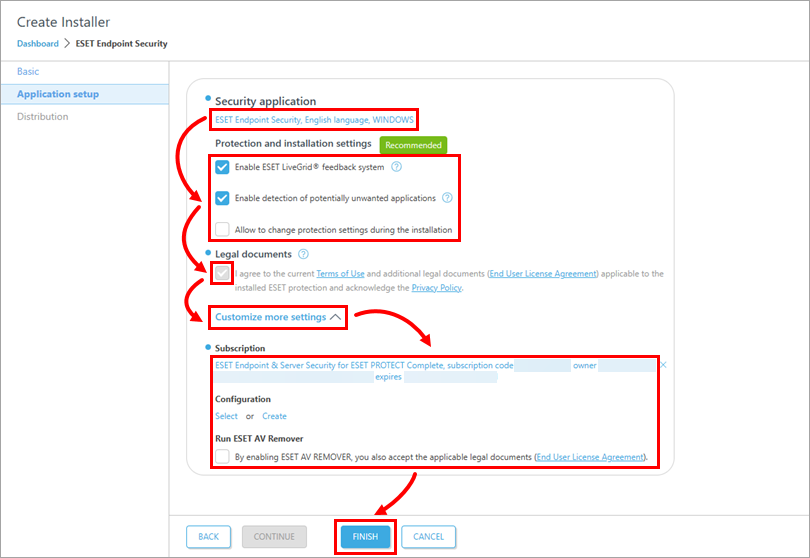
Select or check the following:
-
To choose another application, click the selected application under Security application
-
Review your Protection and installation settings
-
If not preselected, select the check box under Legal documents
-
To view more settings, click Customize more settings. To choose another subscription, click the selected subscription under Subscription
-
Click Finish
-
-
Click the Copy
icon to copy the download link to the clipboard, or click Download to download the installer. For Windows, you can click Download the Remote Deployment Tool to deploy the Agent remotely. Click Finish.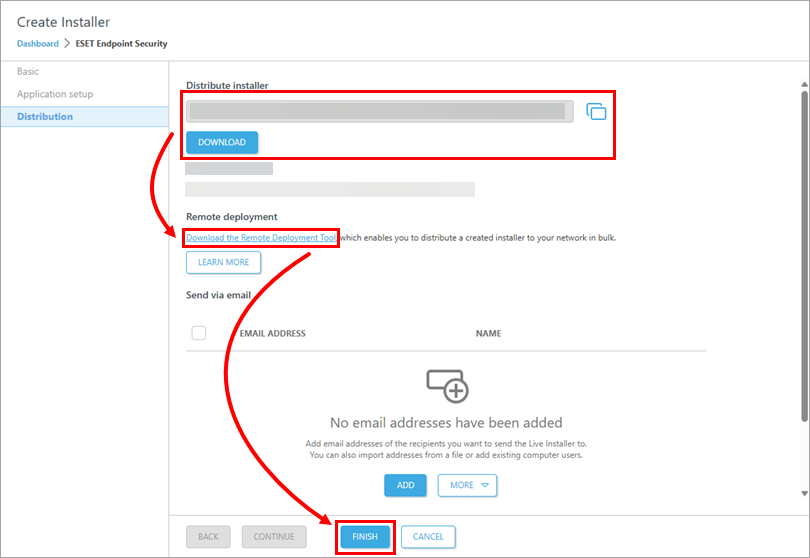
-
Save the
.exefile to a shared location and access it from the client computer, where it will be installed. -
Run the All-in-one installer package file on the client computer to start the Setup Wizard using a domain administrator account.
Run the installation without user interaction (Silent mode installation)
I. Settings for Silent mode installation
By default, when performing a silent installation, the following settings will be used:
- The Terms of Use are accepted
- ESET LiveGrid® is enabled (Windows users only)
- Detection of potentially unwanted applications is disabled (Windows users only)
These default settings can be changed after the installation is completed. They can also be modified in your installation package in the Customize installer section:
-
See step a of the Customize installer sub-section.
-
Click Customize more settings.
-
In the Agent configuration section, click Select to select a configuration from the list of policies, or click Create to create a new policy for ESET Management Agent.
-
-
See step b of the Customize installer sub-section.
-
Click Customize more settings.
-
In the Agent configuration section, click Select to select a configuration from the list of policies or click Create to create a new policy for the ESET security application.
-
II. Silent mode installation
You can install an All-in-one installation package generated from the ESET PROTECT Web Console on the client device without user interaction (silent mode). Ensure the following requirements are met before using this method:
- Store the installation package locally on the designated device
- Perform the silent installation on an account with administrator privileges
- We recommend that you run the command prompt as an administrator
- Use the
.exeinstaller type
If all of the above requirements are met, follow the steps below to perform a silent install:
-
In the command line, navigate to the installation package location.
-
Execute the installation package with the
--silentand--accepttermsparameters, for example:C:\Users\Admin\Downloads\epi_win_live_installer.exe --silent --acceptterms
-
The installation will now proceed in silent mode, and no window or progress bar will appear during the installation.
-
The package will be installed with default settings.
ESET PROTECT On-Prem
- Create an All-in-one installation package in the ESET PROTECT Web Console
- Run the installation without user interaction (Silent mode installation)
Details
Click to expand
This method is for local installations, and an administrator should run it because:
- It requires user interaction on the client workstation (unless using the Silent mode installation)
- It requires a domain administrator account (not a regular user account)
- The certificate passphrase is embedded in the installer file and may be recoverable by users on the client workstation
The ESET Management Agent can also be installed using Live Installer, deployed remotely or installed manually (a local installation of the ESET Management Agent only). Click for more options to deploy the ESET Management Agent.
The ESET Management Agent facilitates communication between client computers and other ESET PROTECT On-Prem components, such as the ESET PROTECT Server. The ESET Management Agent must be installed on all client computers where other ESET PROTECT On-Prem components or ESET endpoint/server applications are installed.
Solution
Create an All-in-one installation package in the ESET PROTECT Web Console
Follow the instructions below to use ESET PROTECT On-Prem to create an installation package that includes the ESET Management Agent, the ESET Windows endpoint/server applications, subscription, policy, and ESET PROTECT On-Prem management configuration.
-
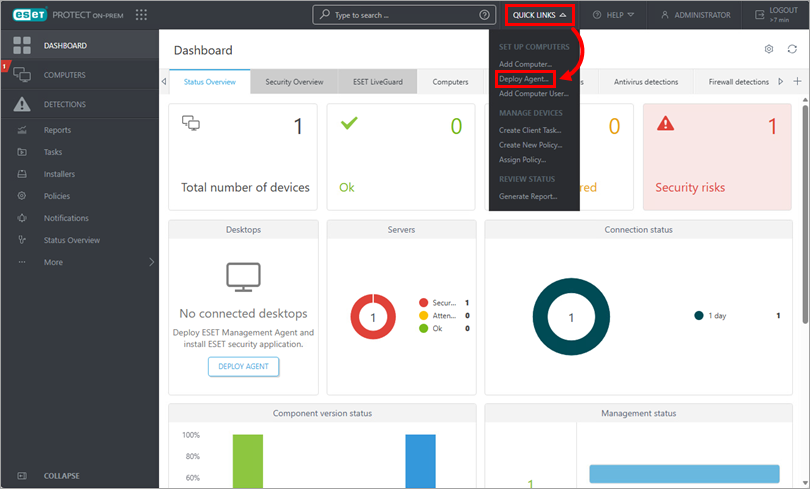
Click Quick Links → Deploy Agent.
-
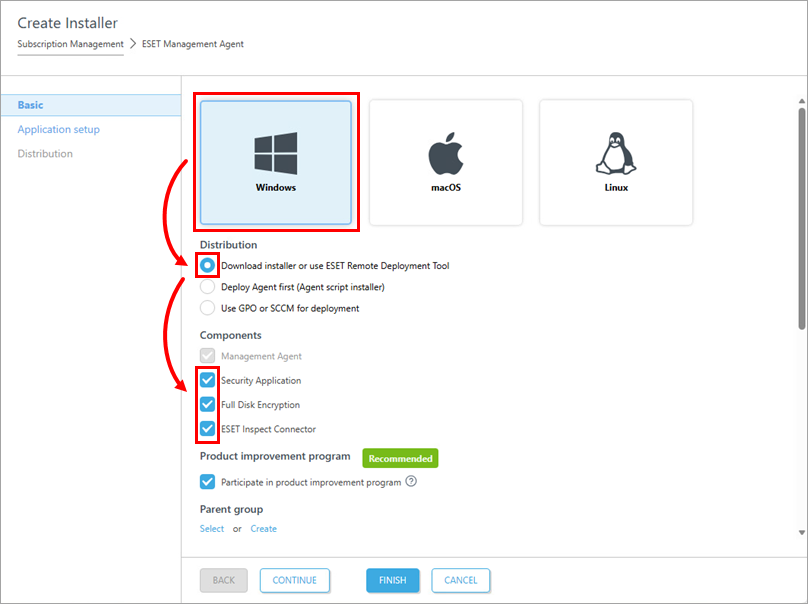
Select Windows → Download installer or use ESET Remote Deployment Tool. In the Components section, select the components that you want to include in the installer.
-
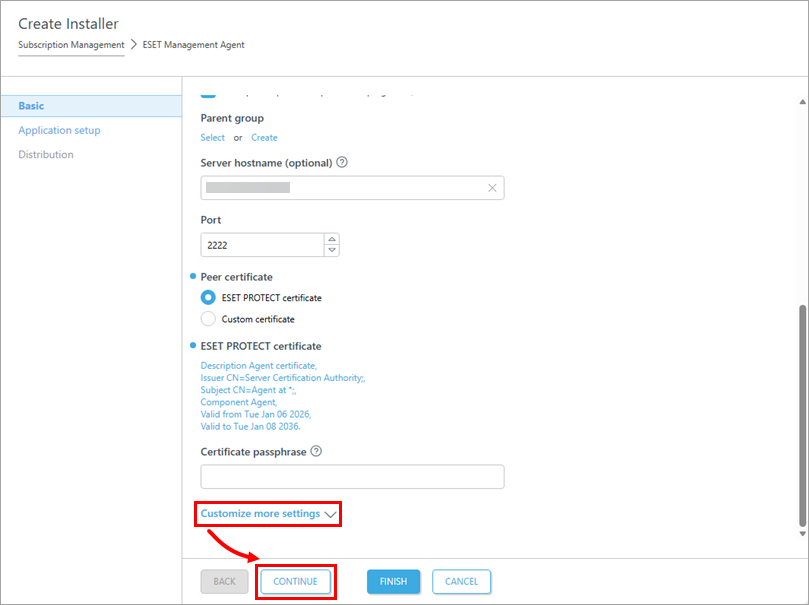
You can access additional settings by clicking the Customize more settings option. Then click Continue.
-
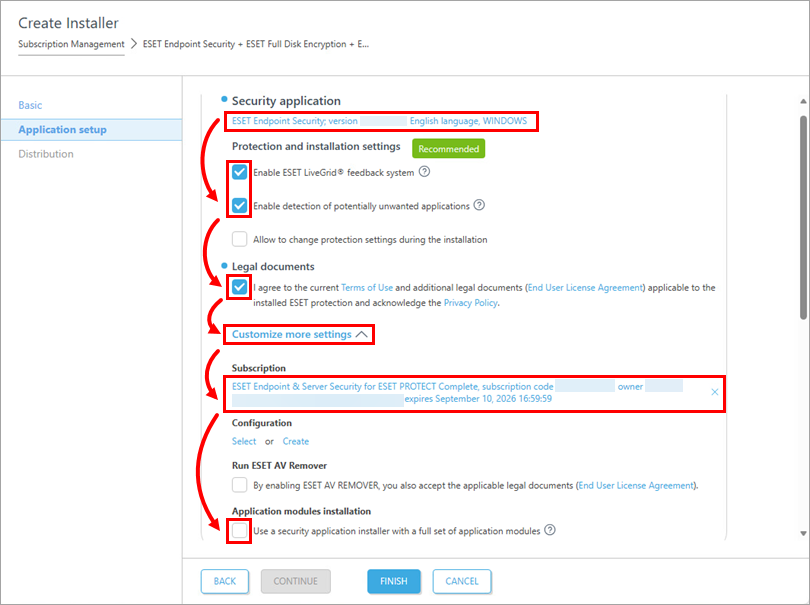
Customize your application setup:
- You can click the selected application to choose another one
- Verify that the check boxes next to Enable ESET LiveGrid® feedback system and Enable detection of potentially unwanted applications are selected
- Select the check box in the Legal documents section
- Click Customize more settings to access additional settings
- You can click the selected subscription to choose another one
- If you want to use the installer with a full set of ESET modules, select the check box in the Application modules installation section
- Scroll down to access more settings
-
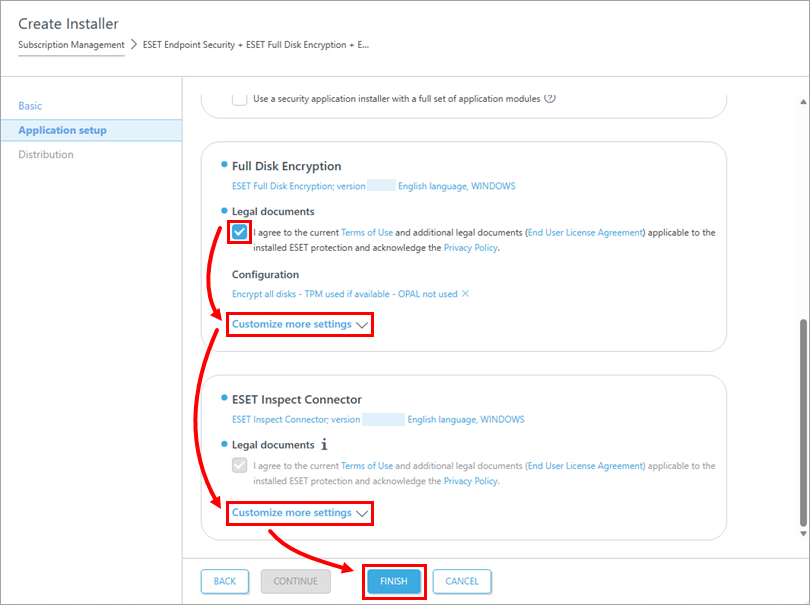
If you selected Full Disk Encryption and ESET Inspect Connector in step 3, select the check box under Legal documents in both sections. You can also access additional settings by clicking the Customize more settings option. Click Finish.
-
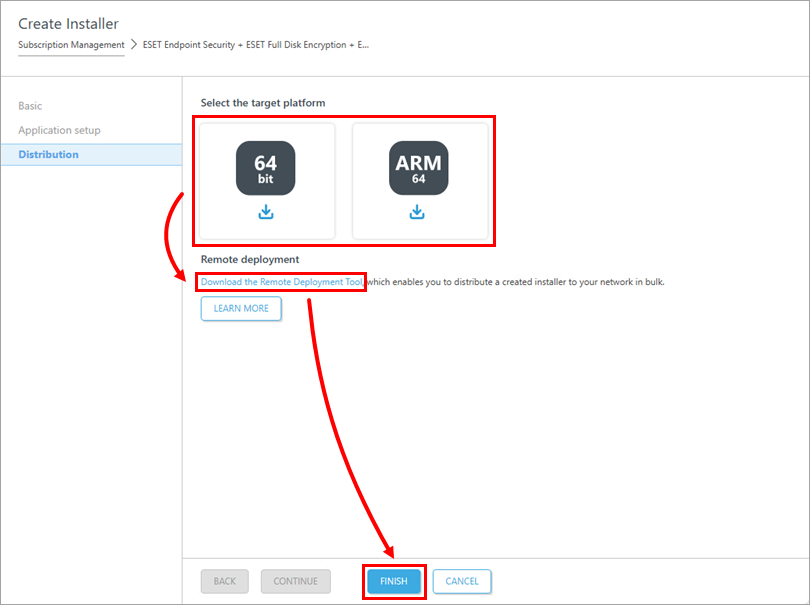
Select the target platform to download the installer for your system. Save the file to a shared location and access it from the client computer where it will be installed.
Alternatively, you can download the .msi installer from the ESET download page. If you want to deploy the agent in bulk, click Download the Remote Deployment Tool. Click Finish.
-
Run the All-in-one installation package file on the client computer to start the Setup Wizard using a domain administrator account.
For illustrated instructions for the Setup Wizard, see the ESET Package Installer Online Help topic.
Run the installation without user interaction (Silent mode installation)
I. Settings for Silent mode installation
By default, when performing a silent installation, the following settings will be used:
- The Terms of Use are accepted
- ESET LiveGrid® is enabled (Windows users only)
- Detection of potentially unwanted applications is disabled (Windows users only)
These default settings can be changed after the installation is completed, or they can be modified in your installation package by following the steps below:
-
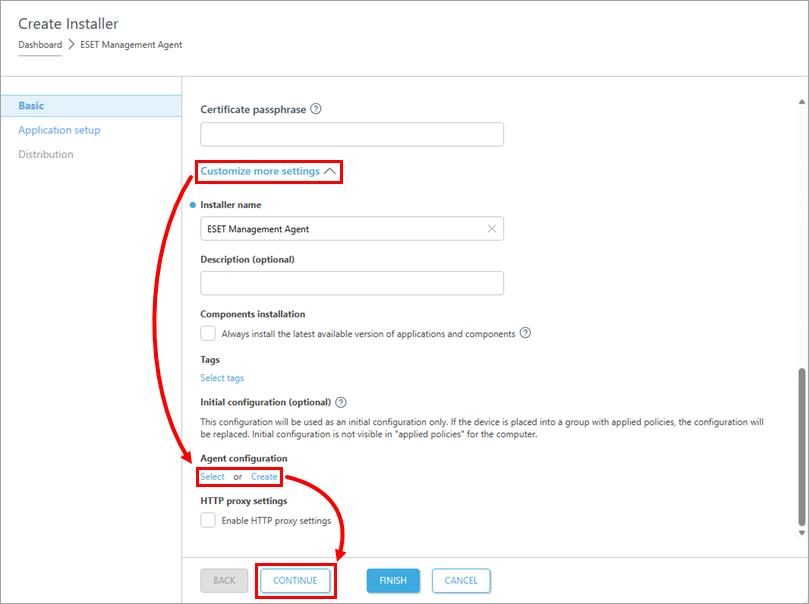
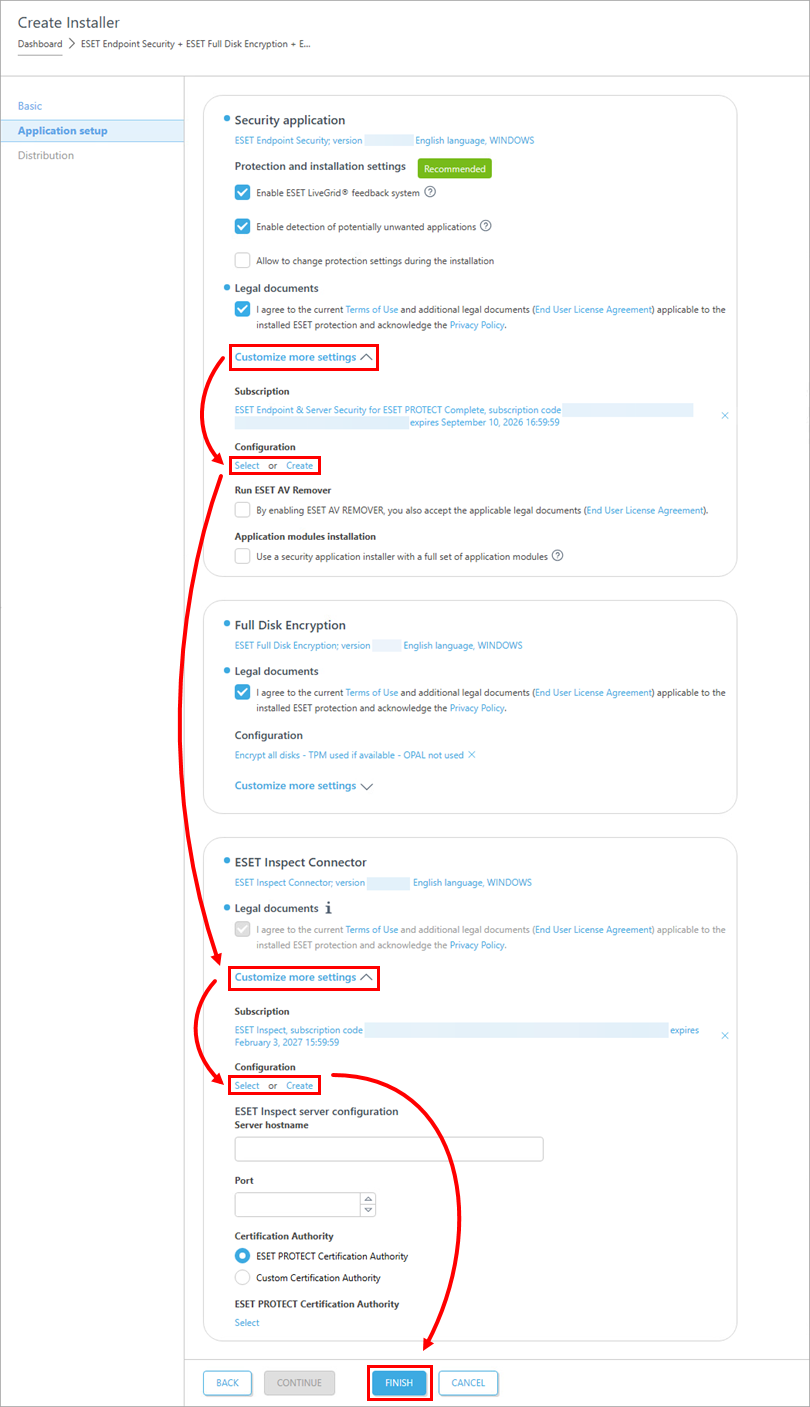
In step 4, click Customize more settings. In the Agent configuration section, click Select to select a configuration from the list of policies, or click Create to create a new policy for the ESET Management Agent. Click Continue.
-
In steps 5 and 6, there are additional settings under every component.
Click Customize more settings under the ESET security application and ESET Inspect Connector (scroll down to see this section). Click Select to select a configuration from the list of policies or click Create to create a new policy for the selected component. Click Finish.
II. Silent mode installation
You can install an All-in-one installation package generated from the ESET PROTECT Web Console on the client device without user interaction (silent mode). Ensure the following requirements are met before using this method:
- Store the installation package locally on the designated device
- Perform the silent installation on an account with administrator privileges
- We recommend that you run the command prompt as an administrator
- Use the
.exeinstaller type
If all of the above requirements are met, follow the steps below to perform a silent installation:
-
In the command line, navigate to the installation package location.
-
Execute the installation package with the
--silentand--accepttermsparameters, for example:C:\Users\Admin\Downloads\PROTECT_Installer_x64_en_US.exe --silent --acceptterms -
The installation will now proceed in silent mode, with no window or progress bar appearing during the installation.
-
The package will be installed with default or custom settings defined in Settings for Silent mode installation.


