Issue
- Update client workstations in a closed environment with no internet access
- Update client workstations that have no internet access but still receive updates from a computer in the network
Solution
I. Prerequisites
- Download the ESET Mirror Tool
- Create and download an offline activation file using ESET PROTECT Hub or ESET Business Account
II. Set the computer connected to the internet as an update mirror
You have two options:
Create an offline update mirror using ESET PROTECT or ESET PROTECT On-Prem
-
Create folders for the Mirror Tool operation:
- Offline activation file, for example:
C:\mirror - Intermediary files, for example:
C:\mirror\temp - Downloaded files, for example:
C:\mirror\out
- Offline activation file, for example:
-
Copy the Mirror Tool to the desired folder.
-
Copy the offline activation file (for example
offline.lf) to the desired folder (for exampleC:\mirror). -
Open the Command Prompt, navigate to the Mirror Tool folder and run the command with the following syntax:
MirrorTool.exe --mirrorType regular --intermediateUpdateDirectory c:\mirror\temp --offlineLicenseFilename c:\mirror\offline.lf --outputDirectory C:\mirror\out
Module updates may take longer to download, depending on the internet connection speed and the size of the files being downloaded.
Enable the Update Mirror and HTTP Server
-
Open the main program window of your ESET endpoint application.
-
Press the F5 key to access Advanced setup.
-
Click Update and expand Profiles → Update Mirror. Click the toggle next to Create update mirror to enable it, and click Edit next to Storage folder to set the path. Verify that the toggle next to Enable HTTP Server is enabled. Optionally, you can configure other HTTP Server parameters (username, password, port). Click OK.
III. Create a Policy for offline computers managed by ESET PROTECT or ESET PROTECT On-Prem to download ESET security application module updates from the mirror
-
In the Settings section, select the ESET security application from the drop-down menu (in the example, ESET Endpoint for Windows is selected). Click Update and expand Profiles → My Profile → Updates. Click the toggle next to Choose automatically to disable it. In the Custom server field, type the IP address of a mirror server created in section I. Use the following format for the IP address:
http://xx.xx.xx.xx:xxxx. Click Continue.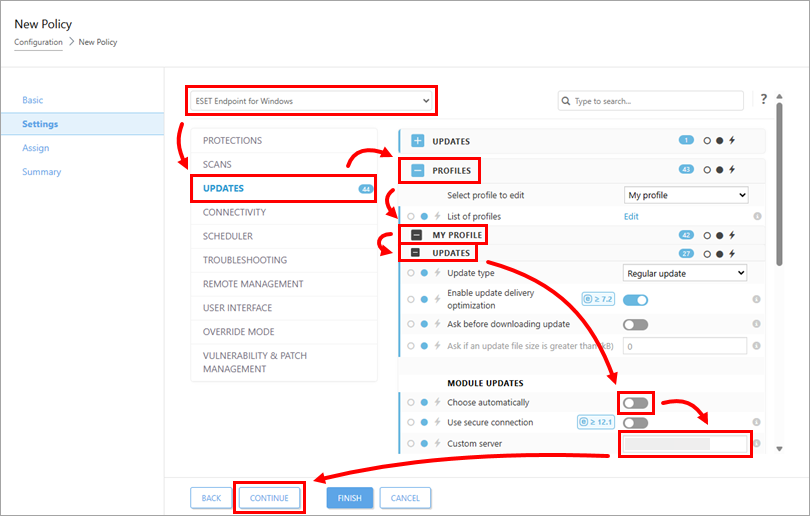
-
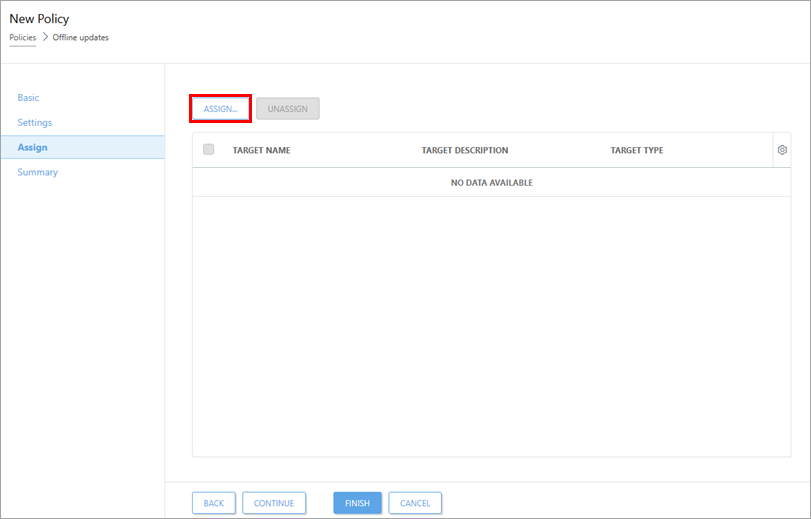
Click Assign.
-
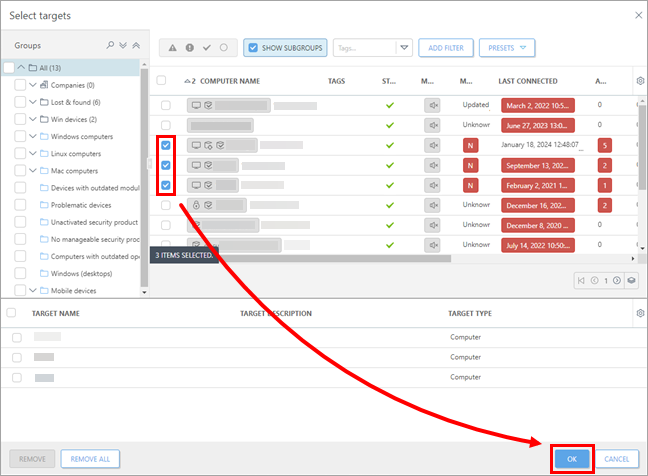
Select the computers where you want to assign the policy and click OK.
-
Click Finish to apply the policy to the selected computers. As soon as the computers receive the policy, installed ESET security applications will update their program modules offline from the mirror you have created in section I.


