Issue
- Installation logs have been requested by ESET Technical Support
- Your ESET Windows product ends prematurely, ends with a specific error message, or performs a rollback to a previous system state
Details
Click to expand
Installation logs help ESET Technical Support to troubleshoot your issue more effectively.
Solution
- Increase the logging verbosity of setupapi.app.log and setupapi.dev.log to capture more details
- Run the installation and generate log files
- Set the logging verbosity of setupapi.app.log and setupapi.dev.log to the original value
- Share the log files with ESET Technical Support
I. Increase the logging verbosity of setupapi.app.log and setupapi.dev.log to capture more details
The setupapi.app.log and setupapi.dev.log files record events during system setup or installations. You can control the level of detail they capture using the LogLevel setup registry key. To enable detailed logging, set the LogLevel value to ffff (hexadecimal), which corresponds to 0x0000FFFF in full notation.
To increase the logging verbosity of setupapi.app.log and setupapi.dev.log, follow the steps below:
-
Open Registry Editor: click Start, type
regeditand click the Registry Editor app icon or press the Enter key to open the app.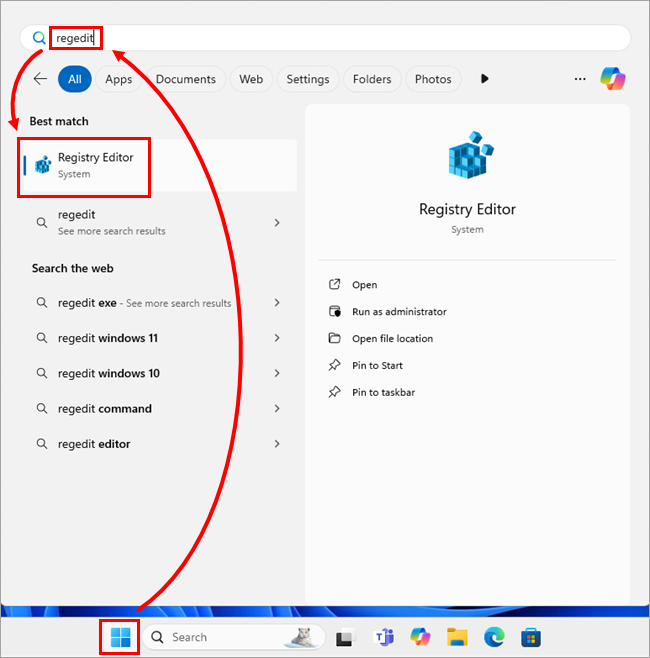
Figure 1-1 -
Navigate to
HKEY_LOCAL_MACHINE\Software\Microsoft\Windows\CurrentVersion\Setup, double-clickLogLeveland note the value in the Value data field. Copy the value to a text file or another safe location—you will need it later to restore the original setting.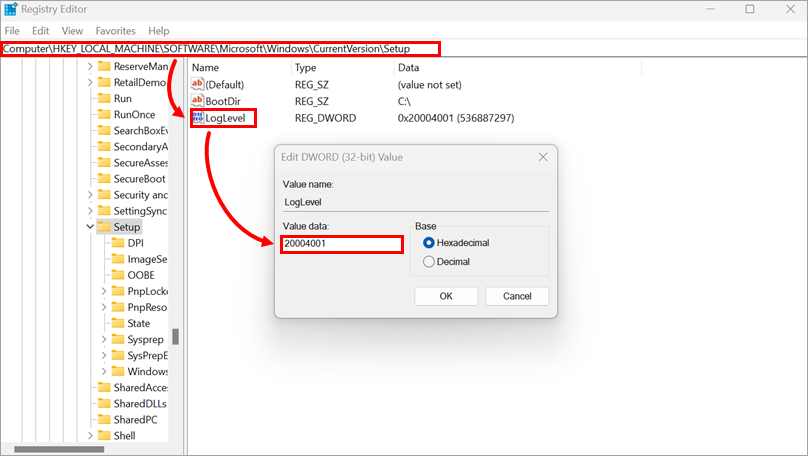
Figure 1-2 -
Type
ffffto the Value data field and click OK. TheLogLevelvalue will change to0x0000FFFF.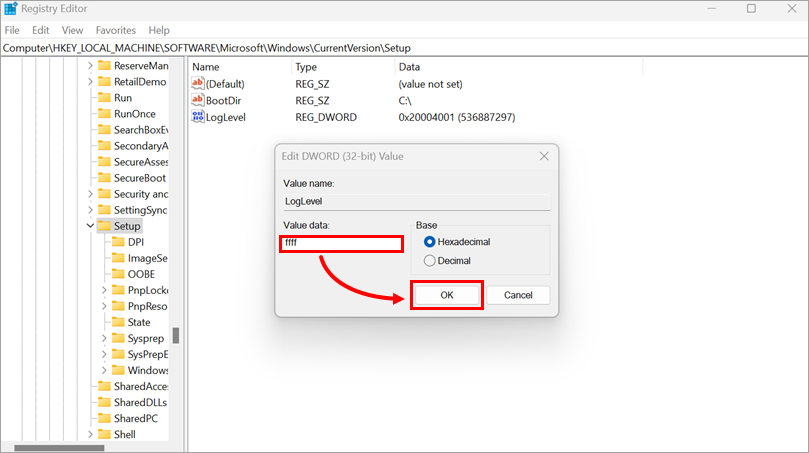
Figure 1-3
II. Run the installation and generate log files
When you run the ESET installer, Windows automatically records system-level installation activity in the setupapi.app.log and setupapi.dev.log files. If you are using an .msi installer, you can also generate a detailed installation log (install.log) by running the installer with an additional logging parameter ( /lvx* install.log).
-
Download the offline installer for your ESET product.
If you are not sure which version of the ESET product you should choose, see the Choose which version of your ESET home and small office product for Windows to download (64-bit or ARM) article.
-
Run the installer.
Instructions to run an
.msiinstaller with a parameter to create a detailed installation log (install.log)
-
Open Run: click Start, type
runand click the Run app icon or press the Enter key to open the app.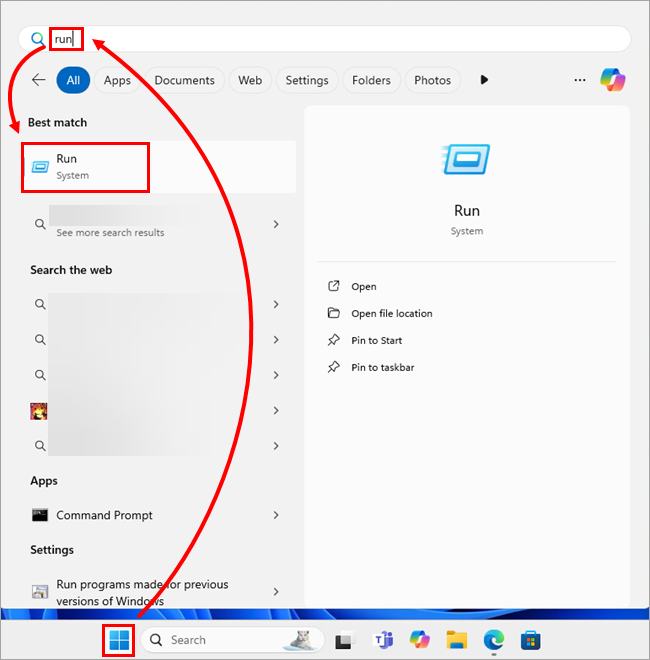
Figure 2-1 -
Click Browse, navigate to the folder containing the installer file (for example,
ees_arm64_full.msi), in the file type drop-down menu, select All files (*.*) and select the file. The install path will be inserted into the Run window.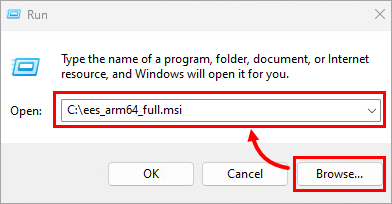
Figure 2-2 -
At the end of the install path, add a space and type
/lvx* install.logand click OK.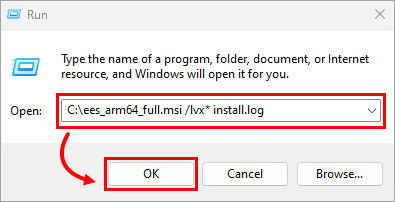
Figure 2-3
-
-
Finish the installation as usual, or continue until you encounter an error. After the installation completes or fails, collect the following log files:
Windows Server and Windows
Log file paths:C:\WINDOWS\INF\setupapi.app.logC:\WINDOWS\INF\setupapi.dev.log
Install log for .msi installers (all Windows operating systems)install.log—this file is located in the same folder as the ESET installer (.msi) file
III. Set the logging verbosity of setupapi.app.log and setupapi.dev.log to the original value
Open Registry Editor, navigate to HKEY_LOCAL_MACHINE\Software\Microsoft\Windows\CurrentVersion\Setup, double-click LogLevel, type or paste the original value into the Value data field and click OK.
For more information, see step I. Increase the logging verbosity of setupapi.app.log and setupapi.dev.log to capture more details.
IV. Share the log files with ESET Technical Support
If you have already opened an ESET Technical Support case, respond to the email from ESET Technical Support and attach the log files.
If you have not yet contacted ESET Technical Support, open a case and attach the log files to the case.
We recommend compressing the files into a .zip or .rar archive before attaching. We will review the files and advise you of the best course of action.


