Issue
- Download, install, and activate ESET home and small office applications
Details
Click to expand
This article applies to the following applications for Windows:
ESET home applications for Windows:
- ESET Security Ultimate
- ESET Smart Security Premium
- ESET Internet Security
- ESET NOD32 Antivirus
ESET small office applications for Windows:
- ESET Small Business Security
- ESET Safe Server
Read more about applications and security features available in ESET HOME.
Solution

Related solution: macOS users
- Prerequisites
- Create an ESET HOME account and activate your protection
- Download the activated installer file from ESET HOME
- Install an ESET home or small office security application for Windows
I. Prerequisites
II. Create an ESET HOME account and activate your protection
Choose the scenario that applies to you and follow the instructions below:
You do not have an ESET HOME account yet
You purchased a subscription in the ESET eStore
-
After the purchase in the ESET eStore, follow the Check your inbox instructions.
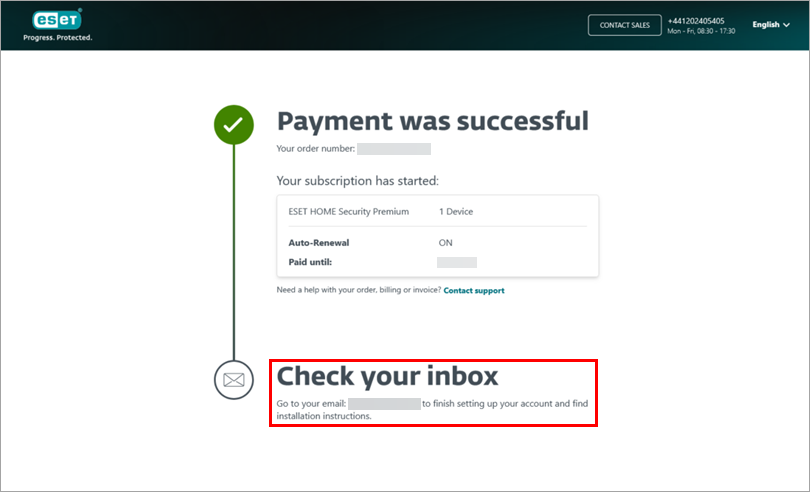
-
Go to your email inbox, open the email from ESET and click Get started.
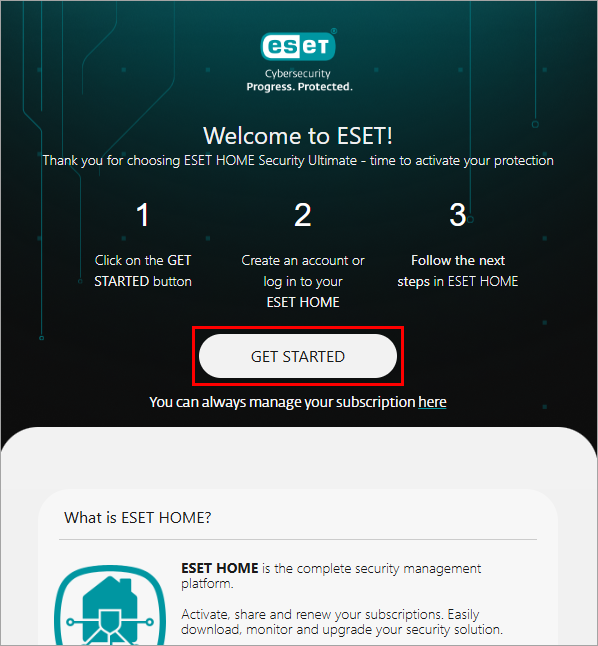
-
Type your preferred password and click Create account. Alternatively, you can use your Google or Apple account.
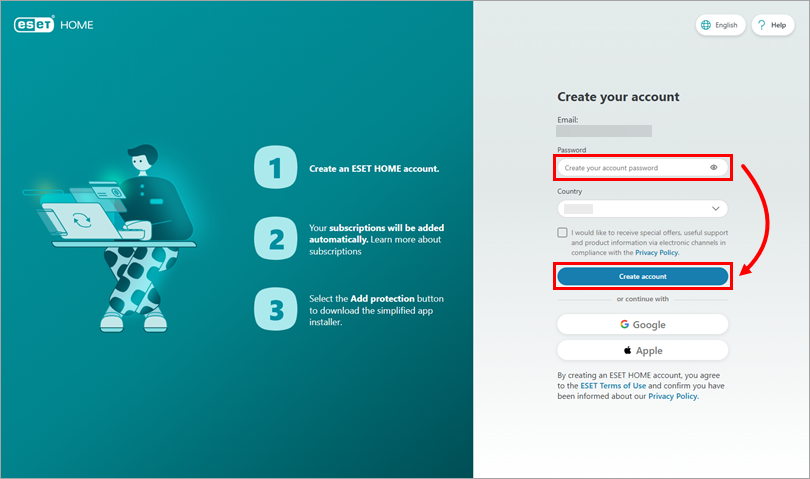
-
Click Continue until you reach the Subscription section.
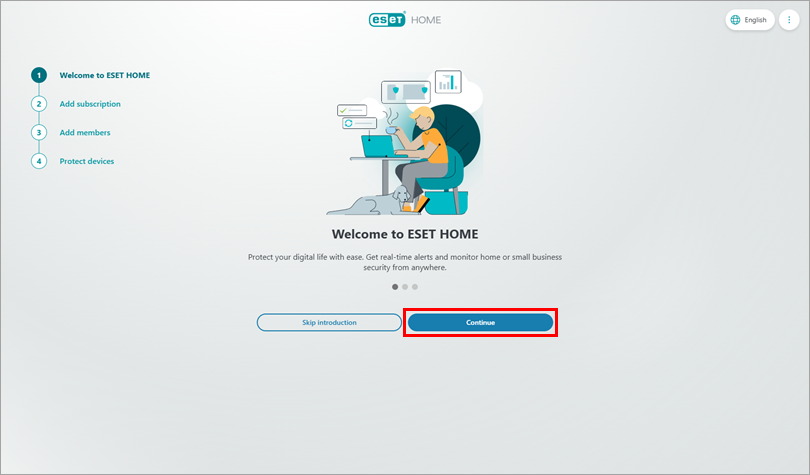
-
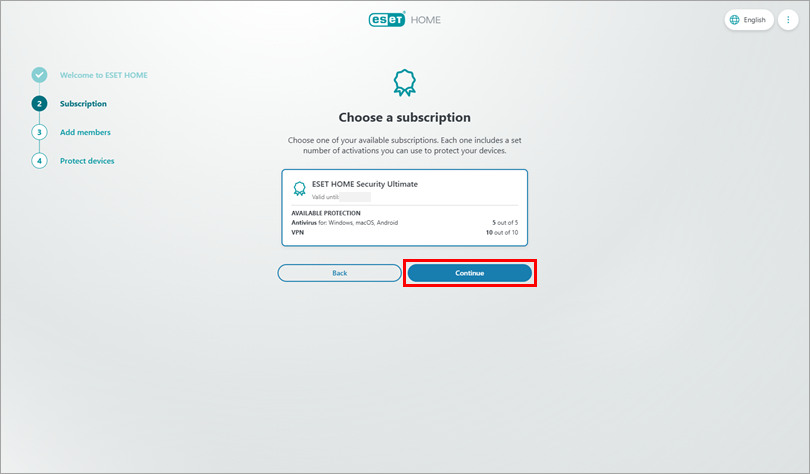
Click Continue.
-
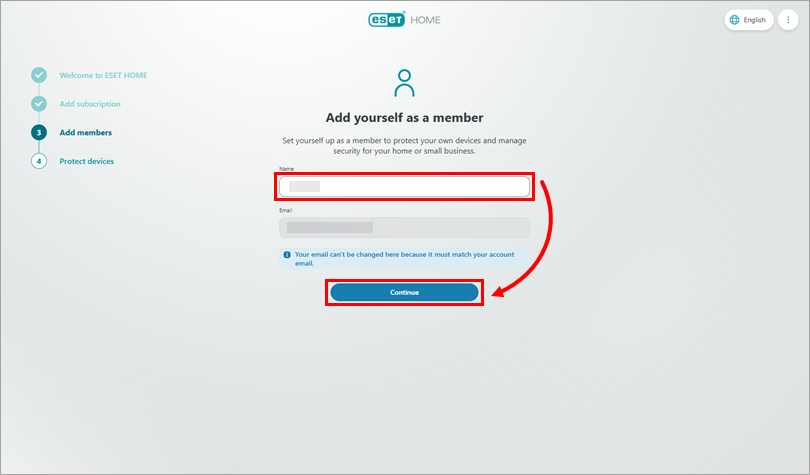
Type your name and click Continue.
-
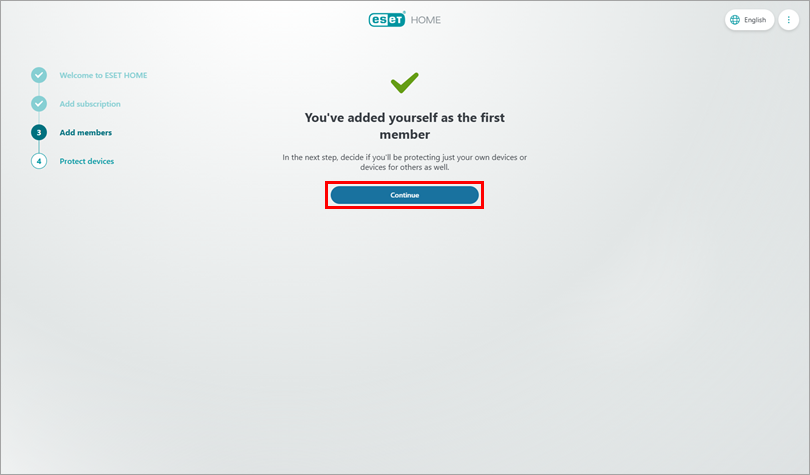
Click Continue.
-
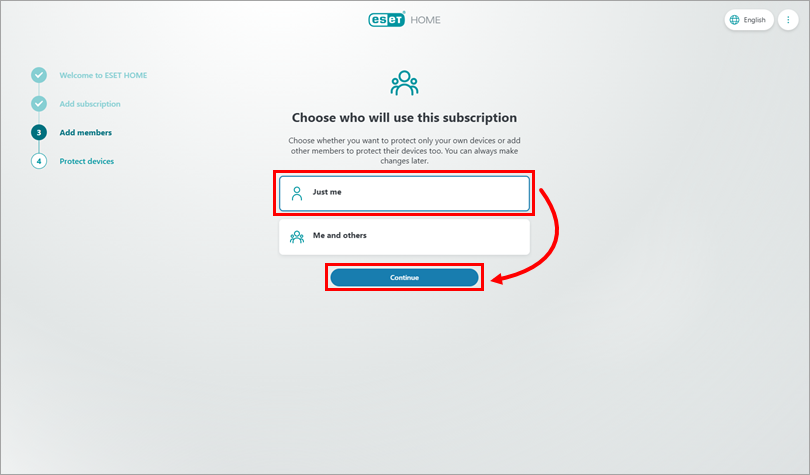
Choose who will use the subscription (in this example, we are setting up just one device for the account owner). Click Continue.
-
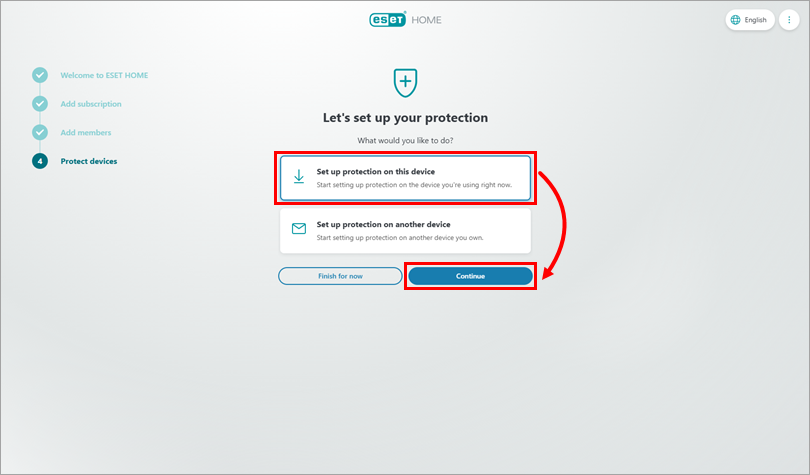
Choose which device you want to protect (in this example, we are setting up protection on the currently used device). Click Continue.
-
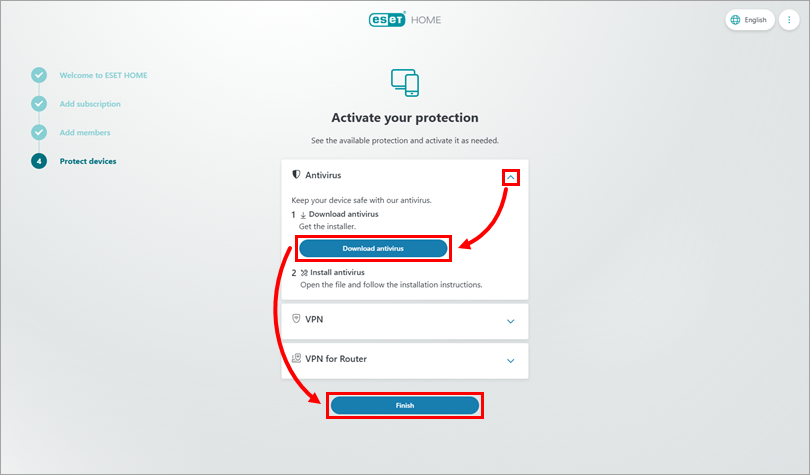
Expand Antivirus, click Download antivirus → Finish, and proceed with the installation.
You want to use your activation key, buy a subscription, or activate a free trial
-
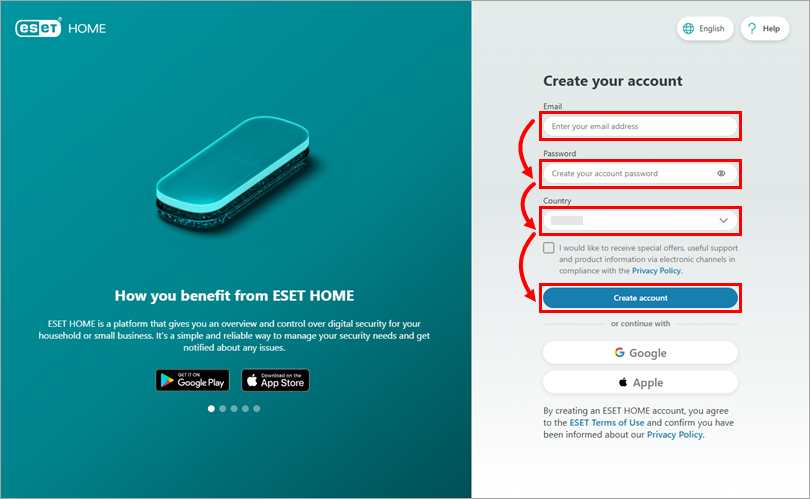
Go to ESET HOME, type your email address and password, and select your country. Click Create account. Alternatively, you can use your Google or Apple account.
-
Click Continue until you reach the Subscription section.
Use an activation key
-
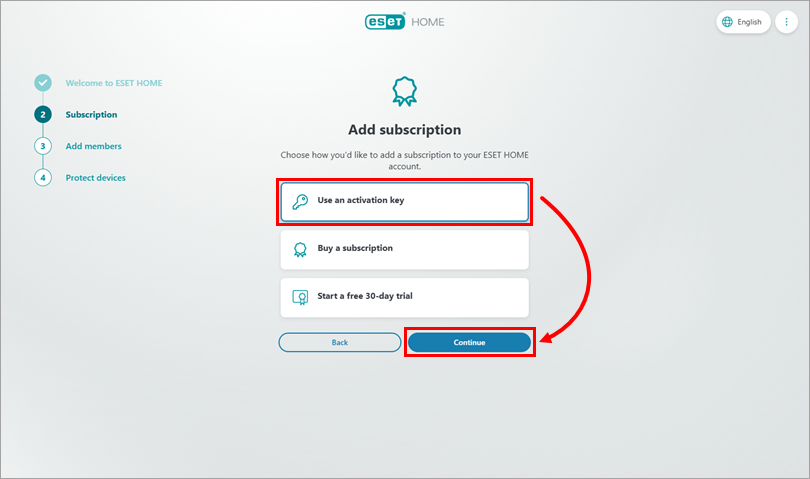
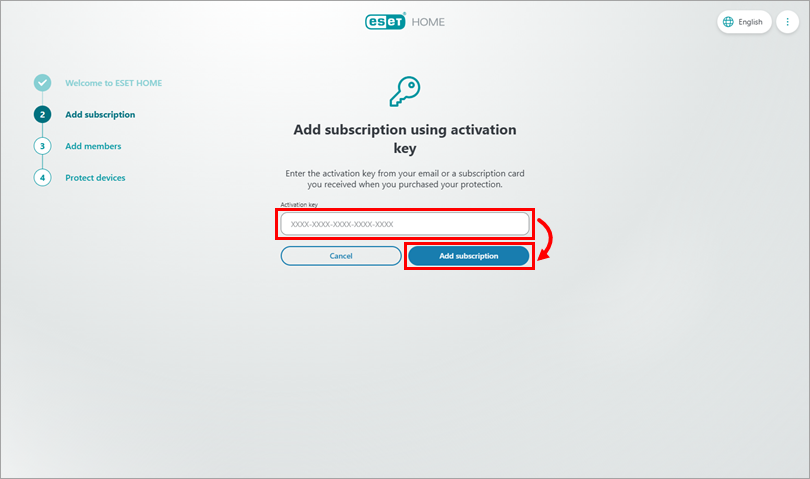
Click Use an activation key → Continue.
-
Copy/paste your activation key, then click Add subscription.
-
The subscription is added to your ESET HOME account. You can proceed to download the activated installer file from ESET HOME.
Buy a subscription
-
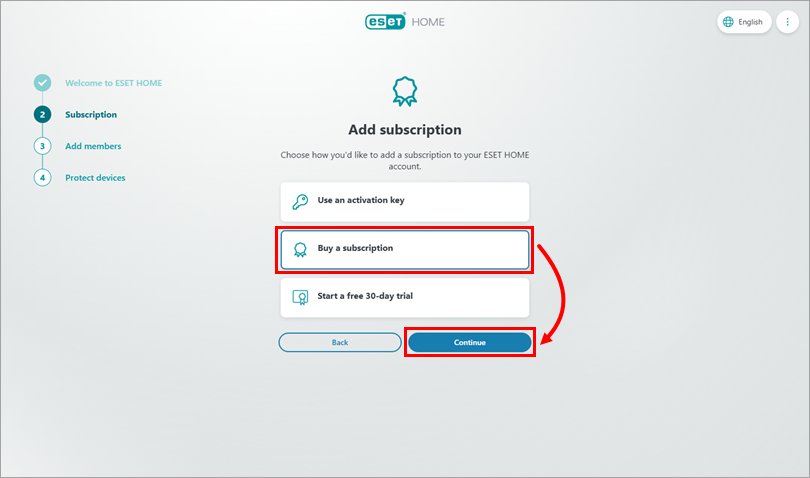
Click Buy a subscription → Continue.
-
You will be redirected to the ESET eStore, where you can choose the ESET security application you want to purchase and follow the on-screen instructions to complete the purchasing process. The new subscription will be automatically added to your ESET HOME account. Then you can proceed to download the activated installer file from ESET HOME.
Start a free 30-day trial
-
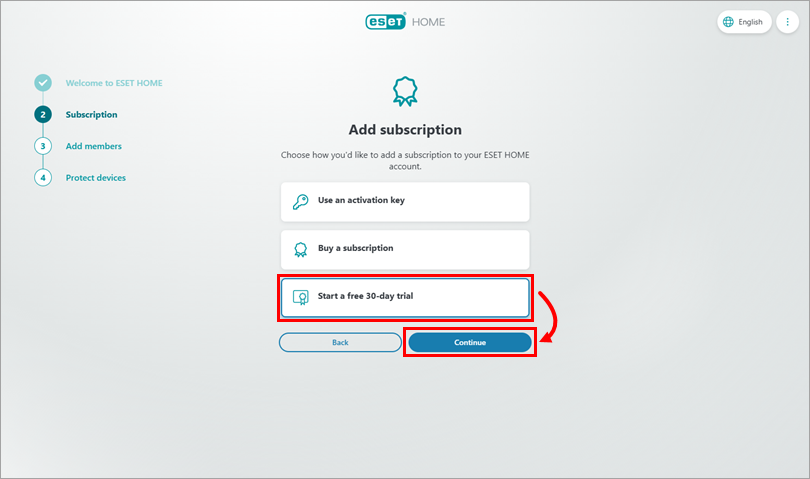
Click Start a free 30-day trial → Continue.
-
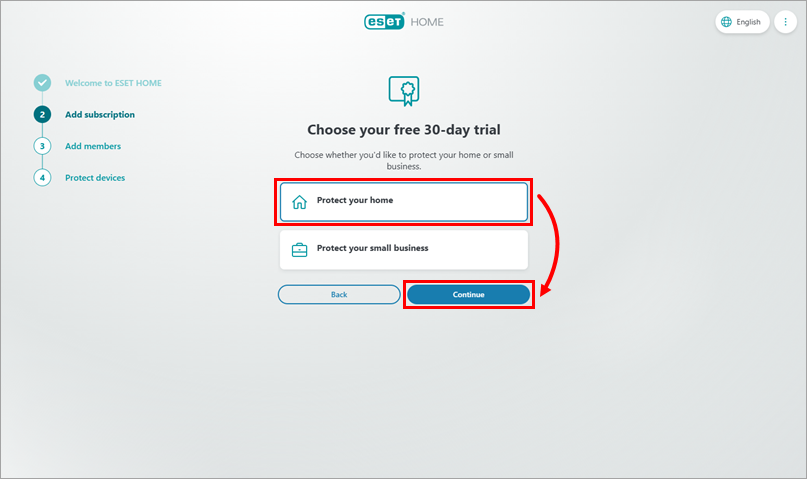
Choose what type of protection you want to try, and click Continue.
-
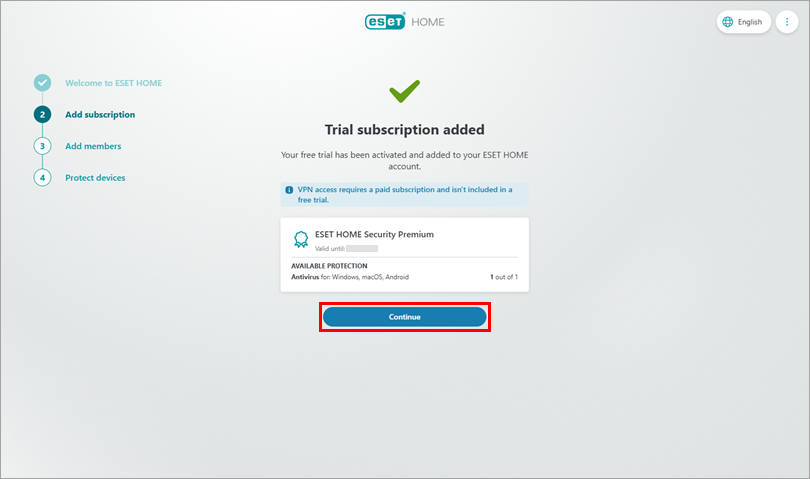
A trial subscription is added to your ESET HOME account. Click Continue and follow the on-screen instructions. Then you can proceed to the installation section.
You already have an ESET HOME account
You purchased a subscription in the ESET eStore
-
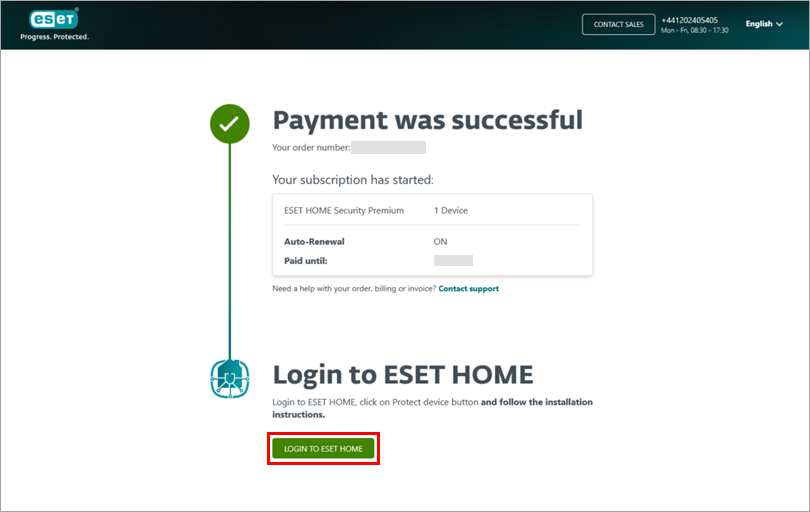
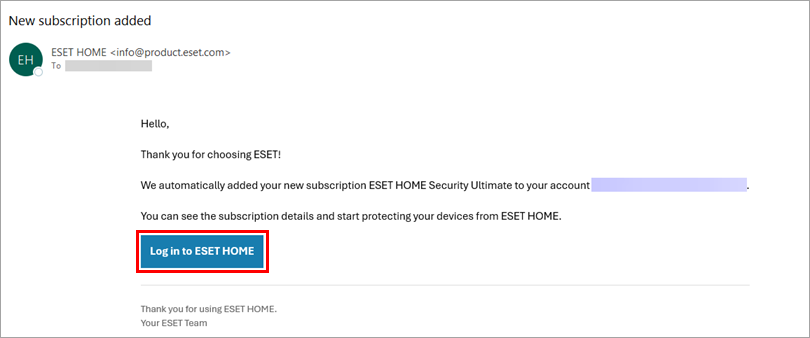
After the purchase in the ESET eStore, click Login to ESET HOME. Alternatively, go to your email inbox, open the email from ESET and click Log in to ESET HOME.
-
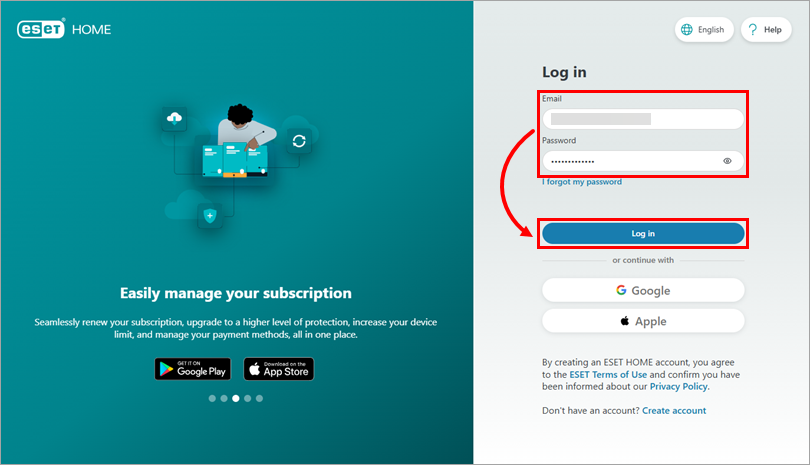
Type your email address and password, and click Log in. If you have created your ESET HOME account using your Google or Apple account, select the appropriate option to log in.
-
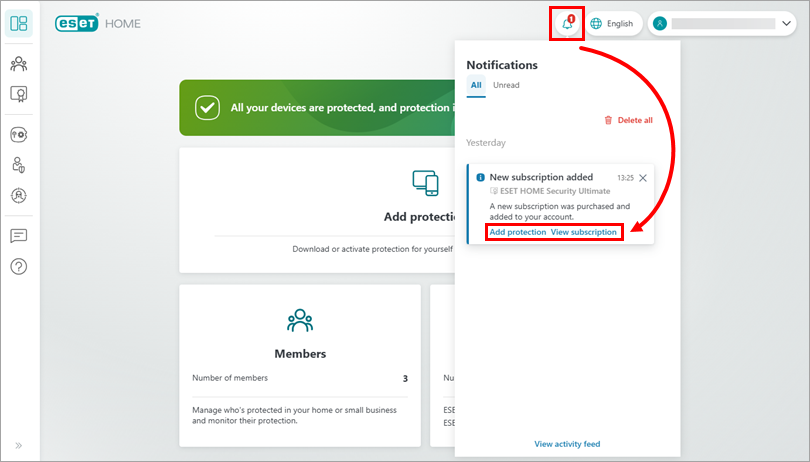
Your new subscription has been automatically added to your ESET HOME account. Click the notification center, then click either Add protection to use the new subscription on a device or View subscription for more details. You can proceed to download the activated installer file from ESET HOME.
III. Download the activated installer file from ESET HOME
-
Log in to your ESET HOME account.
-
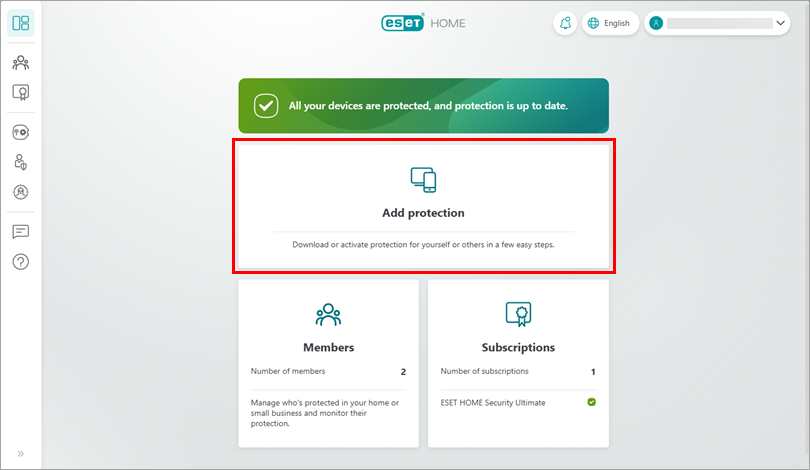
Click Add protection.
-
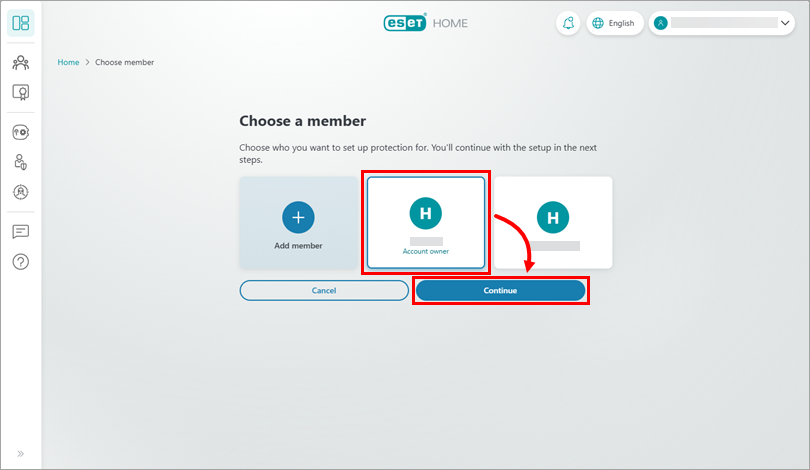
Choose a member for whom you want to download an ESET home or small office application:
Account owner
-
Click Account owner → Continue.
-
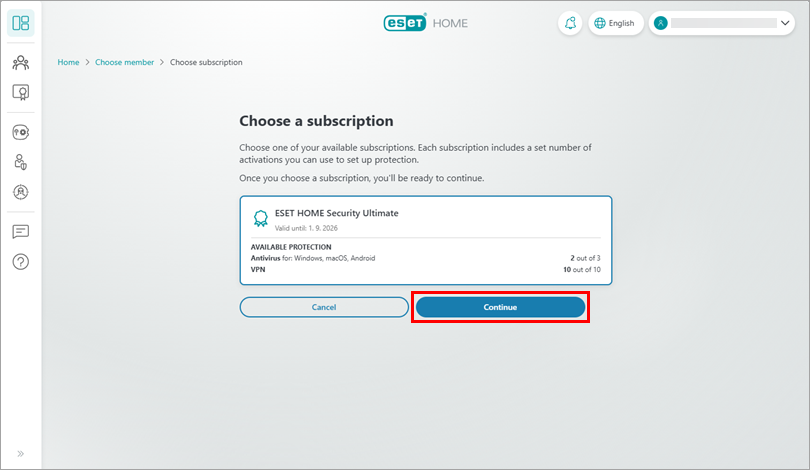
Click Continue (if you have more than one subscription, first choose the subscription you want to use).
-
Choose whether you want to:
Protect this device
-
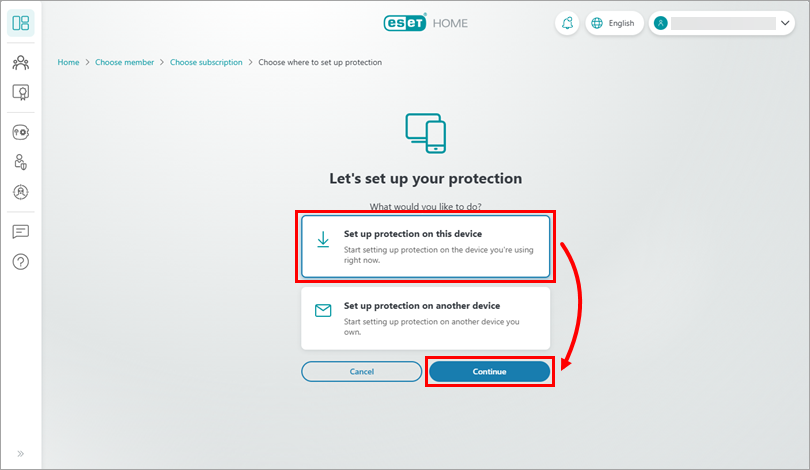
Click Set up protection on this device → Continue.
-
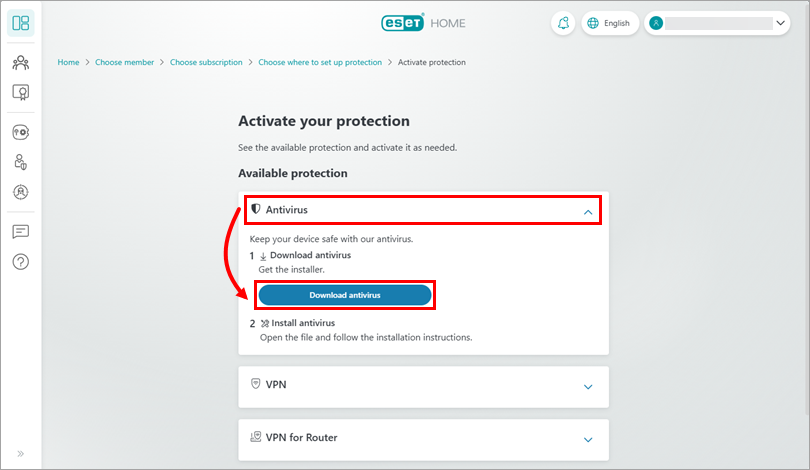
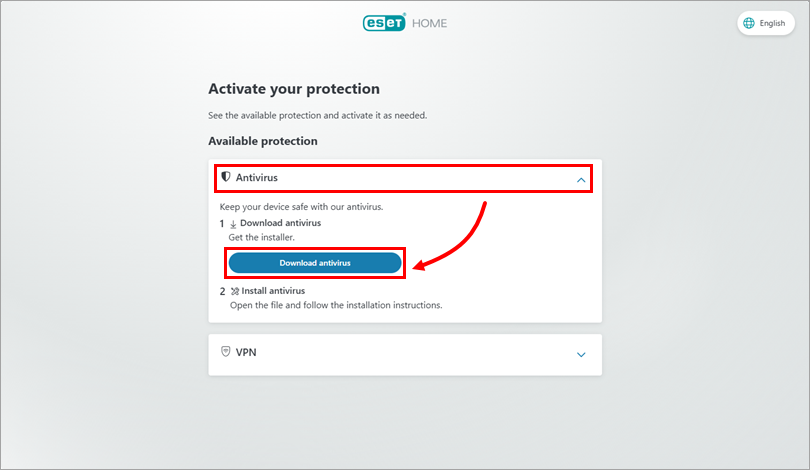
Expand the Antivirus section and click Download antivirus. ESET HOME will download the ESET home or small office application according to your operating system and your subscription.
-
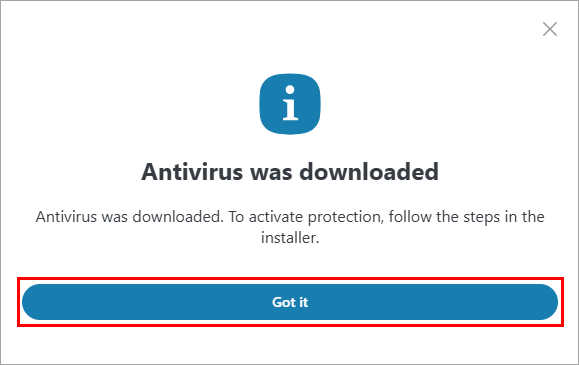
Click Got it and proceed with the installation.
Protect another device
-
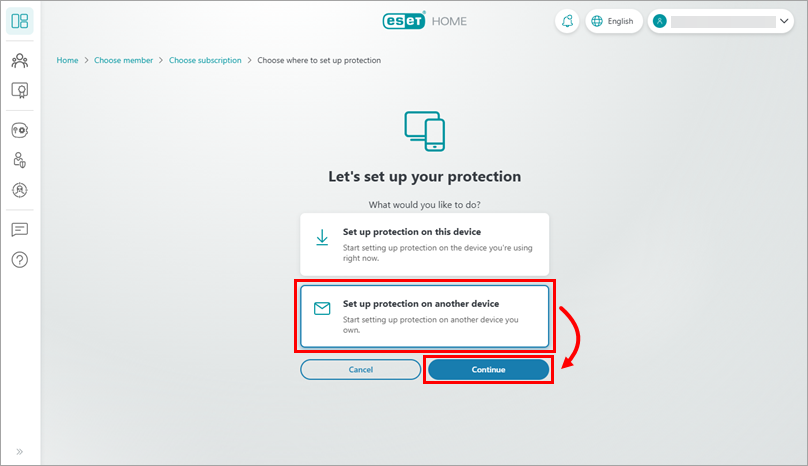
Click Set up protection on another device → Continue.
-
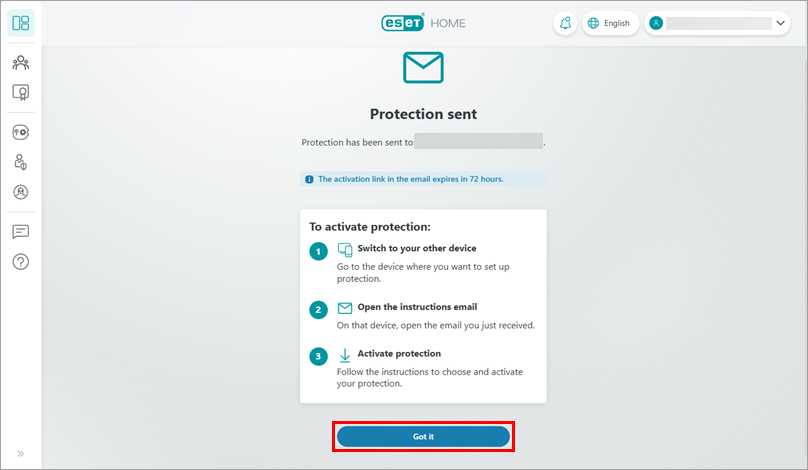
An email has been sent to the email address associated with your ESET HOME account. Click Got it.
-
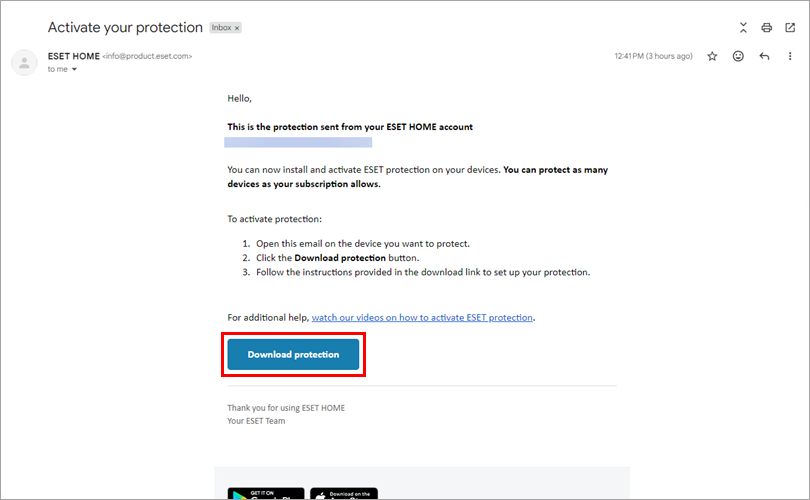
On the device that you want to protect, open the email from info@product.eset.com and click Download protection.
-
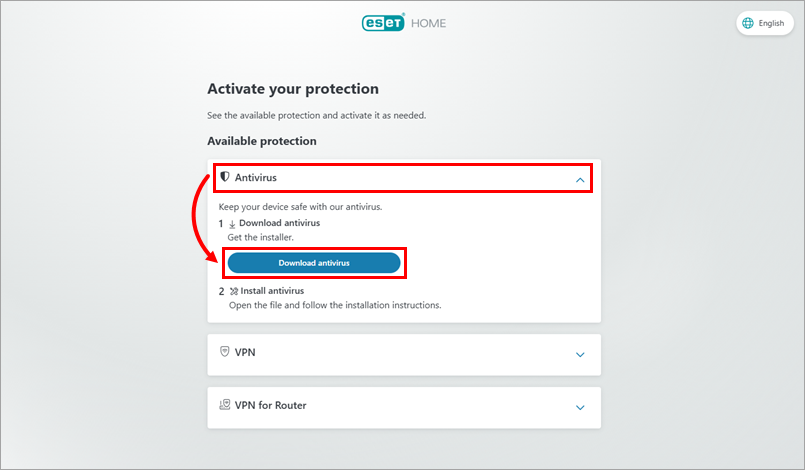
You will be redirected to ESET HOME. Expand the Antivirus section and click Download antivirus. ESET HOME will download the ESET home or small office application according to your operating system and your subscription.
-
Click Got it and proceed with the installation.
-
Another member
-
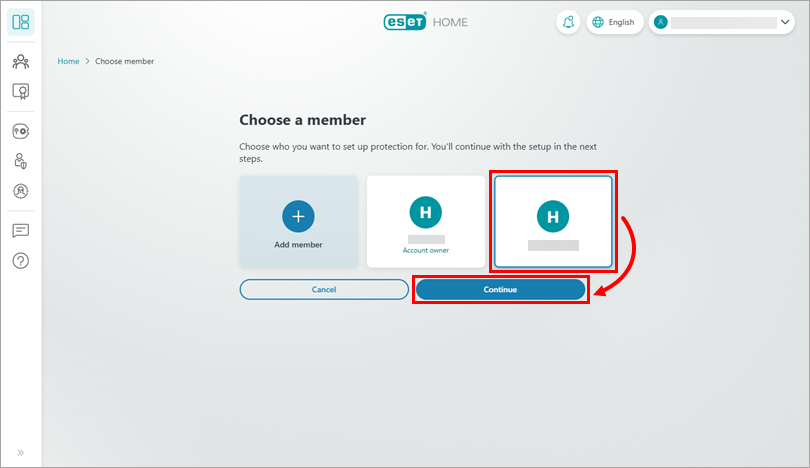
Choose the member you want to protect and click Continue.
Add a new member
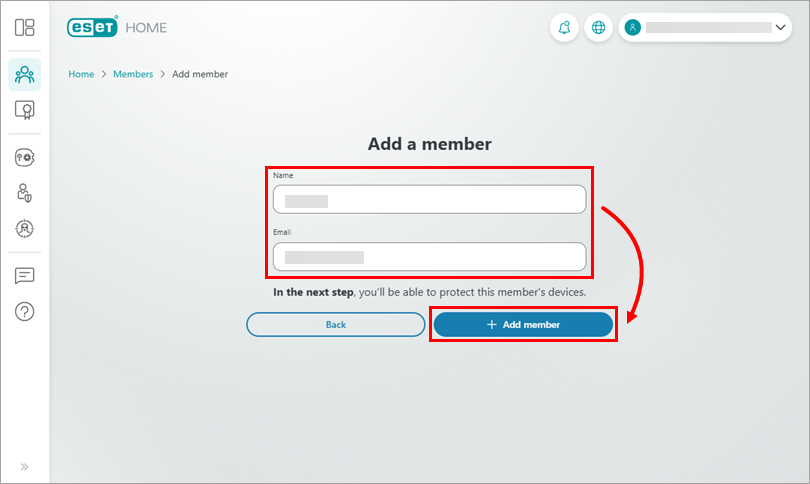
If you want to add a new member, click Add member and follow the steps below:
-
Type the member's name and email address, and click Add member.
-
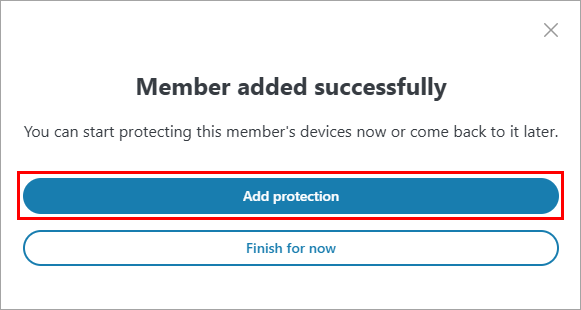
Click Add protection to set up protection for the member's device.
-
-
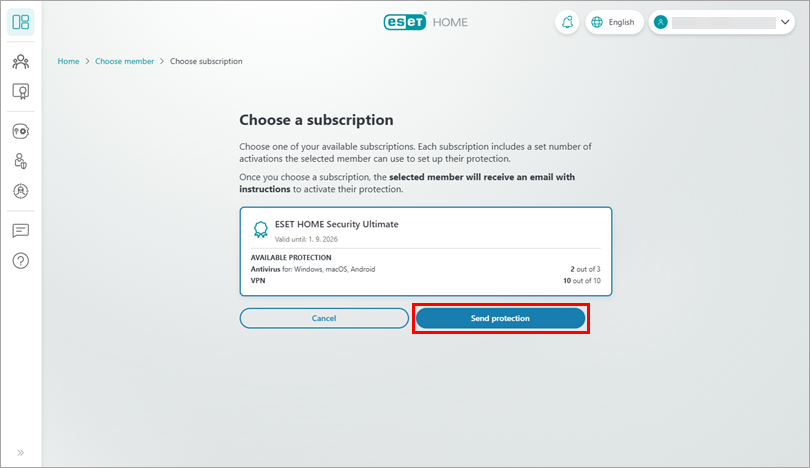
Click Send protection (if you have more than one subscription, first choose the subscription you want to use).
-
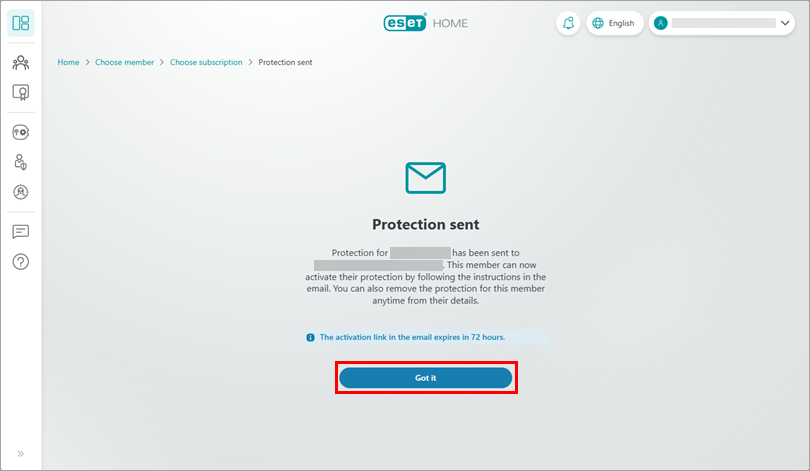
An email has been sent to the member's email address. Click Got it.
-
The member needs to open the email from info@product.eset.com on the device you want to protect, and click Download protection.
-
The member will be redirected to ESET HOME and will need to expand the Antivirus section and click Download antivirus. ESET HOME will download the ESET home or small office application according to the operating system and your subscription.
-
The member needs to click Got it and proceed with the installation.
IV. Install an ESET home or small office security application for Windows
-
Double-click the downloaded installation file to start the installation.
-
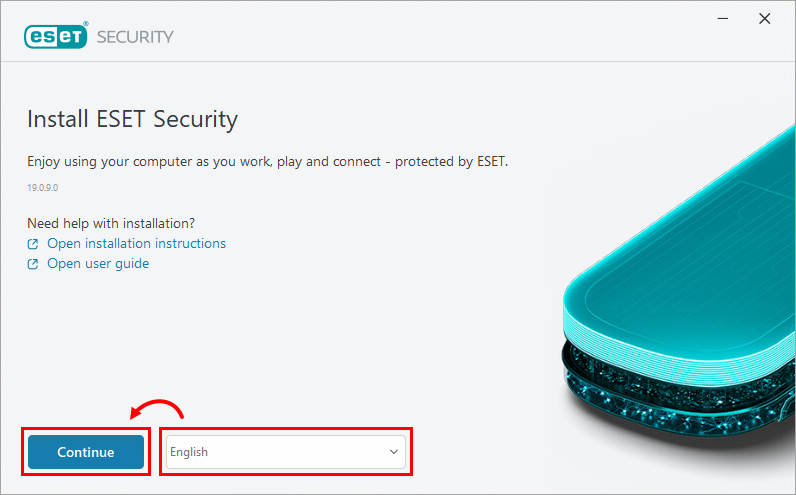
Select your preferred language from the drop-down menu and click Continue.
-
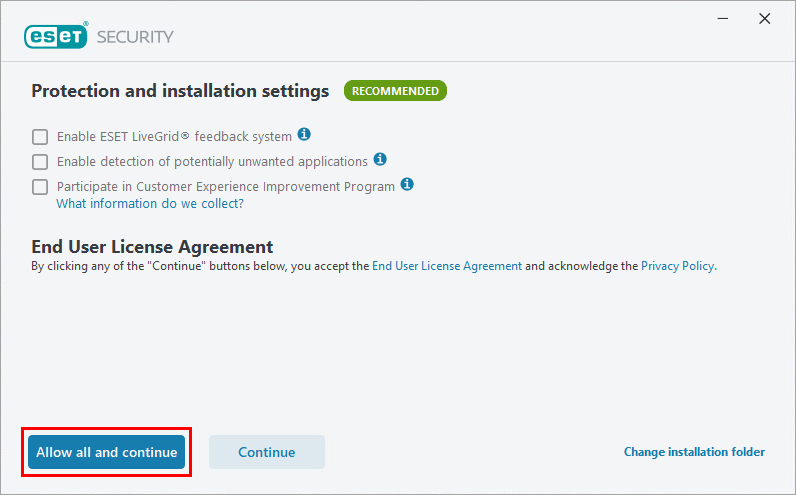
We recommend enabling all protection and installation settings. Click Allow all and continue, or select your custom options and click Continue. You can review the End User License Agreement and Privacy Policy before you proceed.
-
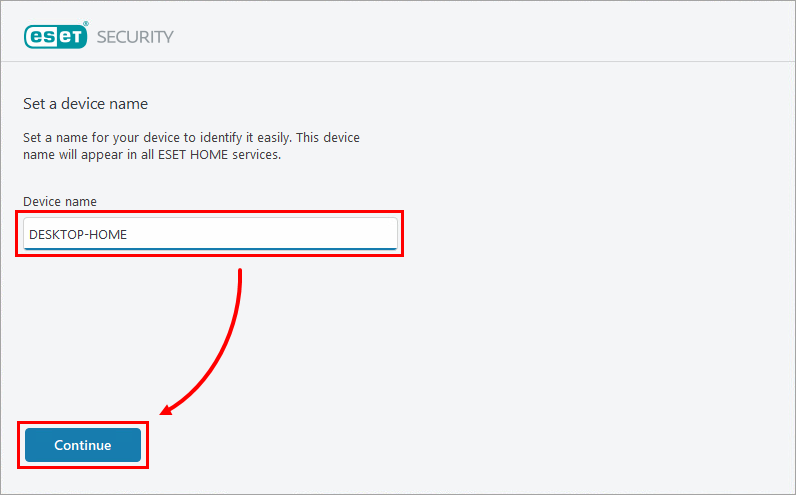
In the Device name field, type a name for your device and click Continue.
-
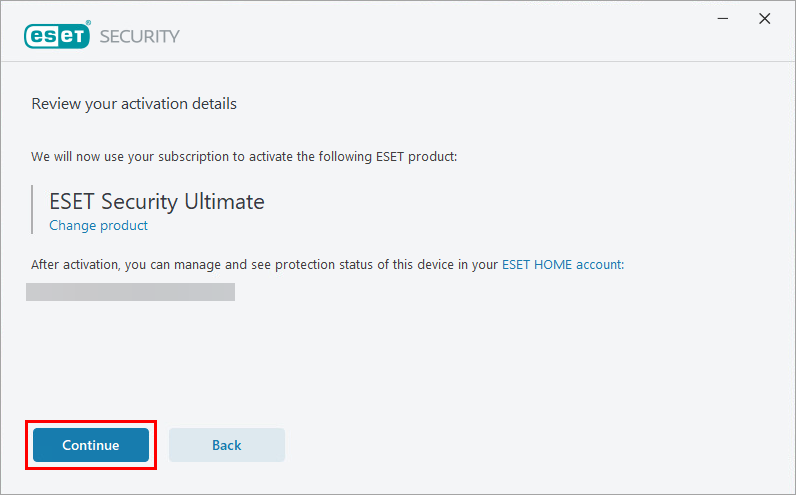
Click Continue to start the installation.
-
After the installation is successfully finished, click Done.
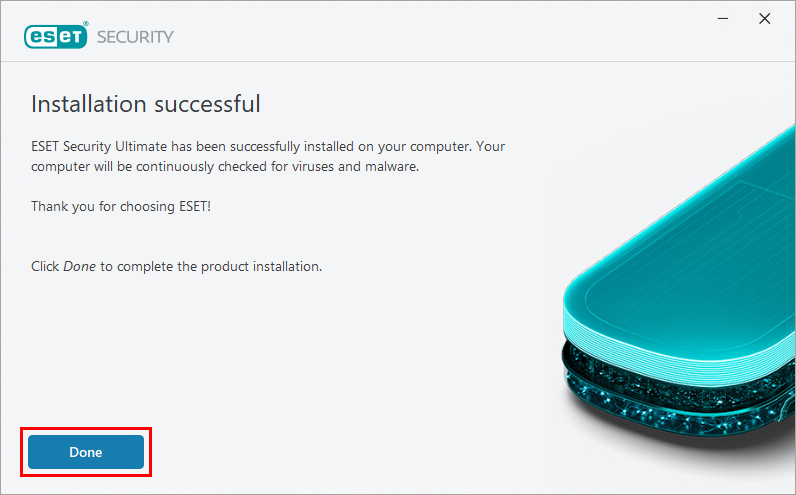
Your ESET home or small office application is now installed and fully functional. An initial scan of your computer will start shortly after installation is completed.
Need further assistance? Contact ESET Technical Support.


