Issue
- Your ESET Windows home or small office product is preventing you from sending Microsoft Outlook emails
Solution
Disable sent email scanning, and only if the issue is not resolved, continue and remove email client integration.
I. Disable sent email scanning
-
Open the main program window of your ESET Windows home or small office product.
-
Press the F5 key to open Advanced setup.
-
Click Email client protection and expand Mailbox protection. Click the toggle next to Scan sent email to disable it and click OK.
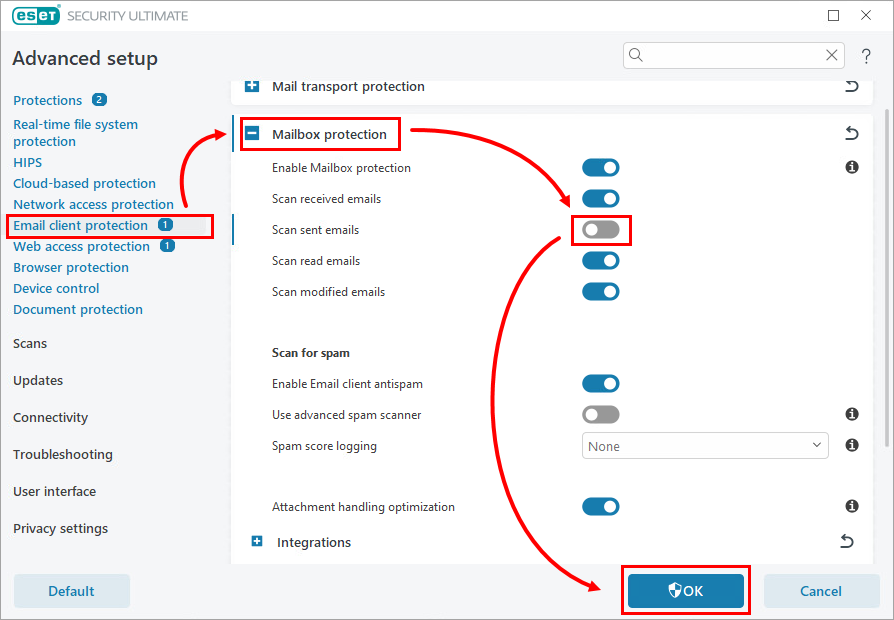
Figure 1-1 -
Try sending an email. If you are still unable to send an email, remove email client integration.
II. Remove email client integration
-
Open the main program window of your ESET Windows home or small office product.
-
Press the F5 key to access Advanced setup.
-
Click Email client protection and expand Mailbox protection.
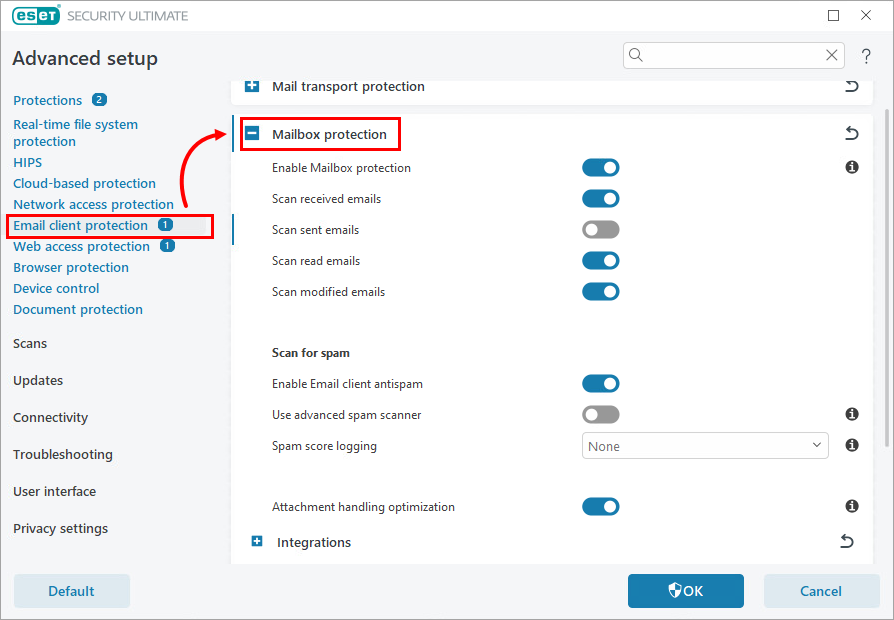
Figure 2-1 -
Expand Integrations and click the toggle next to Integrate into Microsoft Outlook to disable it. Click OK to save your changes.
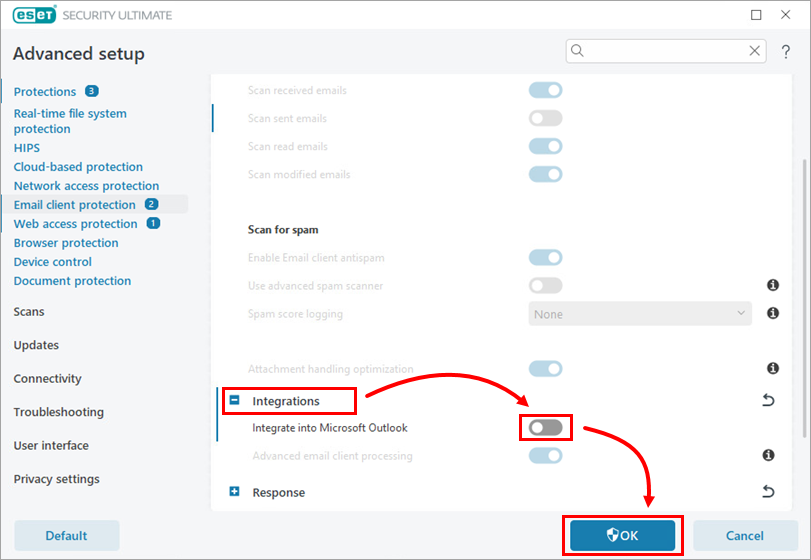
Figure 2-2 -
Try sending an email. If you are still unable to send an email, uninstall your ESET Windows home or small office product and install it again. If reinstalling your ESET product still does not resolve the issue, contact your internet service provider for assistance.


