Issue
- Create multiple firewall profiles for different networks
- Configure network-based firewall rule enforcement
Details
Click to expand
In ESET Endpoint Security, you can create network connection profiles and define profile-specific firewall rules that use specific IP sets. This allows you to apply different firewall settings based on the network the device is connected to. For example, you can use one profile for your office network and another for public networks, ensuring that the appropriate firewall rules are applied when switching between locations. Connection profiles, IP sets, and firewall rules can be configured directly in ESET Endpoint Security or remotely using ESET PROTECT or ESET PROTECT On-Prem.
Solution
ESET PROTECT or ESET PROTECT On-Prem
-
Create a policy. To configure the policy settings, follow the steps below.
-
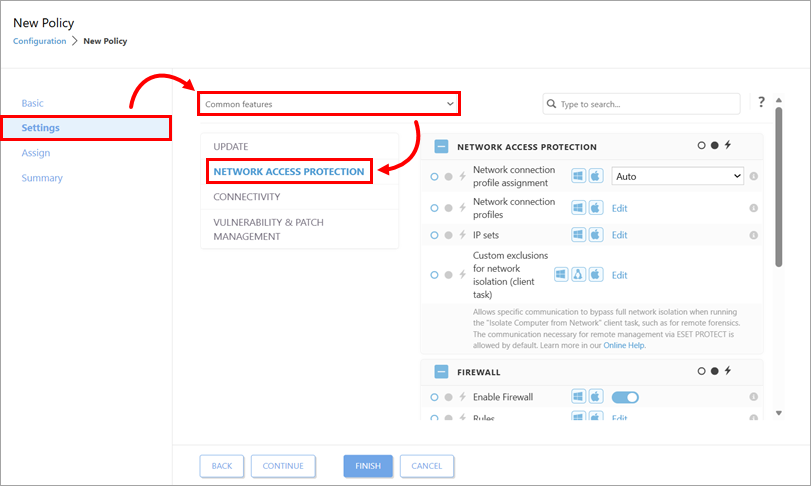
Click Settings, select Common features from the drop-down menu and click Network Access Protection. Continue with the next steps to create and define the connection profile, IP sets and firewall rules.
-
Create IP sets to use with the network connection profile.
-
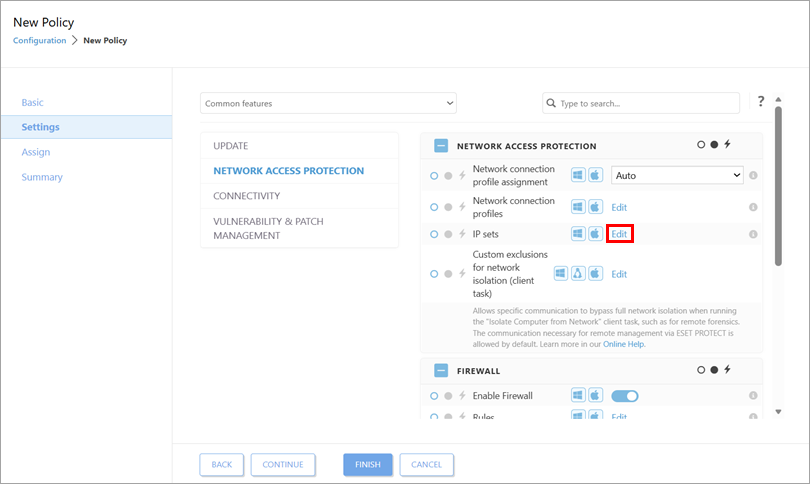
Below Network Access Protection, click Edit next to IP sets.
-
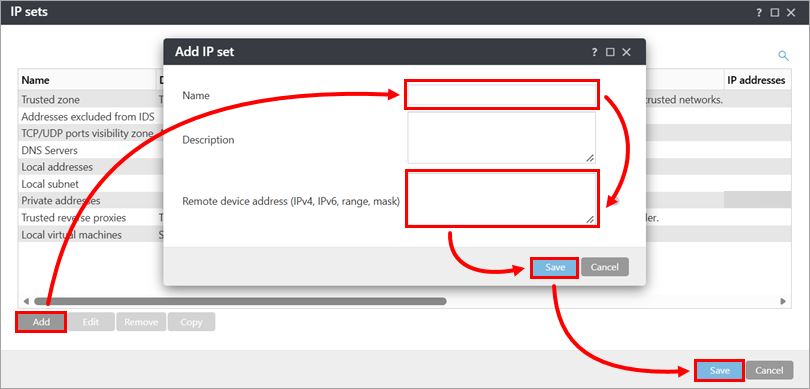
Click Add. In the Name field, type a name for the IP set. In the Remote device address field, type an IP address or subnet. Click Save → Save.
-
-
Create firewall rules for the network connection profile.
-
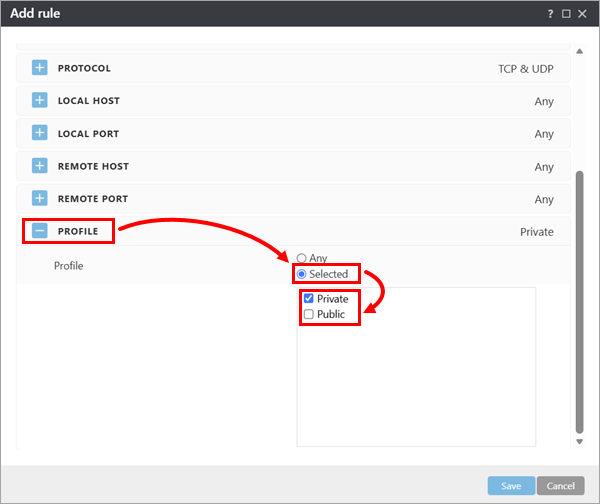
To link the network connection profile you created to a firewall rule, in the Add rule dialog box, expand Profile, select the Selected check box and select the network connection profile below the check box.
-
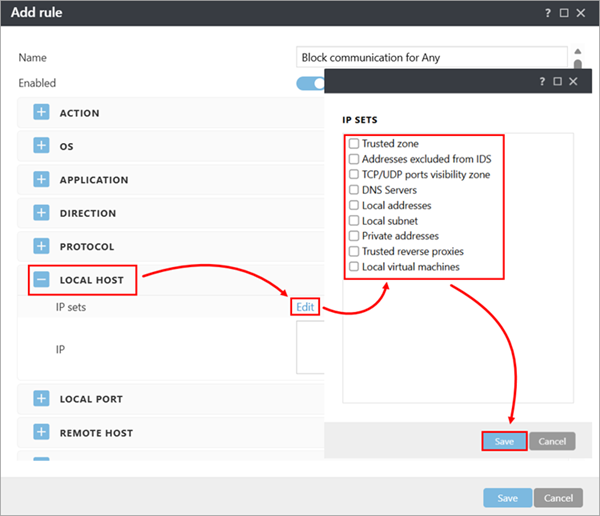
To link the IP sets you created to a firewall rule, in the Add rule dialog box, expand Local host or Remote host, click Edit next to IP sets, select the IP sets and click Save.
-
-
Click Finish.
ESET endpoint applications
-
Open the main program window of your Windows ESET Endpoint application.
-
Press F5 to open Advanced setup.
-
Create a network connection profile.
-
Click Protections → Network access protection. Next to Network connection profiles, click Edit.

-
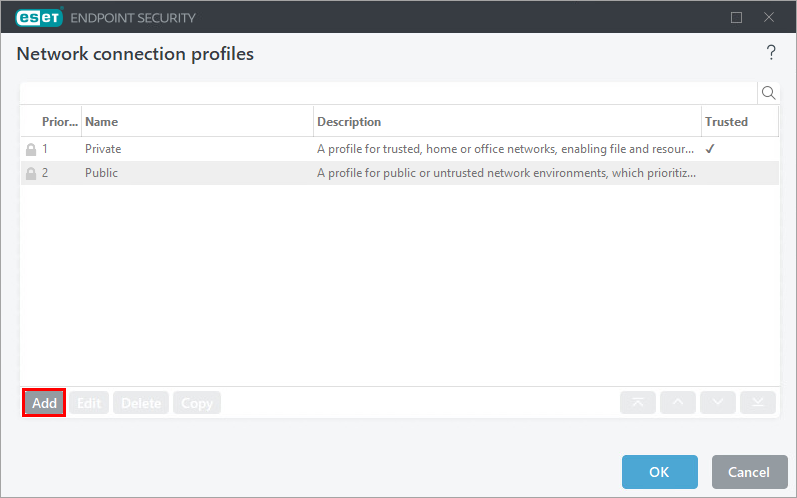
Click Add.
-
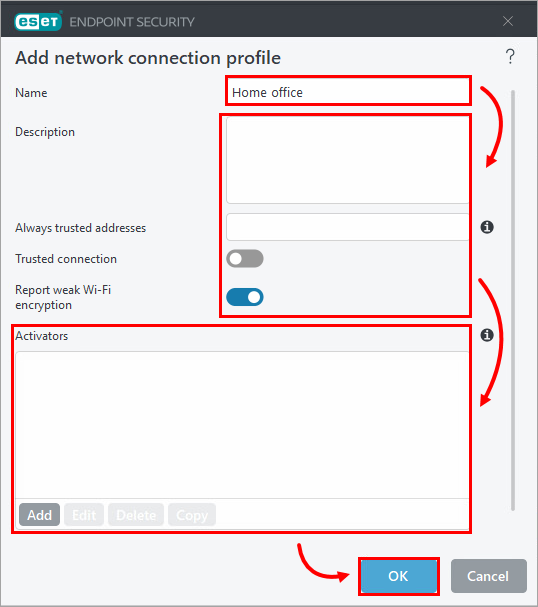
In the Name field, type a profile name. After profile settings are added, click OK → OK.
-
-
Create IP sets to use with the network connection profile.
-
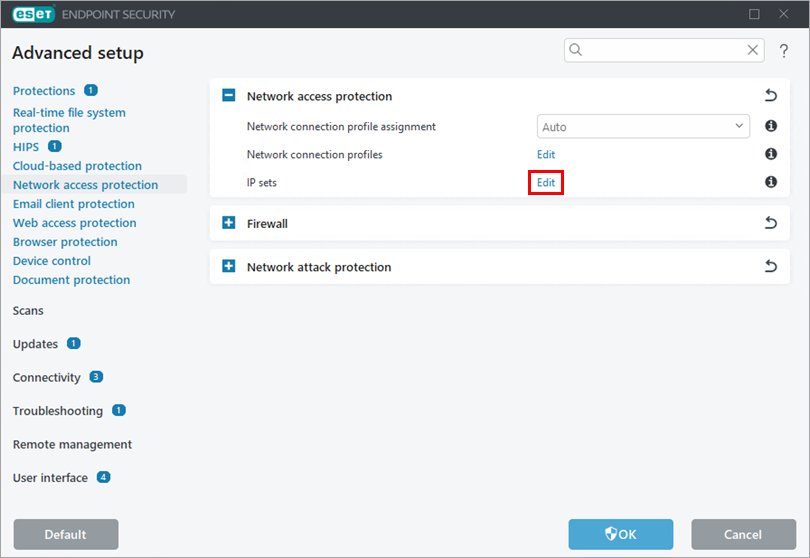
Next to IP sets, click Edit.
-
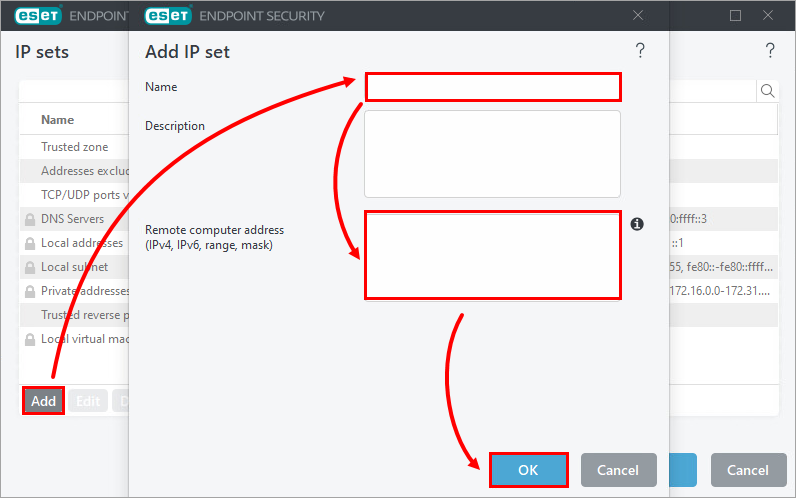
Click Add. In the Name field, type a name. In the Remote computer address field, type the IP address or subnet and click OK → OK.
-
-
Create firewall rules for the network connection profile.
-
To link the network connection profile you created to a firewall rule, in the Add rule dialog box, expand Profile, select the Selected check box and select the connection profile below the check box.
-
To link the IP sets you created to a firewall rule, in the Add rule dialog box, expand Local host or Remote host, click Edit next to IP sets, select the IP sets and click Save.
-


