Solution
-
Click Policies → New Policy.

Figure 1-1 -
Type a Name and click Continue.

Figure 1-2 -
In the Settings section, select Common Features from the drop-down menu. Click Network Access Protection. Next to Network connection profiles, click Edit.

Figure 1-3 -
Click Add.

Figure 1-4 -
Type a profile Name. Enable the Trusted connection toggle. Optionally, add addresses in the Always trusted addresses field. Multiple entries must be delimited by a comma. Next to Activators, click Add.
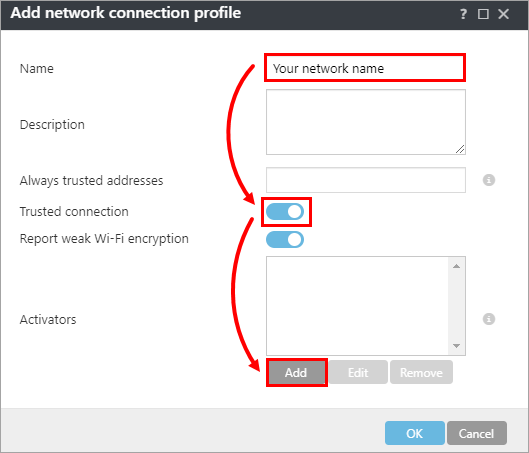
Figure 1-5 -
Expand the attribute required for the network profile and add the necessary information. Click OK.
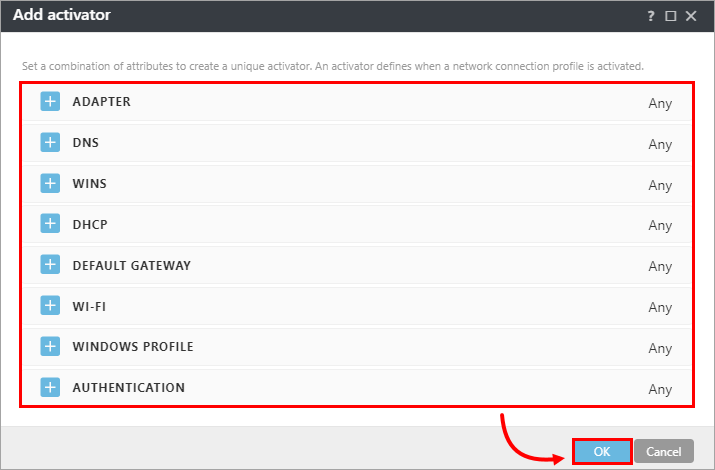
Figure 1-6 -
Click OK → Save.
-
Click Continue.
-
Click Assign → Assign and assign the policy to a test machine and test the policy settings.
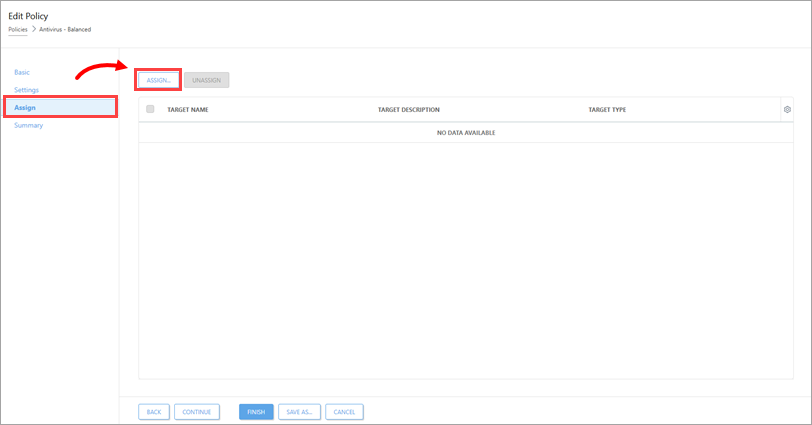
Figure 1-7
-
Confirm the policy settings work correctly and apply the policy to the All group or to Static groups as needed.
-
Click Finish.


