Issue
Details
Click to expand
The ESET PROTECT Web Console is the online interface enabling you to manage your network virtually anywhere.
For more information, see ESET PROTECT or ESET PROTECT On-Prem Online Help.
Solution
Open the Web Console (ESET PROTECT)
-
Open a compatible web browser.
-
Log in to ESET PROTECT Hub, ESET Business Account or ESET MSP Administrator.
-
Click ESET PROTECT.
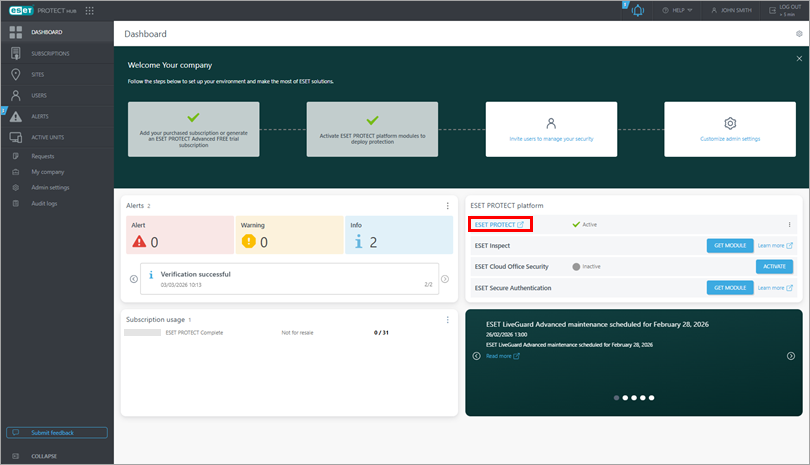
-
You are now logged in to ESET PROTECT.
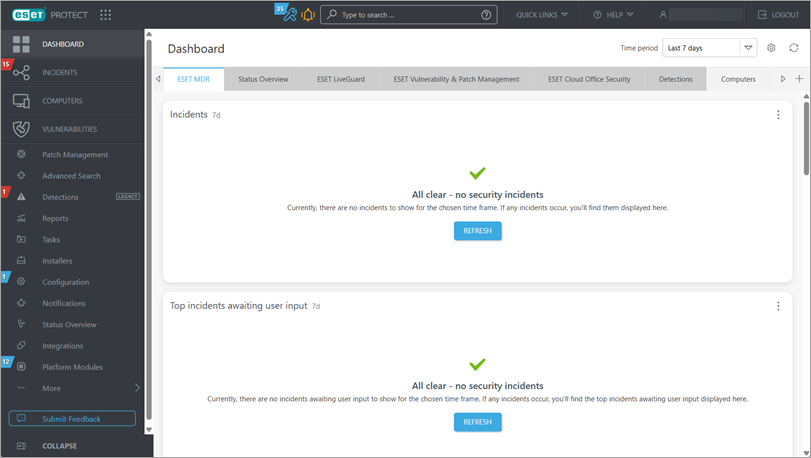
If you experience login issues or encounter error messages, see ESET PROTECT Web Console Troubleshooting.
For more information about managing client computers in the ESET PROTECT Web Console, see the ESET PROTECT User Guide.
Open the Web Console (ESET PROTECT On-Prem)
Open the ESET PROTECT Web Console on your local ESET PROTECT Server
-
Open a compatible web browser.
-
In the browser address bar, type in or copy/paste
https://localhost/era. -
Type your username and password and click Log in. For more information, see ESET PROTECT Web Console login screen.
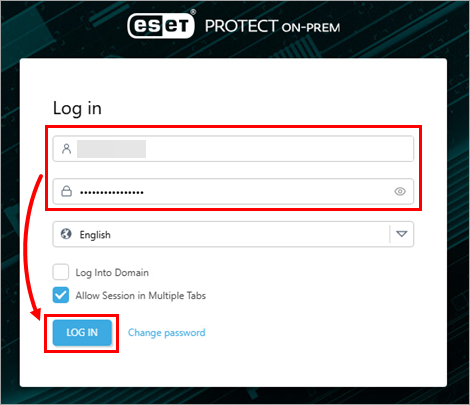
-
You are now logged in to ESET PROTECT On-Prem.
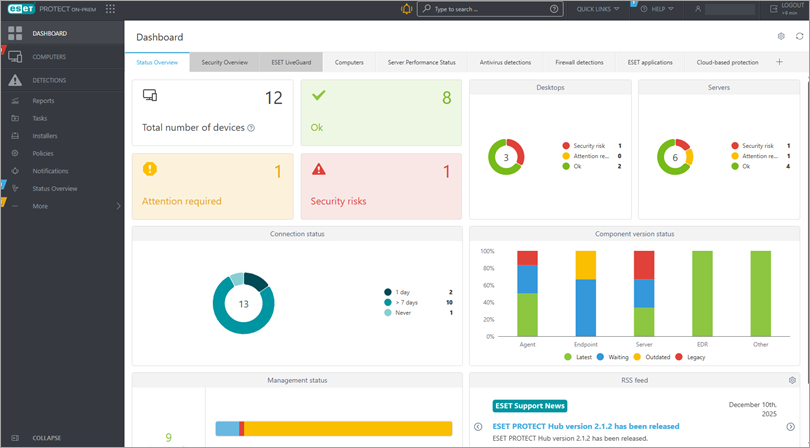
Open the ESET PROTECT Web Console from an external computer
If your ESET PROTECT Server is accessible to external connections, you can access the ESET PROTECT Web Console from any computer by following the steps below:
-
Open a compatible web browser.
-
In the browser address bar, type or copy/paste
https://{your_server_name}/era, replacing{your_server_name}with the IP address or hostname of the web server with ESET PROTECT On-Prem installed (for examplehttps://10.1.30.30/era). -
Type your username and password and click Log in. For more information, see ESET PROTECT Web Console login screen.
-
You are now logged in to ESET PROTECT On-Prem.
If you experience login issues or encounter error messages, see ESET PROTECT Web Console Troubleshooting.
For more information about managing client computers in the ESET PROTECT Web Console, see the ESET PROTECT On-Prem User Guide.


