Issue
- Change the port used by the ESET PROTECT On-Prem Web Console to allow a conflicting program to use port 443
- For more information on the ports used by ESET PROTECT On-Prem, see the ports used by ESET PROTECT On-Prem
Solution
-
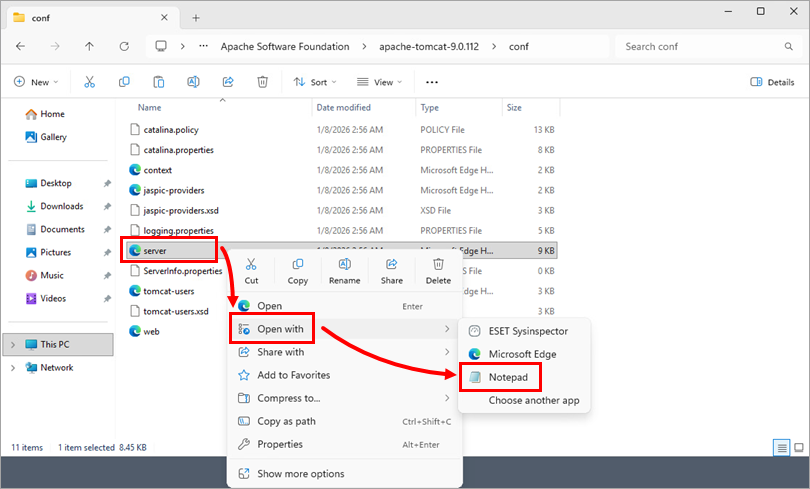
On the computer where the ESET PROTECT On-Prem Web Console is installed, navigate to:
C:\Program Files\Apache Software Foundation\apache-tomcat-9.0.112\conf\ -
Right-click server.xml and select Open with → Notepad.
-
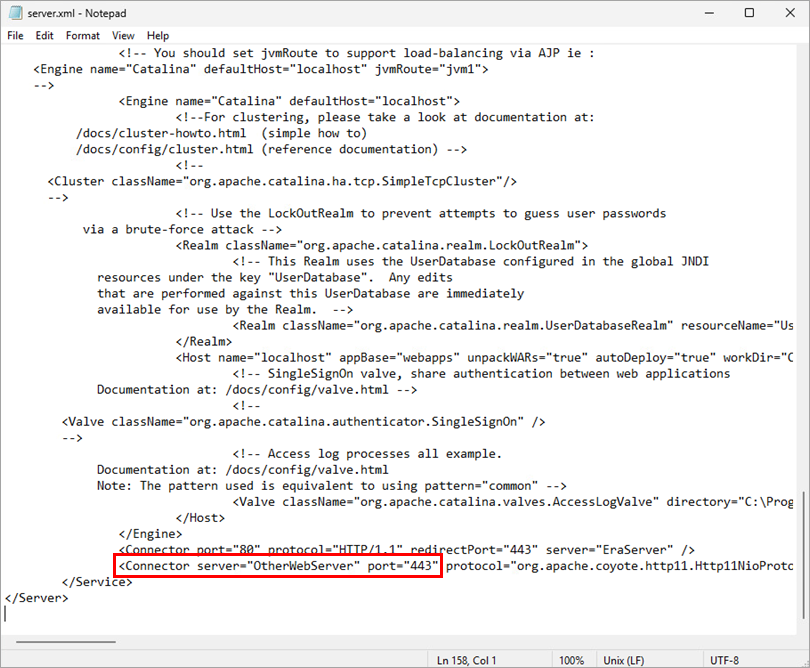
Locate the following entry:
Connector server="OtherWebServer" port="443"Change the port from 443 to your desired port, save the .xml file, and close Notepad.
-
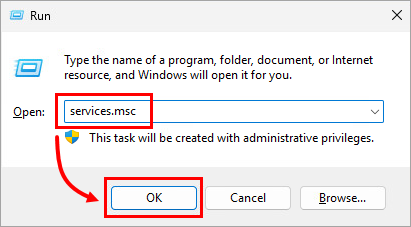
Press the Windows key + R, type services.msc, and click OK.
-
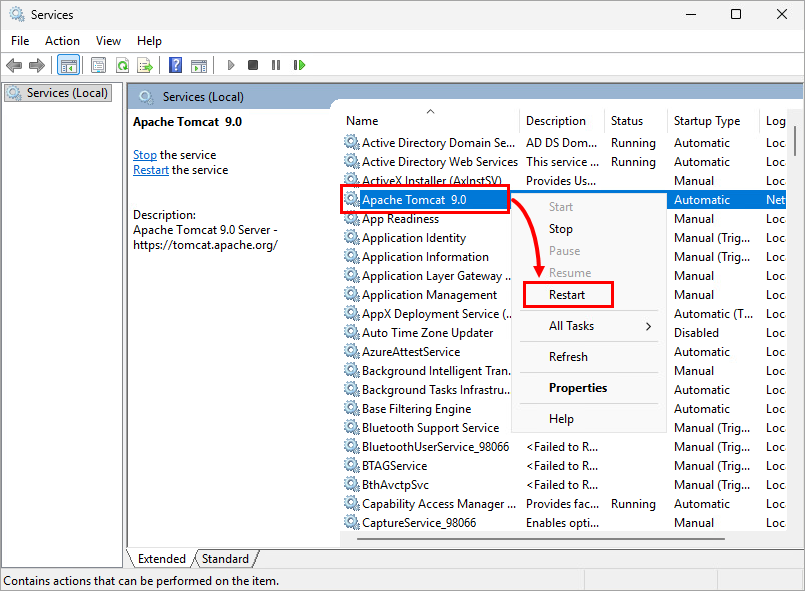
Right-click the Apache Tomcat 9.0 service and select Restart from the context menu.
-
After service restart, you can access the ESET PROTECT On-Prem Web Console using the port specified in step 3. To access the ESET PROTECT Web Console, the new port number must be included in the URL address (for example, https://localhost:8443/era).


