Issue
- Add password protection for ESET security product settings
- Remove password protection for ESET security product settings
- MacOS and Linux users—Lock individual ESET security product settings via policy
Solution
Related solutions: Non-managed users
Add password protection for ESET security product settings
-
Open policies:
- ESET PROTECT: In the main menu, click Configuration and click Advanced setup.
- ESET PROTECT On-Prem: In the main menu, click Policies.
-
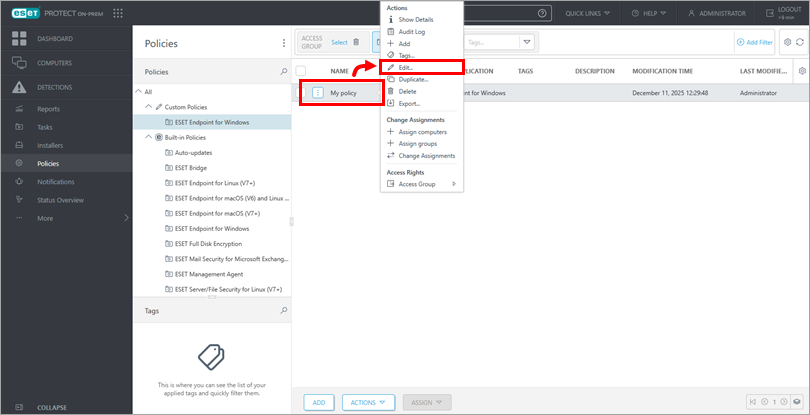
Click the policy you want to modify and click Edit.
-
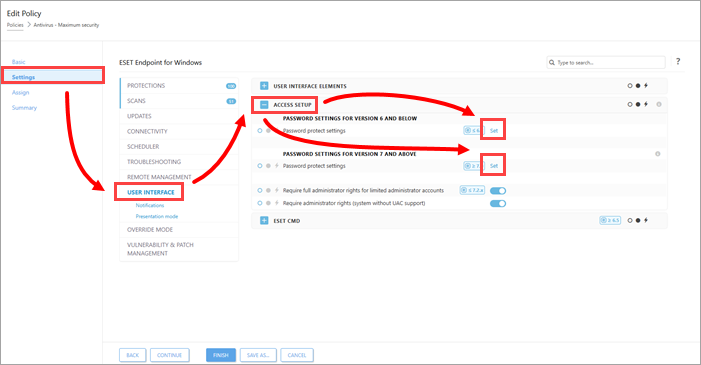
Click Settings → User Interface and expand Access Setup. Click Set next to Password protected settings (for the Endpoint version you have installed).
-
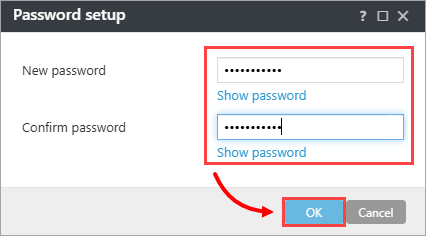
Type the password in the New password and Confirm password fields and click OK.
-
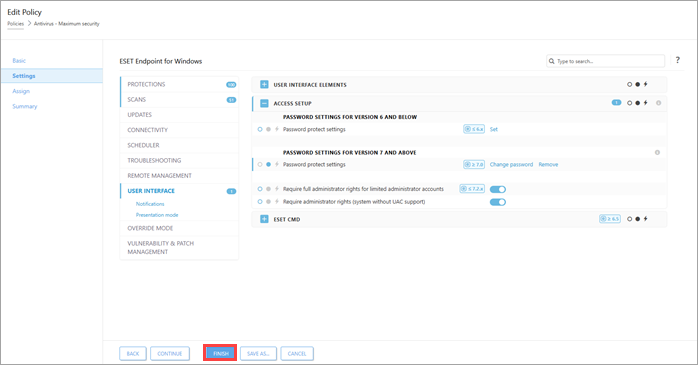
Click Finish to save your changes. Computers with this policy assigned will receive the changes the next time they connect to ESET PROTECT.
Remove password protection for ESET security product settings
-
Follow steps 1-3 from the previous section.
-
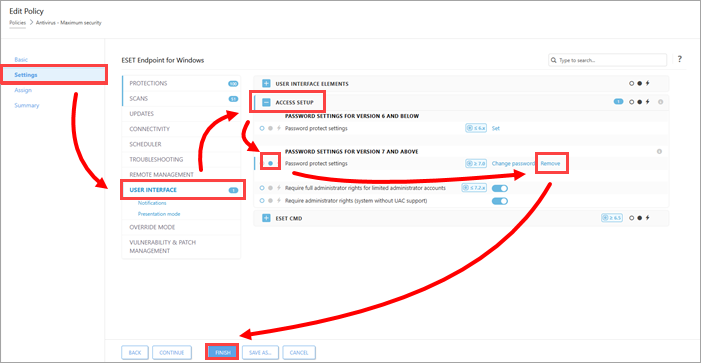
Click Settings → User Interface and expand Access Setup. Verify that the dot next to Password protected settings is blue and click Remove. Click Finish to save your changes. Computers with this policy assigned will receive the changes the next time they connect to ESET PROTECT.
MacOS and Linux users—Lock individual ESET security product settings via policy
Password protection for settings is not available in ESET security products for macOS and Linux. However, you can lock individual ESET security product settings via policy in ESET PROTECT. If a policy is correctly configured and applied on a client computer via ESET PROTECT, ESET security product settings cannot be changed on a client computer.
Verify that all settings set via policy in ESET PROTECT are locked. Click the full grey dot next to a setting in a policy to set and lock these settings (the full grey dot turns blue when enabled).



