Issue
Solution
Export your configuration settings as an .xml file
-
Open the main program window of your ESET Windows home or small office product.
-
Click Setup → Import/Export settings.
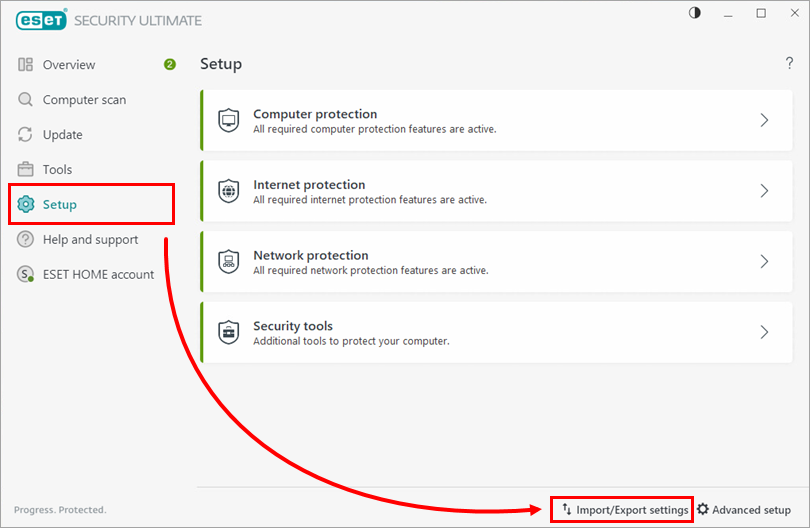
Figure 1-1 -
Select Export settings, click the browse icon (three dots) next to the input field, choose a location and name for the configuration settings file or type the file path manually into the input field. Ensure the file is saved as an
.xmlfile. Click Export.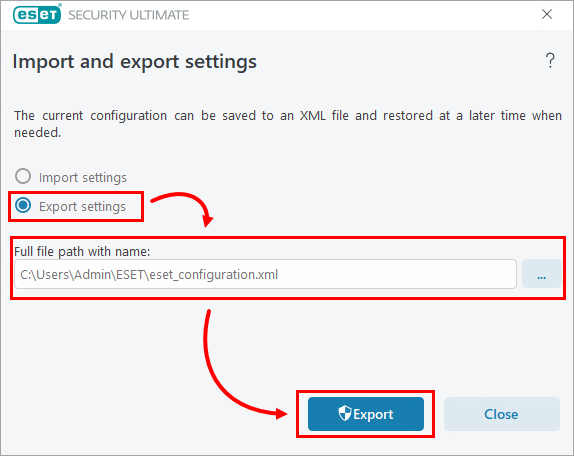
Figure 1-2 -
If you plan on importing the configuration settings to a different computer, save the exported configuration settings
.xmlfile to a shared or portable drive.
Import your configuration settings to a different computer
-
Open the main program window of your ESET Windows home or small office product on the computer where you want to import the configuration settings.
-
Click Setup → Import/Export settings.
Figure 2-1 -
Select Import settings, click the browse icon (three dots) next to the input field, navigate to the configuration settings
.xmlfile to be imported and select it or type the file path manually into the input field. Click Import. Your ESET Windows home or small office product on the current computer will be configured identically to the product on the computer where you exported the configuration settings.xmlfile.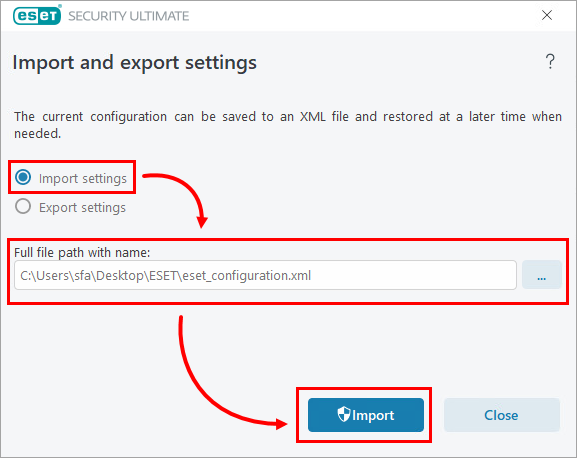
Figure 2-2
Submit a configuration settings .xml file to ESET Technical Support
ESET Technical Support may request an .xml file containing the configuration settings of your ESET Windows home or small office product to better assist you. Export the configuration settings of your ESET product and attach the exported.xml file to your request.


