Issue
- Enable or disable automatic application upgrades in your ESET Windows home or small office application
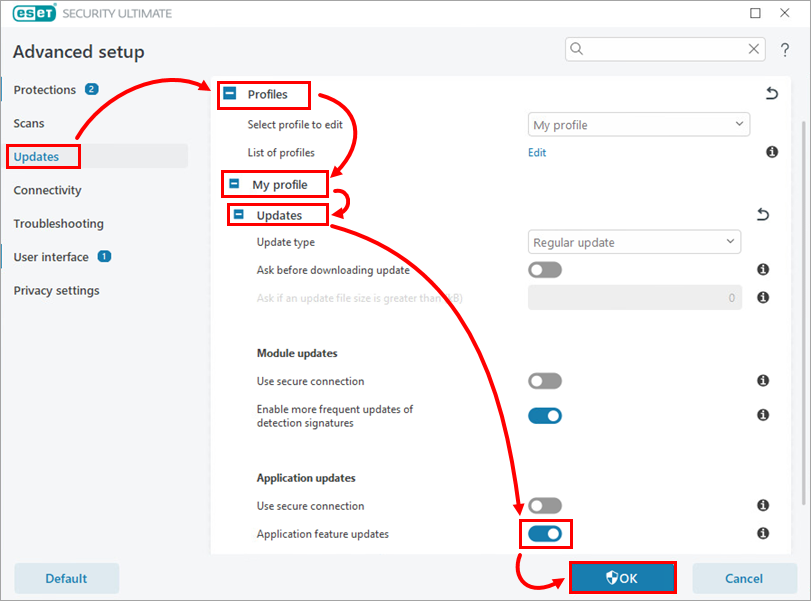
- Enable or disable the "Application feature updates" setting in your ESET Windows home or small office application
Details
Click to expand
ESET Windows home and small office applications upgrade automatically by default. This behavior is controlled by the Application feature updates setting, which installs the latest application version automatically when available. After an upgrade is completed, you are informed about the change and prompted to restart your device.
If you do not want your ESET application to upgrade automatically, you can disable the Application feature updates setting. You will still be notified when an upgrade is available, and can install it manually by clicking Update now in the Update available notification in the main program window of your ESET application.
Alternatively, you can manually check if an upgrade is available or download the latest version of your ESET Windows home or small office application and install it over the previous version.
Solution
Related solutions: macOS users | Business users
Enable or disable automatic application upgrades in your ESET Windows home or small office application
-
Open the main program window of your ESET Windows home or small office application.
-
Press F5 to open Advanced setup.
-
Click Updates. Expand Profiles → My profile → Updates. Below Application updates, click the Application feature updates toggle to enable or disable it. Click OK.