Issue
- You received an SMS with the link to download and install the ESET Secure Authentication mobile app
- You are logging in for the first time and need to set up ESET Secure Authentication on a mobile device
- Install the ESET Secure Authentication mobile app
- Use ESET Secure Authentication to log in to Outlook Web Access
- Remove an Account from your ESET Secure Authentication mobile app
Solution
Related solutions: iOS users
Install the ESET Secure Authentication mobile app
-
If you are prompted to enroll in the ESET Secure Authentication mobile app, scan the QR code or open the link on your mobile device to start the enrollment process.

-
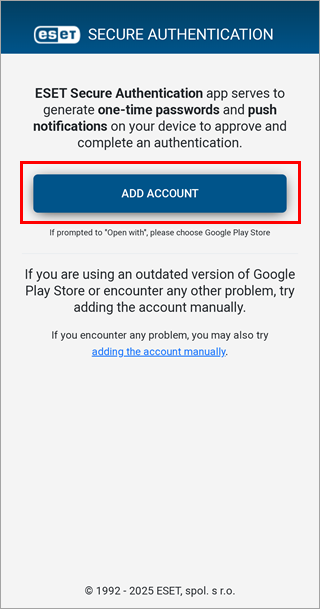
Tap Add Account.
-
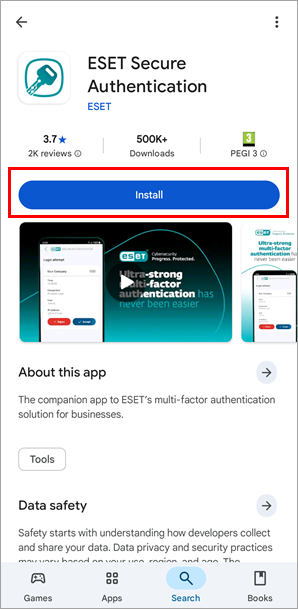
Tap Install. When the installation is complete, tap Open.
-
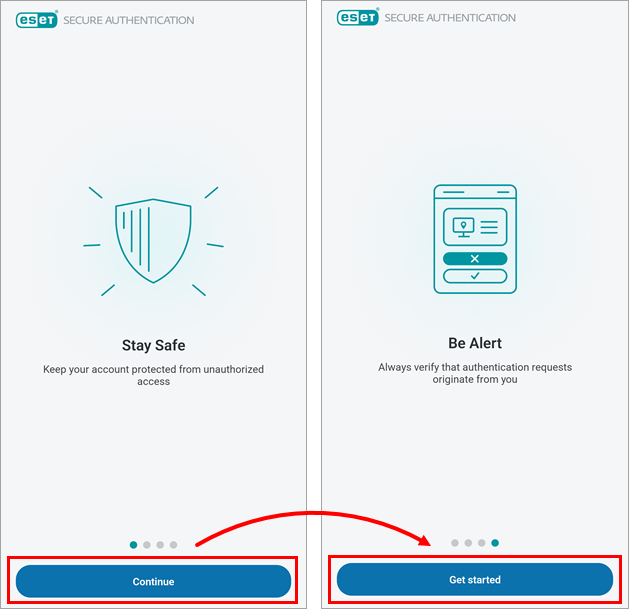
Finish onboarding by tapping Continue three times and then tap Get started.
-
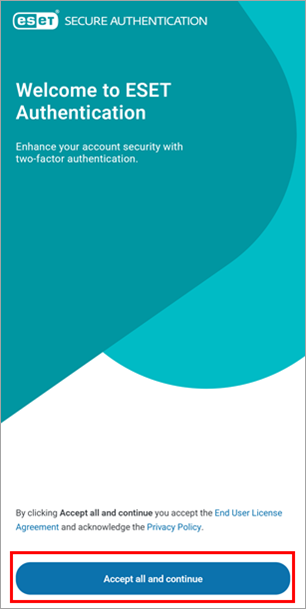
Review the End User License Agreement and Privacy Policy and tap Accept all and continue.
-
We recommend that you set a PIN to protect ESET Secure Authentication mobile app from unauthorized access. To set your PIN, in the Create PIN notification window, tap Yes.
-
Type your PIN into the New PIN and Confirm PIN fields and tap OK. When your PIN is configured, ESET Secure Authentication is ready to use.

Use ESET Secure Authentication to log in to Outlook Web Access
-
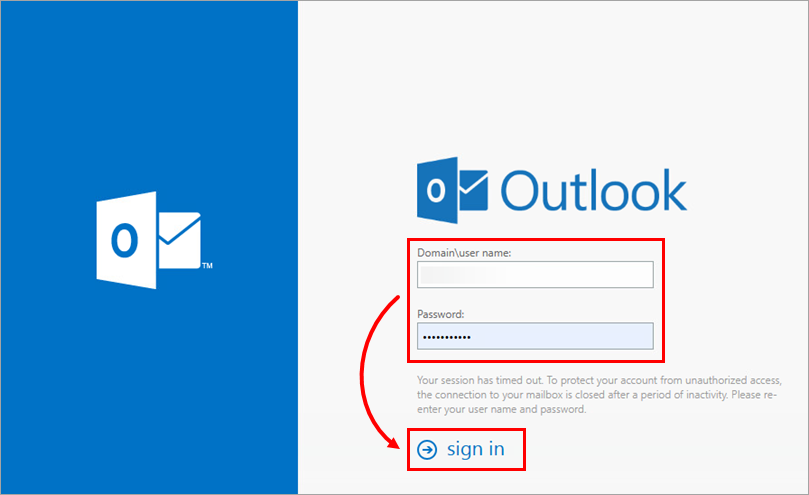
On your computer, access Outlook Web Access (OWA) as directed by your administrator. Type your Microsoft Exchange username and password into the Outlook login screen and click sign in.
-
When you are prompted to type a one-time password (OTP) or approve a push authentication using the ESET Secure Authentication mobile app on your mobile device, open the ESET Authentication app on your device.
-
Depending on your administrative settings:
-
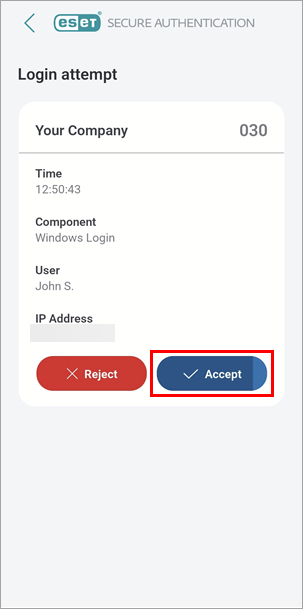
Push authentication users: Tap Accept. You are now logged into your Outlook account.
-
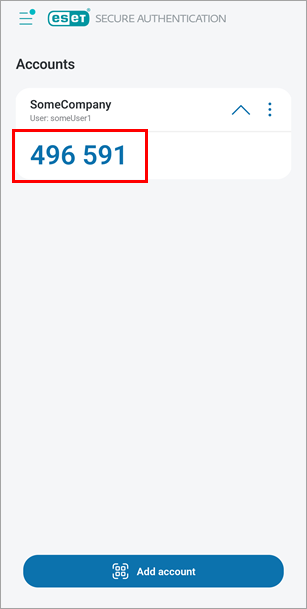
OTP users: Tap the name of your company to generate an OTP, and on your computer, type the 6-digit OTP generated by the ESET Secure Authentication mobile app into the One-Time-Password field and continue. You are now logged into your Outlook account.
-
Remove an Account from your ESET Secure Authentication mobile app
-
Open the ESET Authentication app on your device.
-
Tap the menu icon (three dots) next to the account you want to remove and tap Delete.
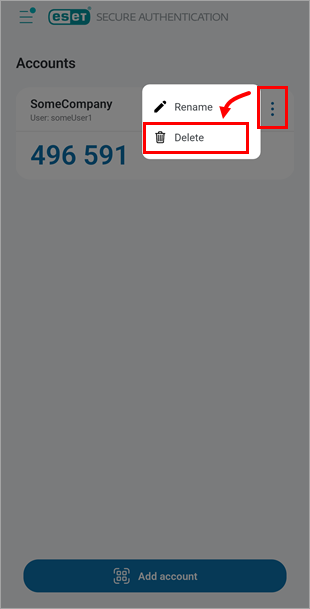
-
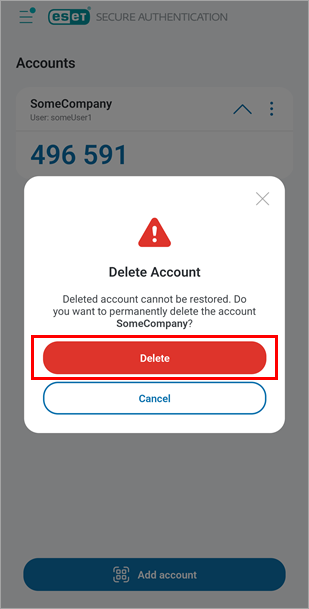
Tap Delete to confirm removal of the account.