Issue
- Automatically remove Potentially Unwanted Applications with your ESET Windows home or small office application
Details
Click to expand
Potentially Unwanted Applications are a broad category of software whose intent is not as clearly malicious as that of other types of malware, such as viruses or trojans. However, they may install additional unwanted software, change the behavior of a device, or perform activities not approved or expected by the user.
Solution
Related solutions: Business users | macOS users
-
Open the main program window of your ESET Windows application.
-
Ensure that your ESET application is configured to detect unwanted, unsafe and suspicious applications. You will not be able to remove applications that do not have detection enabled.
-
Press the F5 key to open Advanced setup.
-
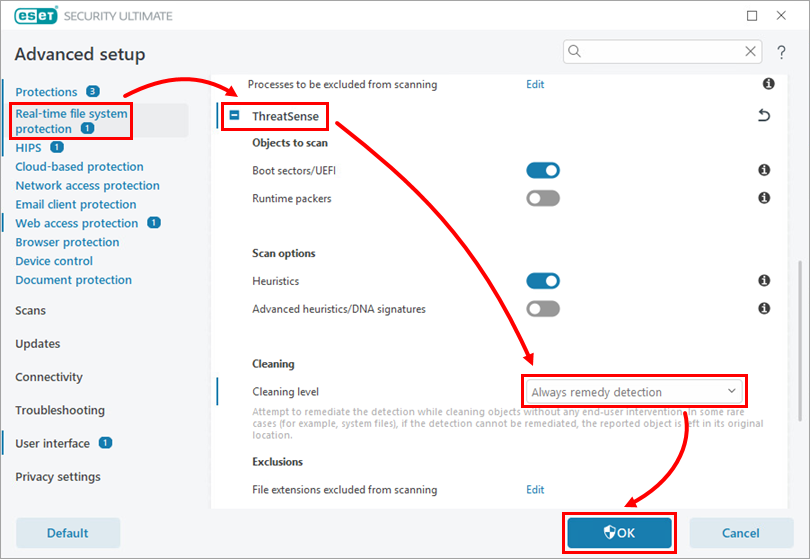
Click Real-time file system protection, scroll down and expand ThreatSense. In the drop-down menu next to Cleaning Level, select Always remedy detection. Click OK to save the changes and exit Advanced setup.
Read more about Advanced scanning options.
-
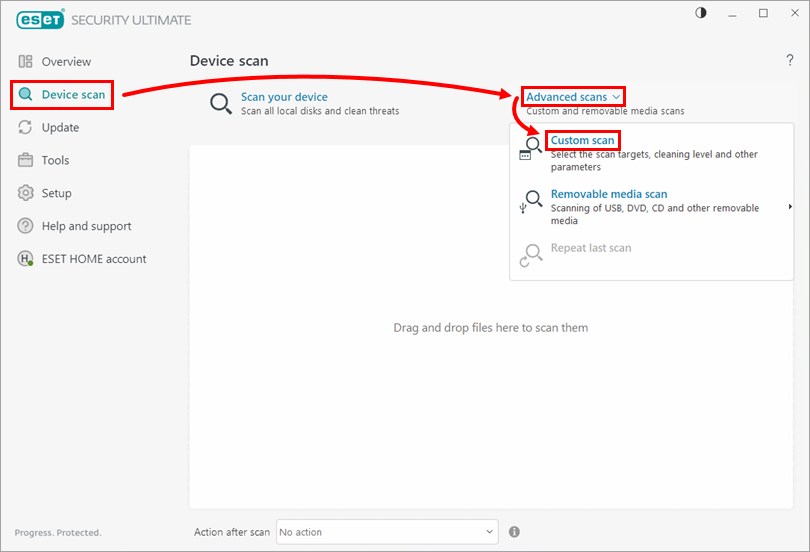
Click Device scan → Advanced scans → Custom scan.
-
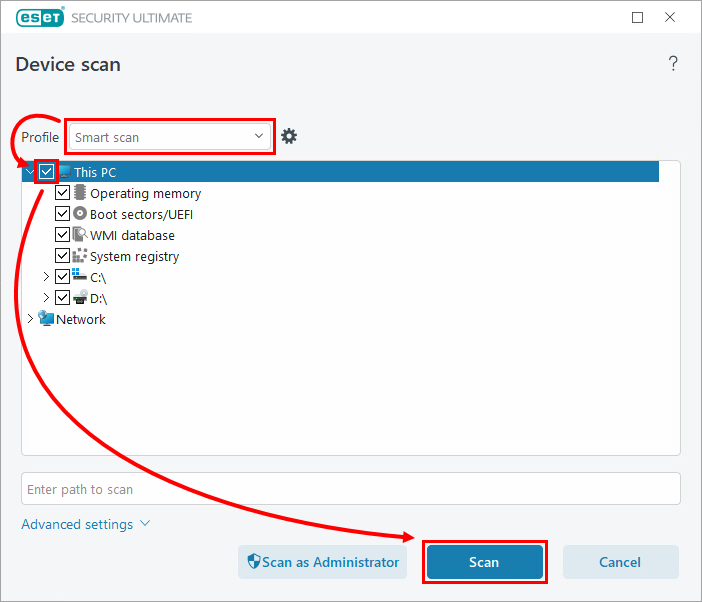
Ensure that Smart scan is selected in the drop-down menu next to Profile. Select the check box next to This PC and click Scan. Your ESET application will clean or delete all known threats found during the scan.