Issue
- You want to remove Potentially Unwanted Applications using ESET Cyber Security
- How to run a scan with Strict cleaning in ESET Cyber Security
Solution
Potentially Unwanted Applications are removed when you run a scan with Strict cleaning.
To run a scan with strict cleaning in ESET Cyber Security, follow the steps below:
-
Click Scan, click the expander icon under Scan Your Computer, and click Scan.
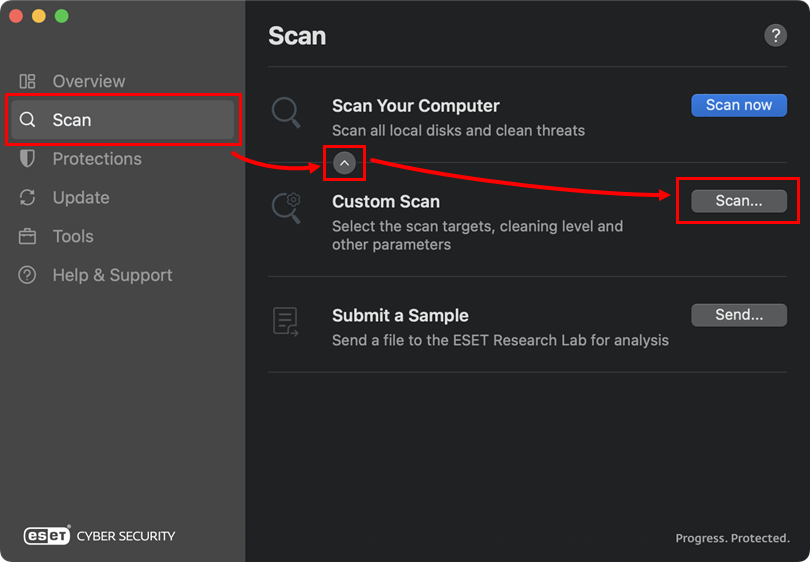
Figure 1-1 -
Click the menu icon (three dots) and click Select Scan Profile.
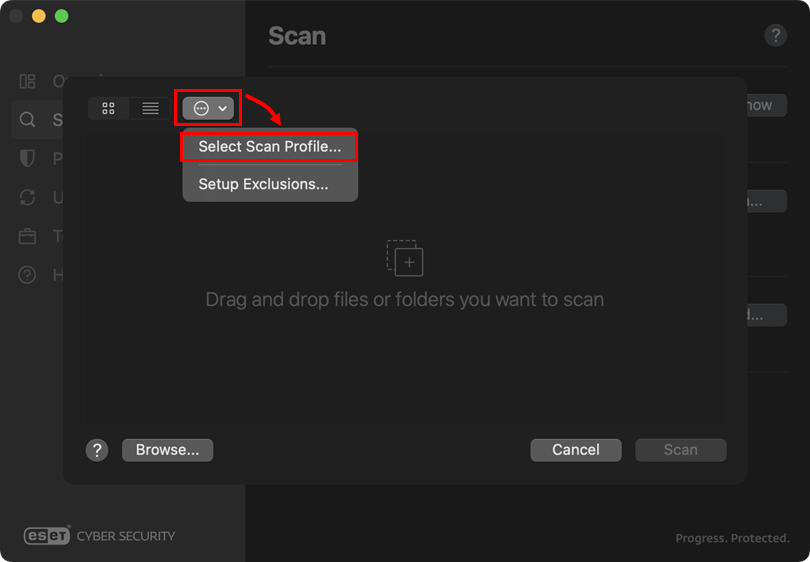
Figure 1-2 -
From the Cleaning Level drop-down menu, select Strict cleaning (this option might be selected by default) and click OK.
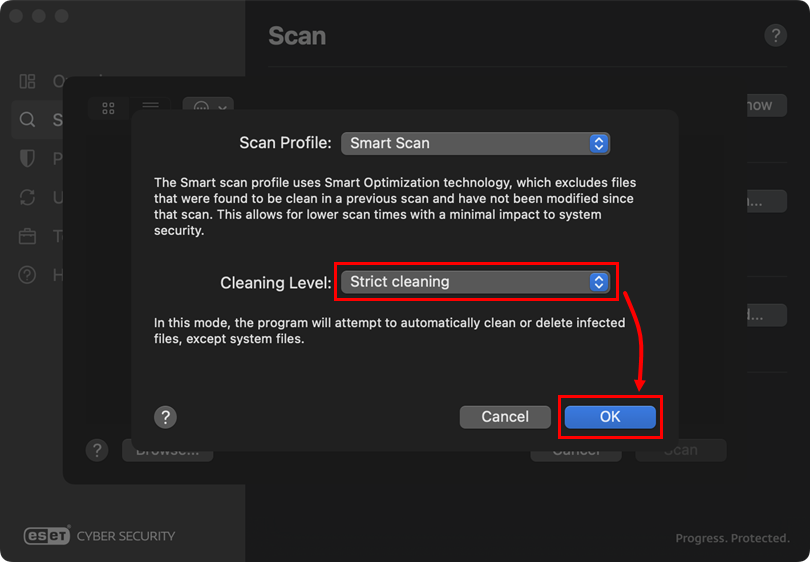
Figure 1-3 -
Click Browse and select disk, files, or folders you want to scan (in this example, Macintosh HD has been selected), review your selection and click Scan.
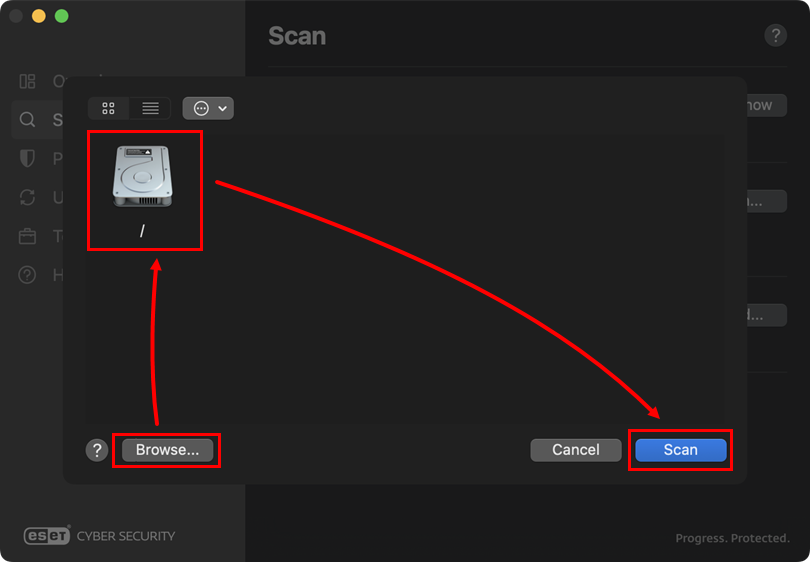
Figure 1-4 -
Your ESET Cyber Security will attempt to automatically clean or delete any detections found by the scan.


