Issue
- Install ESET Online Scanner
- Run ESET Online Scanner
- Change the Customer Experience Improvement Program settings
Solution
Install ESET Online Scanner
-
Double-click the
.exefile you downloaded to run the installer. -
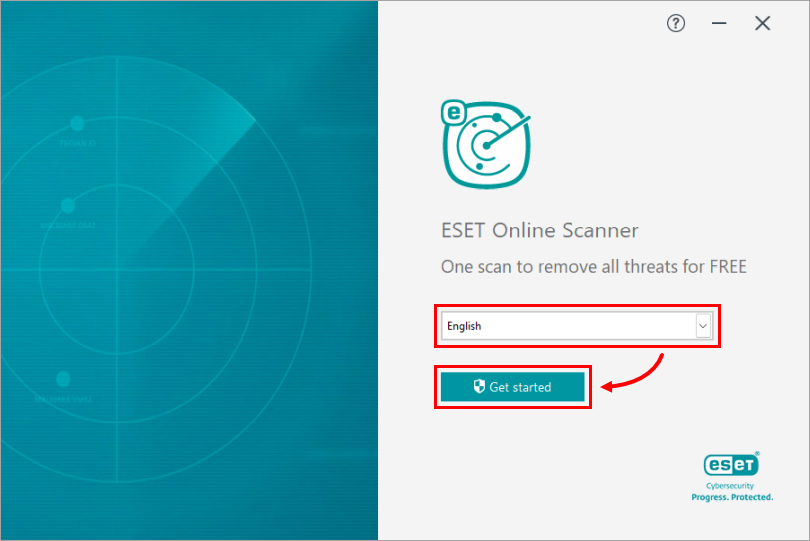
Select your desired language from the drop-down menu and click Get started.
-
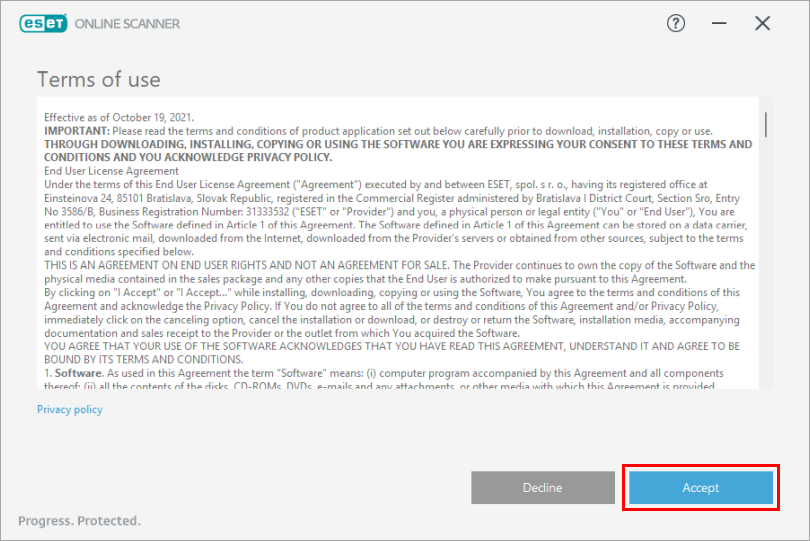
Read the Terms of use and click Accept.
-
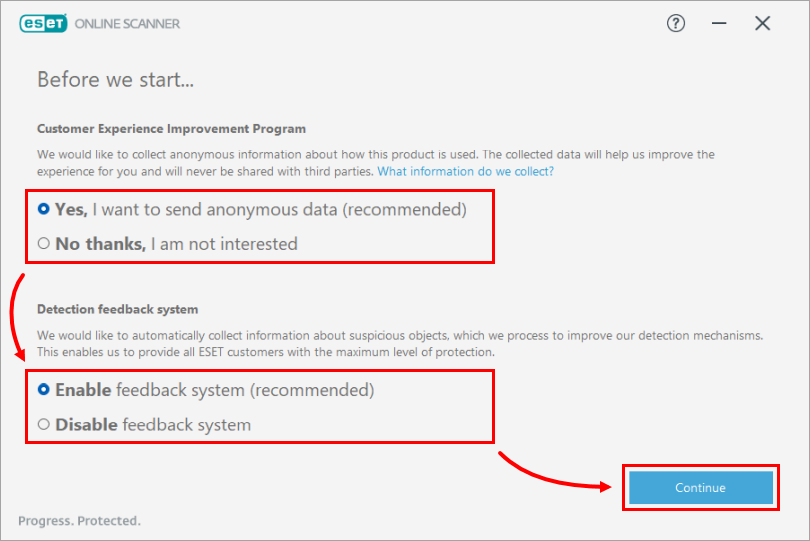
Select your preference for the Customer Experience Improvement Program and the Detection feedback system and click Continue. You can now run ESET Online Scanner.
Run ESET Online Scanner
-
If you have previously launched ESET Online Scanner, double-click the original
.exefile that you downloaded. If you are continuing from the Install wizard, skip to step 3. -
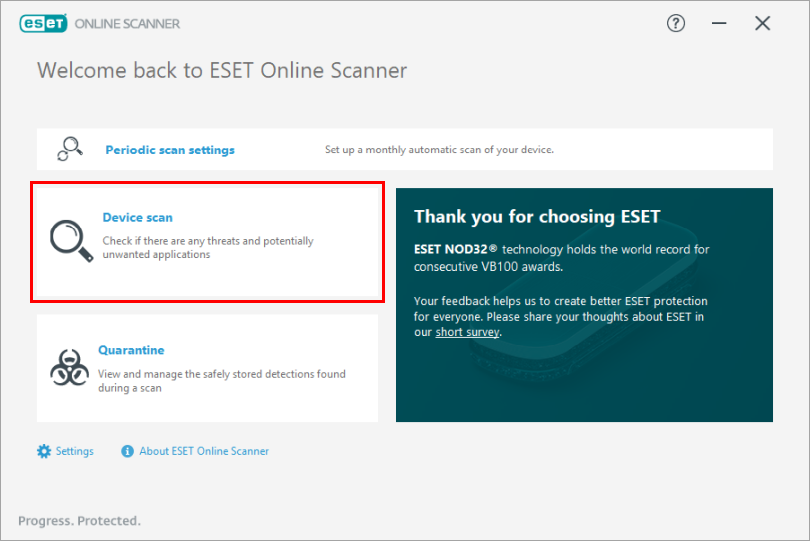
Click Device scan.
-
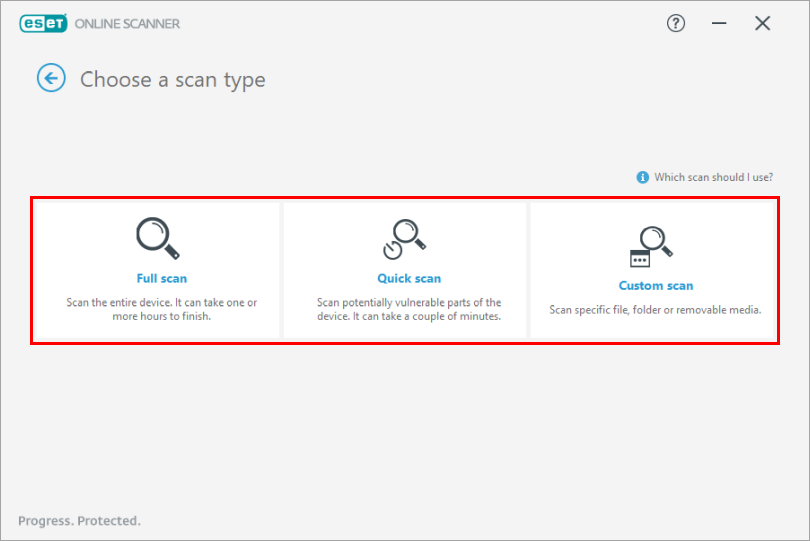
Select a scan type.
-
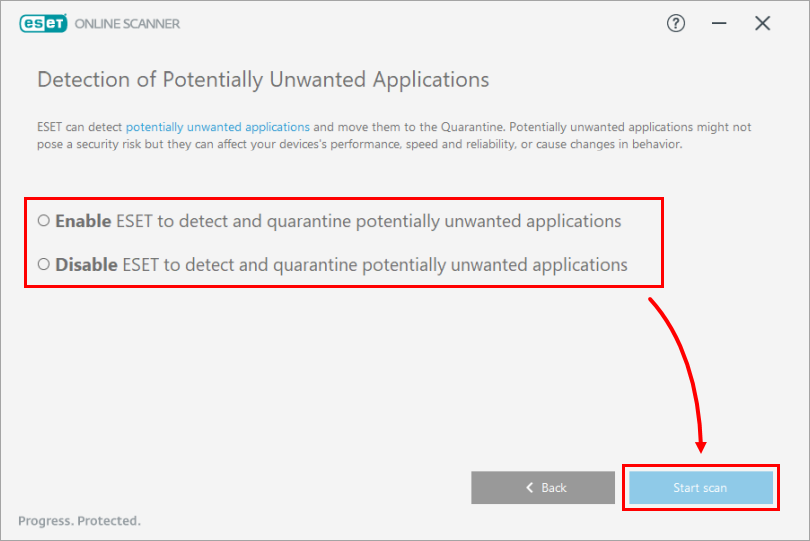
Select your preferences for Detection of Potentially Unwanted Applications. Click Start scan. If you selected Custom Scan, you would select your scan targets first.
-
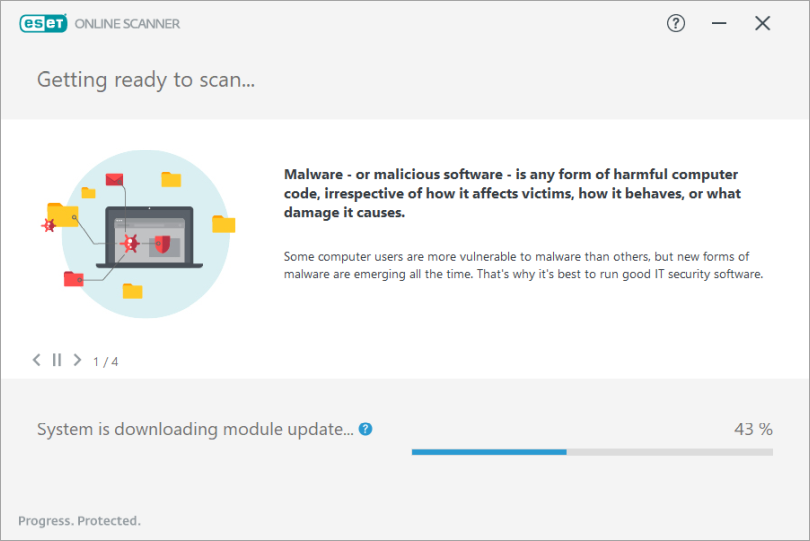
Any module updates since the last time you ran the Online Scanner will download before the scan starts.
-
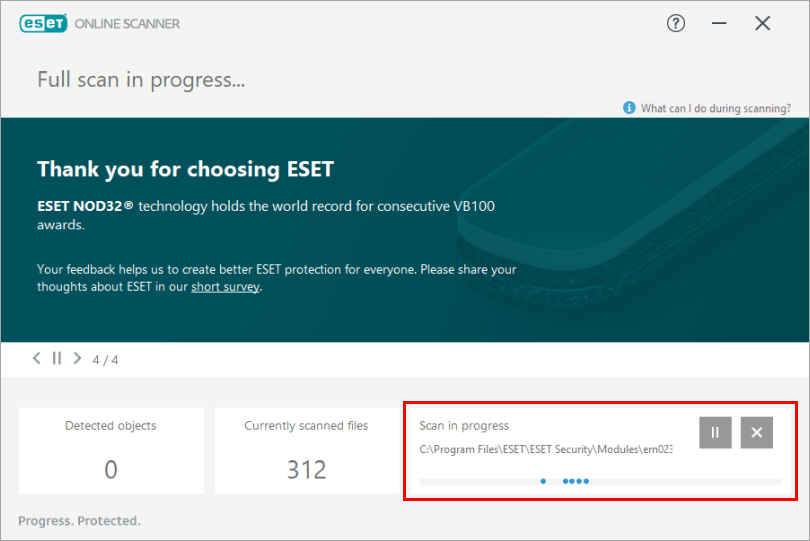
The scan progress is displayed in the progress bar, along with the path and title of the file being scanned. The number of threats found is shown immediately. You can click the X icon to stop scanning at any time.
-
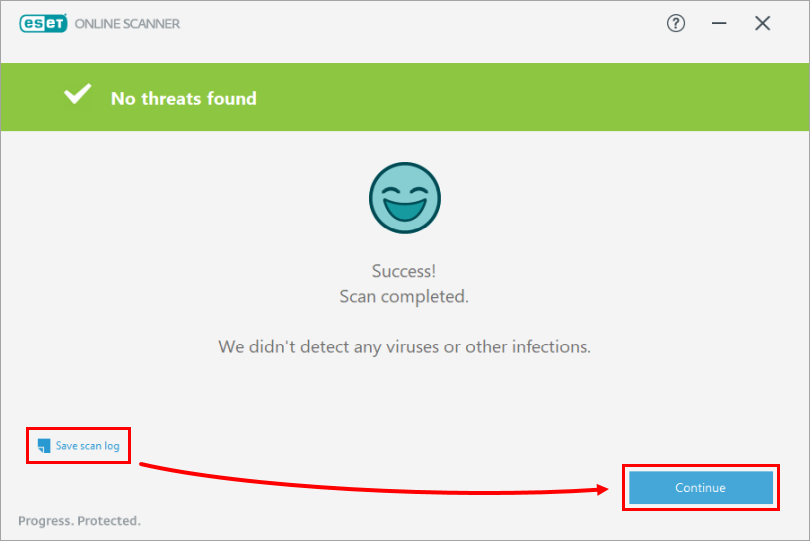
To save the results, click Save scan log after the scan finishes. Click Continue.
-
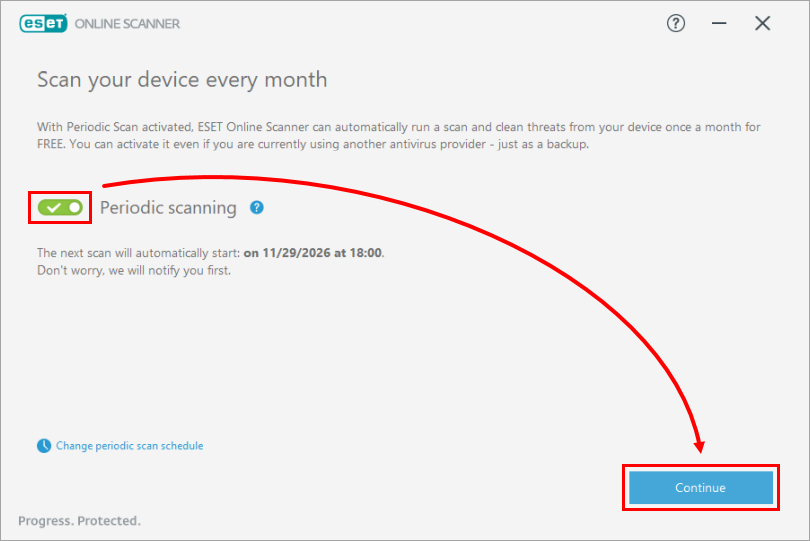
To enable regular monthly scanning on your computer, click the toggle next to Periodic scanning, then click Continue.
-
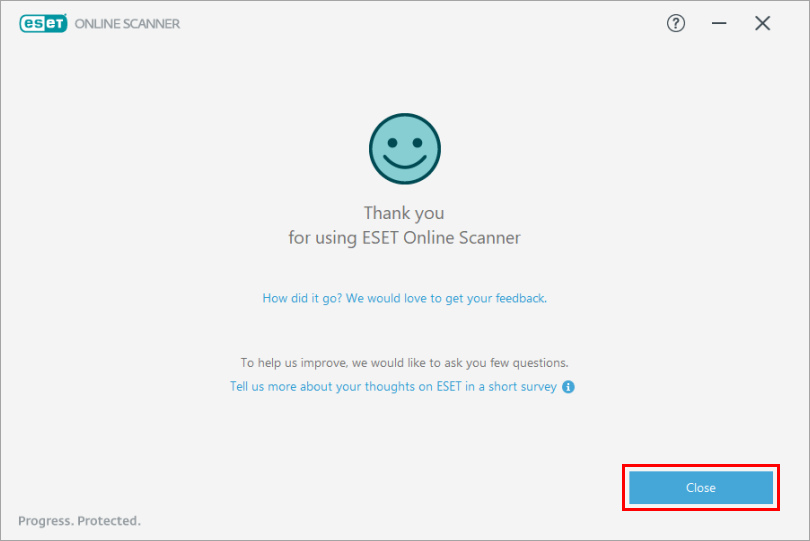
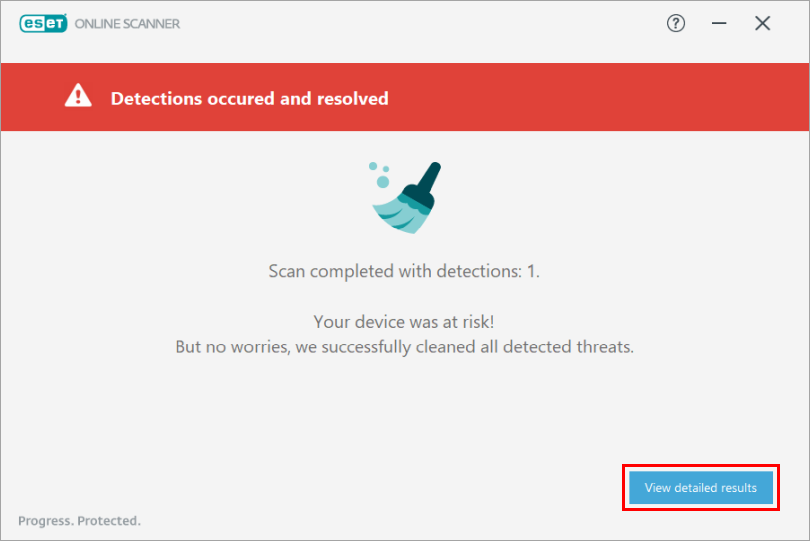
Click Close.
-
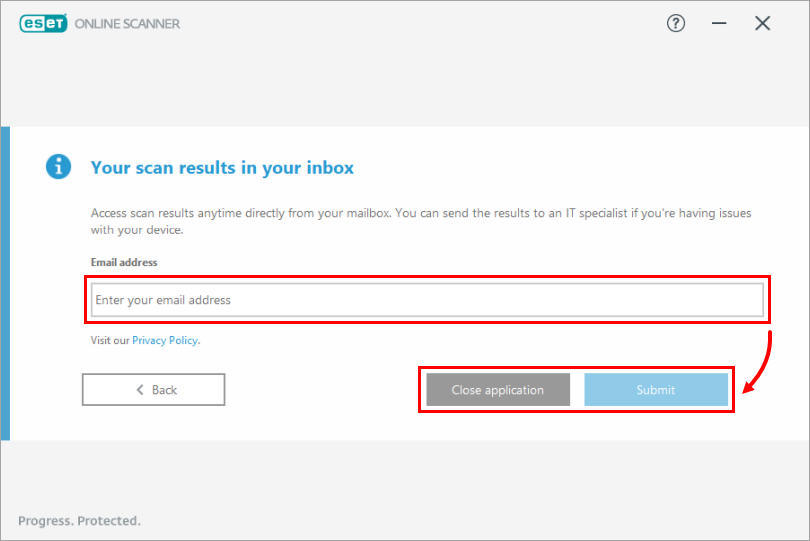
To receive the scan results in email, type your email address and click Submit. Click Close application when done.
Change Customer Experience Improvement Program settings
-
Double-click the
.exefile you downloaded previously to launch ESET Online Scanner. -
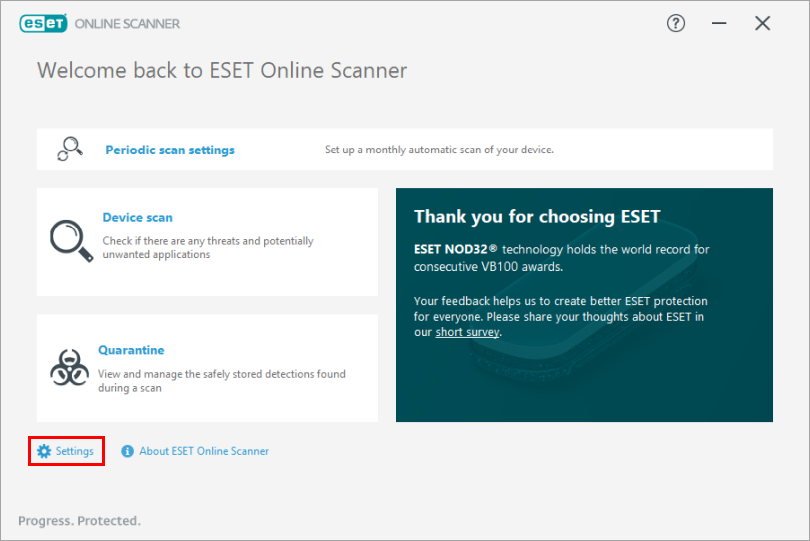
Click Settings.
-
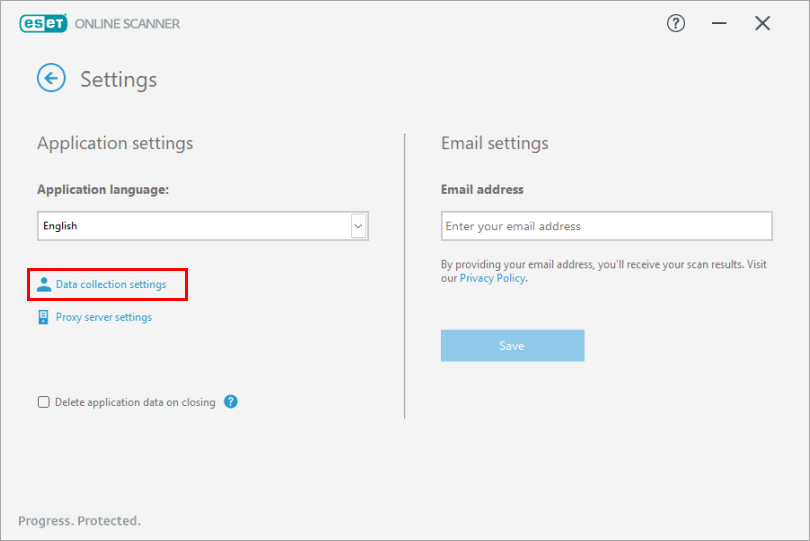
Click Data collection settings.
-
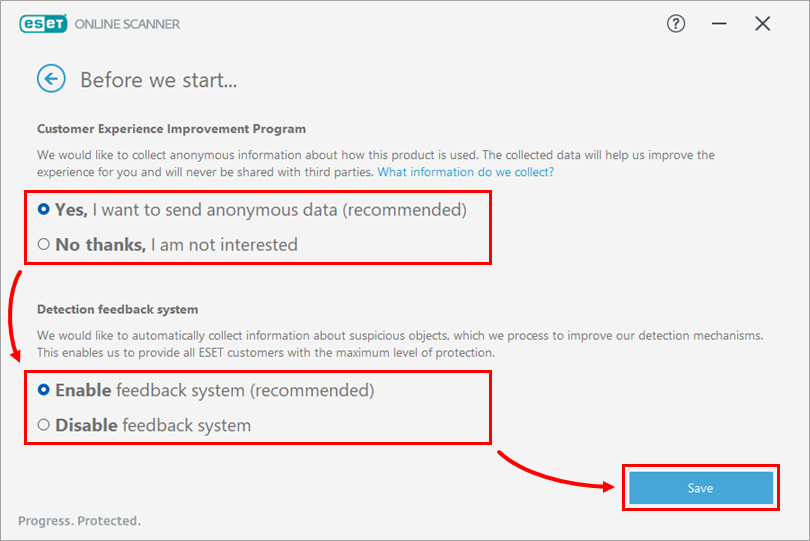
Select your preference for the Customer Experience Improvement Program and the Detection feedback system and click Save.