Issue
- Create and download the ESET Management Agent installer and configuration file for deployment via Group Policy Object (GPO) or System Center Configuration Manager (SCCM)
- Deploy ESET Management Agent via Group Policy Object (GPO) or System Center Configuration Manager (SCCM)
Solution
Click the appropriate expander below.
ESET PROTECT
-
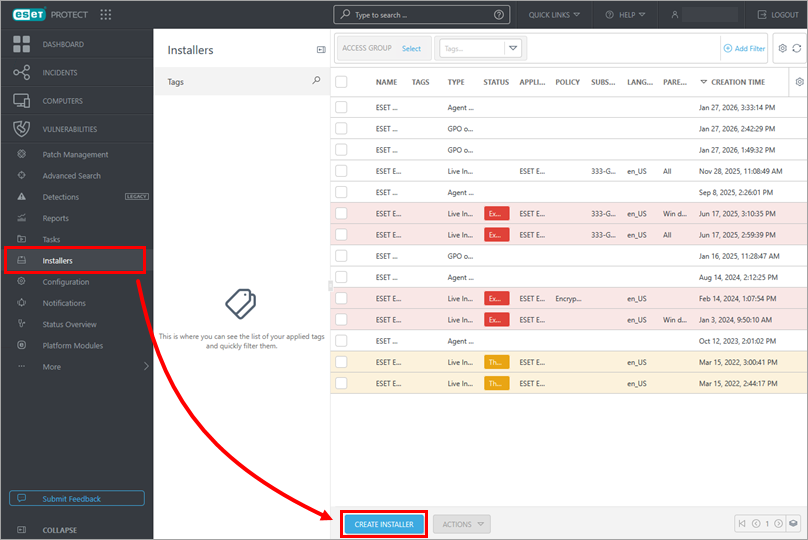
Click Installers → Create Installer.
-
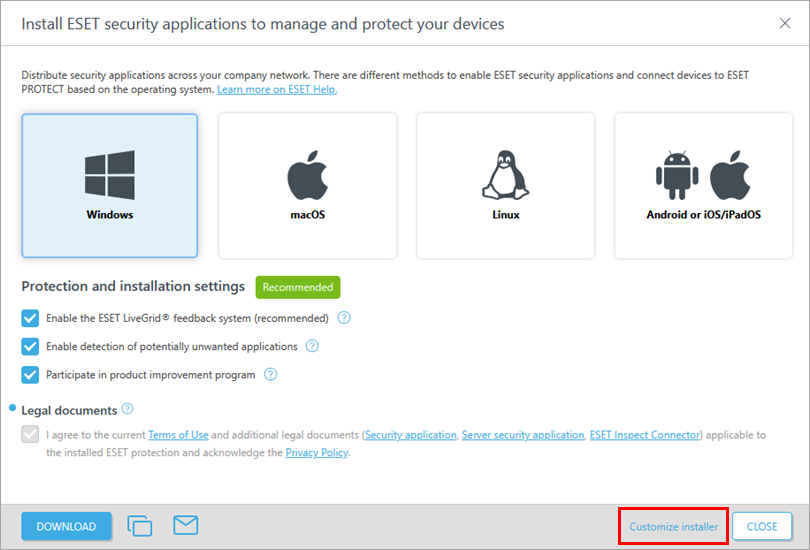
Click Customize installer.
-
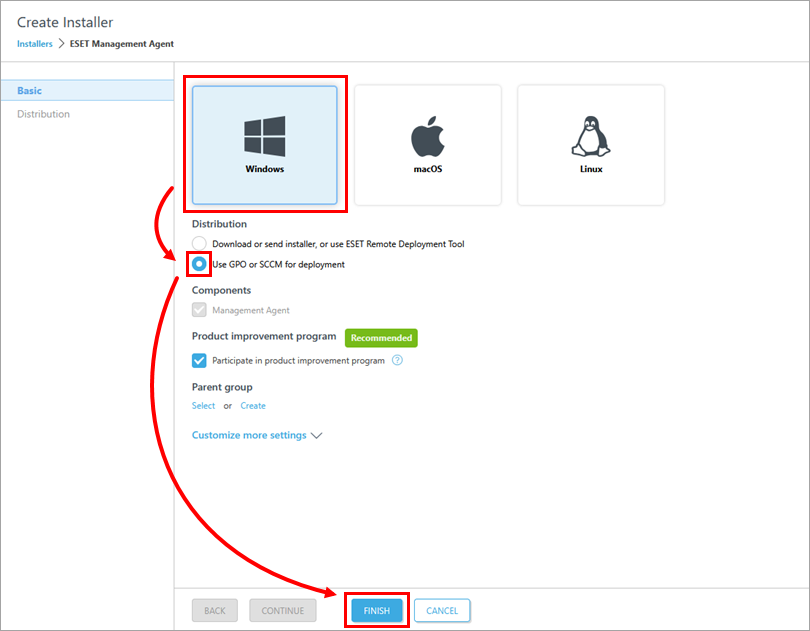
Click Windows and in the Distribution list, select Use GPO or SCCM for deployment and click Finish.
-
Click the GPO/SCCM configuration script icon to download the
install_config.iniand click your preferred ESET Management Agent version to download the correct installer file. When the downloads are complete, click Finish. Alternatively, you can download the ESET Management Agent installer .msi file from the ESET download page.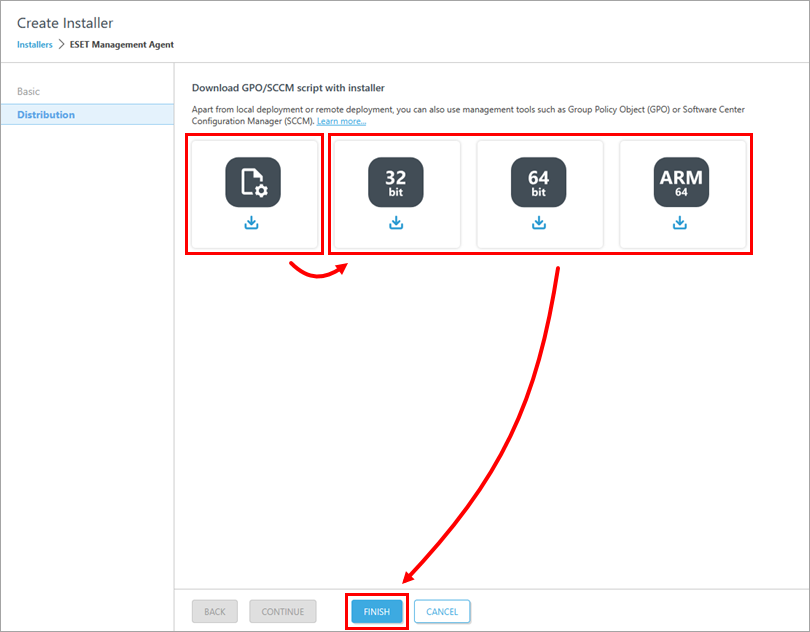
-
Save the Agent installer file and the
install_config.inifile to a shared folder on the domain controller so all your client computers can access it with read and execute permissions. -
Click the appropriate link below to deploy ESET Management Agent via Group Policy Object (GPO) or System Center Configuration Manager (SCCM):
ESET PROTECT On-Prem
-
Click Installers → Add.
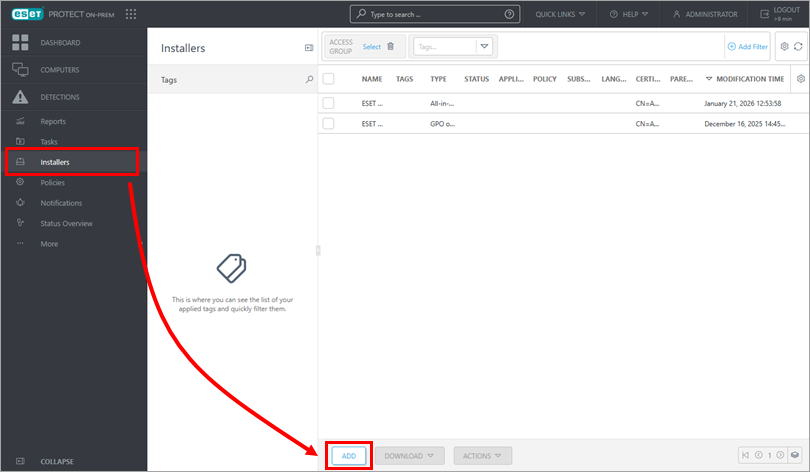
-
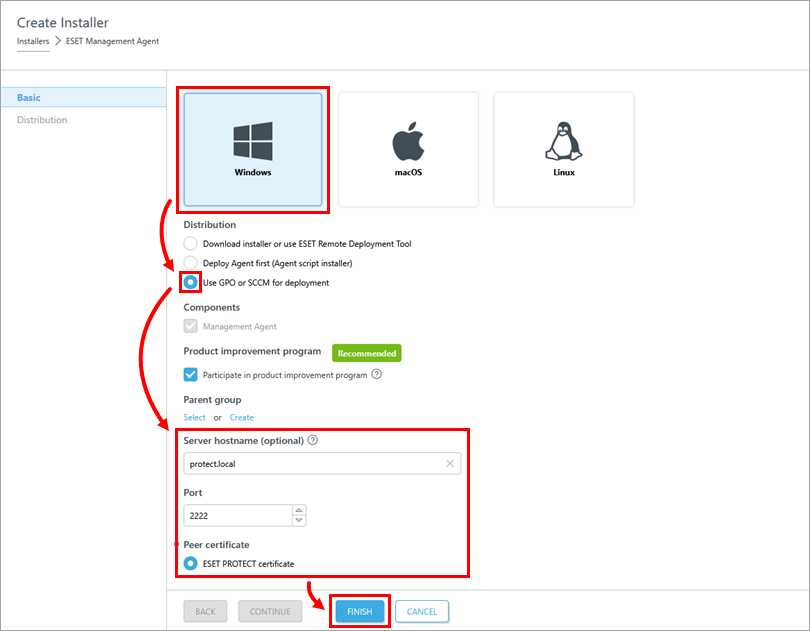
Click Windows and in the Distribution list, select Use GPO or SCCM for deployment. Edit Server hostname, Port and certificates if you need to change the automatically pre-filled values based on your ESET PROTECT Server configuration. Click Finish.
-
Click the GPO/SCCM configuration script icon to download the
install_config.iniand click your preferred ESET Management Agent version to download the correct installer file. When the downloads are complete, click Finish. Alternatively, you can download the ESET Management Agent installer .msi file from the ESET download page.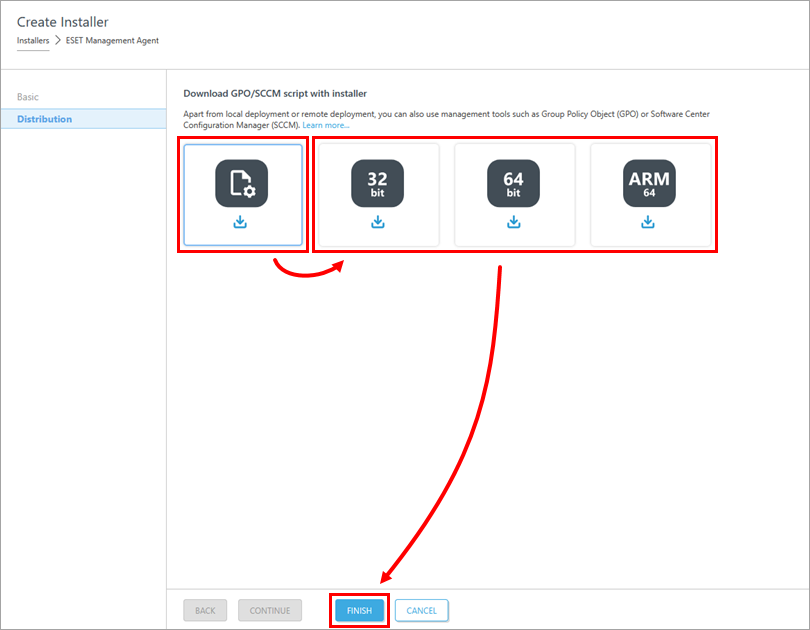
-
Save the Agent installer file and the
install_config.inifile to a shared folder on the domain controller so all your client computers can access it with read and execute permissions. -
Click the appropriate link below to deploy ESET Management Agent via Group Policy Object (GPO) or System Center Configuration Manager (SCCM):


