Issue
- Add your Android device to the Anti-Theft protected devices in ESET HOME
Solution
Related article: Windows users
-
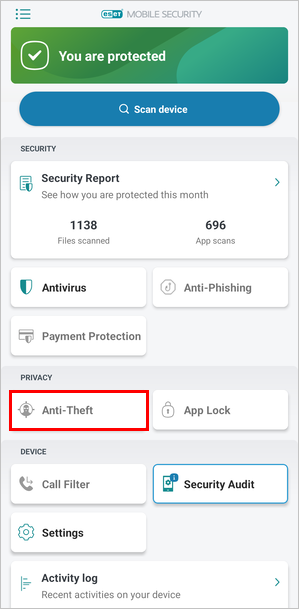
-
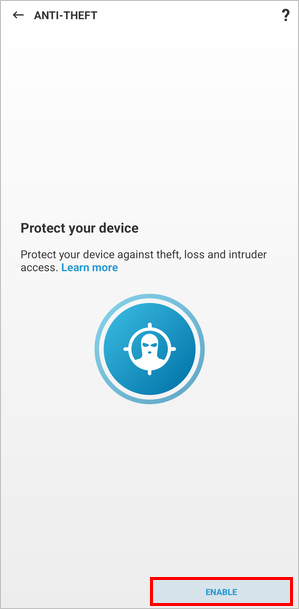
Tap Enable.
-
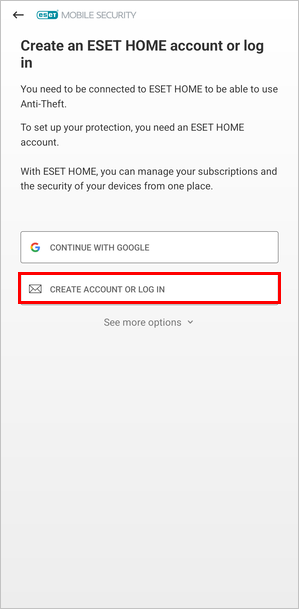
Tap Create account or log in to log in into your ESET HOME account. If you do not have an existing ESET HOME account, register a new ESET HOME account.
-
In the Allow access: Access camera, Read phone information, Find device location screen, tap Continue.
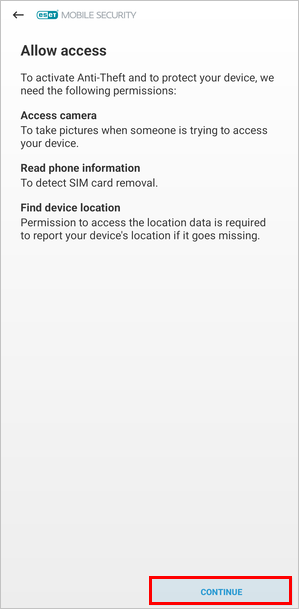
-
In the following screens, tap While using the app → Precise → While using the app → Allow.
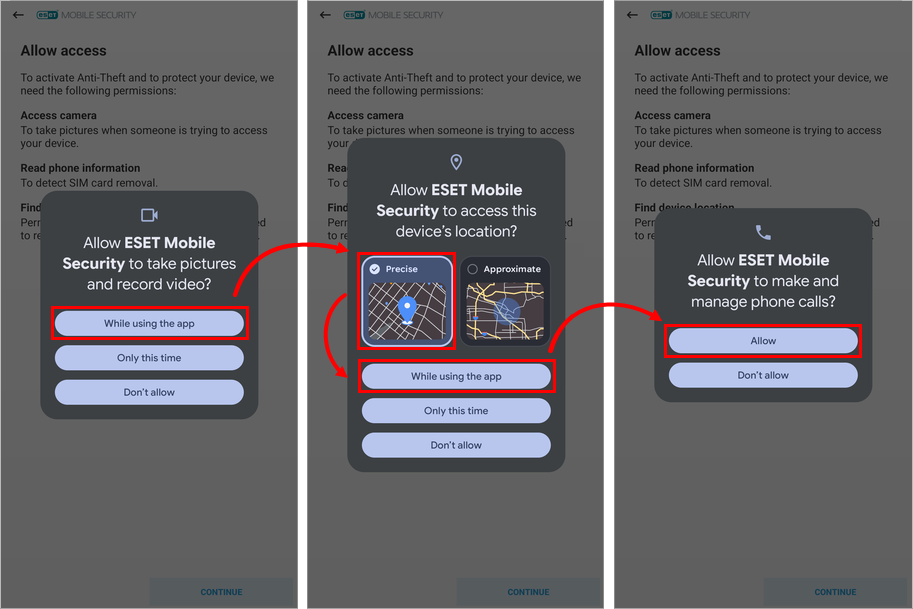
-
In the Allow access: Access physical activity screen, tap Continue → Allow.
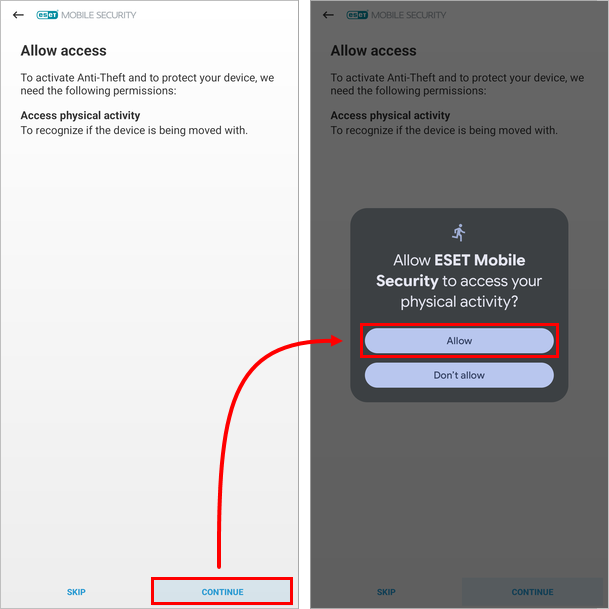
-
In the Background location access screen, tap Allow → Allow all the time.
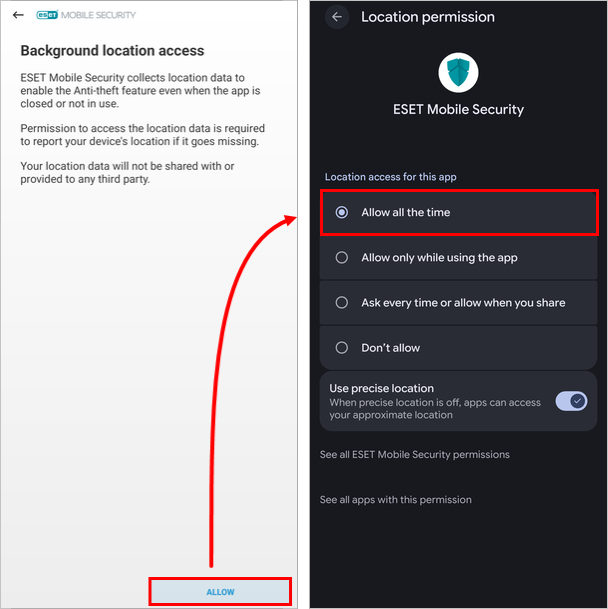
-
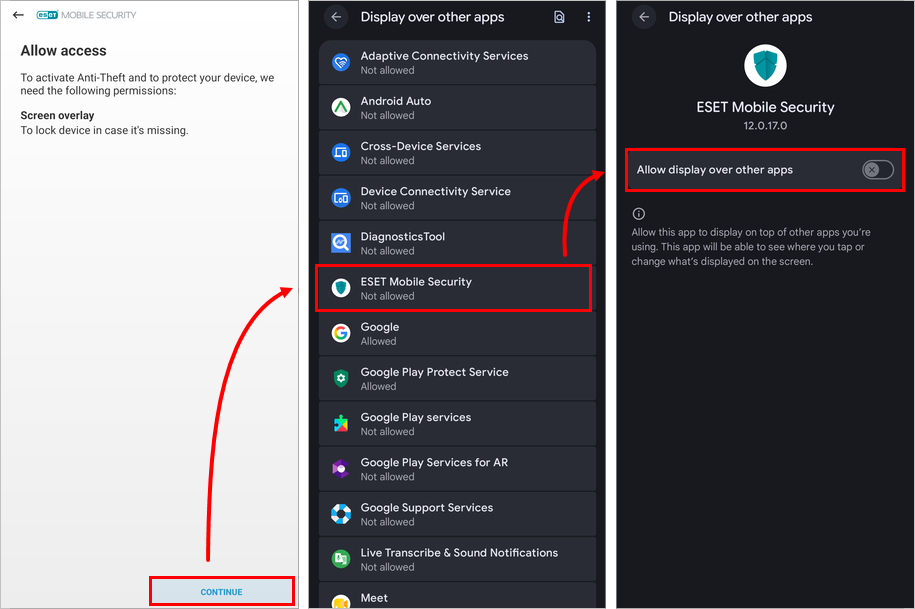
In the Allow access: Screen overlay screen, tap Continue. In the following screens, tap ESET Mobile Security, then tap the toggle next to Allow display over other apps to enable it.
-
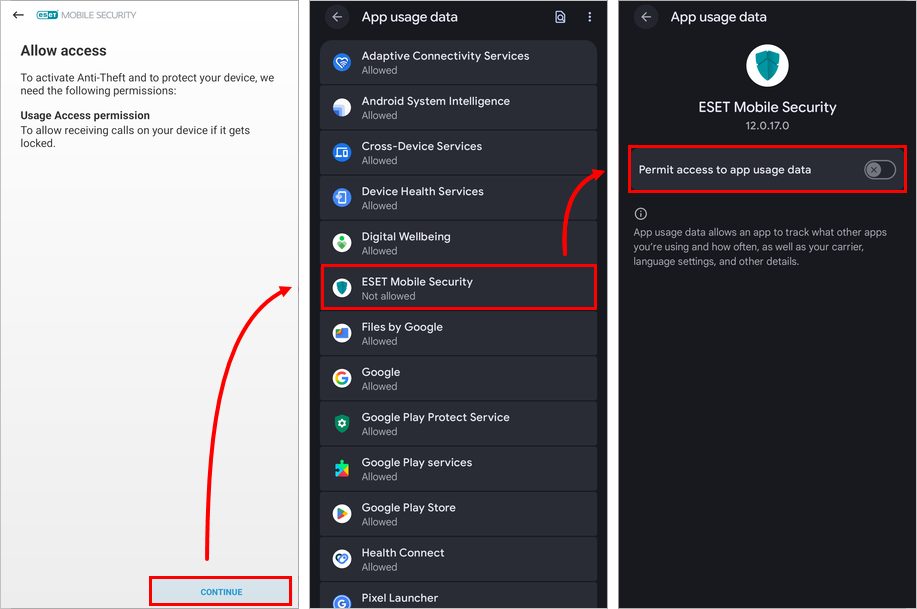
In the Allow access: Usage Access permission screen, tap Continue. In the following screens, tap ESET Mobile Security, then tap the toggle next to Permit access to app usage data to enable it.
-
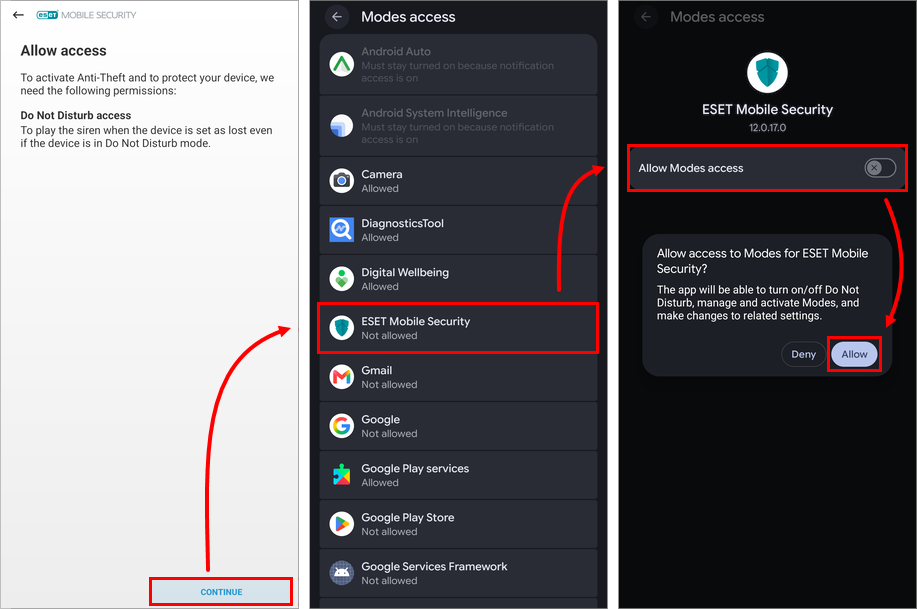
In the Allow access: Do Not Disturb access screen, tap Continue. In the following screens, tap ESET Mobile Security, tap the toggle next to Allow Modes access to enable it and tap Allow.
-
In the Enable uninstall protection: Device admin screen, tap Continue. In the following screen, tap Activate this device admin app. In the Create PIN screen, enter a new PIN to protect important settings in ESET Mobile Security, tap the check mark, then enter the same PIN again, and tap the check mark to confirm.

-
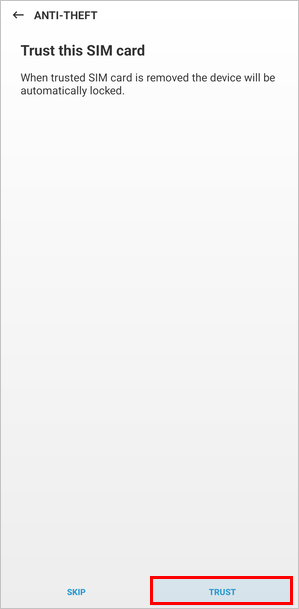
In the Trust this SIM card screen, tap Trust. ESET creates a unique identifier on your SIM card and in your contacts. If you do not want to set your SIM card as trusted or your device does not have one, tap Skip.
-
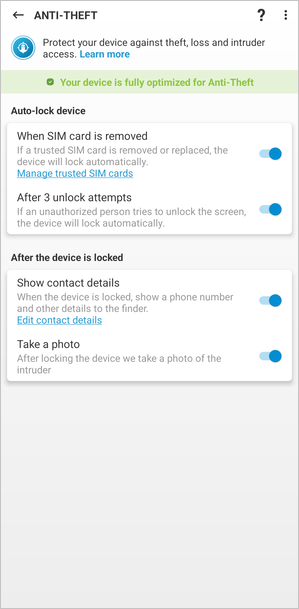
You should see a green check mark and a message: Your device is fully optimized for Anti-Theft.