Issue
Details
Click to expand
ESET CMD (ecmd.exe) allows you to use advanced ecmd commands to import and export security application configurations, change the status of individual security features, or pause certain security features for a short time without the need to edit existing policies or create new ones.
Advanced ecmd commands are applied in real time, unlike policies, which may not take effect until after a device reboots.
You can also run commands—including ecmd commands—on managed client devices remotely from ESET PROTECT or ESET PROTECT On-Prem using the Run Command client task. For more information, see Run Command (ESET PROTECT) or Run Command (ESET PROTECT On-Prem).
Solution
Enable advanced ecmd commands in an ESET security application on a client device
-
Open the main program window of your Windows ESET application.
-
Press F5 to open Advanced Setup.
-
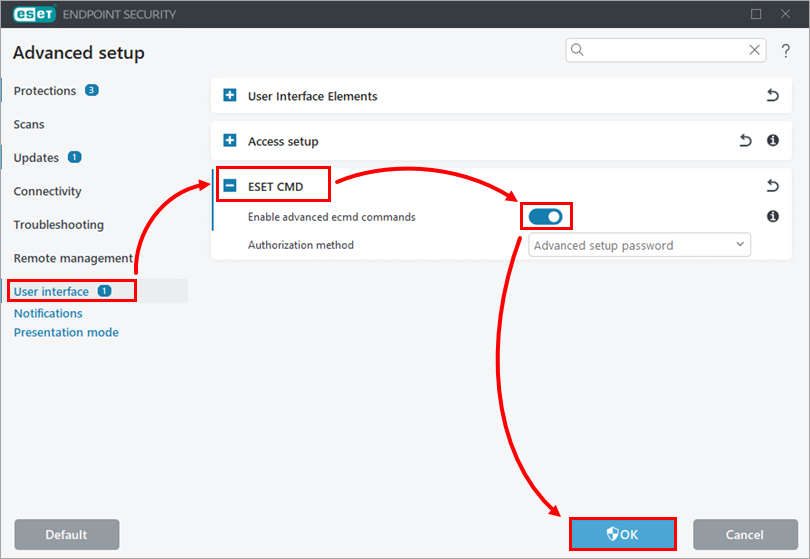
Click User interface, expand ESET CMD, enable the toggle next to Enable advanced ecmd commands and click OK.
Import and export ESET security application configuration with ESET CMD
Export ESET security application configuration with ESET CMD
-
Create the destination folder for the configuration, for example:
C:\config. -
Open Command Prompt as administrator, and run:
ecmd /getcfg C:\config\settings.xmlReplace
C:\configwith the destination folder location andsettings.xmlwith the desired configuration filename. -
If you use ESET CMD with authorization, sign the configuration file with the Advanced setup password. For step-by-step instructions, see ESET CMD > Signing an .xml configuration file.
Import ESET security application configuration with ESET CMD
-
Move the exported configuration file to the device to which you want to import the configuration.
-
On the target device, open Command Prompt as administrator, and run:
ecmd /setcfg C:\config\settings.xmlReplace
C:\config\settings.xmlwith the location of the configuration file to import.


