Issue
- Download and install the ESET Secure Authentication mobile app for iOS
- Set up ESET Secure Authentication on an iOS mobile device
- Log in to Outlook Web Access using the ESET Secure Authentication mobile app
Solution
Related solutions: Android users
Set up ESET Secure Authentication on an iOS mobile device
-
Open the enrollment invitation you received from ESET Secure Authentication.
-
Proceed based on whether you already have the ESET Secure Authentication app installed on your iOS mobile device.
I already have the ESET Secure Authentication mobile app for iOS installed
-
Open the ESET Secure Authentication app on your iOS mobile device.
-
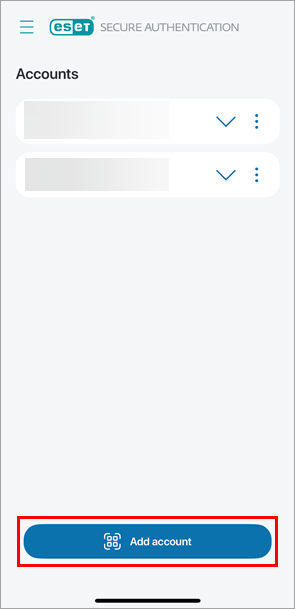
Tap Add account.
-
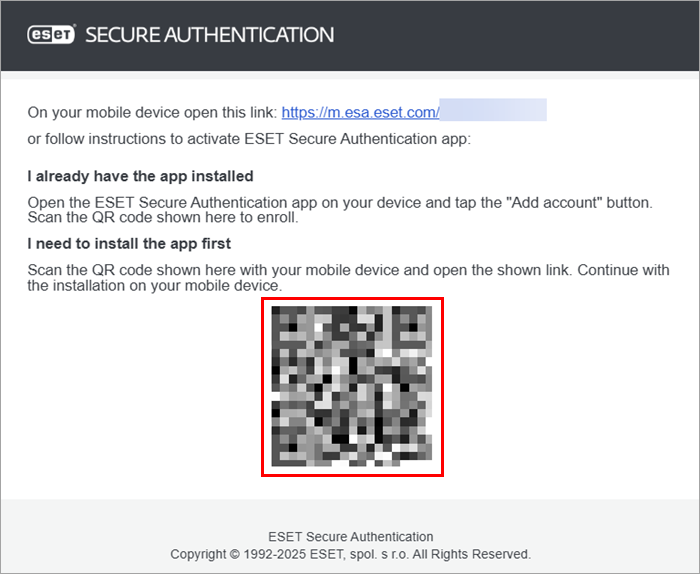
Scan the QR code in the enrollment invitation.
I do not have the ESET Secure Authentication mobile app for iOS installed
-
Scan the QR code in the enrollment invitation with your iOS mobile device.
-
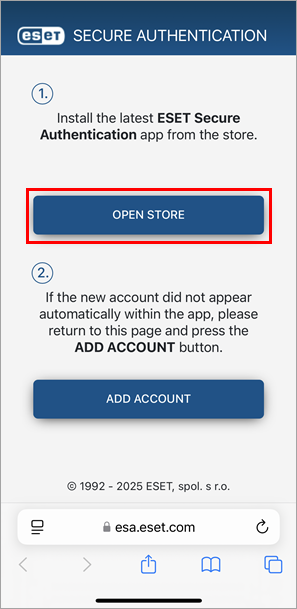
Tap Open store.
-
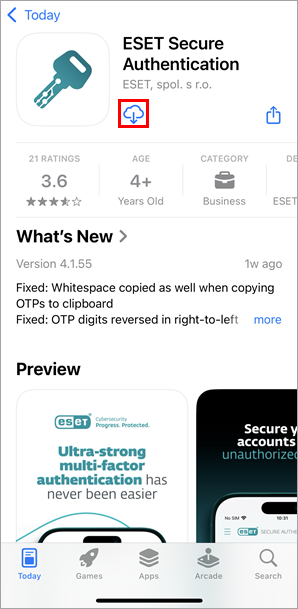
Tap the download icon.
-
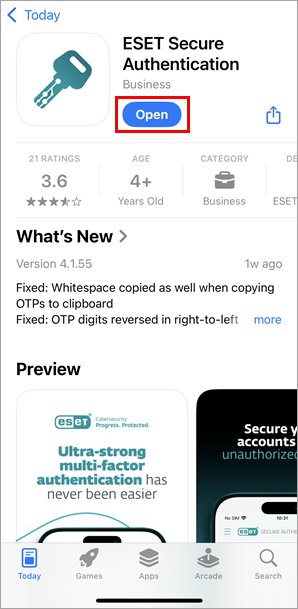
Tap Open.
-
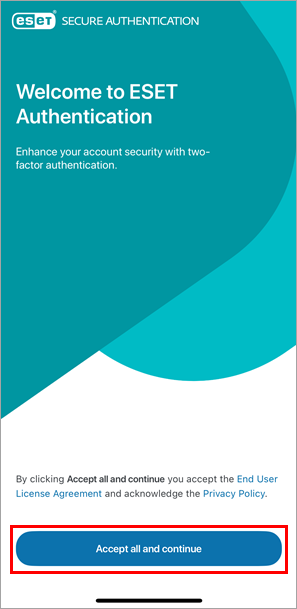
Review the end-user license agreement and tap Accept all and continue.
-
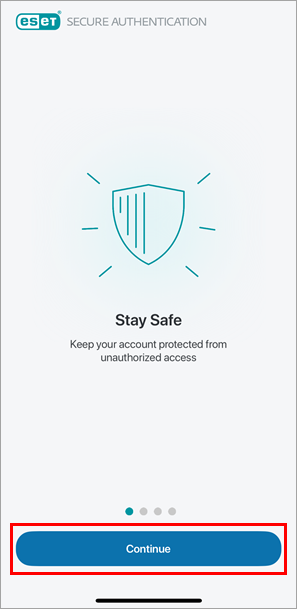
Proceed through the introduction: tap Continue until you get to the account overview screen.
-
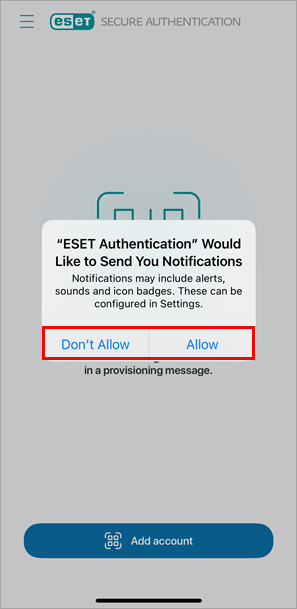
Decide whether you want to allow the ESET Secure Authentication app to produce notifications: tap Don't allow or Allow. We recommend that you allow the notifications.
-
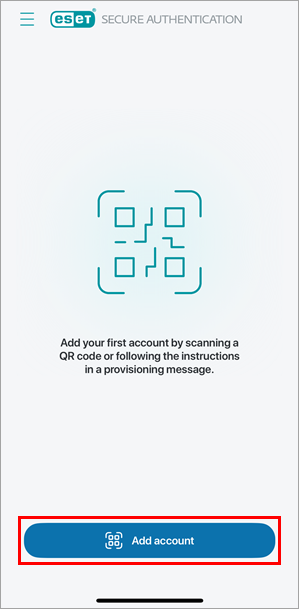
Tap Add account.
-
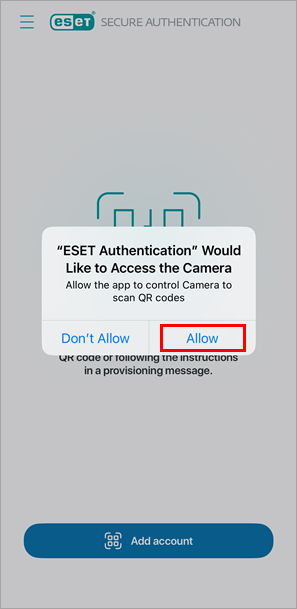
Allow the ESET Secure Authentication app to access the camera: tap Allow.
-
Scan the QR code in the enrollment invitation.
-
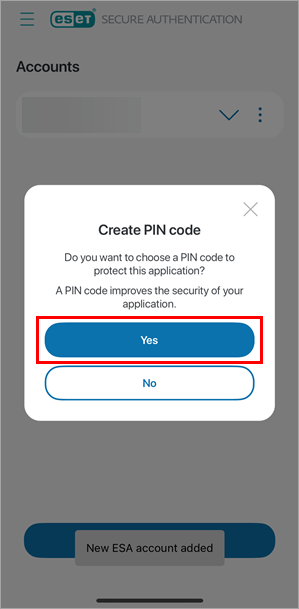
Tap Yes to create a PIN code for the ESET Secure Authentication app. You can skip the PIN code creation, but we recommend that you create it.
-
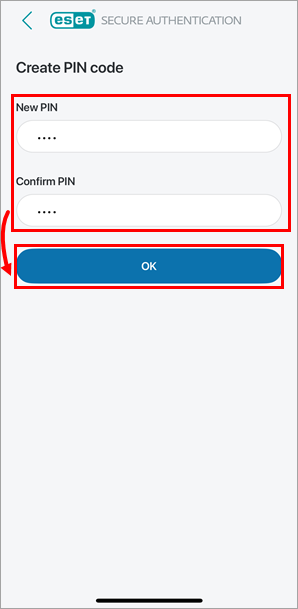
Type and confirm a PIN and tap OK.
-
Log in to Outlook Web Access using the ESET Secure Authentication mobile app
-
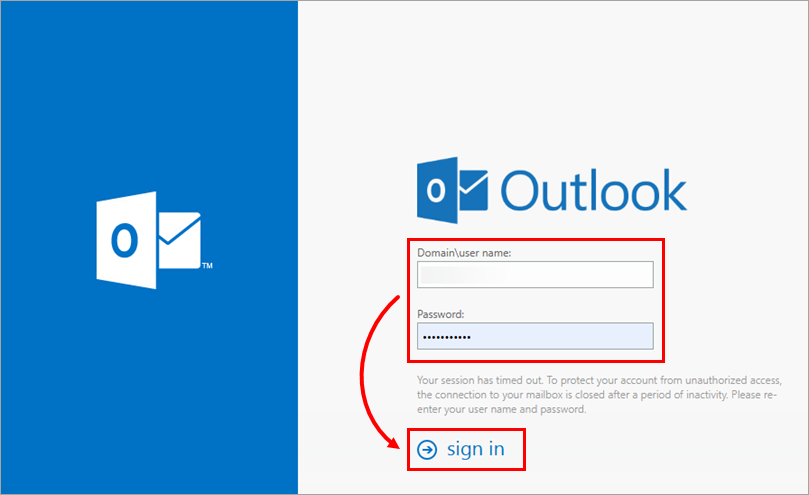
On the Outlook Web Access (OWA) login page, type your Microsoft Exchange username and password and click sign in.
-
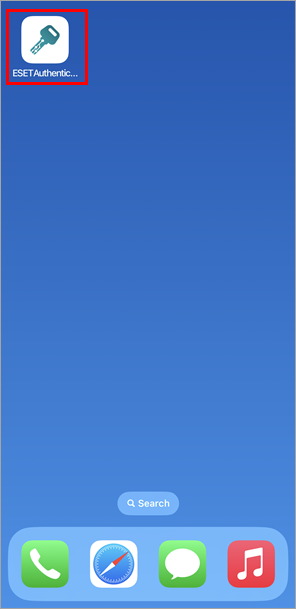
On your mobile device, tap the ESET Authentication icon to open the ESET Secure Authentication app.
-
Proceed based on your administrative settings:
Push notification users
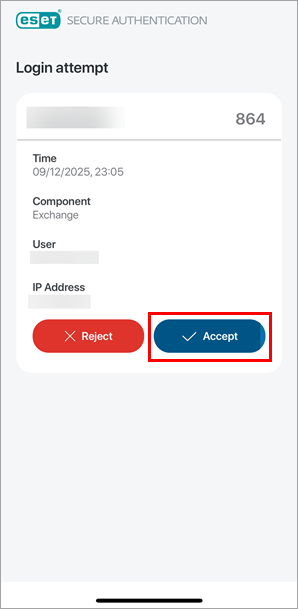
In the ESET Secure Authentication app, review the push notification and tap Approve.
One-time password (OTP) users
-
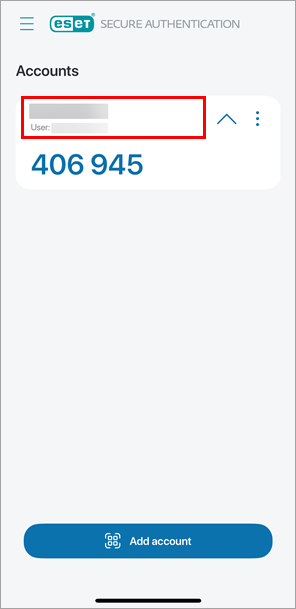
In the ESET Secure Authentication app, tap your company name to display the one-time password.
-
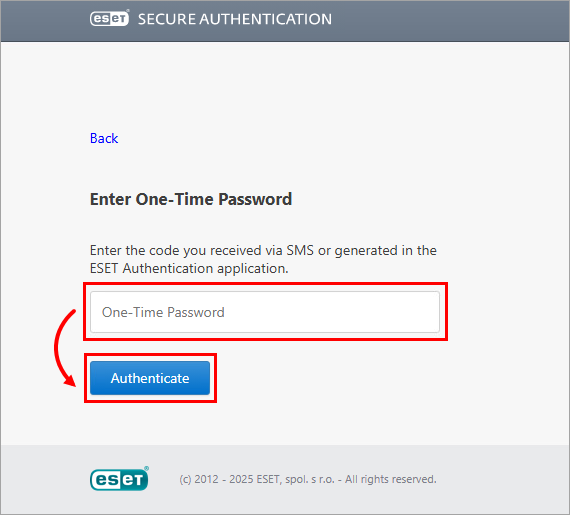
Return to the Outlook Web Access (OWA) login on your computer. In the Enter One-Time Password field, type the one-time password and click Authenticate.
-


