Issue
- Send reports from ESET PROTECT or ESET PROTECT On-Prem by email
- Export reports from ESET PROTECT or ESET PROTECT On-Prem as a
.pdfor.csvfile
Details
Click to expand
You can generate reports from available report templates. For more information, see Generate Report (ESET PROTECT) or Generate Report (ESET PROTECT On-Prem).
Solution
ESET PROTECT
-
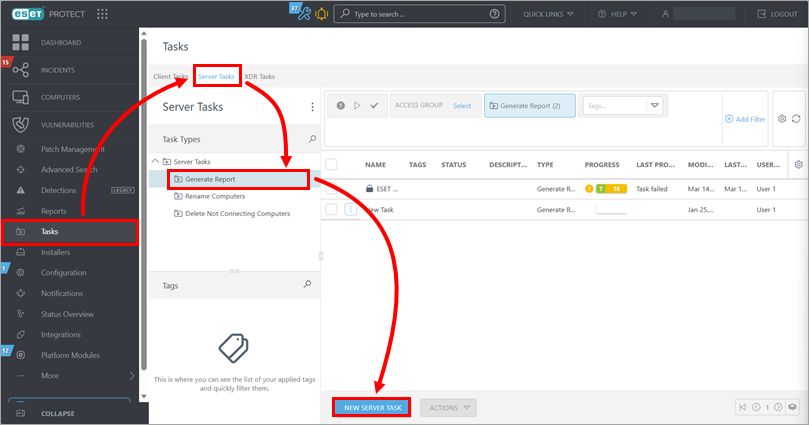
Click Tasks → Server Tasks → Generate Report → New server task.
-
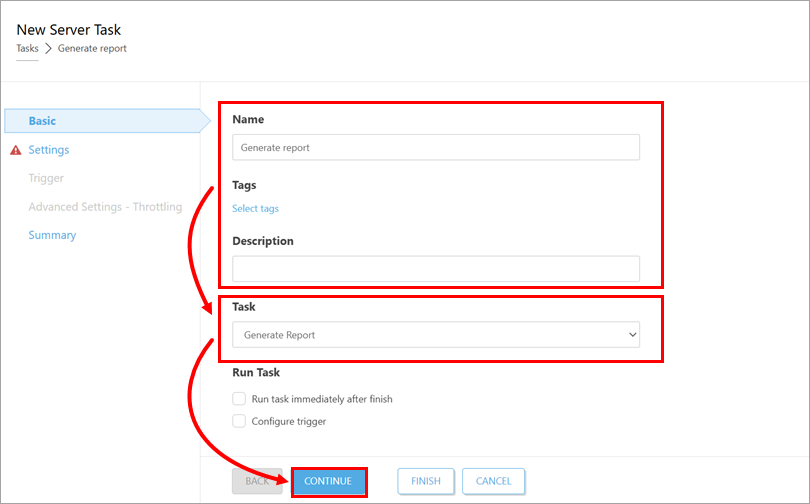
Under Basic, update the task name and type the description if needed. Verify that Generate Report is selected in the Task drop-down menu. Click Continue. For information about the Run Task options, see the Basic section details.
-
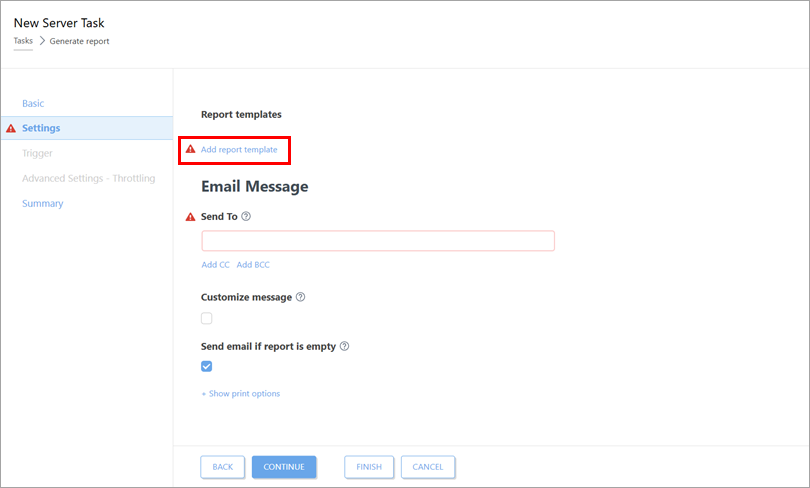
Under Settings, click Add report template.
-
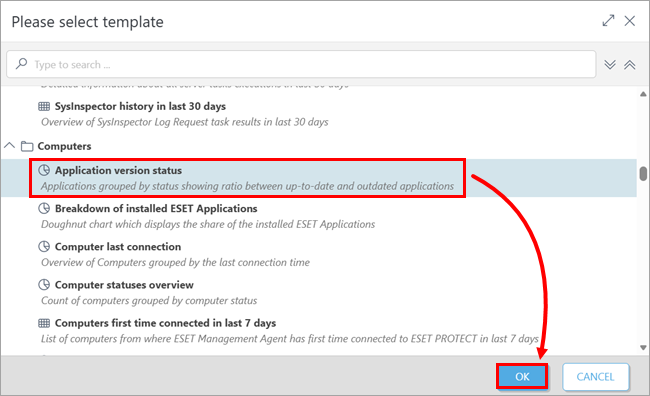
Select the report template to use and click OK. If needed, add another report template; you can use multiple report templates.
-
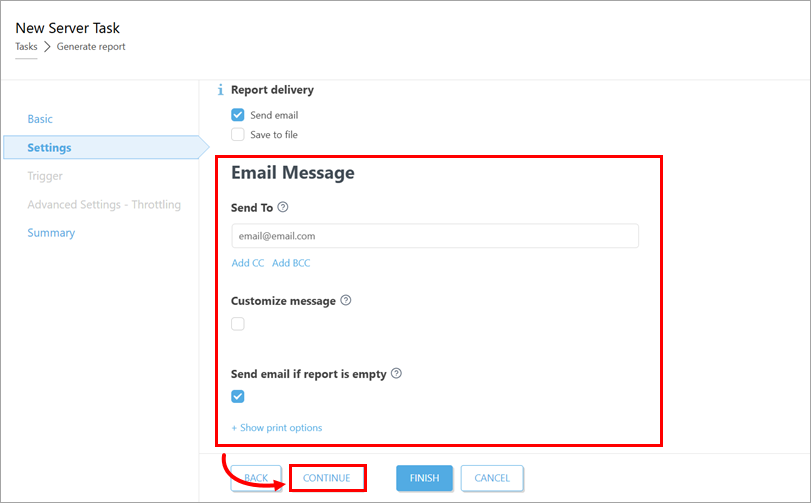
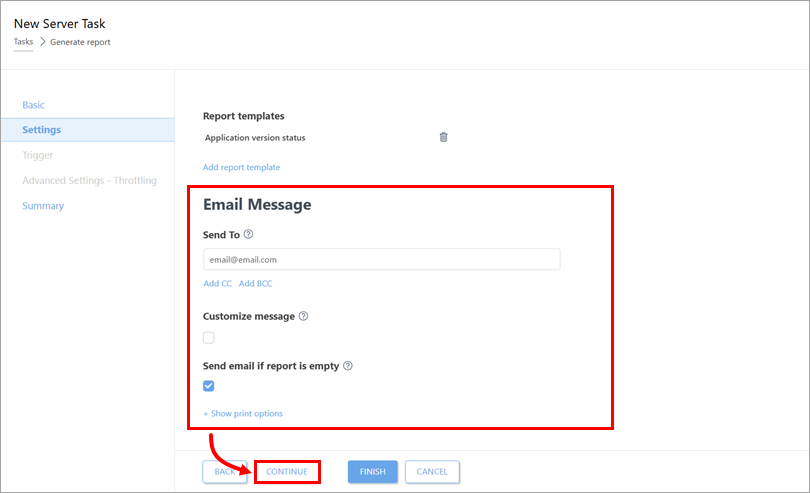
Below Email Message, define the email settings and click Continue.
-
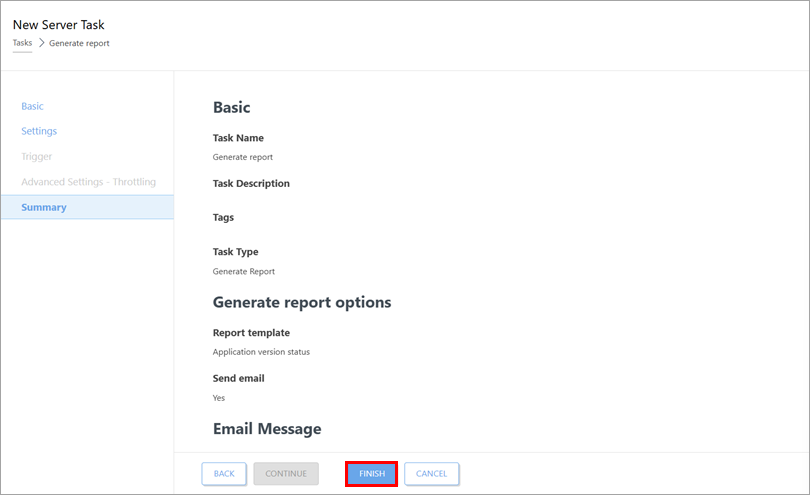
Under Summary, review the task details and click Finish.
-
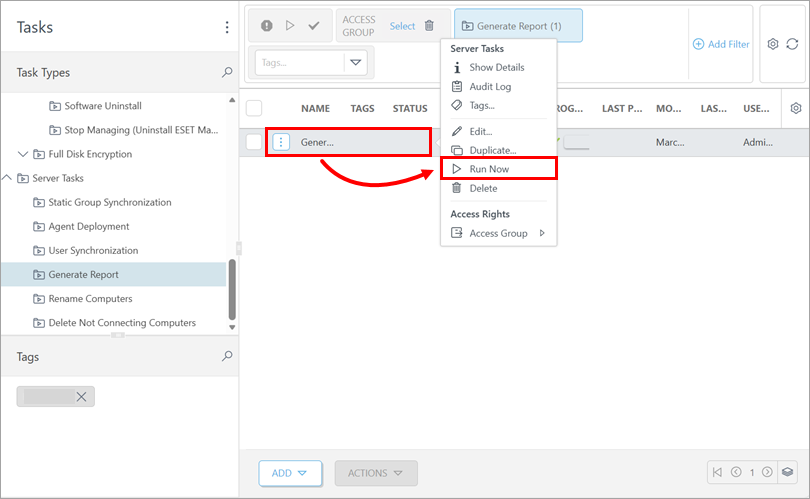
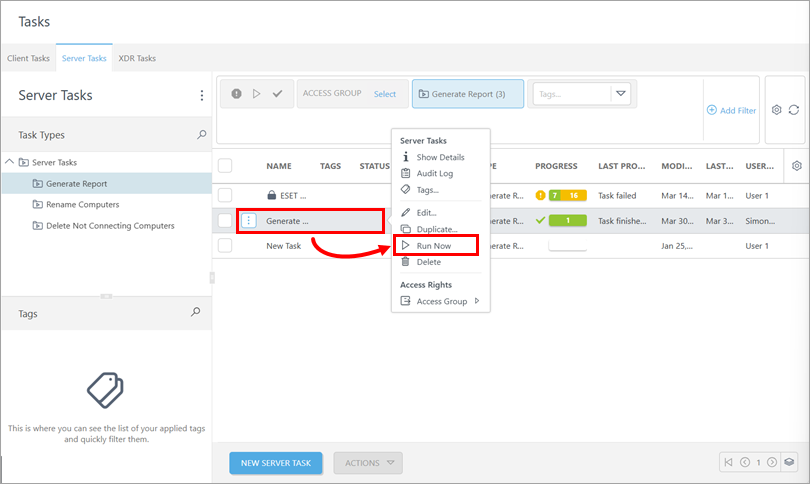
In the list of tasks, click the task and click Run Now.
ESET PROTECT On-Prem
-
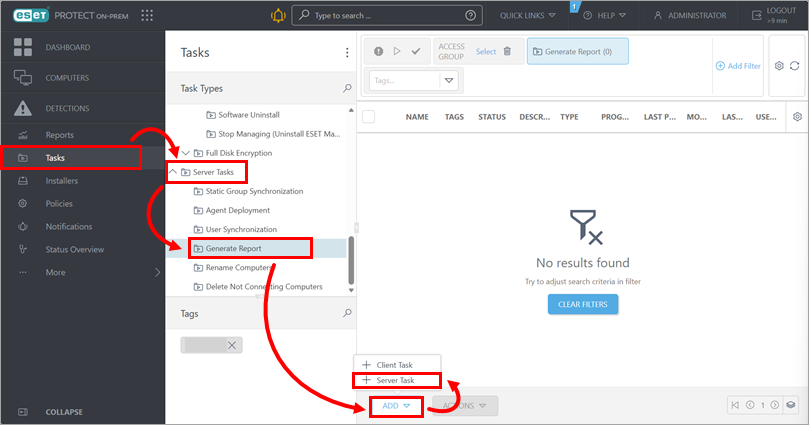
Click Tasks → Server Tasks → Generate Report → Add → Server task.
-
Under Basic, update the task name and type the description if needed. Verify that Generate Report is selected in the Task drop-down menu. Click Continue. For information about the Run Task options, see the Basic section details.
-
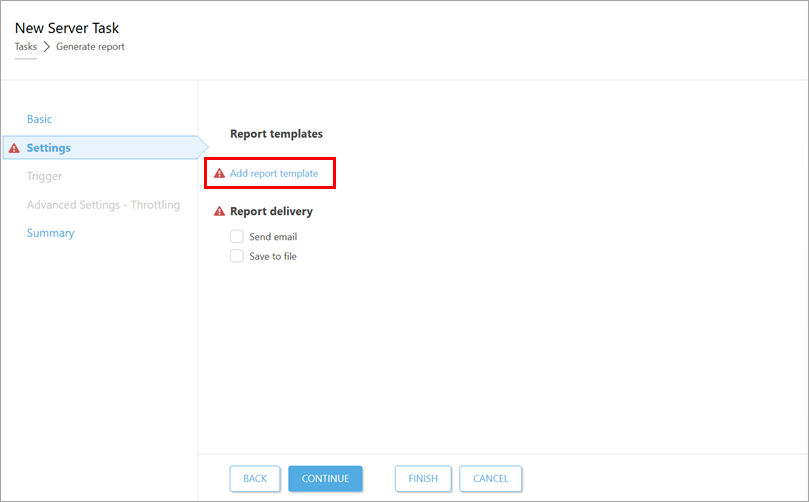
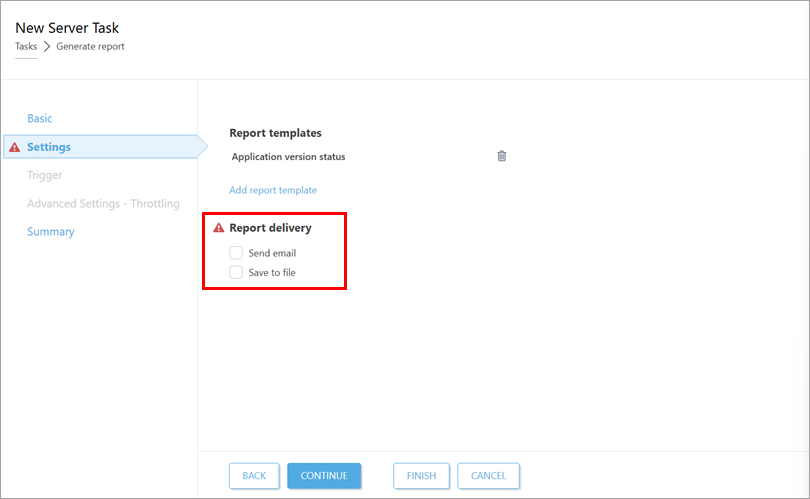
Under Settings, click Add report template.
-
Select the report template to use and click OK. If needed, add another report template; you can use multiple report templates.
-
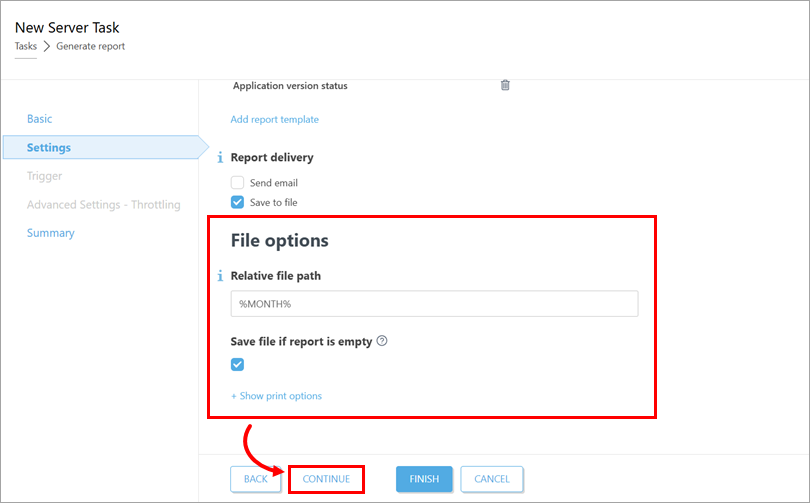
Below Report delivery, select Send email or Save to file.
-
Proceed based on the selected report delivery option.
-
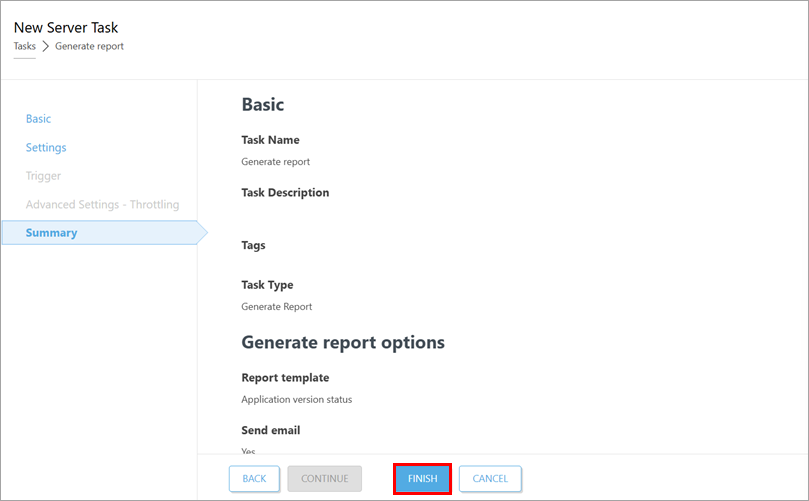
Under Summary, review the task details and click Finish.
-
In the list of tasks, click the task and click Run Now.