Issue
- Assign a pre-defined policy for the ESET endpoint application
- Review the settings of the selected policy for your ESET endpoint application
- Apply a built-in policy
- See the settings of the selected policy
Solution
Apply a built-in policy
The example below shows the Antivirus - Maximum Security policy setup. This policy contains more than 100 recommended settings for the ESET endpoint application for Windows installed on your workstations.
-
Assign a built-in policy to selected computers or groups.
ESET PROTECT
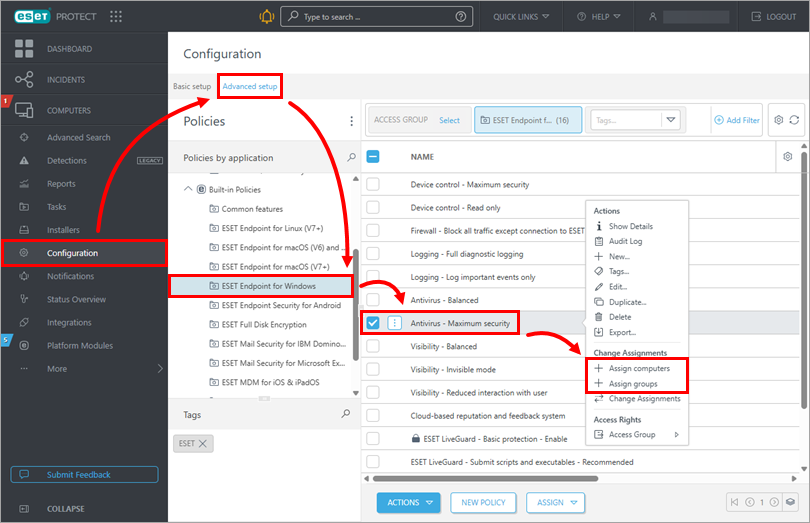
Click Configuration and click the Advanced setup tab. In the Built-in Policies section, select ESET Endpoint for Windows, click Antivirus - Maximum security and then click Assign computers or Assign groups.
ESET PROTECT On-Prem
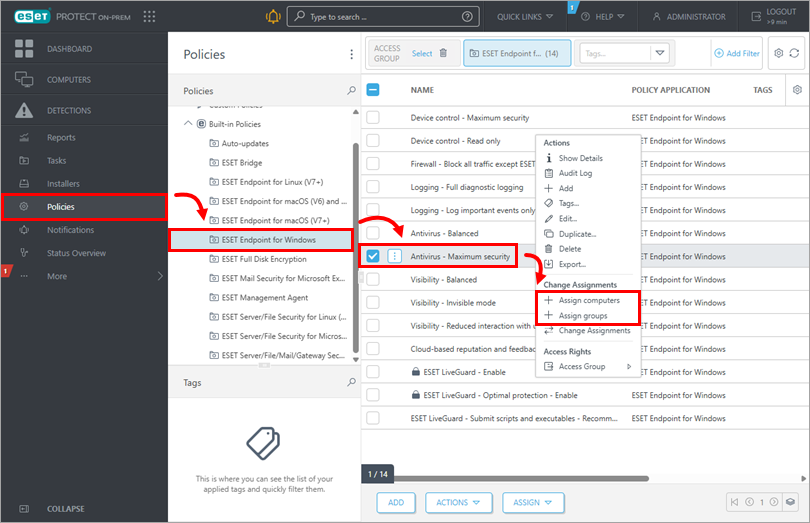
Click Policies. In the Built-in Policies section, select ESET Endpoint for Windows, click Antivirus - Maximum security and then click Assign computers or Assign groups.
-
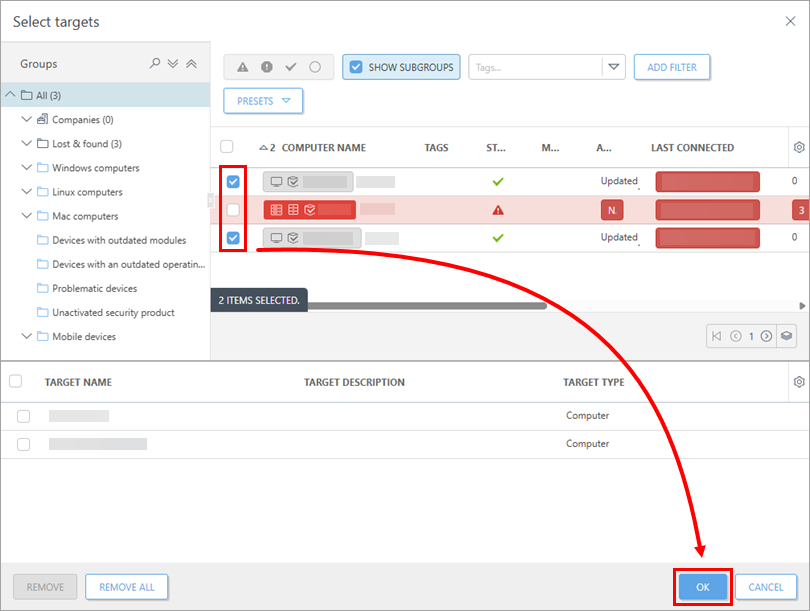
Select the check box next to the appropriate computers or groups to which you want to apply this policy, then click OK.
See the settings of the selected policy
-
Review the settings of the selected policy.
ESET PROTECT
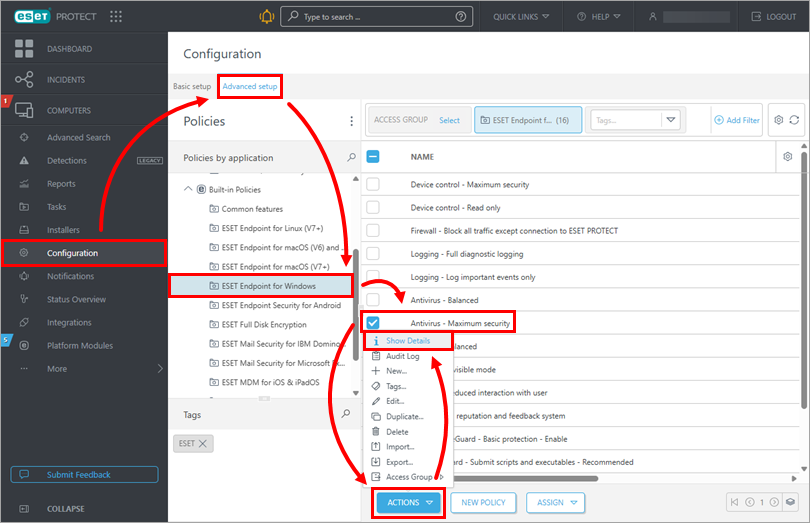
Click Configuration and click the Advanced setup tab. In the Built-in Policies section, select ESET Endpoint for Windows, select the check box next to the desired policy (in this example, Antivirus - Maximum Security), and click Actions → Show Details.
ESET PROTECT On-Prem
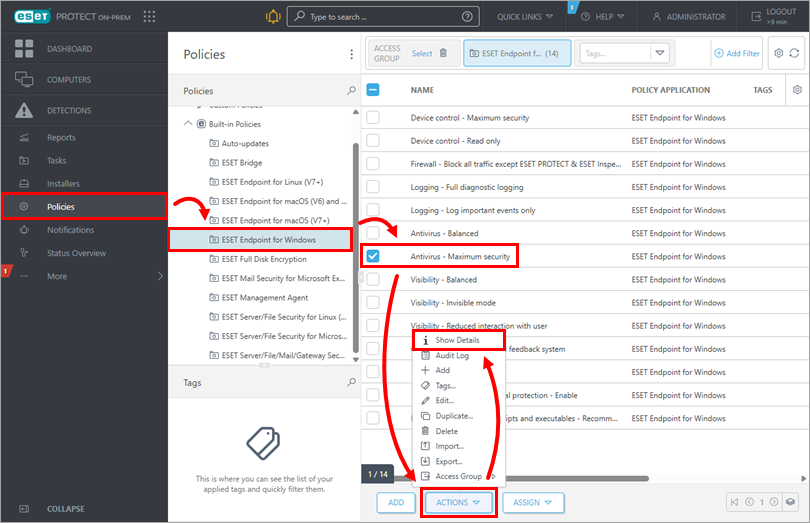
Click Policies. In the Built-in Policies section, select ESET Endpoint for Windows. Select the check box next to the desired policy (in this example, Antivirus - Maximum Security) and click Actions → Show Details.
-
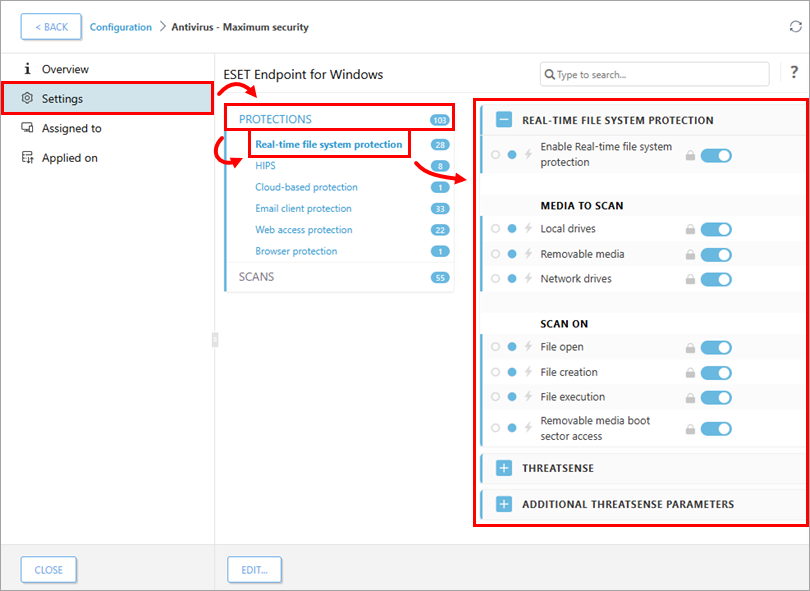
Click Settings. For example, you can click Protections to expand the additional menu. If you click Real-time file systems protection, you can see the settings on the right side of the window. Read more about ESET PROTECT policies.